





 Shopify
 Stripe
 Slack
Slack Notion
 Google Workspace
 Confluence

How Do You Connect Confluence to Macha? Setup and Token-Expiry Monitoring (2026)


Connecting Confluence to Macha takes an Atlassian API token, your site URL and the token's expiry date, and gives your agents seven tools for searching, reading and, with confirmation, writing pages. Macha emails you 30 days before the token expires, so the connection doesn't break silently.
Key takeaways
- Connecting Confluence to Macha takes an Atlassian API token, your site URL, the account email and the token's expiry date, entered in the Connectors page.
- Macha's Confluence connector, shipped April 9, 2026, exposes seven tools: four read tools that run freely and three write tools that always require confirmation.
- Atlassian API tokens can be set to last between 1 and 365 days, and new tokens have defaulted to a one-year expiry since December 15, 2024.
- Macha emails a reminder 30 days before a connected Confluence token expires and deactivates the connector on 401 errors instead of repeating failed calls.
- Connecting Confluence costs nothing on its own; Macha bills per ticket from $299 a month for 750 tickets, about $0.40 each.

To connect Confluence to Macha, create an Atlassian API token (valid for 1 to 365 days), paste it into Macha's Confluence connector with your site URL, account email and the token's expiry date, then give an agent the connector's tools. Macha emails you 30 days before that token expires and deactivates the connector on 401 errors, so a rotated or expired token doesn't silently break your agents.
By the end of this setup you'll have Confluence connected as a working knowledge source, your agents reading from it, and the token-expiry safety net most integrations skip. That last part matters more than it sounds, and there's a real reason it shipped, which I'll get to.
Macha is an AI agent layer that sits on top of the help desk you already run (Zendesk, Freshdesk, Gorgias, Front, HubSpot or Intercom). Confluence doesn't replace any of that. It's one of the knowledge and tool connectors your agents draw on. So the flow is: connect Confluence, it becomes a data source, you assign its tools to an agent, and the agent uses it on real tickets.
What do you get when you connect Confluence?
Macha's Confluence connector (shipped April 9, 2026) gives your agents seven tools:
| Tool | What the agent can do | Confirmation? |
|---|---|---|
| Search Pages | Find pages by keyword across all spaces or one space | No (read) |
| Get Page | Read the full content of a page by ID | No (read) |
| List Spaces | List available spaces with keys and names | No (read) |
| Get Page Children | Walk a page hierarchy to find sub-pages | No (read) |
| Create Page | Create a new page in a space | Yes |
| Update Page | Edit a page's title and content | Yes |
| Add Comment | Post a comment on a page | Yes |
The split is deliberate. The four read tools are how Confluence becomes a knowledge source: agents search and read freely. The three write tools (create, update, comment) change your documentation, so every one of them requires confirmation before it runs. An agent can draft a new troubleshooting page from a cluster of tickets, but a human approves it before it lands.
A second thing happens the moment you connect: Macha auto-creates a data source from Confluence, the same way it does for Google Workspace and Notion. You don't have to add a knowledge base separately. Connecting the tool and creating the searchable source is one step.
What do you need before you start?
Macha authenticates to Confluence with an Atlassian API token, not your password. You create it on Atlassian's side first, then paste it into Macha. Per Atlassian's official docs (checked September 24, 2026):
- Go to id.atlassian.com, then Account settings, Security, API tokens (direct link:
id.atlassian.com/manage-profile/security/api-tokens). - Click Create API token.
- Give it a descriptive name.
Macha Confluence connectorworks, so future-you knows what it's for. - Choose an expiration date. Atlassian lets you set anywhere from 1 day up to 365 days. Since December 15, 2024, new tokens default to a one-year expiry, so an Atlassian token can't live forever anymore.
- Click Create, then copy the token immediately. Atlassian shows it once and never again; if you lose it, you create a new one.
Write down that expiration date. You'll need it in Macha in a minute, and it's the single most important field for keeping this integration alive. More on why below.
Use a token tied to an account (or, better, a dedicated service account) that has access to the spaces you want your agents to read. The agent inherits that account's permissions. It can only see what the token's owner can see, which is exactly the boundary you want.
Step 1: Add the Confluence connector in Macha
In the Macha dashboard, open Connectors. You'll see everything you can wire up: your help desk, commerce and payments tools, and the knowledge and productivity connectors, including Confluence.
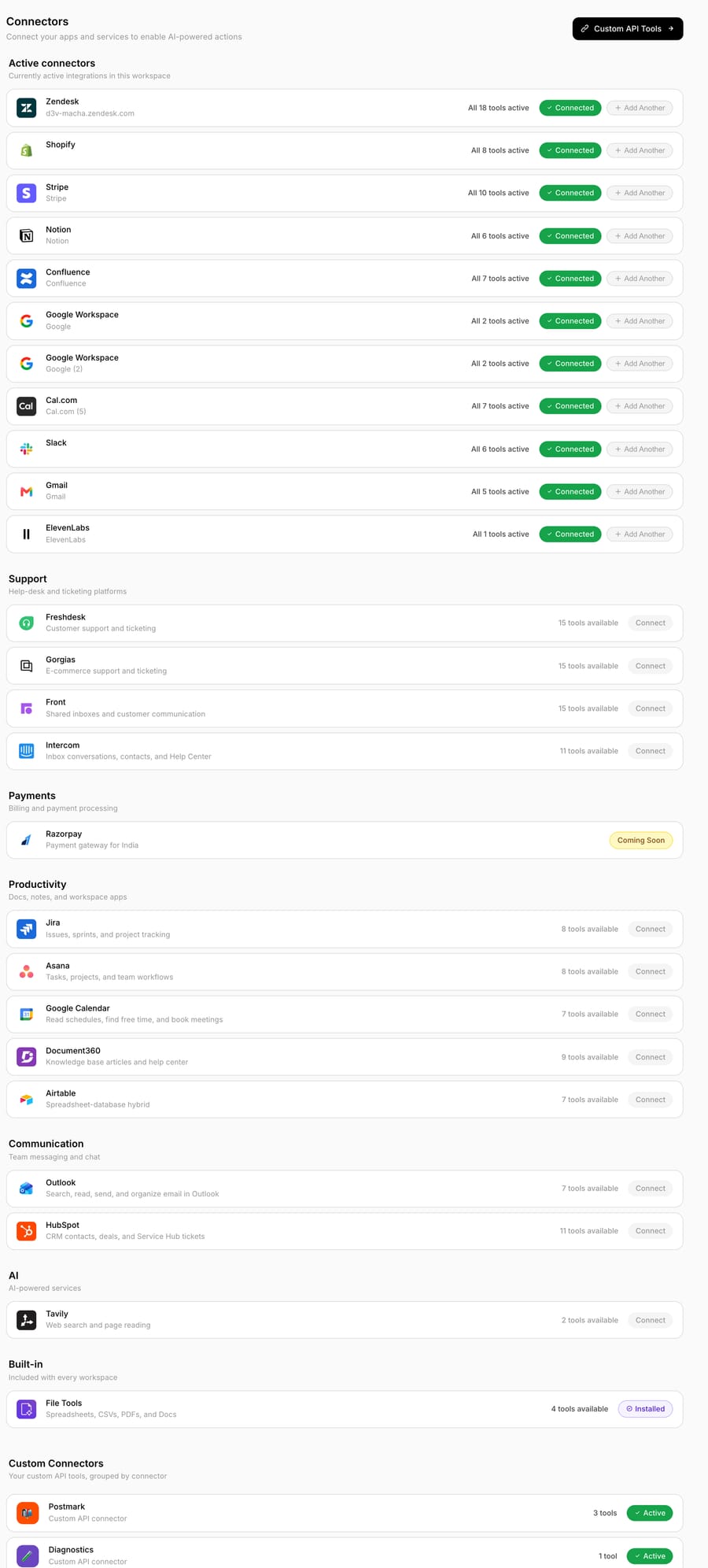
Click Confluence and you'll get the connection form. You'll provide:
- Your Atlassian site URL (e.g.
your-team.atlassian.net) - The account email the token belongs to
- The API token you just copied
- The token expiration date you set in Atlassian
Save it, and Macha verifies the credentials against your Confluence instance. Once it connects, the seven tools become available to assign, and your Confluence source is created automatically.
Step 2: How does token-expiry monitoring work?
This is the feature worth slowing down for, because it solves a problem most teams only discover after it's bitten them.
Atlassian API tokens expire, and since December 15, 2024 they all do, with a hard one-year ceiling. There was a real-world wave behind this too: Atlassian set every token created before December 15, 2024 to expire, and those tokens ran out between March 14 and May 12, 2026. A lot of "why did our integration just stop working?" tickets in spring 2026 trace straight back to that. And because Atlassian doesn't expose a clean API to read a token's expiry date, as threads in the Atlassian developer community confirm, a connected app can't look it up for you. The token simply starts returning 401 Unauthorized, your agents quietly stop finding answers, and nobody notices until a customer does.
Macha's Confluence connector handles this two ways:
- You tell it the expiry date at connect time (the field in Step 1). Macha then emails you a reminder 30 days before the token expires, which leaves enough runway to rotate the token and update the connector before anything breaks.
- If a token expires early or is revoked, the connector auto-deactivates on 401 errors instead of hammering Confluence with failing calls. You get a clear "this needs attention" state rather than a stream of silent failures.
The payoff is a Confluence integration that tells you it's about to expire, instead of you finding out from a confused customer three weeks after it already did. When the reminder lands, the fix is the same 60-second loop: create a fresh token in Atlassian, paste it in, set the new date.
Watch-out: the 30-day reminder is only as good as the date you enter. Mistype the expiration date and the reminder fires at the wrong time. Copy it straight from the Atlassian token screen, and if you ever rotate the token manually, update the date in Macha at the same time.
Step 3: Confirm the Confluence data source
Because connecting Confluence auto-creates a source, you don't have to build one by hand. Open Data Sources and you'll see your Confluence source listed alongside any websites, uploaded files, Notion or Google sources you've added.

This is what makes Confluence a live knowledge source rather than a one-time import. Your agents search Confluence through the connector's tools at answer time, so an edit your team makes in Confluence this morning shows up in agent answers this afternoon. There's no stale snapshot to re-sync.
Step 4: Give an agent the Confluence tools
A connected source does nothing on its own; you point an agent at it. Open the agent you want to make Confluence-aware (or build a new one), and add the Confluence tools from the tool picker.
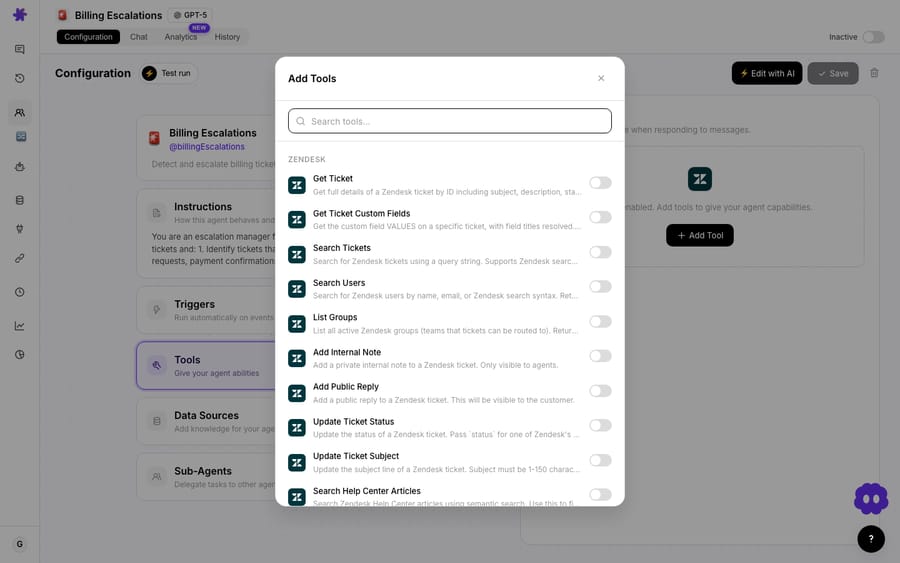
For a support agent that answers from documentation, you typically want the read tools: Search Pages, Get Page, List Spaces and Get Page Children. A one-line instruction does the rest, for example:
"When a customer asks a technical or how-to question, search Confluence for the relevant page, read it, and draft a grounded reply citing the answer. If you can't find a confident answer, hand off to a human."
Add Create Page or Update Page only when you actually want the agent to write back into Confluence, say an internal agent that turns a recurring ticket theme into a draft runbook for a human to approve. Those writes always pause for confirmation.
If you've already connected your help desk, this is where it comes together: the help-desk trigger fires on a new ticket, the agent searches Confluence for the answer, and it drafts (or sends) the reply in your existing help desk, with no new tool for your team to learn.
When shouldn't you lean on the Confluence connector?
A few honest limits, so you build this with eyes open:
- Permissions are inherited, for better and worse. The agent sees exactly what the token's account can see. Point it at a token with broad admin access and an agent could surface an internal-only page in a customer reply. Scope the token's account to the spaces you actually want reachable.
- Messy Confluence in, messy answers out. If your spaces are full of outdated, contradictory or half-finished pages, the agent will faithfully retrieve the wrong one. Connecting Confluence is a good reason to prune stale docs first.
- Keep the confirmation gate on write tools. Create, Update and Comment require confirmation by design. Don't go looking for a way to auto-approve documentation edits; the human checkpoint is the safety feature.
- It's a knowledge connector, not a migration. Confluence stays your source of truth. Macha reads it live and doesn't copy your wiki anywhere else.
For a public-facing help center you'd often pair Confluence with other sources, such as uploaded files, your website or Notion, and let the agent draw on whichever has the answer. Confluence is strongest for the internal, operational knowledge that never made it into a public KB.
FAQ
Does connecting Confluence import all my pages into Macha? No. Connecting auto-creates a data source, but your agents search Confluence live through the connector's tools at answer time. Edits in Confluence show up immediately, and there's no static copy to re-sync.
What permissions does the agent have in Confluence? Whatever the Atlassian account behind the API token has. The agent can only read (and, with confirmation, write) pages that account can access. Use a dedicated or service account scoped to the right spaces.
Can agents edit or create Confluence pages automatically? They can create pages, update pages and add comments, but every write action requires explicit confirmation before it runs. Read actions (search, get page, list spaces, get children) don't.
What actually happens when my Atlassian token expires? Calls start returning 401 Unauthorized. Macha auto-deactivates the connector on 401s instead of failing silently, and if you entered the expiry date, it emails you a reminder 30 days before the token is due to expire so you can rotate it in time.
Why does Macha ask me to type in the expiry date? Atlassian doesn't expose a reliable API to read a token's expiration, so Macha can't fetch it automatically. Entering it at connect time is what lets Macha warn you before expiry instead of after.
How long can an Atlassian API token last? Between 1 day and 365 days. Atlassian sets new tokens to expire after one year by default, and you pick the date when you create the token.
How is Confluence usage billed? Connecting Confluence costs nothing on its own. Macha bills per ticket: one conversation is charged once however many pages the agent searches and reads to answer it, from $299 a month for 750 tickets, about $0.40 each. See the pricing page for current plans.
How do you get started?
Confluence is where your team's real answers live, and Macha is how your agents reach them on a live ticket, with a token-expiry net so the connection doesn't quietly break. Start a free trial ($50 of usage, no credit card required), open Connectors, and wire up Confluence, or read the Confluence integration page and the docs for the full reference.
Written by Abbas (Customer Support & AI, Macha) · Reviewed by Ankeet Guha (Co-founder & CTO) · Published 2026-06-24 · Last updated 2026-09-24.






