





 Shopify
 Stripe
 Slack
Slack Notion
 Google Workspace
 Confluence

How Do You Create and Configure an AI Agent in Macha? (2026 Guide)


A Macha agent is built with AI, by hand or from a template, then configured with instructions, a model, tools, data sources, sub-agents and triggers. The instructions and the tool grants decide most of how well it works.
Key takeaways
- Macha offers three ways to create an agent: Build with AI from a plain-language description, a blank manual configuration, or a pre-built template.
- Macha agents run on GPT-5.4 by default, and switching to GPT-5.6 Terra, Claude or GPT-5.4 Mini doesn't change the per-ticket price.
- Scheduled triggers in Macha run at least 1 hour apart, with a cap of 24 runs per trigger per day and three simultaneous scheduled runs per organization.
- Sub-agents in Macha nest up to 3 levels deep, and their runs stay auditable inline for 45 days without counting toward conversation totals.
- Macha pricing starts at $299 a month for 750 tickets on one plan with every feature, and the trial gives $50 of free usage with no credit card.

You create an AI agent in Macha one of three ways (Build with AI from a plain-language description, a blank manual configuration, or a pre-built template) and then configure seven things: name and handle, instructions, model, tools, data sources, sub-agents and triggers. Macha is an AI agent layer that sits on top of the help desk you already run (Zendesk, Freshdesk, Gorgias, Front, HubSpot or Intercom), not a replacement for it. An agent here isn't a standalone chatbot bolted to your website; it's a configured specialist that reads tickets, looks up orders, drafts replies, and takes real actions through the tools you connect.
| Setting | What it controls | Default or limit |
|---|---|---|
| Instructions | Role, tone, boundaries, workflow | The field that decides most of the quality |
| Model | Which LLM answers | GPT-5.4 by default; price per ticket is the same on any model |
| Tools | Which actions the agent may take | Picked one by one per connector; writes can require confirmation |
| Data sources | What the agent can search | All documents in a source, or selected ones |
| Sub-agents | Specialists the agent can delegate to | Up to 3 levels deep |
| Triggers | When it runs without being asked | Scheduled runs at least 1 hour apart, 24 per trigger per day |
What is an agent in Macha?
In Macha, an agent is a saved bundle of configuration: a name and handle, a set of instructions (its system prompt), a model, the connectors and tools it's allowed to use, the data sources it can search, optional sub-agents it can delegate to, and the triggers that decide when it runs. Think of each agent as a specialist with a tightly scoped job — one handles billing questions, one triages incoming tickets, one looks up order status — rather than a single do-everything bot.
That scoping is the whole point. A narrow agent with three tools and one clear instruction set outperforms a sprawling one with twenty tools every time, because the model has fewer ways to get confused about what you actually want.
What are the three ways to create an agent?
Which path you pick depends on how much you already know about what you want.
1. Build with AI. Click Build with AI, describe the agent in plain language ("a frontline Zendesk support agent that looks up orders in Shopify and drafts replies, escalating anything about refunds"), and the builder configures the name, instructions, tools, triggers, and even sub-agents based on the integrations you've already connected. This is the fastest way from idea to working draft.

2. Create manually. Start from a blank configuration and set every field yourself. Slower, but it's the right call when you have an exact spec in your head and don't want the AI guessing.
3. Start from a template. Browse pre-built configurations for common jobs — ticket triage, customer replies, escalation handling — and adapt one. Templates are the shortcut when your use case is a well-trodden one.

Whichever path you take, you can later open any agent and Edit with AI — describe the change in conversation and let the builder apply it — or hand-edit the fields directly. The two modes aren't exclusive; most teams scaffold with AI and then hand-tune.
Which fields do you configure on an agent?
Name and handle
Give the agent a name that says what it does — "Zendesk Support Agent," "Billing Specialist," "Order Lookup." Your team sees this name when they pick an agent to chat with. Each agent also gets a handle for @mentions in chat (e.g. @billingSpecialist); it auto-generates in camelCase as you type the name, and you can override it.
Instructions: the single most important field
Instructions are the system prompt — the text that tells the agent who it is, how to respond, and what rules to obey. This is where most of an agent's quality comes from, so it's worth more than a one-line description. Four things to nail:
- The role. Not "help with support" but "You are a Tier 1 support agent for Acme Corp. You handle incoming Zendesk tickets, look up customer orders, and draft helpful replies."
- The persona. Tone, length, formality. "Friendly and professional. Keep replies to 2–3 short paragraphs unless the question needs more."
- The boundaries. What it must not do — this matters as much as what it should. "Never promise a refund without checking with billing. Never share internal notes with customers. If a policy is unclear, say so rather than guess."
- The workflow. If there's a process, spell it out as numbered steps: read the ticket → look up the order → draft a reply → escalate by tagging
needs-escalationif required.
One underrated tip: name your tools in the instructions. If the agent has a search_tickets tool, telling it when to reach for that tool ("search related tickets before replying") meaningfully improves how reliably it uses it.
Model selection
Macha runs models from several providers, and you pick per agent based on the job. GPT-5.4 is the default:
| Model | Best for |
|---|---|
| GPT-5.6 Terra / GPT-5.6 Luna | The newest OpenAI options; Terra is labeled Best in the picker, for the hardest multi-step reasoning |
| GPT-5.4 | The default: strong multi-step reasoning, strict "do this exactly once" rules and complex branching |
| GPT-5 | A balanced choice for nuanced replies without a long wait |
| GPT-5.4 Mini | High-volume, simple everyday tasks where speed matters most |
| Claude Sonnet 5 / Sonnet 4.5 | Nuanced writing and careful instruction-following where detail matters |
| GPT OSS 120B, GPT OSS 20B | Latency-sensitive, high-volume, straightforward tasks |
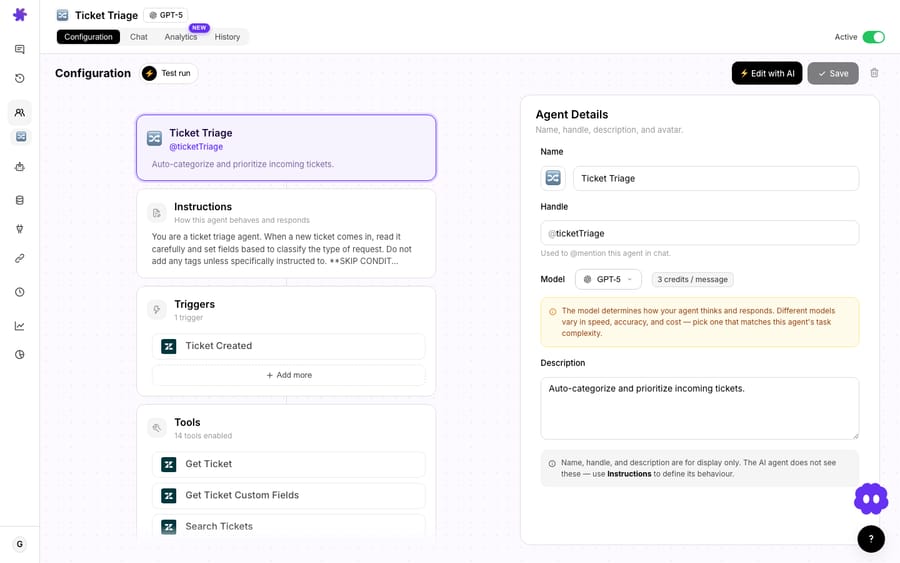
The model you pick doesn't change what you pay: Macha bills per ticket, one conversation charged once, whichever model answers it. So choose on the job rather than the invoice. The practical rule: leave most agents on the GPT-5.4 default, move simple high-volume agents to GPT-5.4 Mini when reply speed matters, and try GPT-5.6 Terra only on the agents where a wrong answer actually costs you something. There's no prize for putting your WISMO bot through the heaviest reasoning model when a faster one lands the same answer. (One small gotcha worth knowing: changing the model from the top-right dropdown in a chat applies to that conversation only — to change an agent's standing model or your org default, edit the agent or your Settings.)
How do you control which tools an agent can use?
Instructions tell an agent how to think; connectors and tools are what let it act. Assign a connector (your help desk, Shopify, Stripe, Slack, Notion, Jira and the rest of Macha's integrations) and then choose which specific tools from it the agent may call.
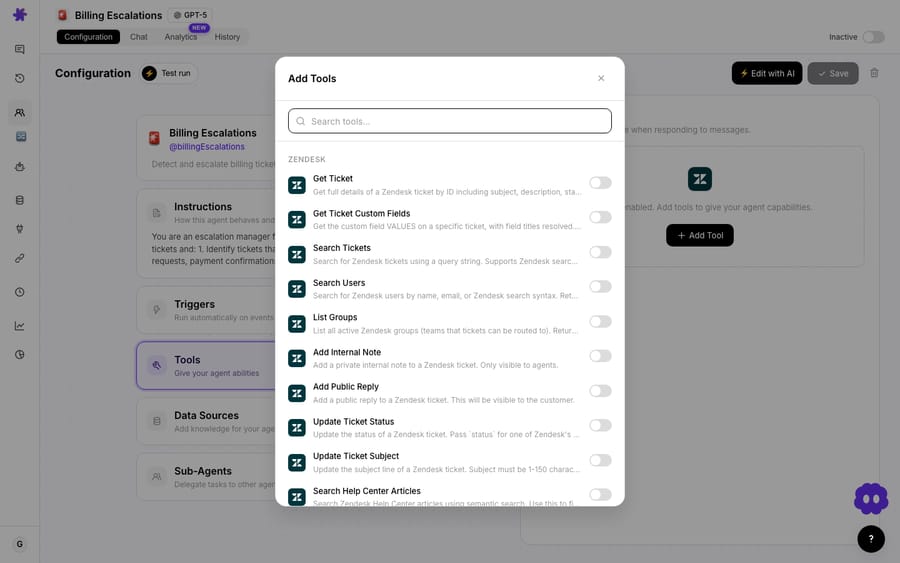
This granularity is the safety mechanism. From a Zendesk connector you might enable get_ticket, search_tickets, and add_public_reply but deliberately leave out update_priority so the agent never reshuffles your queue. You grant exactly the verbs you trust it with — nothing more.
Two guardrails sit on top of this:
- Confirmation-required tools. Write actions (sending a reply, issuing a refund) can be flagged so the agent pauses and asks a human to approve or reject before executing. The model proposes; a person commits.
- Connector-disabled tools surface visibly. If an admin turns a tool off at the org-wide connector level, every agent that used it shows a clear amber warning state — an amber-dashed pill in the flow summary, a greyed-out row with a Manage button in the Add Tool modal, and an amber banner on the enabled-tools card. The agent silently won't call a disabled tool at runtime, so these cues stop anyone from wasting time toggling something the platform won't actually run.
How do you give an agent knowledge to answer from?
An agent's actions come from tools; its answers come from data sources. Attach uploaded documents, crawled website content, or live knowledge from connected services like Google Docs, Notion, and Confluence, and the agent can search them when forming a reply.
When you add a source you can scope it: give the agent all documents in that source, or only specific ones. A billing agent doesn't need your shipping playbook in its context window, and trimming what it can see keeps answers sharper. (For how sources are built and indexed in the first place, see the Data Sources docs.)
How do sub-agents work in a multi-agent setup?
Once you have a few focused agents, you can wire them together. A sub-agent is an agent assigned to a parent; it shows up as a callable tool, and the parent decides when to delegate, what task to pass, and how to use what comes back.
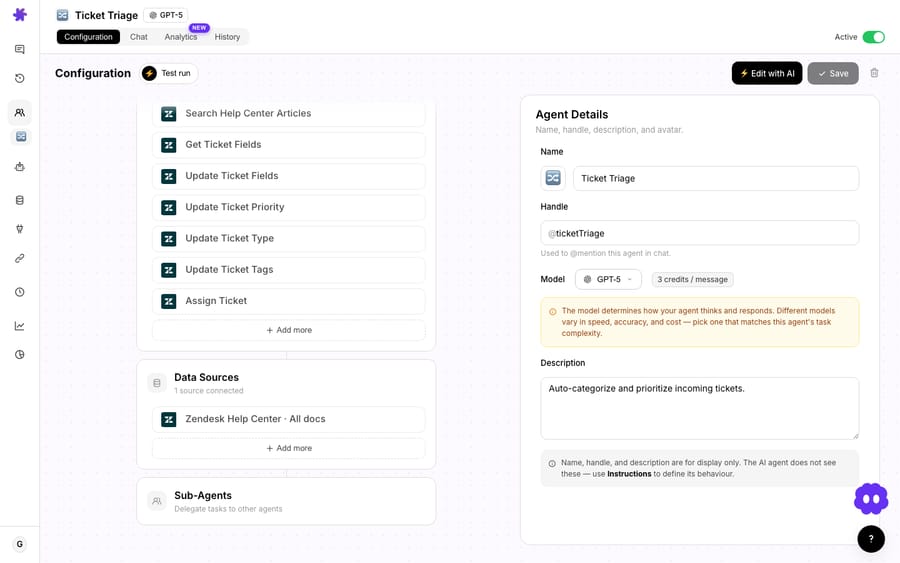
The canonical pattern: a frontline Support Agent (connected to Zendesk) handles general questions itself but delegates anything about charges or subscriptions to a Billing Specialist sub-agent (connected to Stripe). The customer experiences one seamless agent; behind the scenes, the right specialist did the work. The one thing you must do is describe each sub-agent in the parent's instructions — the parent can only route well if it knows what each specialist is for.
A few safety facts worth committing to memory:
- Read-only in chat, write-enabled when autonomous. In interactive chat, sub-agents can fetch and search but can't perform write operations — a human stays in the loop. When the parent runs autonomously via a trigger, sub-agents inherit that context and can take actions.
- Depth is capped at 3 levels (A → B → C), and circular references are blocked at both save time and runtime, so you can't accidentally build an infinite delegation loop.
- Every delegation is auditable. Sub-agent runs appear inline under the parent's reply with a green Handed off badge; expand the card to see the exact handoff message, every tool call and result, and the sub-agent's final reply. These runs are kept for 45 days and don't pollute your conversation count.
Full detail lives in the Sub-Agents documentation.
How do you make an agent run on its own?
By default an agent waits for someone to chat with it. Triggers flip it to proactive: the agent runs on its own when something happens. There are four kinds:
- Event triggers fire on helpdesk and tool events:
ticket.created,ticket.comment_added,ticket.status_changedand more in Zendesk; ticket events in Freshdesk;app_mentionanddirect_messagein Slack. (For Zendesk, Macha provisions the webhook automatically when you create the trigger.) - Custom webhooks let any external service — GitHub, Linear, HubSpot, an internal script — start an agent via a unique signed URL.
- Scheduled triggers run on a recurring interval for daily reports or periodic checks (minimum 1 hour apart, with guardrails: a cap of 24 runs per trigger per day, three simultaneous scheduled runs per organization, and auto-disable with an email notice after five consecutive errors).
- Debounce batches rapid-fire events — a flurry of messages on one ticket — so the agent fires once after the conversation goes quiet rather than once per message.
This is the line between an agent that assists when asked and one that handles tickets the moment they land. Most teams start agents in chat, prove them out, then attach a trigger.
What finishing touches does an agent need?
Each agent can show prompt suggestions — starter messages that appear when someone opens a fresh chat, auto-generated from the agent's instructions and capabilities. They double as a sanity check: if the suggested prompts don't match what you intended the agent to do, your instructions probably need tightening. Regenerate them any time you change the config.
When you're done, your agents land on the Agents list, which now shows each agent's model and sub-agent count as columns, so you can scan your whole roster at a glance.

Made a mistake? Deleting an agent is reversible — it moves to a Trash tab for 30 days, and a one-click restore brings back all its triggers, instructions, sub-agent links, and tool config intact.
What does running an agent cost?
Macha bills per ticket — one thread with one person, charged once however many messages, tool calls or lookups the agents take to finish it. The details that matter operationally:
- A ticket is charged once — not per message, not per tool call. An agent that makes five tool calls inside one reply, then handles three follow-ups on the same thread, is still one ticket.
- The model doesn't change the price. A reply from GPT-5.6 Terra costs exactly what a reply from GPT-5.4 Mini costs.
- Your whole organization shares one monthly ticket allowance; all agents draw from it, and you get email alerts as you approach it. There are no overages — when the month's tickets are used, agents pause until the next billing date unless you move up a tier or add a top-up.
- Fair use is 50 messages per ticket. At 50 the agent stops and asks the person to start a new ticket, which bills as a new one.
Macha has one plan priced by ticket volume, and every feature is on it, including the AI Agent Builder, unlimited agents and unlimited seats, plus setup and monitoring by the Macha team. Pricing starts at $299 a month for 750 tickets, about $0.40 a ticket, and runs to $3,999 for 10,000; see the pricing page for the tiers. Or start with $50 of free usage (about 125 tickets), no credit card and no time limit, and build one before you decide.
What mistakes should you avoid before going live?
No tool is all upside. A few honest cautions before you ship an agent to live tickets:
- Over-tooling. The temptation is to grant every tool "just in case." Resist it. More tools means more chances for the model to pick the wrong one. Grant the minimum and expand deliberately.
- Vague instructions on autonomous agents. An ambiguous prompt is survivable in chat where a human reviews each reply. Behind a trigger, the same ambiguity executes unsupervised. Tighten instructions before you automate, and lean on confirmation-required tools for anything destructive.
- Write permissions in autonomous mode. Remember that sub-agents go from read-only (chat) to write-capable (triggers). An agent that's safe to talk to isn't automatically safe to let loose — re-read its tool grants through that lens before attaching a trigger.
- Model overkill. Putting GPT-5.6 Terra on a high-volume, low-stakes agent makes every reply slower for accuracy you don't need, and it costs the same either way. Match the model to the consequence of a wrong answer, not to the bill.
- Knowledge sprawl. Attaching every document to every agent dilutes its context and slows it down. Scope sources to what each agent's job actually requires.
What should your first agent be?
A good first build is a single, narrow agent — say, an order-status agent on Zendesk + Shopify — run in chat until you trust it, then put behind a ticket.created trigger. From there you layer in a billing sub-agent, scheduled summaries, and the rest. If you're specifically running Zendesk, the Macha on Zendesk page covers the helpdesk-side setup, and there's more across the Macha blog.
FAQ
What's the fastest way to create an agent? Build with AI. Describe what you want in plain language and the builder configures the name, instructions, tools, triggers, and sub-agents from your connected integrations. You can hand-tune anything afterward, or use Edit with AI to revise an existing agent in conversation.
What do I actually configure on an agent? A name and handle, instructions (the system prompt), a model, the connectors and tools it can use, data sources for knowledge, optional sub-agents to delegate to, prompt suggestions, and triggers for autonomous runs.
Which model should I pick? Most agents can stay on GPT-5.4, the default. Move simple high-volume agents to GPT-5.4 Mini for speed, try GPT-5.6 Terra where a wrong answer is expensive, or Claude Sonnet 4.5 for nuanced writing. The choice doesn't change what you pay: the price is per ticket whichever model runs.
How do I stop an agent from taking risky actions? Two ways: grant only the specific tools you trust (e.g. enable add_public_reply but not update_priority), and flag write operations as confirmation-required so the agent pauses for human approval before executing.
Can one agent hand work to another? Yes — assign sub-agents and the parent can delegate to specialists. Sub-agents are read-only in interactive chat and can take write actions only when the parent runs autonomously via a trigger. Delegation nests up to three levels deep, and every run is auditable inline.
How much does running an agent cost? Macha bills per ticket — one conversation, charged once, however many replies, tool calls or steps the agent takes, and whichever model it runs on. Pricing starts at $299 a month for 750 tickets, about $0.40 each. Your org shares one monthly allowance, with usage alerts as you approach it. See the pricing page for the tiers.
How do you try it?
The fastest way to understand agent configuration is to build one. Start with $50 of free usage, no credit card required, connect your help desk, and use Build with AI to scaffold your first agent — then tighten the instructions, scope the tools, and watch it work a real ticket. Full walkthroughs live in the Macha docs.
Written by Abbas (Customer Support & AI, Macha) · Reviewed by Ankeet Guha (Co-founder & CTO) · Published 2026-06-24 · Last updated 2026-09-24.






