





 Shopify
 Stripe
 Slack
Slack Notion
 Google Workspace
 Confluence

How Do You Edit an AI Agent in Plain English? Macha's Edit with Sidekick (2026)


Macha lets you change an existing AI agent by typing what you want in plain English, from the Edit with Sidekick button on the agent's configuration page. Every change shows up as a clickable card and only takes effect when you press Save.
Key takeaways
- Macha's Edit with Sidekick button, called Edit with AI until June 26, 2026, changes an agent's instructions, tools, triggers, sub-agents or model from a plain-English request.
- Every change Sidekick makes appears as a clickable artifact card, and the grayed-out Save button means nothing takes effect until an admin presses it.
- Macha sub-agents can delegate up to 3 levels deep, and the builder runs automatic circular-dependency checks so a conversational edit cannot create a delegation loop.
- Since June 26, 2026, Sidekick offers to test an agent on a real ticket after any non-cosmetic edit and suggests two or three fixes from the transcript.
- Switching an agent's model through Sidekick changes speed and fit, not the bill, because Macha charges once per ticket whichever model runs it.

You edit an existing Macha agent by clicking Edit with Sidekick on its configuration page and typing the change in plain English: Sidekick then rewrites the agent's instructions, tools, triggers, sub-agents or model and shows each change as a clickable card that you save yourself. The button was called "Edit with AI" when the AI Editor shipped on April 9, 2026, and Macha renamed it "Edit with Sidekick" on June 26, 2026, when it moved into a pill next to Test run. Tell it "stop auto-replying to angry customers and tag them for a human instead," and it rewrites the instruction, adds the tag tool if needed, and shows you exactly what it changed.
| Question | Answer |
|---|---|
| Where do you open it? | Edit with Sidekick on any agent's configuration page, or Sidekick from anywhere with ⌘K / Ctrl K |
| What can it change? | Instructions, tools, triggers, sub-agents and model |
| How do you see the change? | Artifact cards in the chat that link to the changed agent, trigger or tool |
| When does it take effect? | When you press Save; the button stays grayed out until there's a change |
| Which plans? | All plans |
| Does it cost extra? | No; Macha bills per ticket, not per edit |
Most AI agent platforms let you build an agent in plain language once and then drop you into a forms-and-tabs config screen the moment you want to change anything. Macha keeps the conversation going after the build. One thing to keep in mind throughout: Macha agents run on top of the help desk you already use (Zendesk, Freshdesk, Gorgias, Front, HubSpot or Intercom), so editing an agent here changes how automation behaves on your existing queue, not the help desk itself.
Is the tool that builds the agent the same one that edits it?
Yes. Macha's conversational agent surface has two sides, and they're deliberately symmetric:
- Build agents through conversation: describe what you need and Sidekick assembles a fully configured agent with instructions, tools, triggers, sub-agents, and a model. This is available on all plans.
- Edit with Sidekick: open it from any agent's configuration page and modify any part of that agent through conversation.
The thing that builds your agent is the thing that maintains it. You're never handed a finished agent and then told "now go learn the settings." Whatever you could say to create the agent, you can say again to change it.
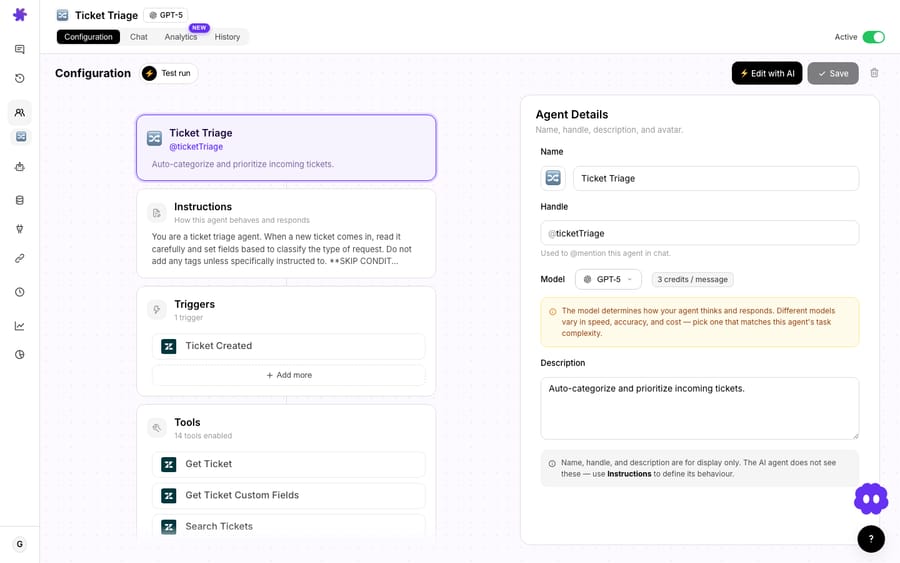
That matters because real support agents are never "done." A returns agent that worked in March needs a new edge case in April. A triage agent built for two ticket categories needs a third when you launch a product line. How fast and how confidently you can make those changes decides whether an agent stays useful or quietly rots. Conversational editing keeps that cost low.
How do you open the editor and make a change?
From an agent's config page, click Edit with Sidekick and describe the change. Since June 25, 2026, Sidekick also opens as a large overlay from anywhere in the dashboard with ⌘K on a Mac or Ctrl K on Windows and Linux, so you can ask it to edit an agent without navigating to it first. A few examples of the requests it handles:
- "Add a Stripe tool so this agent can look up the customer's last payment before replying."
- "Set up a trigger that runs this agent whenever a ticket is tagged
billing." - "Rewrite the instructions so it always asks for an order number before offering a refund."
- "Create a sub-agent that handles shipping questions and let this one delegate to it."
- "Switch this low-stakes auto-tagger to a lighter, faster model."
You type the request the way you'd describe it to a teammate. Sidekick interprets it against the agent's current configuration and your connected integrations, then makes the edit.
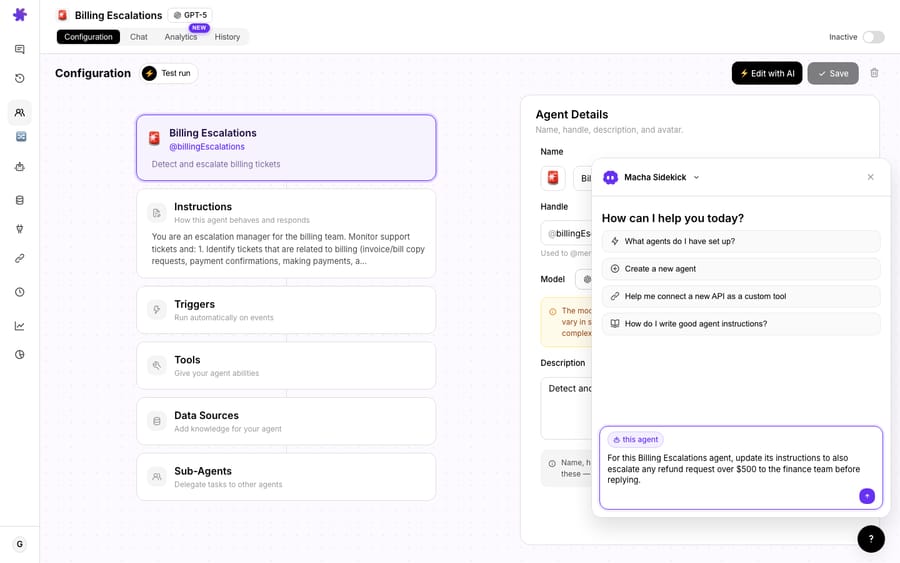
The editor is context-aware: it knows which integrations you've connected, so when you say "add a refund tool," it reaches for the Stripe or Shopify tools you actually have wired up rather than inventing a generic one. Macha also surfaces suggestion pills for relevant configurations; hovering a pill previews the prompt it would send, so you can see what a suggestion will do before you commit to it.
How do you see exactly what the editor changed?
The risk with any "just tell the AI what to do" interface is that you lose track of what it actually did. Macha's answer is artifact cards. Every created or updated agent, trigger, and tool shows up as an interactive card in the chat. The card is clickable: click an agent card and you jump straight to that agent's configuration; click a trigger or tool card and you land on the thing it just changed.
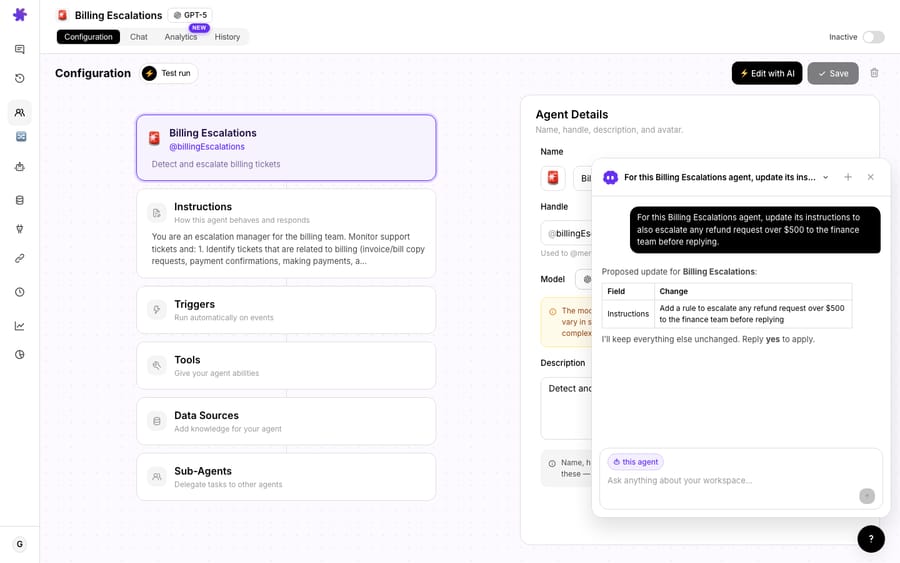
That turns the conversation into an auditable changelog. Instead of a paragraph claiming "I've updated your agent," you get a concrete object you can open, inspect, and verify. If the editor added a trigger you didn't expect, the card is right there to click into and adjust, or undo by hand.
It's the same pattern on the build side, which keeps the mental model consistent: whether Sidekick is creating an agent from scratch or editing an existing one, the output is a set of cards you can drill into.

Which parts of an agent can the editor change?
The editor isn't limited to instructions, and that's the part worth being precise about, because plenty of "AI assistants" in other tools only rewrite a system prompt. Sidekick can modify the full surface of an agent:
| Facet | What you can change by conversation |
|---|---|
| Instructions | Rewrite, tighten, add edge cases, change tone or escalation rules |
| Tools | Add or remove tools across your connected integrations (Zendesk, Stripe, Shopify, Slack, Notion, and more) |
| Triggers | Set up webhook, scheduled, or tag-based triggers that decide when the agent runs |
| Sub-agents | Wire up delegation to specialist sub-agents, with automatic circular-dependency checks |
| Model | Switch which model the agent runs on to trade speed against capability |
The sub-agent row is worth a closer look. Macha agents can delegate to specialist sub-agents up to 3 levels deep, and the obvious failure mode of letting an AI wire those connections is a loop: agent A delegates to B, which delegates back to A. The builder runs automatic circular-dependency checks when it assigns sub-agents, so a request to "let this agent hand off to the shipping agent" can't quietly create an infinite delegation chain.
On model choice: switching models doesn't change what a run costs, because Macha bills per ticket. One conversation is charged once however many steps the agent takes, whichever model it runs on. Moving a high-volume auto-tagger to a lighter model is about speed and fit for the job rather than the bill, and it's one sentence. See the pricing page for the tiers.
What stops a conversational edit from breaking a live agent?
A conversational editor pointed at a production agent is only as good as the safety rails around it. Macha shipped these agent-configuration guardrails on April 3, 2026, so an edit can't silently go wrong:
- Save guard: the save button is grayed out when there are no changes, so you always know whether you have unsaved edits pending.
- Navigate-away protection: a confirmation modal appears if you try to leave a config page with unsaved changes, so an in-progress edit doesn't evaporate.
- camelCase handles: agent handles auto-generate from the agent's name as you type (for example
@ticketTriageAgent), keeping references consistent when the editor renames or creates agents. - Inline management: you can delete agents directly from the agents table without opening each one, and since June 17, 2026 a deleted agent sits in a Trash tab for 30 days before it's purged.
- Test runs after edits: since June 26, 2026, Sidekick offers to test an agent after any non-cosmetic edit to instructions, tools, or sub-agents. It creates a real ticket or conversation on the connected workspace (Zendesk, Freshdesk, Front, Gorgias and Slack were covered at launch), runs the agent against it, and reviews the transcript with 2–3 suggested fixes.

Artifact cards show what changed; the save guard and navigate-away modal control when it commits; a test run shows whether the change works. That combination is what separates an editor you'd trust on a live queue from a novelty. Nothing persists until you deliberately save.
When should you edit by hand instead?
Sidekick is the fastest path for most changes, but it isn't the only path.
Reach for Edit with Sidekick when:
- You're making a described change: "add this tool," "handle this new case," "route these tickets here." Natural language is faster than hunting through tabs.
- You're not sure where a setting lives. The editor knows the config surface, so you don't have to.
- You want a record of the change. Artifact cards give you that for free.
Edit by hand when:
- You need character-level control over instruction wording and want to see the exact diff yourself. Typing the edit directly is more precise than describing it.
- You're doing fine-grained tool-permission or trigger-condition work where exact field values matter and you'd rather set them explicitly than rely on a model's reading of your request.
- You're reviewing or auditing. Reading the config straight is clearer than re-deriving it from a chat transcript.
In practice the two aren't rivals. Most teams use the editor to get most of the way there in one sentence, then nudge a field by hand. Both write to the same agent configuration, so there's no "AI version" versus "manual version" to reconcile: it's one agent, edited two ways.
One watch-out: a conversational editor always interprets intent, so a vague request ("make it better") gets a vague edit. Be specific, and check the artifact card. The save guard and cards keep you in control, but they don't remove the need to read what changed.
How does this compare to other natural-language agent builders?
Conversational agent building isn't unique to Macha. Microsoft's Copilot Studio creates topics, prompts and agent flows from natural-language descriptions, and Google's Gemini Enterprise Workflow Builder creates chat agents and workflows from natural-language prompts. Those are capable general-purpose platforms. The distinction that matters for support teams is what the agent is wired into. Macha's agents, and therefore the edits you make to them, operate as a layer on top of your existing help desk and the commerce, knowledge, and comms tools around it, so "add a refund tool" means a real Stripe action on the ticket in front of a customer, not a hypothetical capability in a sandbox. The conversation is the interface; the help-desk-native execution is the point.
For the wider picture of how Macha sits on top of your stack, the features overview and the Macha on Zendesk page walk through it, and the docs cover agent configuration in depth.
FAQ
What is Macha's AI Editor? It's the conversational way to edit an existing AI agent, now labeled Edit with Sidekick (it was "Edit with AI" until June 26, 2026). Open it from any agent's configuration page and describe the change in plain language; Sidekick modifies the agent's instructions, tools, triggers, sub-agents, or model and shows the result as clickable artifact cards.
What can I change with the AI Editor? Any facet of the agent: its instructions, the tools it can call across your connected integrations, the triggers that run it, the sub-agents it delegates to, and the model it uses. It's not limited to rewriting the prompt.
Is conversational editing safe on a live agent? There are guardrails: every change appears as an artifact card you can inspect, the save button stays grayed out until there's an actual change, and a confirmation modal warns you before you navigate away with unsaved edits. Nothing commits until you save, and Sidekick can test the edited agent on a real ticket before you rely on it.
Can I still edit agents manually? Yes. Sidekick and the manual configuration screen write to the same agent, so you can describe a change and then fine-tune a field by hand. Use the editor for speed, manual editing for precision.
Does building agents with AI cost extra, or is it plan-gated? No. Building and editing agents through conversation is available on every plan, and Macha bills per ticket (one conversation with one person, charged once), so editing isn't a separate line item. See the pricing page for details.
Which help desks does this work with? Macha agents run on top of Zendesk, Freshdesk, Gorgias, Front, HubSpot or Intercom. Editing an agent changes how it behaves on your existing queue; it doesn't replace your help desk.
How do you try it?
Start a free trial ($50 of usage, no credit card required), connect your help desk, build an agent in a sentence, then change it in another with Edit with Sidekick. Or read the agent configuration docs for the full walkthrough.
Written by Abbas (Customer Support & AI, Macha) · Reviewed by Ankeet Guha (Co-founder & CTO) · Published 2026-06-24 · Last updated 2026-09-24.






