





 Shopify
 Stripe
 Slack
Slack Notion
 Google Workspace
 Confluence

What Order Do Freshdesk Automation Rules Run In? Top-Down and First Match Explained


Freshdesk runs automation rules top to bottom in list order, and on the Ticket Creation tab it stops at the first rule that matches unless you switch it to run every match. When a rule seems broken, the usual cause is a broader rule sitting above it.
Key takeaways
- Freshdesk automation rules run top to bottom in the order they sit in the list, not the order they were created, so a rule's position decides whether it fires.
- On the Ticket Creation tab, the default Execute first matching rule setting stops at the first rule that matches and skips every rule listed below it.
- Freshdesk admins switch Ticket Creation to Execute all matching rules with the gear icon above the rules list under Admin, Workflows, Automations.
- The Ticket Updates and Hourly Triggers tabs in Freshdesk have no first-match toggle: all matching rules always execute from top to bottom.
- Freshdesk's Hourly Triggers rules scan tickets once every hour and only match against tickets updated in the last 30 days.

Freshdesk runs automation rules top to bottom in the order they sit in the list, and on the Ticket Creation tab the default "Execute first matching rule" setting stops at the first rule that matches. Ticket Updates and Hourly Triggers rules always run every matching rule, also top to bottom. So when a creation rule "doesn't fire", the usual cause is a rule above it that matched first.
| Tab | When it runs | Which matching rules execute | Can you change it? |
|---|---|---|---|
| Ticket Creation | Once, when a ticket is created | Only the first match (default) | Yes: gear icon, "Execute all matching rules" |
| Ticket Updates | When an event happens on an existing ticket | All matches, top to bottom | No |
| Hourly Triggers | Once every hour, on tickets updated in the last 30 days | All matches, top to bottom | No |
What are the three types of Freshdesk automation rule?
Freshdesk has three automation types, and each one executes differently. Per Freshworks' Overview of Automation Rules documentation, all three live under Admin → Workflows → Automations, split across three tabs:
- Ticket Creation: runs once, the moment a ticket is created, checking the new ticket against each rule's conditions.
- Ticket Updates: listens for events (a reply, a status change, a field update) and runs when those events happen on an existing ticket.
- Hourly Triggers: scans tickets once every hour to catch time-based conditions, like "a ticket has sat unassigned for 4 hours." These only match against tickets updated in the last 30 days.
This matters because the "only the first match runs" behavior applies to just one of these three tabs. Mix the models up and you'll misdiagnose why a rule didn't fire. For a broader tour of what rules can do before drilling into order, our Freshdesk automations explained primer covers the actions and conditions themselves.
Why does only one Ticket Creation rule fire?
This is the tab that trips up the most people. On the Ticket Creation tab, rules are evaluated from top to bottom, and by default Freshdesk uses "Execute first matching rule." The moment an incoming ticket satisfies a rule's conditions, that rule fires and every rule below it is skipped, even if those lower rules would also have matched.
So if your list looks like this:
- Escalate urgent tickets to the Escalations group
- Route billing tickets to the Finance group
- Assign everything else round-robin
...and an urgent billing ticket arrives, only rule 1 runs. Rule 2 never gets a look, because rule 1 matched first and Freshdesk stopped processing. The automations list below shows this setup.
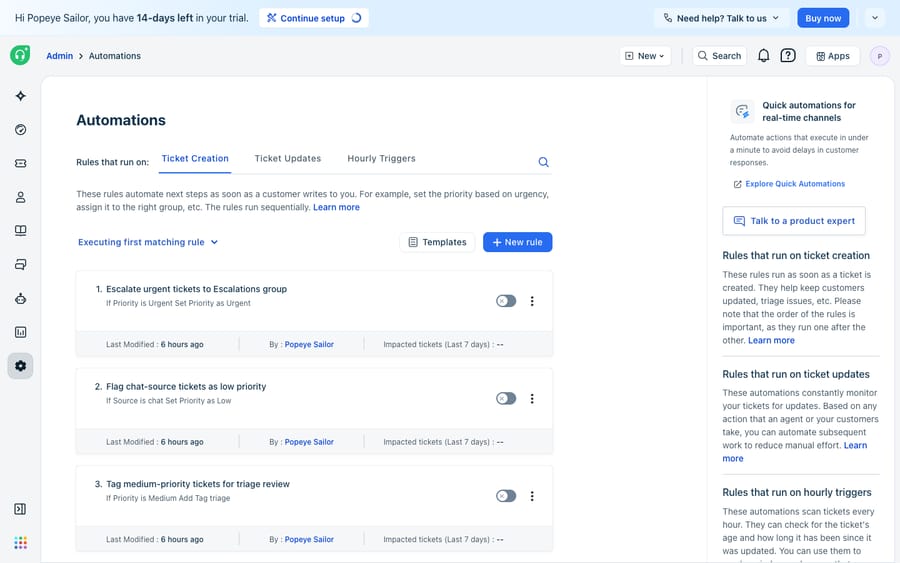
The screenshot's own note says the rules "run sequentially" while "Executing first matching rule" is active, so ordering is the whole game. Freshworks says the same in its ticket creation rules guide: "The order of rules on the Ticket Creation tab matters. When you use Execute first matching rule, place specific rules at the top and generic rules lower in the list."
The fix when you want more than one rule to run. If your workflow needs several rules to act on the same new ticket, switch modes. Go to Admin → Workflows → Automations, open the Ticket Creation tab, click the gear icon above the rules list, choose "Execute all matching rules," and save. Every rule whose conditions match now runs, still in top-to-bottom order. Keep the default for simple routing and switch only when you deliberately want stacked actions.
Do Ticket Updates and Hourly Triggers stop at the first match?
No, and this is the asymmetry that catches people. The Ticket Updates and Hourly Triggers tabs have no first-match toggle. On both, Freshworks' documentation says all matching rules are executed from top to bottom, always.
So a status change that satisfies three separate Ticket Update rules triggers all three, in list order. That's where rules start stepping on each other: if rule A sets priority to High and rule C sets it back to Medium, the last one to run wins, and "last" is decided by position in the list. Order still matters here, not to decide whether a rule runs but to decide which conflicting action lands last.
How should you order Freshdesk automation rules?
Put those two behaviors together and one principle emerges: a rule's position in its list is logic, not cosmetics. Freshworks' recommendation is to place rules with specific conditions at the top and generic, catch-all rules lower down.
Here's how the same three-rule set behaves depending on which tab it lives on and which mode is active:
| Scenario | Ticket Creation, "first matching rule" (default) | Ticket Creation, "all matching rules" | Ticket Updates / Hourly Triggers |
|---|---|---|---|
| Urgent billing ticket, rules ordered 1-Urgent, 2-Billing, 3-Catch-all | Only rule 1 runs | Rules 1, 2, 3 all run (in order) | All matching rules run (in order) |
| Broad catch-all accidentally placed at the top | Catch-all "swallows" everything; specific rules never fire | Catch-all runs plus the specific ones | Catch-all runs plus the specific ones |
| Two rules set the same field to different values | Only the first match's value applies | Last matching rule's value wins | Last matching rule's value wins |
The failure mode in every row is a broad rule sitting too high. In first-match mode it silently swallows tickets that should have hit a stricter rule below. In all-match mode it can overwrite the outcome you wanted, depending on where it sits. Either way, check the order before you assume the rule is broken.
To reorder, open the relevant tab and drag rules into the sequence you want: specific and high-stakes at the top, generic fallbacks at the bottom.
What can't Freshdesk automation rules do?
Freshdesk's automation engine is good at what it's built for. It's deterministic: the same ticket hits the same rules in the same order every time, which is what you want for routing, SLA assignment and predictable escalations. When something fires wrong, you can trace it to a condition and a position in a list.
The execution model still has edges. First, rules match on structured, literal conditions: a field equals a value, a subject contains an exact keyword. They can't read "I've been charged twice and I'm furious" and infer billing dispute, high emotion, urgent unless you've hand-built keyword conditions for every phrasing. Second, as your rule count grows, first-match ordering gets fragile: every new specific rule has to be slotted above the generic ones, and one misplaced drag can break routing for a whole category. Third, automation rules set fields and route tickets; they don't answer them. A rule can assign an order-status question to the right group, but it can't fetch the order and reply.
That's where an AI agent layer fits, and it's worth weighing the build-versus-buy tradeoff before reaching for one. AI agents for customer service exist to do the reasoning ordered rules can't. Macha is one such layer: it runs on top of the Freshdesk you already use as a native connector and does not replace Freshdesk or its automation rules. You connect it with your Freshdesk subdomain and API key, and it reads and writes the same tickets your rules touch: triaging by intent so a ticket is tagged and routed correctly whatever the wording, drafting or posting a grounded reply, and looking up order or account data through a custom tool that turns a REST API into something the agent can call. Our guide on how to automate Freshdesk with AI walks through the handoff in more depth.
The split: keep Freshdesk's automation rules as the deterministic backbone for what happens in what order, and add an agent for the interpret-and-answer work a keyword condition can't do. Macha's connector is for Freshdesk specifically, not Freshchat, Freshservice or Freshcaller. Macha bills per ticket, one conversation charged once however many messages it takes, from $299 a month for up to 750 tickets; see the pricing page. If your automations fire at surprising moments, status configuration is often the hidden variable, which we untangle in Freshdesk ticket statuses explained.
FAQ
Do Freshdesk automation rules run in the order I created them? No. They run in the order they appear in the list, top to bottom, which you control by dragging rules. Creation order is irrelevant; position is what matters.
What does "Execute first matching rule" mean? On the Ticket Creation tab, Freshdesk stops at the first rule whose conditions a new ticket satisfies and skips every rule below it. It's the default. Switch to "Execute all matching rules" via the gear icon above the rules list if you want every matching rule to run.
Does the first-match behavior apply to Ticket Updates too? No. Ticket Updates and Hourly Triggers always execute all matching rules from top to bottom, with no first-match toggle. Only the Ticket Creation tab offers the choice.
Where do I change the execution mode or reorder rules? Go to Admin → Workflows → Automations, pick the tab (Ticket Creation, Ticket Updates or Hourly Triggers), use the gear icon above the list to change the Ticket Creation mode, and drag rules to reorder them.
Why didn't my Hourly Triggers rule catch an old ticket? Hourly Triggers only match against tickets updated in the last 30 days. A ticket untouched for longer than that is outside the scan, whatever its conditions.
Can I add AI to Freshdesk automations without replacing Freshdesk? Yes. An AI agent layer like Macha connects to Freshdesk as a native connector and runs on top of your existing rules. It handles the intent-reading and reply-drafting a keyword-based rule can't, while Freshdesk stays the deterministic system for ordering and routing.
Want reasoning on top of your rule order instead of more keyword conditions? Start a free trial of Macha and connect it to your Freshdesk in minutes.






