





 Shopify
 Stripe
 Slack
Slack Notion
 Google Workspace
 Confluence

How Do Tags Work in Freshdesk? Limits, Merging, Automations and Reports


Freshdesk tags are free-text labels of up to 32 characters that sit on tickets, contacts and solution articles, and one admin screen lets you rename, merge and delete them. Automations can add them for you, but nothing stops agents from inventing duplicate spellings that skew every report built on top.
Key takeaways
- A Freshdesk tag can be up to 32 characters long, sits on tickets, contacts or solution articles, and a single ticket has no documented cap on tags.
- Freshdesk tags are managed at Admin, Agent Productivity, Tags, where renaming a tag propagates to every ticket, contact and article already using it.
- Merging two Freshdesk tags means renaming one to the exact name of the other, which folds spellings like refund and Refund into a single tag.
- The Freshdesk Add Tag action runs in Dispatch'r, Supervisor, Observer and Scenario automation, but it tags the ticket, not the requester's contact record.
- Freshworks' tag doc says legacy report tag filters are unavailable on Sprout, a plan no longer listed beside Growth at $19, Pro at $55 and Enterprise at $89.

A Freshdesk tag is a free-text label of up to 32 characters that you attach to a ticket, a contact or a solution article, and you manage every tag in one place at Admin → Agent Productivity → Tags. Tags are available on every Freshdesk plan, a ticket can carry as many as you like, and automations can add them for you. The weak spot is consistency: nothing stops fifteen agents from inventing "refund", "Refund", "refunds" and "refund-request" for the same thing, and every report built on those labels is then quietly wrong.
| Question | Answer (Freshworks docs, checked 24 September 2026) |
|---|---|
| What can be tagged? | Tickets, contacts and solution articles |
| Tag length limit | 32 characters |
| Tags per ticket | No documented cap |
| Where tags are managed | Admin → Agent Productivity → Tags |
| How to merge two tags | Rename one to the exact name of the other |
| Automations that add tags | Dispatch'r, Supervisor, Observer, Scenario automation (ticket only, not the contact) |
| Plan availability | All plans: Growth, Pro, Enterprise, plus Omni variants |
What is a tag in Freshdesk, and what isn't it?
A tag is a plain-text keyword you attach to a record. In Freshdesk, tags can live on tickets, contacts, and solution articles, per Freshworks' Using Tags in Freshdesk documentation. Each tag has a hard limit of 32 characters. Try to save a longer one and Freshdesk returns an error telling you the tag can't be longer than 32 characters.
It helps to be clear about what a tag is not. It isn't a ticket field with a fixed set of options, and it isn't a status or priority. Those are structured properties with their own rules (statuses in particular have their own behavior, which we cover in Freshdesk ticket statuses explained). A tag is deliberately loose: any agent can invent one on the spot. That flexibility is why tags are good at capturing the messy, real-world reasons customers write in, and it's also why they rot without a little discipline.
How do you add a tag to a Freshdesk ticket?
The everyday path is on the ticket itself. On the ticket detail page, the Tags field sits in the Ticket Properties panel on the right-hand side, alongside Type, Status, Priority, and Group. Per Freshworks' What are tags? documentation, you click into the Tags box and either pick an existing tag or type a new one. Freshdesk documents no cap on how many tags a single ticket can carry.
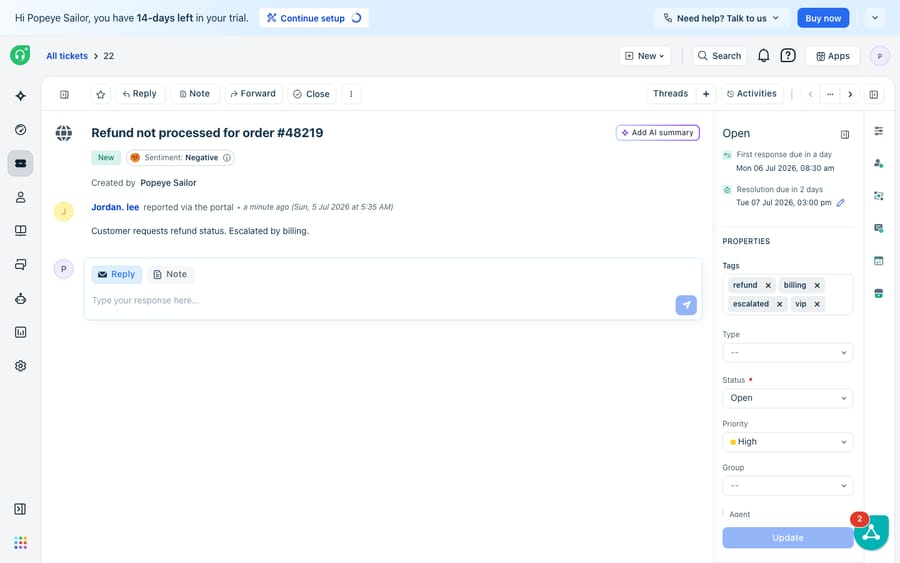
That's the manual route, one ticket at a time. It's fine for the occasional label an agent adds mid-conversation, but it's the wrong tool for anything you want applied consistently. People forget, spell things differently, and stop bothering on a busy Friday. For consistency you want the admin tag list and automations, which come next.
How do you rename, merge and clean up Freshdesk tags?
This is the part most teams skip and later regret. Freshdesk gives you a central place to govern every tag in the help desk: Admin → Agent Productivity → Tags. From there you can:
- Add a tag deliberately with Add tag, so your canonical vocabulary exists before anyone free-types a variant.
- Rename or edit a tag by clicking its name. The change propagates automatically to every ticket, contact, and article already using it, which is your fix for a typo that's already spread.
- Merge two tags by editing one and giving it the same name as the other; Freshdesk folds them together. This is how you collapse "refund", "Refund" and "refunds" back into one.
- Delete tags that no longer earn their keep.
- Sort the list by Usage or Name to spot the long tail of near-duplicates and one-off tags nobody else ever used.
The management view also shows a usage count next to each tag (how many tickets, contacts, and articles it's attached to), and those counts are clickable, so you can jump straight to everything wearing a given label. A good rhythm is a quarterly review: sort by usage, merge the near-duplicates at the bottom, and delete the dead ones. Do that and your tags stay a reporting asset instead of decaying into noise.
Can Freshdesk automations and reports use tags?
Yes, and that's where tags earn their place.
Automations can add tags for you. You don't have to rely on agents remembering. Freshdesk's automation rules can apply an Add Tag action across Dispatch'r (rules that run on ticket creation), Supervisor (time-based rules), Observer (rules that run on ticket updates), and Scenario automation (agent-triggered macros). So you can auto-tag every ticket from a VIP company's domain, or tag anything mentioning "cancel" for a retention review. One caveat from the docs: the Add Tag action applies to the ticket, not to the requester's contact record. For how these rule types fire, see Freshdesk automations explained.
Tags feed filtering and reporting. Tags are a filter dimension in ticket views and in Freshdesk's reporting, so you can slice volume, first-response time, or resolution time by any label. In the legacy reports, tag filtering lives under Filter → More. Freshworks' tag doc still says that filter isn't available on the Sprout plan, but Sprout no longer appears on the Freshdesk pricing page, which now lists Growth ($19 per agent a month billed annually), Pro ($55) and Enterprise ($89). If your account still sits on an old Sprout plan, expect tag-based reporting to be limited.
Where do native Freshdesk tags break down?
Freshdesk's tagging is capable: it's flexible, centrally governable, and wired into both automations and reports. It has two limits worth naming plainly.
First, the automation that applies tags is only as smart as its rules. Dispatch'r and the rest match on things Freshdesk can see literally: a domain, a keyword in the subject, a source. A keyword rule that tags anything containing "refund" will tag "I do not want a refund, I want an exchange" the same as a genuine refund request. The rule can't read intent; it can only match strings. So the more nuanced the category, the more the tagging drifts back to manual.
Second, there's no built-in guardrail against vocabulary sprawl. Because any agent can free-type a tag, the system will accept the fourth spelling of "shipping-delay". The 32-character limit is the only constraint; consistency rests on your team's discipline plus your quarterly clean-ups. Native Freshdesk gives you good tools to fix a messy taxonomy (rename, merge, delete) but nothing to prevent the mess.
How can AI tag Freshdesk tickets by intent?
That prevention gap is where an AI layer fits. Be clear-eyed about the build-versus-buy tradeoff before reaching for one; the wider category of AI agents for customer service exists to do the reasoning a keyword rule can't. Macha is one such layer: it runs on top of the Freshdesk you already use as a native connector and does not replace your help desk, your Tags admin, or your automations. You connect Macha to Freshdesk with your subdomain and API key, and it reads and writes the same tickets your tags already live on. Because it classifies each ticket by intent rather than by string match, it can apply a consistent tag from your canonical list every time, so "I don't want a refund" and "please refund me" get labelled correctly, not identically. It can also enrich a tag by looking up order or account status through a custom tool that turns a REST API into something the agent can call, and it fits into a broader plan to automate Freshdesk with AI. (Macha's connector is for Freshdesk specifically, not Freshchat, Freshservice, or Freshcaller. Billing is per ticket, not per resolution: one conversation is charged once however many steps it takes, from $299 a month for up to 750 tickets. See the pricing page.)
The clean division of labor: keep Freshdesk's Tags admin as the source of truth for what labels exist and what's tagged with what, and put an agent on top for the part the rules can't do, which is deciding which label each new ticket actually deserves.
FAQ
Where do I manage tags in Freshdesk? Central tag management is at Admin → Agent Productivity → Tags. There you can add, rename, merge (by giving one tag the same name as another), delete, and sort tags by usage or name. Renaming a tag propagates the change everywhere it's used.
How do I add a tag to a single ticket? Open the ticket and use the Tags field in the Ticket Properties panel on the right, alongside Type, Status, Priority, and Group. Type a new tag or pick an existing one; a ticket can carry any number of tags.
Is there a limit on tags? Each tag can be up to 32 characters. There's no documented cap on how many tags one ticket can have, but keeping the number of distinct tags low across the help desk is what keeps reporting meaningful.
Can Freshdesk add tags automatically? Yes. The Add Tag action is available in automation rules across Dispatch'r (ticket creation), Supervisor (time triggers), Observer (ticket updates), and Scenario automation. These rules match on literal conditions like domain or keyword, and the tag goes on the ticket, not the requester's contact record.
Are tags available on every Freshdesk plan? Yes. Freshworks lists tags on all current plans, including Growth, Pro, Enterprise and the Omni variants. Only tag filtering in legacy reports carries a plan note, and that note refers to the retired Sprout plan.
Can AI tag tickets more accurately without replacing Freshdesk? Yes. An AI agent layer like Macha connects to Freshdesk as a native connector and classifies each ticket by intent, then applies a consistent tag from your list, running on top of your existing help desk and its Tags admin rather than replacing them.
Ready to keep your tags clean without another manual clean-up? Start a free trial of Macha and connect it to your Freshdesk in minutes.






