





 Shopify
 Stripe
 Slack
Slack Notion
 Google Workspace
 Confluence

How Do You Give an AI Support Agent a Knowledge Base? Uploads, Website Crawl and Live Sources


A Macha agent learns from three kinds of source: uploaded files, crawled websites, and live documents in Google Workspace, Notion, Confluence or Document360 that it reads fresh on every request. Uploads and crawls are snapshots you resync by hand, so pick the source type by how often the content changes.
Key takeaways
- Macha builds an agent's knowledge base from uploaded files, crawled websites of up to 200 pages, and live sources like Google Docs, Notion, Confluence and Document360.
- Uploaded knowledge files in Macha can be PDF, CSV, XLSX, DOCX or TXT, added up to 10 at a time and up to 20 MB each.
- Macha's website crawler has handled pages up to 2 MB each since 2 April 2026, up from 512 KB, and a crawled site only updates when you press Resync.
- Spreadsheets of 2,000 rows or fewer are injected directly into a Macha agent's prompt, while larger ones are chunked at roughly 75 rows with the header row kept.
- Macha's AI Knowledge Builder, added in August 2026, turns resolved Zendesk tickets into searchable KB articles that agents reach through search_knowledge.

You give a Macha agent a knowledge base in three ways: upload files (PDF, CSV, XLSX, DOCX or TXT, up to 10 at a time and 20 MB each), crawl a website (up to 200 pages), or connect a live source such as Google Docs, Notion, Confluence or Document360 that the agent reads fresh on every request. The first two are snapshots you resync by hand; the third never goes stale. Which one a piece of content belongs in depends on how often it changes.
| Source type | Limits | Freshness | Best for |
|---|---|---|---|
| Upload documents | 10 files at a time, 20 MB each | Snapshot (Ready); re-upload to update | Policies, manuals, product catalogs |
| Add a website / web page | 200 pages per crawl, 2 MB per page | Snapshot (Ready); Resync to update | Public help centers and docs sites |
| Live connector source | Read per request, no copy stored | Always current (Live) | Pricing sheets, rosters, fast-changing FAQs |
Macha is an AI agent layer that sits on top of the help desk you already run: Zendesk, Freshdesk, Gorgias, Front, HubSpot or Intercom. Data sources are how you hand those agents the knowledge to resolve tickets accurately instead of confidently wrong.
What is the difference between a connector and a data source?
Mixing these up is the most common setup mistake. Connectors let an agent do things in external tools: look up a Shopify order, post to Slack, update a Zendesk ticket. Data sources let an agent reference information to answer better. Same agent, two different jobs: one acts, one knows.
Everything below is about the second job. (For the first, see Macha's integrations.)

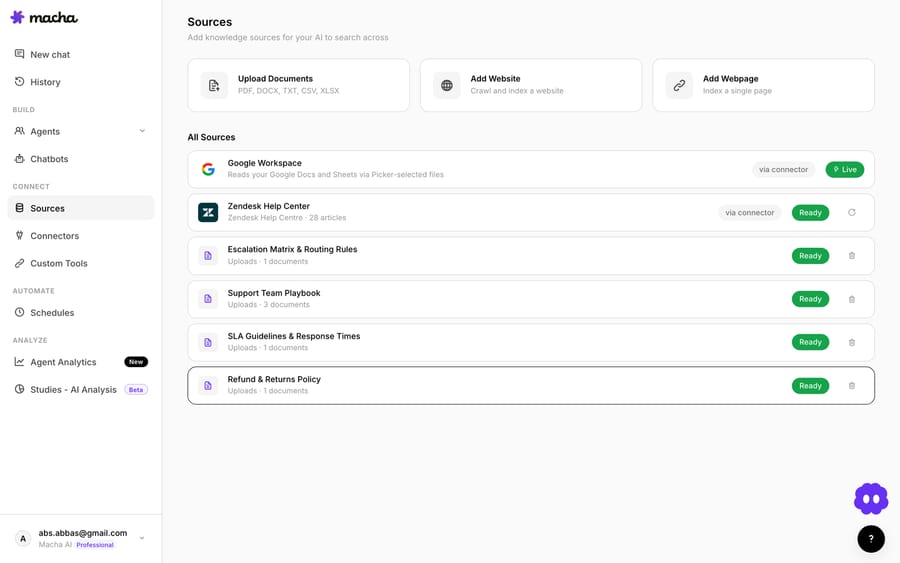
On the Sources page, the top of the screen gives you three ways to add knowledge: Upload documents, Add a website and Add a web page. Below that sits your list of everything already connected, each row tagged with a status badge.
What do the Live and Ready status badges mean?
Every source carries one of two status badges, and the distinction maps directly onto how fresh the agent's knowledge is:
- Live: the source pulls content in real time from a connected app (Google Workspace, Confluence, Notion). The agent always reads the current version.
- Ready: the source has been indexed and is good to go (uploaded files, your Zendesk Help Center, crawled websites). The agent searches a snapshot that was captured at index time.
That single word, Live or Ready, answers "will my agent see edits I made this morning?" Live sources, yes. Ready sources, only after a re-index.
How do you upload documents, and which formats work?
If you have static content, such as a returns policy, a product manual or an internal escalation guide, the simplest path is to upload it straight into Macha.

You can add up to 10 files at a time, each up to 20 MB. Indexing starts immediately: Macha reads the content, breaks it into chunks, and makes it searchable, usually within a few seconds to a couple of minutes. Supported formats:
| Format | Typical use |
|---|---|
| Manuals, policy docs, contracts, reports | |
| CSV | Customer lists, product catalogs, pricing tables |
| XLSX | Structured spreadsheets |
| DOCX | Procedures, guides, reference material |
| TXT | Plain-text notes |
The one thing to internalise: uploaded files don't auto-refresh. If you edit the original document, Macha keeps serving the old version until you delete it and re-upload. For anything that changes weekly, an upload is the wrong tool; use a live connector source instead (covered below).
How do you crawl a website or add a single page?
Most teams already have their best support content published somewhere: a help center, a docs site, product pages. Rather than copy it into files, point Macha at the URL. There are two modes, and you pick based on how much of the site you need.

Add Website crawls the whole site. Macha follows the links it finds, discovers pages, and indexes them, and you watch pages populate in real time. Use this for an entire documentation site or help center. There's a system limit of 200 pages (Macha indexes the first 200 it finds), and a crawl typically finishes in a few minutes, landing on a Ready status when done. Since a crawler change on 2 April 2026, pages up to 2 MB each ingest (up from 512 KB), which fixed failures on content-heavy sites such as e-commerce stores.

Add Web Page is the surgical version: one specific URL (a single blog post, one FAQ, a particular product page) indexed and ready, with no crawling.
Two caveats worth flagging. First, like uploads, crawled websites are a snapshot. Macha doesn't watch the site for changes. When you update content, hit the Resync button on the source to pull the latest version; a resync also cleans out pages that have been removed. Second, crawlers can only reach publicly accessible pages; anything behind a login won't be indexed, the same constraint other vendors document (Zendesk documents the same constraint for its web crawler).
How do live sources like Google Docs, Notion and Confluence work?
This is the option that solves the "snapshot goes stale" problem. Connect a live source and the agent reads the content directly from the service every time it needs it, never a copy from last week.
- Google Docs / Sheets: the agent reads live with
google_read_doc(andgoogle_read_sheetfor sheets). Edit the doc, and the agent sees the change on its next read. - Notion: the agent reads pages live with
notion_get_page, always the current content. - Confluence: listed in Macha's docs as a live source alongside Google Workspace and Notion.
- Document360: added on 3 July 2026. Macha treats a connected Document360 project as a live source; articles aren't chunked or re-embedded, and the agent calls
document360_get_articleat read time. Each connector covers one Document360 project.
There's a quiet bit of automation here that saves a lot of fumbling. When you add a Google or Notion source to an agent, Macha auto-links the required read tools and the connector instance, so you don't assign anything by hand. Google sources auto-add google_read_doc, google_read_sheet, and google_list_drive_files; Notion sources auto-add notion_search and notion_get_page. These auto-added tools are locked while the source is attached; to remove them, remove the data source first. (More on connecting these services in Macha's integrations.)
How does an agent actually read each source?
The type of source determines how the agent accesses it, and there are three distinct modes. Knowing them is the difference between an agent that nails the answer and one that misses data sitting right in front of it.
Mode 1: Injected (always in context)
Small CSV and XLSX files of 2,000 rows or fewer are injected directly into the agent's system prompt. The entire file is available at all times, with no searching and no tool calls. It's the fastest, most reliable way for an agent to work with structured data: it can reference any row or column immediately. The trade-off is context-window space, which is why it's reserved for small spreadsheets.
Mode 2: Searchable (chunked and embedded)
Large files, PDFs, DOCX documents, and all website content are chunked, embedded as vectors, and searched on demand. When the agent needs something, it:
- Calls
search_knowledgewith a query to find the most relevant chunks. - Reviews the results to spot the right sections.
- Calls
get_documentto pull the full content of those chunks.
This two-step retrieval lets a single agent work over a very large knowledge base efficiently, because it only loads the parts it needs. For spreadsheets that exceed the injection threshold, chunking is row-aware: roughly 75 rows per chunk with the header row preserved in every chunk, so the agent always knows what each column means.
Mode 3: Live connector (read on every request)
Google Docs and Notion pages are read live via their respective tools every time the agent references them, so the agent always gets the latest version.
Past tickets can become knowledge too. The AI Knowledge Builder, added in August 2026, turns resolved Zendesk tickets into KB articles, merging each ticket into a similar article where one exists. The result is a normal searchable source, reached through search_knowledge like an uploaded PDF.
You can mix all three on the same agent. Inject a small pricing spreadsheet, add a big policy PDF as searchable knowledge, and connect a live Google Doc with your evolving FAQ: one agent, three access modes, each chosen to fit the content.
Should a piece of content be a static source or a live one?
When you're staring at a piece of content unsure how to add it, the decision reduces to a single question: is this content static or does it change?
| Content | Behaviour | Add it as |
|---|---|---|
| Policies, FAQs, manuals, Help Center articles | Rarely changes | Static source: upload the file or crawl the website (indexed once, searched) |
| Pricing sheets, escalation matrices, on-call rosters | Changes weekly | Live connector source: Google Workspace, Notion, Confluence or Document360 (read live every time) |
Both are data sources. The only difference is whether the agent gets a frozen copy or a live read. Pick by cadence, not by format.
Can you limit which documents each agent sees?
Yes. A source can hold a lot of documents, and not every agent should see all of them. Each source row on an agent carries an inline toggle, added on 3 April 2026:
- All documents: the agent can access everything in the source, and automatically gains access to new documents as they're added.
- Selected: the agent only sees the specific documents you hand-pick. Choosing "Selected" expands a document picker.
Scope filtering works across all source types (uploads, websites, Google Docs and Notion), so a billing agent can be scoped to billing docs while a shipping agent reads only logistics content, all drawing from the same underlying sources.
When are knowledge sources the wrong answer?
A few honest trade-offs:
- Uploads and crawls go stale silently. They're snapshots. If your return policy changes and you forget to re-upload or Resync, the agent keeps quoting the old one, confidently. For volatile content, live sources exist precisely so you never have to remember.
- Public-only crawling. Anything gated behind a login is invisible to the crawler. Put that content in an uploaded file or a connected Google/Notion doc instead.
- More sources isn't always better. Vendor guidance, including Zendesk's own, is to keep the number of knowledge sources reasonable; piling on too many can dilute retrieval accuracy and add latency. Curate; don't dump.
- Knowledge isn't action. A data source lets an agent tell a customer the refund policy. To actually process the refund, the agent needs a connector and a tool. Knowledge and tools are complements, not substitutes.
- Source types aren't gated by plan. Macha now sells one plan priced by ticket volume (from $299 a month for 750 tickets), and the pricing page lists knowledge sources as included on every tier. The per-file and per-crawl limits above still apply.
For teams running on Zendesk specifically, the same knowledge a Macha agent searches can include your existing Help Center; see Macha on Zendesk for how the layer fits on top of your current setup. And once your agents are answering, Studies can analyse which questions they're actually getting, so you know what knowledge to add next.
FAQ
What file types can I upload as a knowledge source? PDF, CSV, XLSX, DOCX and TXT, up to 10 files at a time, each up to 20 MB. Indexing starts immediately and usually finishes within a couple of minutes.
Does Macha keep my website knowledge up to date automatically? No. Crawled websites and uploaded files are snapshots. Macha doesn't monitor your site for changes. Hit Resync on the source to pull the latest version (which also removes deleted pages). For content that changes often, connect a live source (Google Docs, Notion, Confluence, Document360) instead, which the agent reads in real time.
How many pages can the website crawler index? Up to 200 pages per site; Macha indexes the first 200 it discovers. Each page can be up to 2 MB. For a single page, use Add Web Page instead of crawling.
What's the difference between a Live and a Ready source? Live sources read content in real time from a connected app, so the agent always sees the current version. Ready sources (uploads, websites, Help Center) are indexed snapshots the agent searches.
Do I have to manually add tools for Google or Notion sources? No. Adding a Google or Notion data source auto-links the required read tools and the connector instance. Those tools stay locked while the source is attached; remove the source to remove them.
Can past support tickets become a knowledge source? Yes. The AI Knowledge Builder turns resolved Zendesk tickets into KB articles and stores them as a normal searchable source.
How does the agent decide whether to search or inject a document? It's automatic and based on size. Small spreadsheets (≤2,000 rows) are injected into context; larger files, PDFs, DOCX, and websites are chunked, embedded, and searched with search_knowledge and get_document. You can mix all modes on one agent.
Where should you start?
Pick one high-volume question your team answers daily, find where the answer lives, and add it as the right kind of source: upload the file, crawl the help center, or connect the live doc. Start a free trial ($50 of usage, no credit card required), open the Sources page, and give your first agent something real to read. The full walkthrough lives in the data sources docs.
Written by Abbas (Customer Support & AI, Macha) · Reviewed by Ankeet Guha (Co-founder & CTO) · Published 2026-06-24 · Last updated 2026-09-24.






