
 Shopify
 Stripe
 Slack
Slack Notion
 Google Workspace
 Confluence

How Do You Automate Zendesk with AI? A Step-by-Step Guide (2026)


Zendesk's triggers, automations, macros and SLAs run on rules, so they can't read a customer's message or fetch an order from another system. An AI agent on top of Zendesk handles that judgment work while your existing rules keep doing the deterministic routing.
Key takeaways
- Automating Zendesk with AI means keeping native triggers, automations, macros and SLAs for rule-based work and adding an AI agent that reads each ticket and acts on it.
- A first AI agent on Zendesk takes five steps: connect Zendesk, build the agent, add a trigger, test it, and go live; with Macha you connect and the Macha team does the rest, included on the trial and every plan.
- Zendesk's own AI agents are billed per automated resolution at $1.50 committed or $2.00 pay-as-you-go, and Zendesk Copilot costs $50 per agent a month on Suite Professional and above.
- Macha prices AI automation per ticket rather than per resolution, starting at $299 a month for 750 tickets, about $0.40 each, whichever model the agent runs on, with a dedicated success manager included.
- Macha Studies classify thousands of past Zendesk tickets into a spreadsheet-style grid that teams can filter, export to CSV, or feed back to agents as knowledge.

To automate Zendesk with AI, you keep Zendesk's native triggers, automations, macros and SLAs for rule-based work and add an AI agent on top that reads each ticket and acts on it: tag it, route it, look up an order, draft or send a reply, summarize the thread, or resolve it. With Macha, a first agent takes five steps: connect Zendesk, build the agent, add a trigger, test it, go live. Your part is connecting, about 15 minutes; the Macha team does the rest for you, included on the trial and every plan.
Rules can't read a customer's message or fetch data from another system. An AI agent can, because you give it instructions and tools instead of hand-writing a rule for every scenario.
| Option | What it automates | How it's priced |
|---|---|---|
| Native triggers, automations, macros, SLAs | Deterministic work: routing by field, notifications, escalations, keyword tags | Included in Zendesk plans |
| Zendesk AI agents | Customer-facing answers and resolutions inside Zendesk | Billed per automated resolution: $1.50 committed, $2.00 pay-as-you-go |
| Zendesk Copilot | Agent assistance: suggested replies, summaries, intent | $50 per agent a month on Suite Professional and above |
| An AI agent layer such as Macha | Triage, routing, lookups in other tools, replies, summaries, field updates | From $299 a month for 750 tickets, about $0.40 each; setup done for you by the Macha team, with a dedicated success manager, included |
What counts as "Zendesk automation"?
There are three things people lump under "Zendesk automation":
- Deflection: steering a customer to a help article so they self-serve.
- Resolution: the AI fully answers and closes the ticket.
- Automation: the broadest. Having AI do any piece of the work, whether or not it ends in a resolution. Summarizing a thread, tagging it, triaging and routing it, pulling an order, drafting an internal note, updating a field. Most of these aren't "resolutions" at all, but they're exactly the repetitive work that eats your team's time.
Real Zendesk automation is mostly that third bucket. Keep it in mind, because it changes what "done" looks like. (Coming from Zendesk's Answer Bot? Here's what it does and where it falls short.)
How do Zendesk's native rules and an AI agent fit together?
Layer 1: native, rules-based (built into Zendesk).
- Triggers fire on an event (ticket created/updated) when conditions match.
- Automations fire on time (e.g., "if pending 48h, escalate").
- Macros are one-click bundles of actions an agent applies manually.
- SLAs track and enforce response/resolution targets.
Use these for deterministic plumbing: routing by form field, notifications, escalations, tagging by keyword. Their limit is that they only act on structured conditions you define in advance. They can't interpret free text or reach outside Zendesk.
Layer 2: AI automation (an AI agent on top). An AI agent reads the ticket in plain language, decides what's needed, and takes action using the tools you've given it. This is where the fuzzy, judgment-based work gets automated, the stuff rules can't express. Keep your deterministic triggers, and add an AI agent for everything that needs understanding.
Zendesk sells its own AI layer too. Its pricing page says AI agents are billed per automated resolution and lists the rate: $1.50 per resolution committed and $2.00 pay-as-you-go. Its plan table includes 5 automated resolutions per agent a month on Support Team and Suite Team and 10 on Suite Professional, which Zendesk's help center describes as a monthly dollar allowance per seat since 18 May 2026.
What can you automate with AI on Zendesk?
With an AI agent platform like Macha, the menu looks like this. Each item maps to a real Zendesk action the agent can take:
- Triage & tag: read the ticket, classify the topic/intent, and apply tags.
- Route & assign: send it to the right group or agent.
- Answer & resolve: draft or send a public reply for common questions, grounded in your Help Center.
- Look up data: pull an order from Shopify, a payment from Stripe, or an account detail, and use it in the reply.
- Summarize: drop a concise summary of a long thread as an internal note.
- Update the ticket: set status, priority, type, or custom fields.
- Escalate: hand off to a human with full context when it's out of scope.
- Analyze in bulk: run AI over thousands of past tickets at once (Macha calls this Studies) to classify your backlog into a spreadsheet-style grid you can filter, export to CSV, or feed back to your agents as knowledge.
How do you set up AI automation on Zendesk, step by step?
Here's the practical flow using Macha. On the trial and every plan the Macha team runs it for you: it analyzes about a month of your past tickets, builds the knowledge base and the agent, tests it on a sample of those tickets, and runs it in safe mode, with drafts as internal notes, until the drafts are right. Your part is step 1 and connecting the tools your answers come from.
1. Connect Zendesk. Install the Macha app from the Zendesk Marketplace and connect your account (OAuth, or an API key + subdomain). Optionally add Sunshine Conversations credentials if you want to cover messaging tickets (WhatsApp, web messenger, social).

2. Build an agent. Write its instructions in plain English, for example: "For order-status questions, look up the order and reply with the status; for anything billing-related, tag it billing and assign to the Billing group; summarize everything else as an internal note." Pick a model (stronger models trade a little latency for deeper reasoning, and the choice doesn't change what you pay), choose its knowledge (your Help Center auto-syncs; add Notion, Google Docs, or uploaded files), and scope its tools: exactly which actions it's allowed to take (reply, internal note, update status/priority/tags/fields, assign). Start from a template like Triage Agent or Refund Agent, or build from scratch.
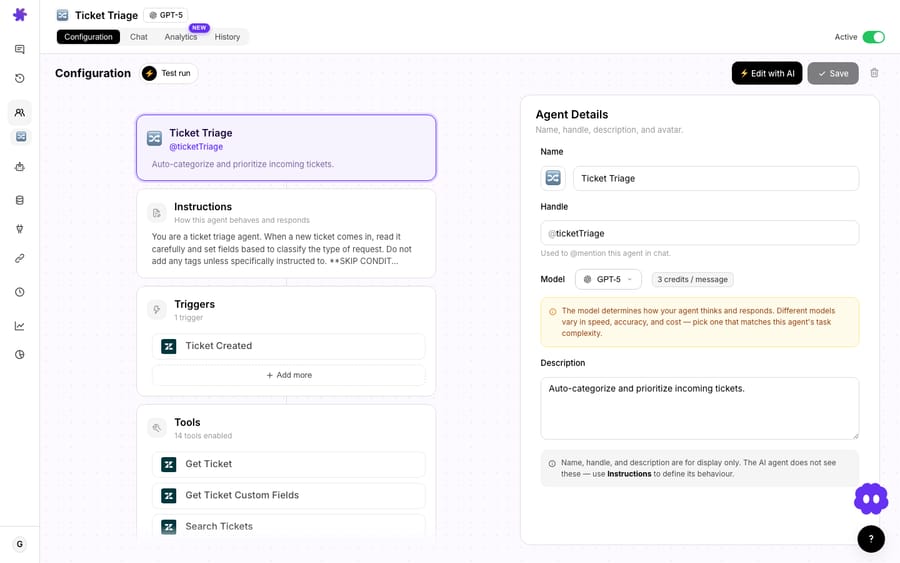
3. Add a trigger. Choose when the agent runs: Ticket Created, Comment Added, Status/Priority Changed, Assigned, Closed, a messaging customer message, a custom webhook, or a Scheduled Run (minimum one hour between runs; scheduled runs switch on once you move off the free trial). On a trigger, the agent runs autonomously, with no human in the loop, and executes its actions immediately, logging a full audit trail.
4. Test before you trust it. Run a test run against real ticket data to see exactly what the agent would do. A good practice: start it on internal notes only (or require confirmation), watch it for a few days, then let it post public replies once you trust it.
5. Go live. Enable the trigger. From here, matching tickets are handled automatically, and you can still chat with the agent any time from the sidebar.
Which Zendesk automations should you start with?
- Auto-triage & route: a Triage Agent on Ticket Created tags by topic and assigns to the right group. Pure time-saver, low risk.
- WISMO ("where is my order"): the agent pulls the order from Shopify and replies with the status, no agent touch.
- Refunds with a guardrail: a Refund Agent issues a Stripe refund, with confirmation required so a human approves.
- Auto-summaries: every escalated ticket gets a one-paragraph internal-note summary so the next agent ramps in seconds.
- Backlog analysis: use a Study to classify thousands of historical tickets by topic or root cause in one run, then feed the results back to your agents as a knowledge source.
What guardrails keep AI automation safe?
- Scope tools tightly. Only give each agent the write actions it needs.
- Start safe. Internal notes or confirmation first; public replies once you've watched it.
- Keep deterministic work in native rules. Don't ask AI to do what a simple trigger does well.
- Measure. Track resolution/automation rate and CSAT before and after.
- Always leave an escalation path to a human for anything out of scope.
How much does AI automation on Zendesk cost?
Because you're automating whole conversations, not isolated steps, Macha prices per ticket: one thread with one person, charged once however many tags, summaries, lookups and replies it takes, whichever model it runs on. A ticket that needs five tool calls costs exactly what a one-line answer costs. Plans start at $299/mo for 750 tickets, about $0.40 each, and step up by volume ($599 for 1,500, $1,199 for 3,000). That price includes the setup, done for you by the Macha team, and a dedicated success manager who handles your changes after go-live: a new category, an instruction change, a new tool. A per-resolution meter only counts closed tickets and hangs on an outcome definition you don't control. The free trial gives $50 of usage, no credit card required.
And the same agent isn't limited to one place. It can run autonomously on triggers, assist in the Zendesk sidebar, answer in Slack, or power a public website chatbot.
Frequently asked questions
Can't I already automate Zendesk with triggers and macros? Yes, for deterministic, rules-based work (routing by field, notifications, escalations). AI automation adds the layer rules can't do: reading free-text tickets, understanding intent, pulling external data, and deciding what to do. Most teams use both.
Do I need to replace Zendesk to automate it with AI? No. An AI agent platform like Macha installs as a Zendesk app and works on top of your existing setup. (See our comparison of the best AI agents for Zendesk.)
Will the AI send replies to customers automatically? Only if you let it. You scope each agent's tools and can keep it on internal notes or require confirmation until you trust it; on triggers it then runs autonomously.
What can't rules-based automation do that AI can? Interpret what a customer actually means, summarize a thread, pull data from other systems, and handle the long tail of one-off requests that you'd never write an individual rule for.
Does Zendesk have its own AI automation? Yes. Zendesk AI agents are billed per automated resolution at $1.50 committed or $2.00 pay-as-you-go, and Copilot costs $50 per agent a month on Suite Professional and above. An add-on layer like Macha is priced per ticket instead, about $0.40 a ticket, and that includes setup by the Macha team and a dedicated success manager who handles your changes.
Where should a Zendesk team start?
Native triggers and macros handle the deterministic plumbing; AI agents handle the judgment. The fastest way to automate the work that actually eats your team's time (triage, lookups, summaries, replies) is to add an AI agent on top of Zendesk, start it on internal notes, and widen its scope as you build trust.
Automate your first Zendesk workflow today: install the Macha app, connect your account, and the Macha team builds your first agent for you. $50 of free usage, no credit card required. Start a free trial.