





 Shopify
 Stripe
 Slack
Slack Notion
 Google Workspace
 Confluence

How Do You Integrate Freshdesk with Azure DevOps? (2026 Setup Guide)


Freshdesk connects to Azure DevOps through a Marketplace app that lets agents create, link and comment on work items from inside a ticket. The setup takes two credentials, and the two-way status sync most teams want sits on the paid tiers.
Key takeaways
- Freshdesk integrates with Azure DevOps through a Marketplace app such as the Verified-by-Freshworks Azure DevOps Plugin, which lets agents create, link and comment on work items from inside a ticket.
- The Azure DevOps Plugin by identifyyou technologies is a paid app with a 21-day free trial, is on version 7.0, and supports both Freshdesk and Freshdesk Omni.
- Setup needs a Freshdesk API key, an Azure DevOps Personal Access Token scoped to work-item read and write, and your Azure DevOps organization and project name.
- IntegrateCloud's Freshdesk connector documentation says a ticket can be linked to one work item, so teams splitting a report into several tasks should link a parent item.
- Two-way status and comment sync plus deeper custom-field mapping are features of the paid connector tiers, and an expired Personal Access Token stops the sync without warning.

You integrate Freshdesk with Azure DevOps by installing an Azure DevOps app from the Freshworks Marketplace, such as the Azure DevOps Plugin (Verified by Freshworks, paid, 21-day free trial), and authenticating it with a Freshdesk API key and an Azure DevOps Personal Access Token. Agents then create, link and comment on work items from a panel inside the ticket.
| What you need | Detail |
|---|---|
| An app | Azure DevOps Plugin (identifyyou technologies, version 7.0, paid, 21-day trial) or the IntegrateCloud connector (7-day trial) |
| Freshdesk credential | Your Freshdesk API key, from your profile settings |
| Azure DevOps credential | A Personal Access Token scoped to work-item read/write |
| Target | Your Azure DevOps organization (VSTS account) name and project |
| Permissions | Freshdesk admin rights to install the app |
What does "integrating Freshdesk with Azure DevOps" actually mean?
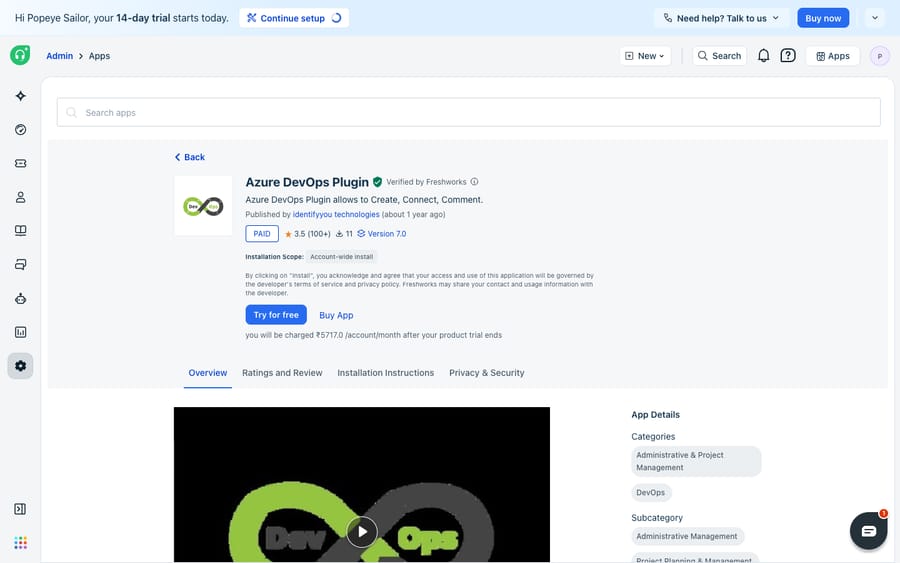
There is no single button that fuses the two products. What you're actually doing is installing a Marketplace app that sits inside a Freshdesk ticket and talks to Azure DevOps over its API. The Freshworks Marketplace lists several of these: the Azure DevOps Plugin ("Verified by Freshworks", published by identifyyou technologies), the IntegrateCloud connector, and a handful of free and Pro variants. They broadly do the same three things, summed up by the Azure DevOps Plugin's own tagline on the Marketplace: "Create, Connect, Comment."
- Create a new Azure DevOps work item (Bug, Epic, Feature, Task, User Story) straight from the ticket.
- Connect (link) an existing ticket to an existing work item, so both sides reference each other.
- Comment: push notes into the work item and pull its comments back into the ticket.
Per the Freshworks Marketplace listing (checked 24 September 2026), the Azure DevOps Plugin supports both Freshdesk and Freshdesk Omni, is a paid app with a 21-day free trial, and is on version 7.0. That "paid" detail matters and we'll come back to it.
Which credentials do you need before you start?
The connector authenticates against both platforms, so you need a credential from each. Per IntegrateCloud's connector setup docs:
- A Freshdesk API key, found under your profile settings in Freshdesk. This lets the app read and write the tickets it links.
- An Azure DevOps Personal Access Token (PAT), generated in Azure DevOps under your user settings and scoped to work-item read/write. Note the PAT's expiry: when it lapses, the sync silently stops until you rotate it.
Also have your Azure DevOps organization (VSTS account) name and the project you want work items to land in. Installing the app is a Freshdesk admin action, so you'll need admin rights on the Freshdesk side.
How do you install the Azure DevOps app in Freshdesk?
- In Freshdesk, go to Admin → Apps (the Marketplace) and search for Azure DevOps.
- Pick the app that fits. The "Verified by Freshworks" Azure DevOps Plugin is the safest default; the IntegrateCloud and free variants differ in field-mapping depth (more on that below).
- Click Install (or Try for free to start the trial).
- In the configuration screen, enter your Freshdesk domain (e.g.
yourcompany.freshdesk.com), your Freshdesk API key, your Azure DevOps / VSTS account name, and your PAT. - Click Validate to confirm the credentials, then Install.
Once installed, the app appears as a panel in the ticket-detail sidebar. Everything an agent does with Azure DevOps happens from inside the ticket, so they never open a separate tab.
How do you link a Freshdesk ticket to a work item?
The app exposes its actions as tabs inside the ticket panel. The IntegrateCloud docs list New Work Item, Link Issue, Link to Work Item, Notify, and Show Item Comments.
- New Work Item: pick the work-item type (Bug, Epic, Feature, Task, User Story), and the app loads the matching Azure DevOps fields so the agent can fill them in. Submitting creates the item in your Azure DevOps project and stores the returned work-item ID against the ticket.
- Link to Work Item: attach the ticket to a work item that already exists. IntegrateCloud's docs say a ticket "can be linked to one work item", so if one customer report spawns several engineering tasks, link it to a parent item and track the children in Azure DevOps.
- Notify: send a message that shows up as a comment on the Azure DevOps work item, so engineering gets the customer context without you leaving Freshdesk.
- Show Item Comments: display the linked work item's comment log inside the ticket, so support can see engineering's progress notes.
Does status and comment sync work both ways?
Linking is the easy half; the payoff is the sync back. IntegrateCloud's documentation includes a separate guide on syncing comments and status from Azure DevOps to Freshdesk, so updates can flow from the work item back into the linked ticket, not just outward from Freshdesk. In practice that lets you:
- Map work-item state to ticket status: when the Azure DevOps item moves to Resolved or Closed, the linked Freshdesk ticket can be updated so the agent knows to reply to the customer.
- Mirror comments: engineering's notes on the work item surface in the ticket, and agent notes push out to the work item.
- Fill custom fields: the connector supports required Azure DevOps custom fields at creation time, so items don't bounce for missing data.
This is where the products differ most. Basic and free variants may only push one way (Freshdesk → Azure DevOps) or sync comments but not status. Deeper two-way field mapping (custom field to custom field, state transitions, real-time updates) is the headline feature of the paid connectors, and configuring it fully is done in the partner product's own admin console, using an account on that vendor's side. You can't wire it up end-to-end from a Freshdesk trial alone. Budget for the paid tier if bidirectional status sync is the reason you're doing this at all.
Should you use the Marketplace plugin, middleware or Zapier?
Three broad ways to connect the two, depending on how much fidelity you need:
| Approach | Best for | Two-way sync | Field mapping | Cost shape |
|---|---|---|---|---|
| Marketplace plugin (Azure DevOps Plugin / IntegrateCloud) | Agents linking tickets to work items in-context | Comments + status back to the ticket (paid tiers) | Custom fields on create; deeper mapping on paid tiers | Free trial, then paid per the app developer |
| Middleware (e.g. Exalate) | Complex, rule-based sync across teams/companies | Deep, scriptable both ways | Full, transformable | Higher; separate subscription |
| Zapier / Make | Lightweight, one-directional triggers | Usually one-way | Limited to trigger/action fields | Task-based pricing |
For most support-to-engineering handoffs, the Marketplace plugin is the right call: it lives inside the ticket and needs no separate workflow tool. Reach for middleware only when you need bidirectional sync across many projects with transformation logic.
Where does the native integration fall short, and where does an AI layer fit?
The native integration does the one thing it promises well: it removes copy-paste between support and engineering, and keeps a linked ticket in step with its work item. But be clear about what it is and isn't.
It's a plumbing integration, not an intelligence one. The plugin will create whatever work item an agent tells it to. It can't judge whether a ticket is actually a bug, a duplicate of an existing item, or a confused user who needs a how-to. That triage still falls on a human, and mis-triaged tickets clog the dev queue with things engineering shouldn't see. The sync is also credential-fragile: when the Azure DevOps PAT expires, the two-way updates stop quietly, and the first sign is often a customer asking why nobody replied. And the richest capability, real two-way field mapping, sits behind a paid tier and the partner's own account, so the free listing you install to "try it" may not do the bidirectional sync you were sold on.
This is the seam where an AI agent layer helps, and it's worth weighing the build-versus-buy tradeoff before adding tooling. The broader category of AI agents for customer service exists to do the reasoning the plugin can't. Macha is one such layer: it runs on top of the Freshdesk you already use as a native connector. It does not replace your help desk, and it's not an Azure DevOps sync tool. What it does is thin the flow of tickets that ever reach a work item: resolving the routine questions, and triaging by intent so only genuine defects get escalated to engineering. Through a custom tool, Macha can call the Azure DevOps REST API directly, checking whether a matching work item already exists or reading a fix's status to answer the customer. If you want the wider picture, our guide to automating Freshdesk with AI covers where agents help and where they don't. (Macha's connector is for Freshdesk specifically, not Freshchat, Freshservice, or Freshcaller. Macha bills per ticket, one conversation charged once however many messages it takes, starting at $299 a month for up to 750 tickets with setup and monitoring by the Macha team included; see the pricing breakdown.)
The clean division of labour: let the Marketplace plugin own the link and sync between a ticket and its work item, and let an AI layer own the decision about which tickets deserve a work item at all.
FAQ
How do I link a Freshdesk ticket to an Azure DevOps work item? Install an Azure DevOps app from the Freshdesk Marketplace (e.g. the Verified-by-Freshworks Azure DevOps Plugin), authenticate with your Freshdesk API key and an Azure DevOps Personal Access Token, then use the app's Link to Work Item tab inside the ticket to attach it to an existing item, or New Work Item to create one on the spot.
Does the integration sync status both ways? On the paid connectors, comments and status can flow from Azure DevOps back into the linked ticket as well as outward, so a work item moving to Resolved can update the ticket. IntegrateCloud documents that sync in its own setup guide. Basic or free variants may only push one direction, and full custom-field mapping is configured in the partner product's own console on a paid tier.
Is the Azure DevOps plugin free? No. The Verified-by-Freshworks Azure DevOps Plugin is a paid app with a 21-day free trial; charges then apply from the app developer. IntegrateCloud's connector docs mention a 7-day trial. There are also free connector variants on the Marketplace with a narrower feature set. Confirm the exact terms on the specific listing you install.
Can one ticket link to several work items? Not in the IntegrateCloud connector: its docs say a ticket can be linked to one work item. Link to a parent item and break the work down in Azure DevOps.
What credentials do I need? A Freshdesk API key (from your Freshdesk profile), an Azure DevOps Personal Access Token scoped to work items, and your Azure DevOps organization/project name. Freshdesk admin rights are needed to install the app.
Can I add AI without replacing Freshdesk or Azure DevOps? Yes. An AI agent layer like Macha connects to Freshdesk as a native connector and runs on top of your existing tools. It doesn't replace the help desk or your Azure DevOps sync. It reduces how many tickets ever need a work item by resolving routine questions and triaging by intent, and it can call the Azure DevOps API through a custom tool to check status.
Ready to keep your dev-escalation queue to real defects only? Start a free trial of Macha and connect it to your Freshdesk in minutes.






