





 Shopify
 Stripe
 Slack
Slack Notion
 Google Workspace
 Confluence

How Do You Send Urgent Zendesk Tickets to Slack? 3 Ways Compared (2026)


Urgent support tickets get missed when they sit in a queue view nobody is watching, and a compromised account or a checkout outage can wait minutes before anyone notices. Posting them to a Slack channel your team already reads closes that gap.
Key takeaways
- Zendesk sends urgent tickets to Slack through a trigger with the conditions Ticket is Created and Priority is Urgent and the action Notify Zendesk integration, set to Slack.
- Zendesk's native Slack trigger only fires when the priority field already says Urgent, and it posts a template built from placeholders with no summary of the problem.
- The DIY route points a Zendesk Notify webhook action at a Slack incoming webhook with a hand-built Block Kit payload, and a quote or emoji in the ticket title can break the JSON.
- A Macha agent needs two tools for this workflow, Zendesk's Get Ticket and Slack's Send Message, and can judge urgency from the ticket text when the priority field is wrong.
- Macha bills per ticket regardless of the steps an agent takes, starting at $299 a month for 750 tickets, about $0.40 each, and that price includes setup by the Macha team and a dedicated success manager.

To relay urgent tickets to Slack, create a Zendesk trigger with the conditions Ticket is Created and Priority is Urgent and the action Notify Zendesk integration → Slack. That works on every Zendesk Suite and Support plan. For a custom card, point a Notify webhook action at a Slack incoming webhook instead. And if urgent tickets often arrive with the wrong priority, put an AI agent on new tickets that reads the text, decides, and posts a written summary to the channel.
All three routes do the same job. They differ in what "urgent" means (a field someone set, or what the customer actually wrote) and in what lands in Slack (a template or a summary):
| Native Slack for Zendesk | DIY webhook + Block Kit | Macha agent | |
|---|---|---|---|
| Fires on | The priority field only | The priority field only | The field or the ticket's actual content |
| Catches mislabeled urgent tickets | No | No | Yes, the agent judges from the text |
| Message format | Static template + placeholders | Custom card you hand-build | Written summary with context |
| Setup effort | Low (a trigger) | High (JSON, escaping, testing) | Done for you by the Macha team, with a dedicated success manager, included |
| Pulls extra context (plan, orders) | No | No | Yes, via connected tools |
| Can act on the ticket | No (notify only) | No (notify only) | Yes: set priority, tag, assign, add a note |
| Helpdesks | Zendesk | Zendesk | Zendesk, Freshdesk, Gorgias, Front, HubSpot or Intercom |
| Cost model | Included with Zendesk | Free (+ Zapier/n8n if added) | Per ticket (from $299/mo for 750) |
A note on the third column: Macha is not a Zendesk replacement. It is an AI agent layer that runs on top of the help desk you already use (Zendesk, Freshdesk, Gorgias, Front, HubSpot or Intercom) and connects it to tools like Slack, Shopify and Stripe. You keep your help desk and make it escalate better.
What does an urgent-ticket alert need to do?
Strip it back and the workflow has three parts:
- Detect that a ticket is urgent.
- Enrich it into something readable: subject, customer, why it matters, a link.
- Deliver it to the right Slack channel, fast, where the right people will see it.
Every approach below does these three things. The difference is how smart each step is, especially detection (does "urgent" only mean a priority field someone already set?) and enrichment (a raw ID, or a real summary?).
How do you send urgent Zendesk tickets to Slack with the native integration?
Zendesk ships an official Slack for Zendesk Support integration, and for a basic alert it works. The setup, per Zendesk's own docs (available on all Suite plans and on Support Team, Professional and Enterprise):
- You must be a Zendesk admin, and the Slack app must already be added to the target channel.
- In Admin Center → Objects and rules → Business rules → Triggers, open the Tickets tab and create a trigger.
- Add conditions, typically Ticket is Created plus Priority is Urgent (
detail.ticket.priority is Urgent). - Add the action Notify Zendesk integration, choose Slack integration, then pick the workspace and channel.
- Compose the notification header and body using static text plus placeholders.
This is useful and costs nothing beyond your Zendesk plan. For a lot of teams it's enough.
But there are real ceilings, and they're worth knowing before you build on it:
- It only knows the priority field. The native trigger fires on whatever value is already in the priority field. If a customer writes "I think I've been hacked and money is leaving my account" but the ticket came in as Normal, because nobody triaged it yet, or your form defaults to Normal, no alert fires. Detection is only as good as your existing triage.
- The message is static placeholders. You get ticket fields slotted into a template. There's no summary, no "here's why this matters," no pulling the customer's plan tier or recent order. Whoever reads the alert still has to open the ticket to understand it.
- No actions, just a notification. The native integration tells Slack something happened. It can't set the priority it should have been, add an internal note, or assign the ticket.
So the native route is a solid floor. The question is whether "fires when the priority field already says Urgent, posts a templated line" clears the bar for your most time-sensitive tickets. Often, it doesn't.
How do you build a custom Slack alert with a Zendesk webhook and Block Kit?
If you want richer, fully custom alerts but you're not ready for an AI layer, the middle path is to wire Zendesk's webhooks to a Slack incoming webhook and hand-build the message payload yourself. This is the route every serious guide on the topic covers (ClearFeed and eesel both walk through it) and it's the one that gives you the most control without buying another tool. The trade is that you own the JSON.
The shape of it, per Zendesk's own webhook docs:
- Create a Slack incoming webhook. On the Slack API site, create an app, enable Incoming Webhooks, and generate a webhook URL pointed at your target channel (e.g.
#urgent-support). - Create a Zendesk webhook. In Admin Center → Apps and integrations → Webhooks → Webhooks, click Create webhook, paste the Slack URL as the endpoint, method
POST, request format JSON. - Fire it from a trigger. In Admin Center → Triggers, add conditions (Ticket is Created + Priority is Urgent), then the action Notify webhook, pick the Slack webhook, and write the JSON body.
- Hand-write the Block Kit payload using Zendesk placeholders so the card carries the ticket ID, subject, requester, and a link:
{
  "blocks": [
    { "type": "header",
      "text": { "type": "plain_text", "text": "🔴 Urgent ticket #{{ticket.id}}" } },
    { "type": "section",
      "text": { "type": "mrkdwn",
        "text": "*{{ticket.title}}*\nRequester: {{ticket.requester.email}}\nPriority: {{ticket.priority}}" } },
    { "type": "actions",
      "elements": [
        { "type": "button",
          "text": { "type": "plain_text", "text": "Open in Zendesk" },
          "url": "{{ticket.link}}" } ] }
  ]
}
This gets you a properly formatted card with a one-click button, closer to what you actually want than the native template. But be honest about the cost:
- You own the JSON, including the foot-guns. The classic failure is malformed JSON when a placeholder like
{{ticket.title}}contains a quote, emoji, or line break and breaks the payload. Zendesk's webhook docs do not cover escaping, so you find these by testing edge cases yourself. - It still only knows the priority field. Like the native route, the trigger fires on
Priority is Urgent. A mislabeled emergency that came in as Normal never reaches the webhook. The payload is smarter; the detection is not. - It's static text, not a summary. Block Kit makes the card look good, but it's still placeholder substitution. There's no judgment, no enrichment from other systems, no "here's why this matters."
- For more logic, you add a middle layer. Teams that want routing rules ("VIP customers → #vip-escalations") usually drop in Zapier or n8n between Zendesk and Slack, which works, but is now another tool to own, pay for, and debug.
The DIY webhook is the right answer when you need a custom card and your priority field is trustworthy. It is not the answer when the urgency lives in the content of the ticket, which is exactly where the next option earns its keep.
How does a Macha agent read, summarize and post urgent tickets?
Macha approaches the same job from the AI side. Instead of a static trigger-to-template, you build an agent that runs the moment a ticket is created, reads the actual ticket, decides whether it's urgent, and, when it is, posts a written-up alert to Slack and (optionally) takes action on the ticket itself.
Here's the shape of the workflow, mapped to Macha's building blocks.
The trigger: fire on the right tickets
Macha connects to Zendesk with a set of native triggers: New Ticket, Customer Reply, Priority Changed, Status Changed, Ticket Assigned, Ticket Closed, Messaging, and a Custom Webhook that generates a URL you can attach to any Zendesk trigger for full control over which tickets fire your agent.
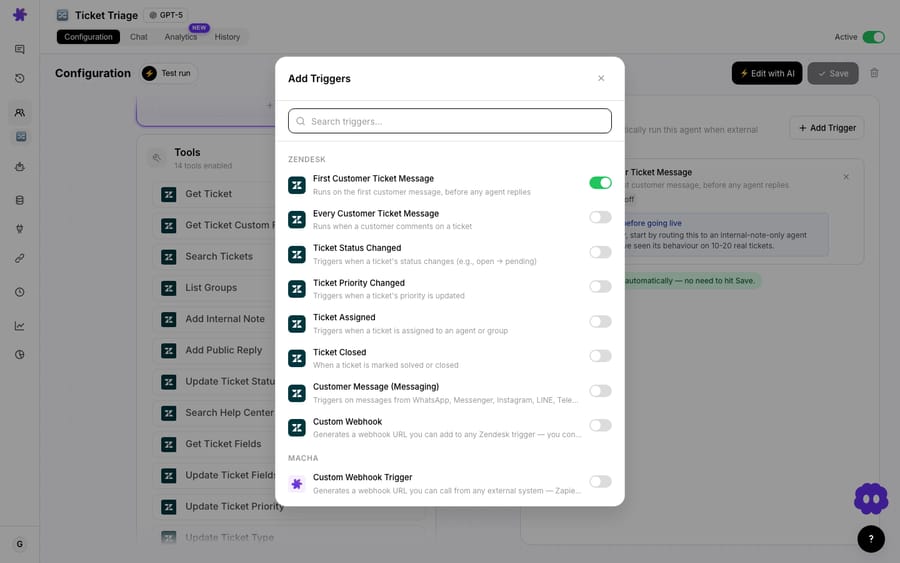
You have two clean patterns:
- Trust the field. Use the New Ticket trigger and let the agent only continue if the priority is already Urgent, the direct equivalent of the native integration, but with everything below bolted on.
- Let the agent judge. Use New Ticket on all new tickets and instruct the agent to assess urgency from the content: language signaling a security incident, a payment outage, an angry churn-risk customer, a legal threat. This catches the urgent ticket that came in mislabeled, which is exactly the one the native route misses.
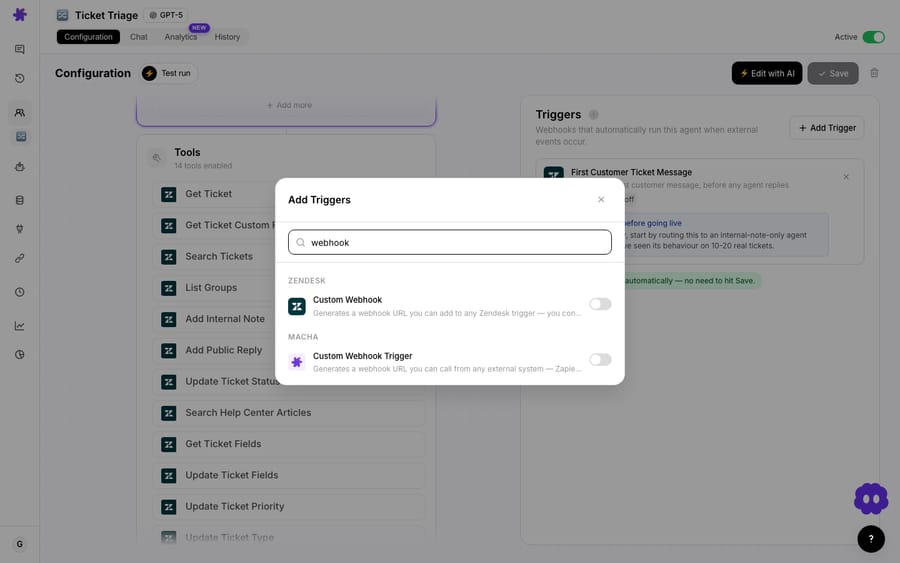
For surgical control over which Zendesk tickets reach Macha at all, the Custom Webhook trigger lets you build a Zendesk trigger with whatever conditions you want and point it at Macha's webhook URL.
The instructions: what "urgent" means to you
This is where an agent pulls ahead of a template. In plain language, you tell the agent what counts as urgent and what the Slack alert should contain. Something like:
When a new Zendesk ticket arrives, read the subject and full description. Treat it as urgent if it involves account compromise or security, a payment or checkout outage, data loss, a legal or compliance threat, or an explicit churn/cancellation threat from a paying customer, or if the priority is already set to Urgent. If urgent, post to the #urgent-support Slack channel with: a one-line summary of the problem, the customer's email, the priority, how long ago it was created, and a direct link to the ticket. If not urgent, do nothing.
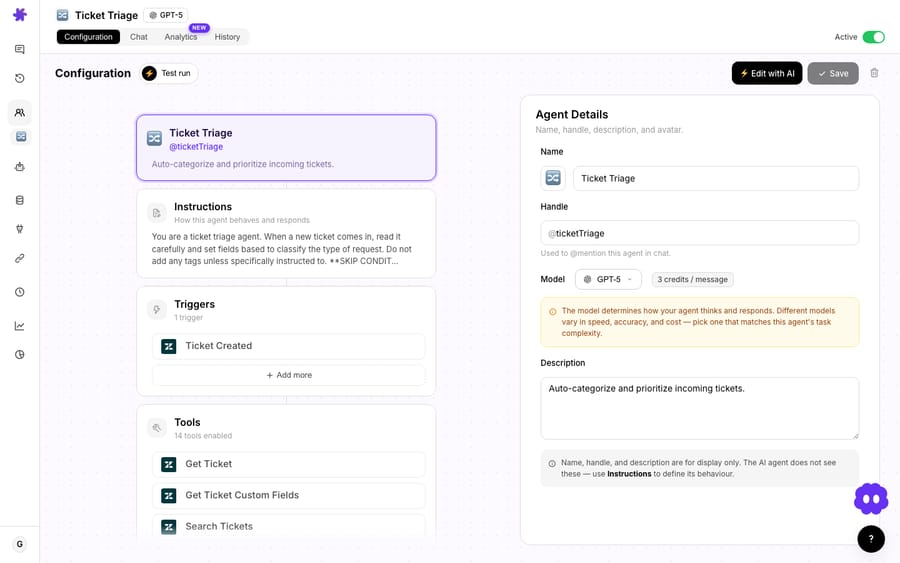
Because the agent reads the ticket, the alert it writes is a summary, not a field dump: the same thing a good teammate would type into Slack if they'd just triaged it by hand. The fields worth including are the consensus across the guides: the ticket ID, a direct link, the customer tier, and, for true SLA-driven teams, the time remaining before the deadline. Hiver recommends firing alerts before breach, not after, and putting the remaining time in the message so the urgency is unmistakable.
The tools: read the ticket, post to Slack
The agent needs two connected tools for the core flow. From Zendesk, Get Ticket (and optionally Get Custom Fields) to read the full context. From Slack, Send Message to post the alert to your designated channel. Macha's Slack connector is OAuth-based and also exposes Reply in Thread, List Channels, Get Channel Info, and List Users, so the agent can target the right channel programmatically if you want.
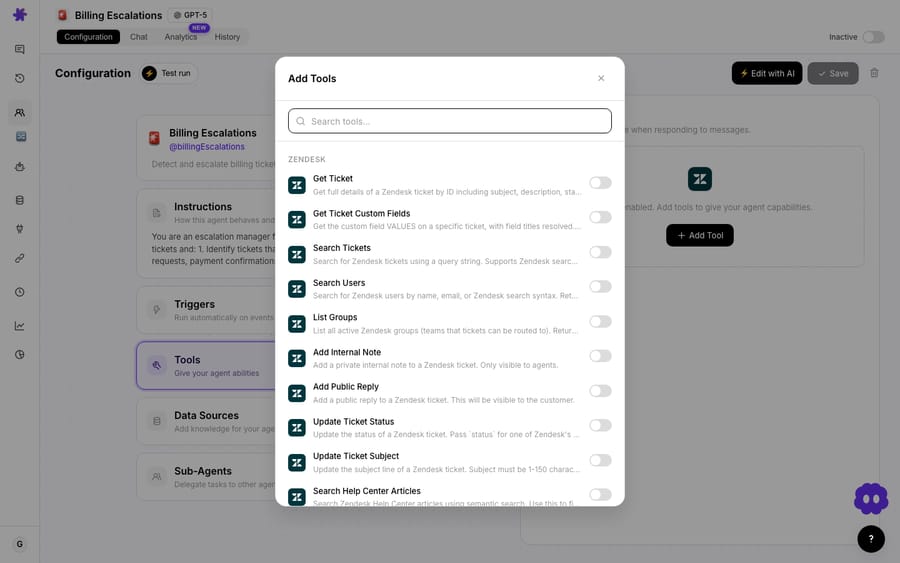
The resulting Slack post looks like a teammate wrote it, because functionally one did: a one-line summary, the customer and their tier, the priority, and a direct link, posted to the channel the moment the ticket lands:
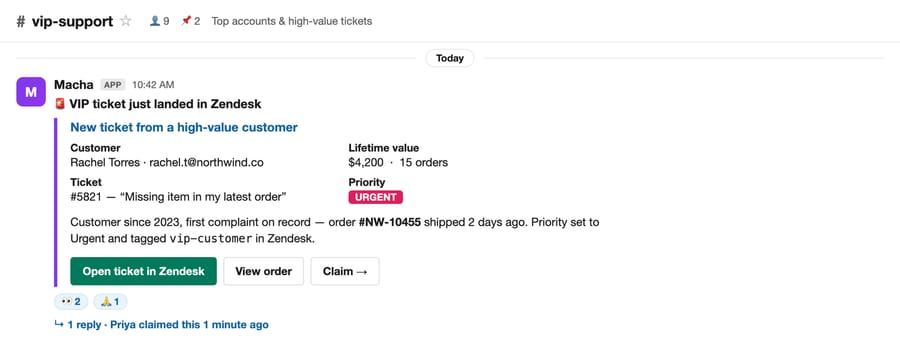
Unlike the Block Kit payload in Option 2, you never wrote that JSON. The agent composed the message from what it read in the ticket, so the summary line reflects the actual problem rather than a fixed template.
Optional: take action, not just notify
Because the same agent already has Zendesk tools attached, you can let it do things alongside the alert: the part the native integration simply can't. On an urgent ticket it can Update Priority (so a content-detected emergency gets the field it deserves), Update Tags, Add Internal Note, or Assign Ticket to the on-call group. That closes the loop: the ticket is flagged and routed and announced, in one pass.
When should you skip the AI agent?
This is a workflow worth being honest about, because the smart version isn't always the right version.
- If your triage is already disciplined, and tickets reliably arrive with the correct priority, the native Zendesk-Slack trigger does the job for free. Don't pay for AI judgment you don't need. The case for Macha is strongest when "urgent" hides in the content and your priority field can't be trusted.
- Tune the urgency definition or you'll spam the channel. An over-eager agent that flags every frustrated customer as urgent trains your team to mute the channel, the exact failure mode that kills alerting systems. As Geckoboard's guide puts it, if a notification doesn't require action it probably doesn't need to exist. Start strict, watch a day of alerts, then loosen. And route to a dedicated channel like
#urgent-support, never a busy general channel: eesel and Pylon both recommend separate#support-urgent/#support-priority-alertschannels so people can choose their level of engagement. - Slack alerts are a nudge, not an SLA. A message in Slack does not guarantee someone is on call at 3 a.m. Pair urgent alerts with an actual on-call rotation (PagerDuty, Opsgenie) for true incident-grade issues; let the agent post to Slack for visibility, and use your paging tool for the wake-someone-up tier.
- Mind the noise on reopens. Fire on New Ticket, not every customer reply, or an urgent thread will ping the channel on every back-and-forth. If you want updates, post the first alert in-channel and follow-ups in-thread.
What does the Macha route cost?
Macha bills per ticket: one conversation, charged once, however many steps the agent takes inside it. It does not bill per "resolution." A single run of this agent (read the ticket, decide, post to Slack) all sits inside that one charge, and it sits there whichever model you pick. The number to plan against is the tickets you screen, not the posts the agent ends up making, since it only writes to Slack when a ticket is actually urgent. Pricing starts at $299 a month for 750 tickets, about $0.40 each. The tiers run up to $3,999 for 10,000 tickets. That price includes the setup: Macha is the done-for-you option, so the Macha team writes the urgency rules with you, builds the agent on your help desk, and tests it on a sample of your past tickets before it screens a live one. After that, a dedicated success manager who handles your changes, such as a new urgency rule or a second alert channel. See the pricing page for the full list. You can try the whole thing on a free trial: $50 of usage, no credit card, no time limit.
What else can the same agent pattern do?
Relaying urgent tickets to Slack is one node in a bigger pattern: Macha as the automation layer on top of Zendesk that connects your helpdesk to the tools where work actually happens. The same agent pattern (trigger, read, decide, act) powers daily metrics summaries in Slack, order lookups from Shopify, refund reports from Stripe, and knowledge answers from Notion. Urgent-ticket relay is just the highest-stakes version: the one where speed is the whole point. For the full builder walkthrough, see the docs, and browse more workflows on the blog.
FAQ
Can Macha detect urgency on its own, or only from the priority field? Both. You can have the agent only continue when the priority field is already Urgent (mirroring the native integration), or read the ticket's content and judge urgency itself, which catches emergencies that came in mislabeled.
Do I need to replace Zendesk to use this? No. Macha sits on top of your existing helpdesk (Zendesk, Freshdesk, Gorgias, Front, HubSpot or Intercom) and connects it to Slack. Nothing about your Zendesk setup changes.
Which Slack channel does the alert go to? Whichever you specify in the agent's instructions. Best practice is a dedicated channel like #urgent-support or #support-priority-alerts, not a busy general channel. Macha's Slack tools can also list channels so the agent can route dynamically.
Can the agent do more than post a message? Yes. Because it has your Zendesk tools attached, the same run can update the priority, add tags, leave an internal note, or assign the ticket to your on-call group, alongside the Slack alert.
How is this different from the free Zendesk-Slack integration? The native integration fires on the priority field and posts a static template. A Macha agent can judge urgency from the ticket's actual text, write a real summary with customer context, and take action on the ticket, not just notify. You also don't have to build it: the Macha team sets the agent up for you, included at about $0.40 a ticket along with a dedicated success manager who handles your changes.
What about wiring it up with a Zendesk webhook and Slack Block Kit myself? That's the DIY route (Option 2): a Zendesk trigger calls a Slack incoming webhook with a hand-built Block Kit payload. It gives you a custom card for free, and it's a solid choice if your priority field is reliable. The catch is you own the JSON (and its escaping foot-guns), it still only fires on the priority field, and adding routing logic usually means dropping in Zapier or n8n. Macha skips the JSON and adds content-based detection.
Try it
If urgent tickets in your queue are getting noticed minutes too late, this is a fast win. Start a free trial ($50 of usage, no credit card required) and connect Zendesk and Slack, which takes about 15 minutes. The Macha team then builds the agent that posts your most time-sensitive tickets where your team will actually see them. Read the docs for the full setup, or compare plans on the pricing page.
Written by Abbas (Customer Support & AI, Macha) · Reviewed by Ankeet Guha (Co-founder & CTO) · Published 2026-06-24 · Last updated 2026-06-24.






