
 Shopify
 Stripe
 Slack
Slack Notion
 Google Workspace
 Confluence

How Do You Schedule an AI Agent to Run Automatically on Macha?


Macha's Scheduled Run trigger runs an agent on a clock instead of waiting for an event, with a minimum interval of 1 hour. It suits recurring jobs like a daily ticket report to Slack, an hourly SLA check or a nightly backlog summary.
Key takeaways
- A Macha agent is scheduled through Triggers, Add Trigger, Scheduled Run, with a cron expression such as 0 9 * * * and at least 1 hour between runs.
- Each Macha scheduled trigger is capped at 24 runs per day, and an organization can have 3 scheduled runs executing at the same time.
- A Macha scheduled trigger disables itself after 5 consecutive errors and sends an email notification, so a broken job cannot keep running.
- A typical scheduled agent runs daily at 9am, counts Zendesk billing tickets opened in the last 24 hours and posts the summary to a Slack channel.
- Scheduled triggers are included on every Macha plan, and a new account can test one with $50 of free usage and no credit card.

To schedule a Macha agent, open the agent, go to Triggers → Add Trigger, pick Scheduled Run from the Macha triggers at the bottom, then enter a cron expression for when it should run, such as 0 9 * * * for 9:00 every day, with at least 1 hour between runs. The agent then runs its instructions on that clock, up to 24 times a day per schedule.
| Setting or limit | Value |
|---|---|
| Where | Agent → Triggers → Add Trigger → Scheduled Run |
| Schedule | A cron expression, minimum 1 hour between runs (for example 0 * * * * every hour, 0 */4 * * * every 4 hours, 0 9 * * * daily at 9:00) |
| Daily cap | 24 runs per schedule per day |
| Concurrency | 3 scheduled runs at once per organization |
| Auto-disable | After 5 consecutive errors, with an email notification |
| Plans | Included on every Macha plan |
Watch it
What is a Scheduled Run?
A Scheduled Run is a trigger, but instead of firing on an event in a connected app, it fires on a time. Everything else works the same: the agent runs its instructions when the schedule says so.
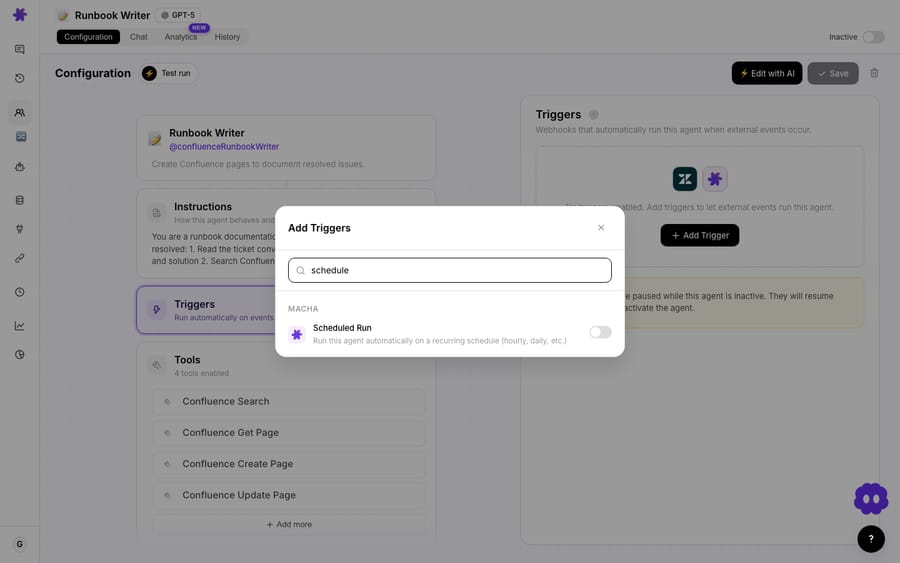
How do you set up a Scheduled Run?
- Open the agent you want to run on a schedule.
- Go to its Triggers and click Add Trigger.
- Scroll to the bottom to find the Macha triggers, and select Scheduled Run.
- Enter a cron expression for the schedule:
0 * * * *for every hour,0 */4 * * *for every 4 hours, or0 9 * * *for a daily job at 9:00. - Save. The agent now runs on that schedule, following its instructions. Macha's scheduler checks every 60 seconds for runs that are due.
What does a scheduled agent look like in practice?
A classic use is a morning report. Set up an agent whose instructions are: "Check Zendesk for tickets in the 'billing' category opened in the last 24 hours, count them, and post a summary to our #support Slack channel." Give it a Scheduled Run of 0 9 * * * (every day at 9am), and every morning your team gets a fresh billing-tickets summary in Slack without anyone running a report.
Swap the instructions and the same pattern covers other recurring work: hourly SLA-breach checks, nightly backlog summaries, weekly trend digests.
What limits apply to scheduled runs?
- Availability. Scheduled triggers are included on every Macha plan, so use them for your highest-value recurring jobs.
- Minimum interval. 1 hour between runs; you can't schedule an agent more often than that.
- Guardrails. Each schedule is capped at 24 runs a day, an organization can have 3 scheduled runs going at once, and a schedule switches itself off after 5 consecutive errors and emails you, so a misconfigured job can't run away. If a run takes longer than 30 minutes, its lock is released so the next run can go ahead.
- One place to manage them. You can see and manage all your scheduled runs together, so it's easy to keep track of what fires when.
When should you use a schedule instead of an event trigger?
- Event trigger (e.g., Ticket Created) → when the agent should react to something happening.
- Scheduled Run → when the agent should do something on a cadence, regardless of events: reports, checks, digests, cleanups.
If your job is "every morning…" or "every hour…", it's a schedule. If it's "whenever X happens…", it's an event trigger.
Frequently asked questions
What is a Scheduled Run? A trigger that runs an agent on a time-based schedule (hourly, every few hours, daily), written as a cron expression, instead of on an event.
How do I set it up? On the agent's Triggers, add a trigger, scroll to the Macha triggers, pick Scheduled Run, then enter a cron expression such as 0 9 * * *.
How often can it run? At most once an hour. The cron expression can't fire more often than hourly, and each schedule is capped at 24 runs a day.
How many scheduled runs can I have? Scheduled triggers are included on every Macha plan; up to 3 scheduled runs can execute at the same time in one organization.
What's a good use case? Recurring jobs: a daily ticket report to Slack, hourly SLA checks, nightly summaries.
What happens if a scheduled run keeps failing? After 5 consecutive errors the trigger is disabled automatically and you get an email, so you can fix the agent before turning it back on.
Schedule your first run: set an agent to post a daily ticket summary to Slack. $50 of free usage, no credit card required. Start free.