





 Shopify
 Stripe
 Slack
Slack Notion
 Google Workspace
 Confluence

Should an AI Support Agent Use All Documents or Hand-Picked Sources?


Give an AI support agent everything and it retrieves the plausible answer instead of the correct one. The fix is scope: deciding, per agent and per source, whether it reads all documents or a hand-picked list.
Key takeaways
- Macha agents should use All documents on curated, customer-safe sources and Selected on mixed sources, and the scope is set separately for each source on each agent.
- Since the April 3, 2026 update, Macha switches a source between All documents and Selected with a one-click toggle on the source row, and Selected opens the document picker.
- Macha's Selected scope is a manual allow-list, so a document added to that source later stays invisible to the agent until someone adds it.
- Macha injects CSV and XLSX files of 2,000 rows or fewer straight into the agent's prompt and chunks larger files for search, and scope decides which files are eligible.
- Microsoft 365 Copilot's Agent Builder takes the same per-agent approach, allowing up to 100 SharePoint files, folders or sites and up to four public website URLs per agent.

Use All documents when every file in a source is safe for an agent to quote, and Selected when the source is mixed and the agent should answer from a named handful of documents. In Macha, sources live once in an org-level library, and each agent sets that scope per source with an inline toggle on the source row, so a billing agent quotes your refund policy verbatim instead of wandering into an outdated pricing PDF that was technically "in the knowledge base."
| All documents | Selected | |
|---|---|---|
| What the agent can read | Everything in the source | Only the documents you pick |
| New documents added later | Included automatically | Excluded until you add them |
| Best for | Curated, customer-safe sources; internal agents | Mixed sources, approved-language-only answers, fixing wrong citations |
| Upkeep | Low | Someone maintains the allow-list |
Macha is the AI agent layer that sits on top of the help desk you already run (Zendesk, Freshdesk, Gorgias, Front, HubSpot or Intercom), so everything below is about shaping what your agents know, not replacing where your tickets live. Our Macha on Zendesk page shows the Zendesk version.
How is knowledge organized across agents in Macha?
Knowledge in Macha is organized on two levels, and getting the mental model right makes everything after it obvious.
Level one: the source library. You add a data source once: upload a PDF, spreadsheet, or document; crawl a website; or connect a live source like Google Docs, Notion, or Confluence. CSV and XLSX files of 2,000 rows or fewer are injected straight into the agent's prompt; larger spreadsheets, PDFs, DOCX files and crawled websites (up to 200 pages) are chunked, embedded, and searched on demand. Live connector sources are read in real time, so when someone edits the Notion page, the agent sees the new version on the next ticket, with no re-uploading. Connecting Confluence (like Google and Notion before it) automatically creates a source for you.
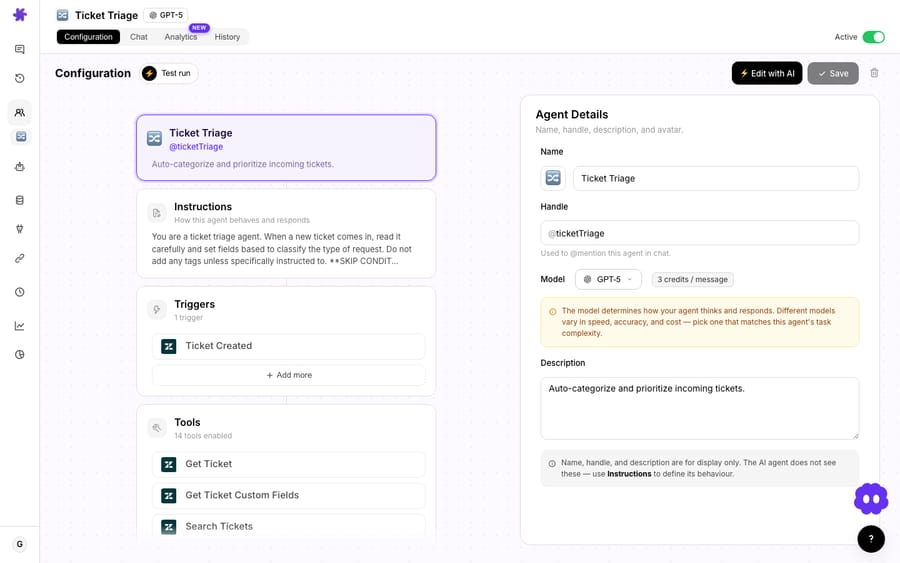
Level two: per-agent scope. A source existing in your library doesn't mean every agent drinks from it. Each agent attaches the sources it needs, and for each attached source, you set its scope: all of it, or specific documents. That's the whole idea: centrally managed knowledge, tailored usage per agent, with zero content duplication. You never copy the returns policy into three different agents; you attach one source three times and scope it differently each time.
Other platforms have converged on the same pattern. Microsoft 365 Copilot's Agent Builder attaches a defined set of knowledge sources per agent: up to 100 SharePoint files, folders or sites, up to 50 OneDrive files, up to four public website URLs and up to 20 uploaded files, rather than your whole tenant. Its connectors scope further by attribute, for example a Confluence space, a Google Drive folder or a Jira project (Microsoft Learn, updated 29 July 2026). Macha's version is deliberately simple: a binary All documents / Selected choice on every source row.
How does the All documents / Selected toggle work?
On every data source attached to an agent, there's an inline toggle: All documents or Selected. Since the April 3, 2026 update it's a one-click switch right on the source row, so you no longer expand the source to change its scope, and clicking Selected opens the document picker. Scope filtering works on every source type: file uploads, websites, Google Docs and Notion pages.
- All documents: the agent can retrieve from everything in that source, now and in the future. Add a new page to the connected Notion workspace and the agent picks it up automatically. This is the "keep up with me" mode.
- Selected: you hand-pick the exact documents the agent may use. The agent is blind to everything else in that source, including anything added later, until you explicitly include it. This is the "stay in your lane" mode.
The toggle is per source per agent, which is the important nuance. The same Google Drive source can be All documents for your internal ops agent and Selected → [Refund Policy, Shipping SLA] for your customer-facing WISMO agent. One library, two very different blast radii.
When is "All documents" the right call?
- The source is already curated. A dedicated "Customer Help Center" Notion space or a tightly maintained Confluence space where every page is publishable to customers. If everything in the source is safe to surface, scoping it down just creates maintenance work.
- You want new content live automatically. Marketing ships a new returns FAQ page; with All documents the support agent answers from it the moment it's saved, and no one has to remember to add it to an allow-list.
- Internal agents over trusted corpora. An agent that helps your own team triage tickets can usually see the whole runbook space.
When is "Selected" worth the upkeep?
- The source is mixed. A shared Drive that holds the customer refund policy and the internal margin spreadsheet and last quarter's draft pricing. You want exactly two of those documents in front of a customer agent and none of the rest.
- Compliance or accuracy boundaries. Legal-approved language only. Pick the approved doc, exclude the drafts, and the agent physically cannot retrieve the unapproved version.
- You're debugging hallucinations. When an agent cites the wrong doc, narrowing scope to the handful of sources it should use is usually a more reliable fix than rewording the prompt.

What does a two-agent setup look like in practice?
Say you run three sources: a Help Center site crawl (all customer-safe), a Google Drive folder (mixed: policies plus internal finance), and a Notion space for internal SOPs.
| Agent | Help Center | Google Drive | Notion SOPs |
|---|---|---|---|
| Customer WISMO agent | All documents | Selected → Shipping SLA, Refund Policy | not attached |
| Internal triage agent | All documents | All documents | All documents |
The customer-facing agent answers shipping and refund questions from approved language and literally cannot reach the finance spreadsheet or internal SOPs. The internal agent sees everything because its audience is your own team. Same three sources, scoped two ways, no duplicated content. Change the refund policy once in Drive and both the document and the customer agent's answer update, because the agent points at the live source, not a copy.
This is also where Macha's sub-agents matter: a top-level router can delegate to specialist sub-agents that each carry their own narrowly scoped knowledge, so a billing question reaches the agent that only sees billing docs.
Does narrowing scope change how retrieval works?
A practical detail worth knowing: scope changes what's eligible for retrieval, not how retrieval works. Within whatever's in scope, small spreadsheets (2,000 rows or fewer) are injected into the prompt directly while larger files are chunked, embedded, and searched on demand with the search_knowledge and get_document tools. Narrowing scope therefore does two useful things at once: it removes wrong-but-plausible documents from the candidate set, and it keeps the retrieval space tight, which tends to surface the right chunk higher. Tighter scope is often the cheapest accuracy win available: you'd rather the agent reason over the right three documents than rank the wrong thirty.
When does scoping go too far?
It's possible to overdo scoping. A few honest cautions:
- Selected mode is a manual allow-list. New documents added to that source after you set the scope are not automatically included. That's the point, but it also means a "Selected" agent can silently go stale if someone publishes a new policy and forgets to add it. If your content changes weekly, All documents on a curated source is lower-maintenance than babysitting a hand-picked list.
- Don't scope around a messy library. If you find yourself hand-picking five documents out of a forty-document source for every agent, the real fix is to split that source (or restructure the underlying Drive/Notion space) so "All documents" is safe. Scope is a control, not a substitute for organizing your knowledge.
- A dozen narrow agents is a dozen things to maintain. Agents and knowledge sources are unlimited on every plan (see the pricing page), so nothing stops you splitting one agent into ten, but each one is another instruction set to update and re-test when a policy changes. Scope deliberately, not compulsively.
- Scope is not access control for people. It governs what an agent retrieves, not who on your team can view a document. Don't use it as your data-governance layer for human permissions; use your source-system permissions for that.
How do you set per-agent scope in Macha?
- Add your sources once in the data sources library — upload files, crawl a site, or connect Google Docs / Notion / Confluence as live sources. (Connecting Confluence auto-creates the source; the Google Picker lets you select Docs and Sheets natively instead of pasting IDs.)
- Open an agent and attach the sources it needs on its Knowledge tab.
- For each attached source, set the inline toggle to All documents or Selected.
- If Selected, hand-pick the specific documents, save, and test the agent against a real ticket to confirm it only cites what you intended.
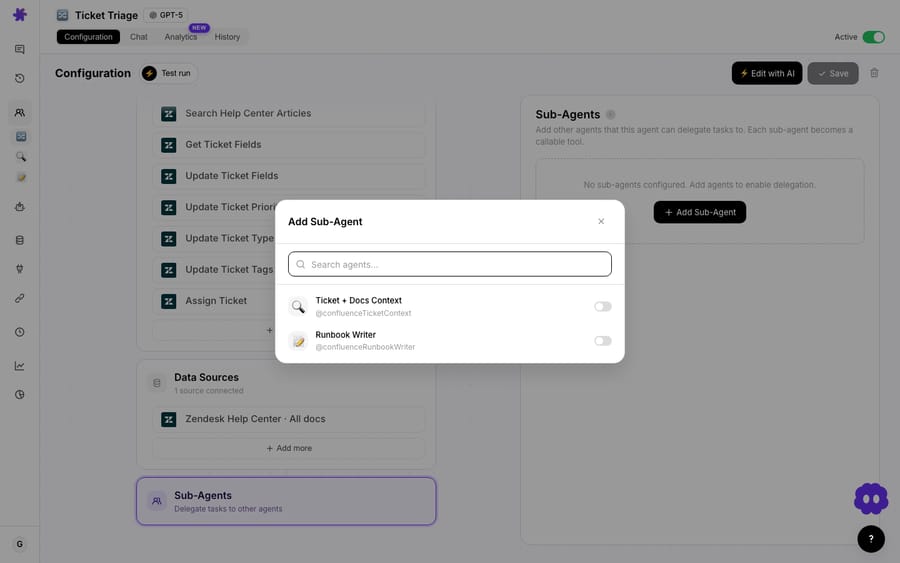
The whole loop takes minutes, and the test step is the one people skip and shouldn't: running a real ticket through the agent is how you prove scope is doing what you think.
FAQ
Is knowledge scoped globally or per agent? Per agent. Sources live in one shared library, but each agent sets its own scope (All documents or Selected) on every source it attaches. The same source can be wide-open for one agent and narrowed to two documents for another.
Does "Selected" automatically include new documents? No, by design. Selected is an explicit allow-list. New documents added to the source later aren't included until you add them. If you want new content live automatically, use All documents on a curated source.
Do live sources update without re-uploading? Yes. Google Docs, Notion, and Confluence connect as live sources read in real time. Edit the underlying document and the agent sees the change on the next run, with no re-upload or re-index step on your end. Static uploads are different: to update one, delete the old file and upload the new version.
Can different agents use the same source with different scopes? Yes, that's the core benefit. Attach one source to many agents and scope each independently. No content is duplicated.
Does scoping change the cost? No. Billing is per ticket (one conversation, charged once), from $299 a month for 750 tickets, not per document in scope. Tighter scope won't cut your bill, but by surfacing the right context it tends to reduce retries and wrong answers, which is where the real waste hides.
Where should you start?
If your agents are confidently citing the wrong document, you don't need a bigger model; you need tighter scope. Start a free trial ($50 of usage, no credit card required), add your sources once, and give each agent exactly the documents it should answer from. Read the data sources docs for the full walkthrough, or browse the blog for more on building accurate agents on top of your helpdesk.
Written by Abbas (Customer Support & AI, Macha) · Reviewed by Ankeet Guha (Co-founder & CTO) · Published 2026-06-24 · Last updated 2026-06-24.






