





 Shopify
 Stripe
 Slack
Slack Notion
 Google Workspace
 Confluence

How Do You Set Up Zendesk Triggers and Webhooks for AI Agents Without Loops? (2026)


Running an AI agent on Zendesk goes wrong in the wiring, not the agent: a broad trigger puts it on tickets you never meant to automate, and a missing condition lets its own update re-fire the trigger in a loop. The fix is a narrow event, conditions set inside Zendesk, and a tag the trigger adds and then excludes.
Key takeaways
- Setting up a Zendesk AI agent safely takes three parts: the narrowest trigger event, a Zendesk trigger with exact conditions that notifies Macha's webhook, and a tag-and-exclude loop break.
- Preventing an infinite Zendesk trigger loop means adding a versioned tag such as ai_classified_v1 in the trigger's actions and excluding that same tag in its conditions.
- Zendesk gives each webhook request a 12-second timeout and retries a timed-out request up to five times, so the receiving side should be fast and idempotent.
- Macha's debounce waits 15 seconds for Zendesk Messaging events and 10 seconds for Slack DMs (0 for ticket events), and force-fires after 25 events or 10 times the window, capped at 2 minutes.
- Macha bills about $0.40 a ticket, and the price includes setup: the Macha team can build the agent, its trigger and the loop break for you, with a dedicated success manager handling changes after go-live.

To wire a Macha AI agent to Zendesk safely you need three things: the narrowest trigger event, a Zendesk trigger with exact conditions that notifies the webhook Macha creates for you, and a tag-and-exclude loop break using a versioned tag such as ai_classified_v1. Macha is an AI agent layer that sits on top of Zendesk. It doesn't replace your help desk; it watches for the events you choose and lets agents take real actions (read the ticket, classify it, draft a reply, write a custom field) through Zendesk's own API.
| Step | Where | What to set |
|---|---|---|
| 1. Pick the event | Macha → agent → Triggers | The narrowest event, or Custom Webhook when only some tickets qualify |
| 2. Filter in Zendesk | Admin Center → Objects and rules → Business rules → Triggers | Exact conditions, plus a Notify webhook action pointing at the Macha webhook and Macha's JSON payload |
| 3. Break the loop | Same Zendesk trigger | Add a versioned tag in the actions and exclude it in the conditions |
| 4. Batch bursts | Debounce chip on the Macha trigger | 15 seconds for Messaging, 10 for Slack DMs, 0 (off) for ticket events |
| 5. Verify | Macha agent → History | Create a matching test ticket and watch the run appear |
Do you even need a trigger?
A trigger is for autonomous runs: the agent starts on its own when something happens in Zendesk. If a human is going to open Macha and chat with the agent, you don't need a trigger at all; that's just chat. So before you build anything, ask whether a person is in the loop. If yes, skip this entirely.
If you genuinely want the agent to act on its own (triage every new ticket, summarize on close, route by priority), then you're picking a trigger. And the single most important rule is be as specific as you possibly can.
Pick the narrowest trigger that matches the moment
When you add a trigger in Macha, you choose the connector (Zendesk) and the event. The Zendesk events available are:
| Event | Fires when |
|---|---|
ticket.created | A new ticket is submitted |
ticket.comment_added | A comment is added to an existing ticket |
ticket.status_changed | Status changes (e.g. open → pending) |
ticket.priority_changed | Priority is updated |
ticket.assigned | Ticket is assigned to an agent or group |
ticket.closed | Ticket is closed |
messaging.customer_message | A customer sends a Zendesk Messaging message |
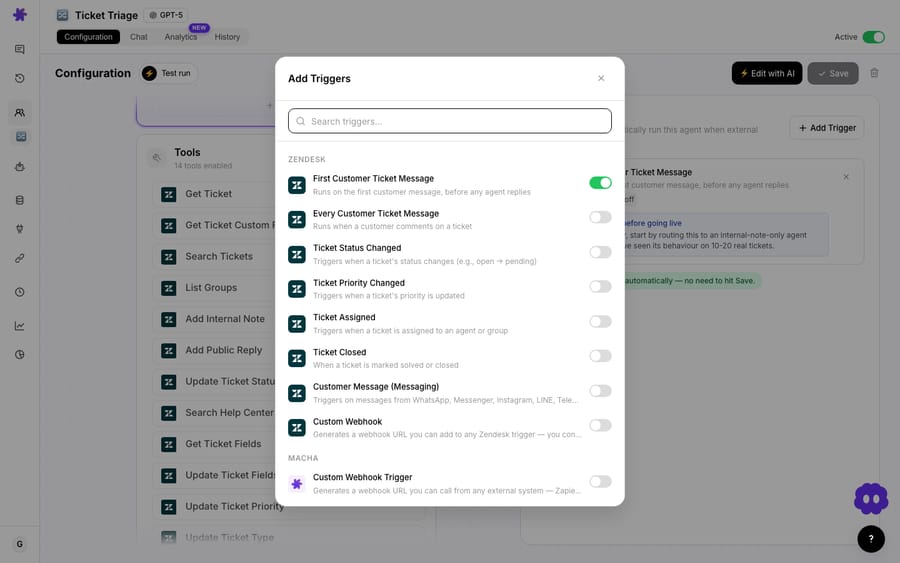
Here's the trap. A broad event like every customer ticket message fires on every customer comment, across every ticket, so the agent ends up working every ticket in the queue, including the ones you never meant to hand it. Macha bills per ticket: one thread with one person, charged once however many times the agent runs on it. Ten fires on the same ticket is still one ticket, but a hundred tickets you never intended to automate is a hundred tickets on the bill. Macha shows a warning when you flip on a high-volume trigger, telling you it fires on every new ticket, and makes you confirm. Read those warnings; they exist because broad triggers are the most common way to point an agent at work you didn't want it doing.
The fix for "I only want some tickets" is the same fix Zendesk admins have always used: push the filtering into Zendesk itself with a custom webhook trigger. That's where the real precision lives.
How do you set up a custom Zendesk webhook trigger?
A custom webhook trigger is the most precise way to wake an agent: you define the exact conditions inside Zendesk ("new ticket" + "high priority" + "from a VIP"), and only tickets that satisfy them get sent to Macha. Everything else is invisible to the agent, and costs nothing.
The good news is that for Zendesk, Macha creates the webhook for you. You don't hand-build endpoints or copy signing secrets between tabs. The flow is:
- In Macha: open your agent → Triggers → Add trigger → select Custom Webhook. Macha automatically creates a webhook on your Zendesk instance, named after your agent (for example,
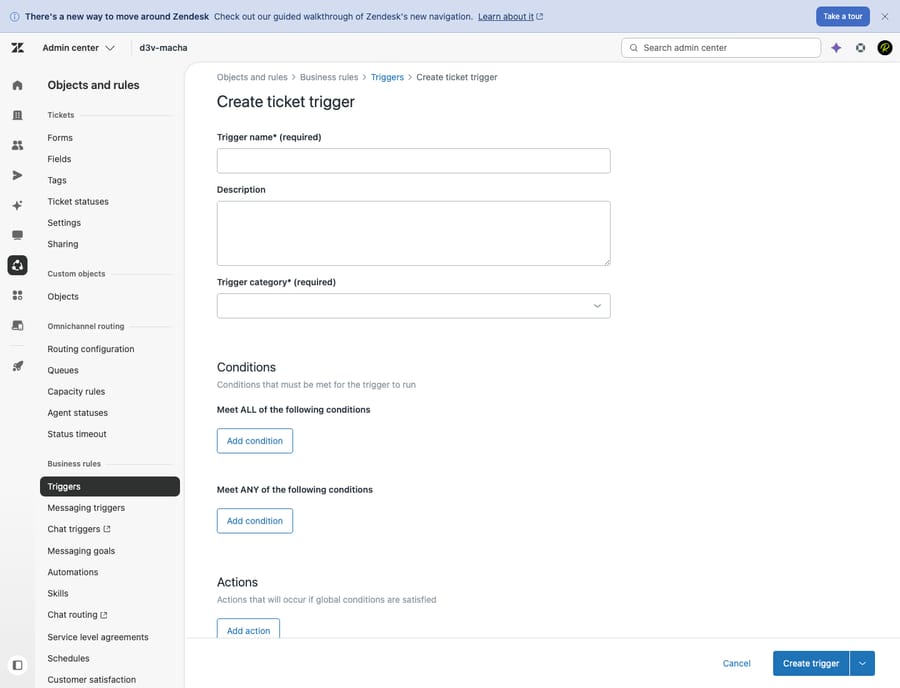
Macha AI Ticket - Auto Classifier). - In Zendesk: go to Admin Center → Objects and rules → Business rules → Triggers and create a new ticket trigger. Set the conditions for exactly which tickets should reach the agent (e.g. "ticket has new public comment" + "commenter is end user" + "ticket status is less than solved").
- Add the action: on that Zendesk trigger, add Notify by → Active webhook (Zendesk calls it the Notify webhook action), then select the Macha webhook from the dropdown.
- Paste the payload: copy the JSON body Macha gave you in the setup popup and paste it into the Zendesk webhook body field. Click Create trigger.
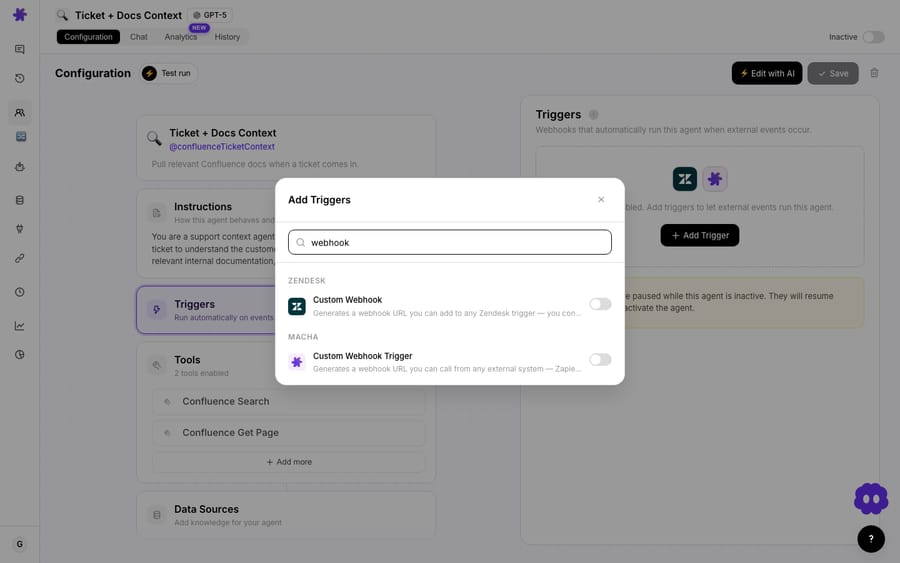
From here, every Zendesk ticket that meets your conditions is sent to the agent, and only those. Here's the matching Zendesk side, where the conditions and the "Notify active webhook" action live:
Make the payload carry the ticket id
One small thing that pays off later: include ticket_id (and ideally ticket_subject) in the JSON payload, the Macha setup modal recommends both. When you do, agent history shows readable titles like "1234: Refund request" instead of a wall of identical "Custom Webhook" rows. When you don't, every autonomous run is indistinguishable at a glance. It costs nothing to add and makes debugging far easier.
Verify before you trust it
Don't assume it's wired correctly because it saved without an error. Create a test ticket that satisfies your conditions, then open the agent's History tab. You should see the run appear with every step the agent took.
If nothing fires, the culprit is almost always the Zendesk-side conditions: they're written so tightly that no real ticket matches them. Loosen one condition at a time and re-test. (Zendesk gives each webhook request a 12-second timeout and retries a timed-out request up to five times, which is another reason to keep the receiving side fast and idempotent. A circuit breaker also pauses a webhook when 70% of its requests error within five minutes. Zendesk's developer docs, the Zendesk webhook help article and hookdeck's guide cover the delivery rules in detail.)
How do you stop an AI agent trigger from looping forever?
This is the failure mode that scares people off automating Zendesk at all, and it's worth understanding why it happens. Zendesk re-evaluates triggers whenever a ticket is updated. So the loop is: your agent processes a ticket → updates it (adds a note, changes a field) → that update re-fires the same trigger → which sends the ticket back to the agent → which updates it again. Zendesk has some internal rate limiting, but you should never rely on that: a runaway agent spams your customer and churns the ticket long before any safety net kicks in. Zendesk's own guidance is explicit that you prevent endless loops with nullifying tag conditions.
The fix is a two-part pattern inside the Zendesk trigger. Do both halves or it won't work:
1. Tag in the actions. Alongside the webhook action, add an Add tags action with a unique tag, use a versioned name like ai_classified_v1. Every ticket sent to the agent now gets tagged.
2. Exclude that tag in the conditions. Add a condition: Tags → Contains none of the following → ai_classified_v1. Tickets that already carry the tag are skipped.
Now each ticket flows through the agent exactly once. The first time the trigger evaluates a ticket, it has no tag → it gets tagged and sent. The next time the same trigger looks at that ticket, the tag is present → the condition excludes it. The loop is broken at the source.
Why version the tag? If you later change the agent's logic and want it to reprocess everything, just bump the tag toai_classified_v2. No existing ticket carriesv2, so they all flow through once more with your new logic, and then get taggedv2. It's a clean reprocess button you build in for free.
This tag-and-exclude pattern is well-established among Zendesk admins for de-duplicating any trigger, not just AI ones (SwiftEQ's trigger best-practices write-up recommends the same shape). The difference with an AI agent is that the cost of getting it wrong is higher: each loop iteration is an agent writing something into a ticket your customer is reading, not just a no-op trigger fire.
How do you stop bursts of messages from running the agent several times?
Some events arrive in bursts: a customer fires off four messages in ten seconds, or a ticket gets three rapid status changes. Without help, that's three or four separate agent runs, and three or four replies, on what is really one situation.
Debounce batches them. Every per-entity event trigger shows a small Debounce chip on its card; set a window in seconds and Macha waits for the conversation to go quiet before running the agent once with the combined context. It's a trailing-edge debounce: if the customer keeps typing every ten seconds inside a fifteen-second window, the timer keeps resetting and the agent holds off until they actually stop.
Sensible defaults:
- Ticket events (
ticket.created,comment_added,status_changed…): 0 seconds (off). Turn it on only if a single ticket is generating a noisy stream of updates. - Zendesk Messaging: 15 seconds: people type in bursts; give them time to finish.
- Slack DMs: 10 seconds, same reason.
Two safeguards stop a steady stream from postponing the agent forever: a bucket force-fires once it hits 25 events, and after a total wait of 10× the window (capped at 2 minutes). Scheduled (cron) triggers and generic Macha webhooks don't show the chip, because debouncing a clock doesn't mean anything.
What happens to the Zendesk webhook when you pause an agent?
A subtle but important behavior: when you toggle a Macha agent off, Macha does not delete its Zendesk webhook or the Zendesk Trigger it created; it sets them to inactive on Zendesk's side, preserving the same resource IDs. Turn the agent back on and the exact same webhook and Zendesk Trigger reactivate.
Why this matters: if you've built your own Zendesk Trigger in Admin Center that points at Macha's webhook, that trigger references the webhook by its resource ID. If pausing deleted and recreated the webhook each cycle, your hand-built Zendesk Trigger would silently break, pointing at a webhook that no longer exists. The soft-toggle keeps your config intact across pause/resume.
The one action that does fully remove the underlying webhook and Zendesk Trigger is deleting the trigger in Macha. That's explicit, and the assumption is you really meant to clean up.
Which Zendesk tools are easy to confuse?
When you give an agent Zendesk tools, most do exactly what their name says. A handful trip people up, usually because two of them sound identical. These are the ones worth knowing before you build:
- Get Ticket: the core ticket: subject, description, status, requester, comments. The workhorse for most workflows.
- Get Ticket Custom Fields: the values on one specific ticket's custom fields. ("What's in the Issue Category field on ticket 1234?")
- Get Ticket Fields: the field definitions for your whole account: which custom fields exist and what their IDs are. Agents use this to understand your setup. Not the same as the previous one.
- Search Tickets: supports Zendesk's full search syntax (status, assignee, tags, date ranges, custom fields). Give the agent this when it needs to find a group of tickets, not just one, such as bulk lookups or reporting-style work.
- Add Internal Note vs Add Public Reply: an internal note is private to your team; a public reply goes straight to the customer. For autonomous agents, double-check which one you've configured before going live: in autonomous mode the agent posts whatever you set, with no confirmation step.
- Update Ticket Fields: writes custom fields, not just system fields like status or priority. This is how an agent fills your dropdowns, text fields, and checkboxes.
- Read Attachment: easy to overlook, genuinely useful: the agent can read images, PDFs, and documents a customer attached, and use the extracted content as context.
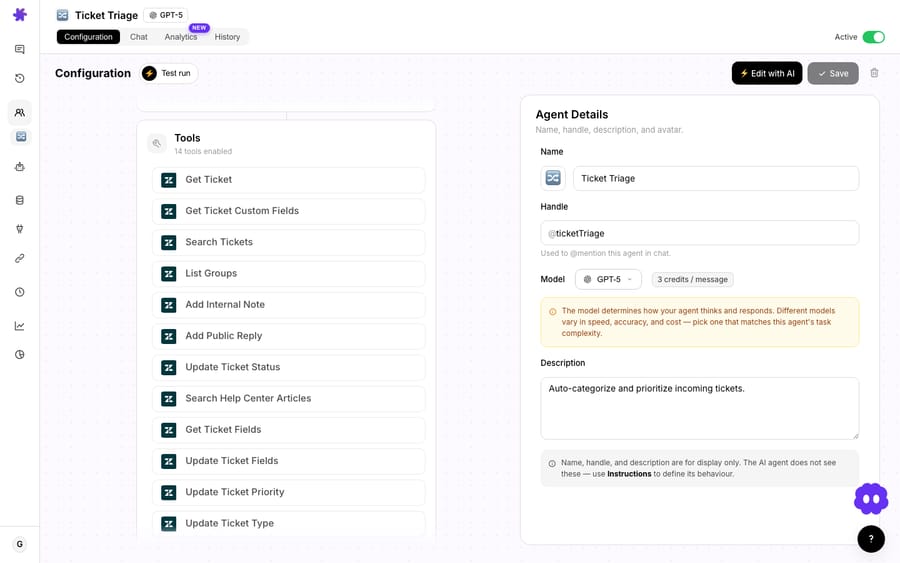
The agent-auto-classifier agent below is a typical example: it reads each new ticket with Get Ticket, decides a category, and writes it back with Update Ticket Fields, all gated behind a single webhook trigger with the tag-and-exclude loop break in place.
When should you not use a trigger?
Triggers are powerful, and that cuts both ways. A few honest cautions:
- Don't automate before you trust the agent. Simulate the event in chat first and confirm the agent does exactly what you expect. Once it runs autonomously, mistakes execute immediately, on real customer tickets, with no human review.
- If a human is already handling the ticket, you don't need a trigger. Chat and Sidekick cover the human-in-the-loop case. Reserve triggers for genuinely hands-off work.
- Broad triggers on a high-volume queue are a budget decision, not just a config choice. Every ticket the agent touches counts as a ticket, whether or not it needed one. If you want the agent on some tickets, do the filtering in Zendesk with conditions, not by letting the agent see everything and decide.
- Public-reply automation deserves extra paranoia. An agent that drafts an internal note for a human to approve is low-risk. An agent that posts public replies autonomously is writing to your customers unsupervised. Start with internal notes, earn confidence, then graduate.
- Name your triggers like a human will read them later. "New high-priority tickets → Bug Triage Agent" beats "Trigger 3" when you come back in six weeks to debug why something fired.
For the full set of available events, debounce internals, and scheduled triggers, the Triggers documentation goes deeper than this page. And if you're new to wiring Zendesk to autonomous agents, our walkthrough on autonomous AI agents for Zendesk pairs well with this page.
FAQ
How do I stop a Zendesk trigger from firing in an infinite loop? Use the tag-and-exclude pattern: in the Zendesk trigger, add an Add tags action with a unique versioned tag (e.g. ai_classified_v1) and a condition Tags → Contains none of → ai_classified_v1. The tag marks tickets that have been processed; the condition skips them next time, so each ticket flows through exactly once.
Do I have to build the webhook myself? For Zendesk, no. When you add a Custom Webhook trigger in Macha, Macha creates the webhook on your Zendesk instance automatically and names it after your agent. You just create the Zendesk trigger rule that points to it and paste in the JSON payload Macha provides.
Why is my Macha agent not firing on new tickets? Almost always the Zendesk-side conditions are too narrow and no real ticket matches them. Create a test ticket that meets the conditions, check the agent's History tab, and if it's empty, loosen the conditions one at a time. Also confirm the webhook action points at the correct Macha webhook.
Does every trigger cost money? Macha bills per ticket, one thread with one person, charged once however many times the agent runs on it, so repeated fires on the same ticket don't multiply the bill. What a broad trigger costs you is reach: an "every customer message" trigger puts the agent on every ticket in the queue, and each of those is a ticket you pay for. Filter in Zendesk so the agent only runs on tickets that genuinely need it. One plan covers every feature, priced by volume from $299 a month for up to 750 tickets, about $0.40 a ticket, and that price includes setup by the Macha team and a dedicated success manager who handles your changes afterwards. See the pricing page.
What happens to my Zendesk setup when I pause an agent? Toggling an agent off sets its Zendesk webhook and Zendesk Trigger to inactive while preserving their resource IDs, so any Zendesk Trigger you built that references the webhook keeps working when you turn the agent back on. Only deleting the trigger removes the underlying webhook fully.
How do you start?
Getting the trigger, webhook, and loop break right is most of the battle; after that, the agent just does its job. If you want to set this up on your own Zendesk, start with $50 of free usage (about 125 tickets), no credit card and no time limit, connect Zendesk, and build your first webhook trigger with the tag-and-exclude pattern from day one. If you'd rather not wire it yourself, the Macha team does it for you: you connect Zendesk (about 15 minutes), and the team builds the agent, its trigger and the loop break, tests it on a sample of your past tickets and runs it in safe mode, with drafts as internal notes, until the drafts are right. That's included on the trial and every plan at about $0.40 a ticket, along with a dedicated success manager who handles your changes afterwards. The Zendesk setup docs have the click-by-click version of everything above.
Written by Abbas (Customer Support & AI, Macha) · Reviewed by Ankeet Guha (Co-founder & CTO) · Published 2026-06-24 · Last updated 2026-09-24.






