Intercom
 Shopify
 Stripe
 Slack
Slack Notion
 Google Workspace
 Confluence

How Does Snooze Work in Front? Send & Snooze vs Send & Archive (2026)


Snooze is how Front handles the conversation you can't act on today but must not forget: it leaves your Open inbox and comes back at a time you choose. The part most teams get wrong is picking Send & Archive when they needed Send & Snooze.
Key takeaways
- Snooze in Front removes a conversation from the Open inbox until a chosen time, when it reappears in the Open tab, and Front cancels the snooze if the customer replies first.
- Front offers three ways to snooze: the clock icon on an open conversation, the quick action in the conversation list, and the Send & snooze button in the composer.
- Send & Archive replies and closes a conversation with no reminder, while Send & Snooze reopens the conversation at a chosen time if the recipient does not reply.
- Each Front teammate can save up to 34 custom snooze times under personal settings, Snoozes, and they appear alongside presets such as Later today and Next week.
- Front rules cannot snooze a conversation, but they can trigger on Conversation is snoozed or Snooze expires and check Conversation is currently snoozed as a condition.
Snooze in Front hides a conversation from your Open inbox and brings it back at a time you pick, and there are three ways to set it: the clock icon on a conversation, the quick action in the conversation list, or Send & snooze in the composer (Front help center, checked 24 September 2026). Each teammate can save up to 34 custom snooze times, and if the customer replies first, Front cancels the snooze and reopens the conversation right away.
| Question | Front snooze (checked 24 September 2026) |
|---|---|
| Ways to snooze | Clock icon, list quick action, Send & snooze |
| Presets | Later today, Tomorrow, This week, Next week, plus Day & Time |
| Custom snooze times | Up to 34 per teammate, in personal settings → Snoozes |
| Where snoozed threads sit | Later section, Snoozed tab, or search is:snoozed |
| Customer replies first | Snooze cancels, conversation reopens |
| Rules | Can trigger on "Conversation is snoozed" and "Snooze expires"; no rule action snoozes a conversation |
What does snooze actually do in Front?
Snoozing a conversation temporarily removes it from your Open inbox and files it away until a time you pick, at which point it reappears in your Open tab. Nothing is lost and nothing is closed: the conversation is parked and comes back on schedule. That makes snooze the right tool whenever the next useful action lives in the future: a customer promised to send a screenshot tomorrow, a refund clears in three days, a renewal conversation should resume next week.
This matters more in a shared inbox than in a personal one. In Front, a team inbox is worked by several people at once, so an open conversation is a signal to the whole group that something still needs doing. Snoozing it clears that signal until the follow-up is actionable, which keeps the shared Open queue honest: everything you see there is something to act on now, not a pile of "waiting on the customer" threads nobody can triage. If you're new to how Front differs from a ticketing tool, our what is Front primer sets the context.
What are the three ways to snooze a conversation?
Front gives you three entry points into the same snooze menu, per its help documentation:
- The clock icon at the top of an open conversation. This is the direct way: open a thread, click the clock, pick a time.
- The quick action in your conversation list. Hover over a conversation in the list (without opening it) and a snooze control appears, so you can snooze several threads in a row without reading each one.
- The Send & snooze button in the composer, which snoozes the conversation as part of sending a reply. More on that below.
Whichever entry point you use, the menu that opens offers the same preset times plus a custom option.
Which snooze times can you choose, and can you add your own?
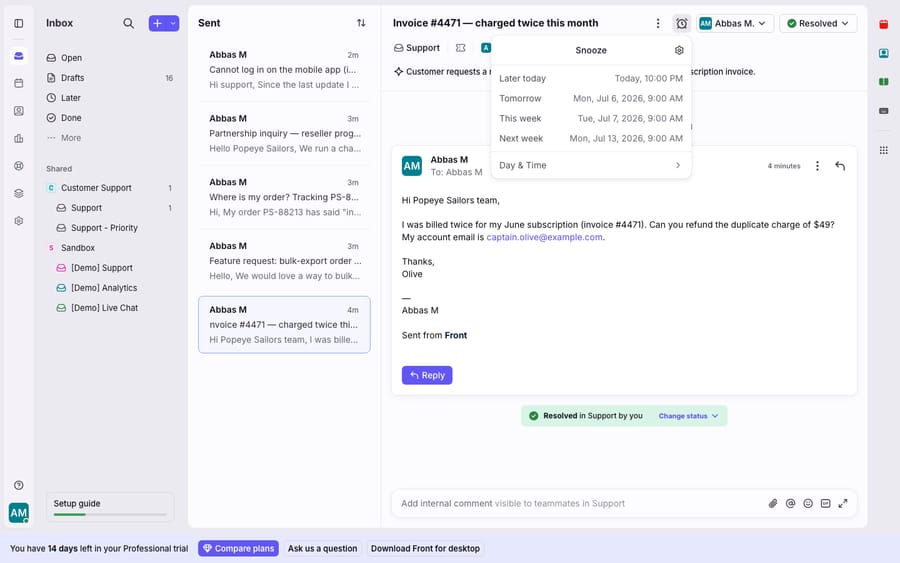
The snooze menu leads with a handful of relative presets (Later today, Tomorrow, This week, and Next week), each of which resolves to a concrete moment (Later today might land at 10:00 PM, for instance). These cover the everyday follow-up rhythm without making you think about calendars.
When a preset doesn't fit, choose Day & Time at the bottom of the menu to snooze until an exact date and time you enter. That's the "snooze-until" case, for the customer call scheduled for the 14th at 9am or the trial that expires at month-end.
If you reach for the same custom timing over and over, Front lets you save your own. Click the gear icon, go to your personal settings, select Snoozes and click Create snooze. You can build up to 34 custom snooze times that then appear in the menu alongside the defaults. Because these live in personal settings, each teammate curates their own list: a support agent's "start of next shift" and a salesperson's "end of quarter" can coexist without stepping on each other.
What's the difference between Send & Snooze and Send & Archive?
The two composer buttons look similar and do very different things. This is the distinction most worth getting right, because picking the wrong one is how follow-ups quietly fall through.
Send & Archive means "I've replied and I'm done unless they write back." Per Front's composer documentation, it means you've "replied to the message and closed the issue until your recipient writes back." It does not set a reminder. If the recipient replies, the conversation reopens in your inbox; if they never reply, it stays archived and you never think about it again. This is the correct choice for a resolved issue: you answered the question, the ball is in their court, and no news is fine.
Send & Snooze means "I've replied, but I need to hear back. Remind me if I don't." Front describes it as setting "a time for the conversation to reopen if your recipient does not reply." If the customer responds before then, the snooze cancels automatically and their reply surfaces immediately. If they go quiet, the conversation reopens at your chosen time as a prompt to chase. This is the choice for anything where silence is a problem: a quote awaiting approval, a bug fix awaiting confirmation, a renewal awaiting a signature.
| Send | Send & Archive | Send & Snooze | |
|---|---|---|---|
| Replies to the customer | Yes | Yes | Yes |
| Leaves the conversation in Open | Yes | No (archived) | No (snoozed) |
| Sets a follow-up reminder | No | No | Yes, at your chosen time |
| If the customer replies | Stays open | Reopens in inbox | Reopens, snooze auto-cancels |
| If the customer stays silent | Stays open (clutters queue) | Stays archived (forgotten) | Reopens at snooze time (you chase) |
| Best for | Ongoing back-and-forth | Resolved, no reply needed | Waiting-on-customer follow-ups |
The mental model: Archive trusts the customer to come back; Snooze trusts you to come back.
How do snoozed conversations come back?
The re-surfacing behaviour is where snooze earns its keep, so it's worth being precise.
When you snooze, the conversation leaves your Open tab. You can see everything you've snoozed in the Later section of your sidebar, in the Snoozed tab of shared inboxes and pinned tags, or by searching with the is:snoozed condition. So a snoozed conversation is never truly hidden. It's filed, and you can pull the whole waiting list up on demand.
At the snooze time, the conversation reappears in your Open tab, back in the queue where you'll see it. In a shared inbox, it comes back for whoever owns it, which is why snooze and assignment work hand in hand: an assigned, snoozed conversation returns to the assignee, not the whole team.
There's one graceful exception. If the customer replies before your snooze expires, Front cancels the snooze automatically and reopens the conversation right away, because the point of the reminder was to catch their silence, and they've broken it. If you still want to defer (say they replied "will confirm Monday"), you can re-snooze in one click with Snooze again until…, which reuses your previous timing.
Can Front rules snooze conversations automatically?
Not directly. Front's rules engine reacts to snooze but can't apply one: the rule actions list in Front's guide to rule triggers, conditions, and actions has no snooze action. What rules can do is use snooze as a trigger or a condition. The triggers Conversation is snoozed and Snooze expires fire when a conversation is snoozed or when its snooze ends and it reopens, and the condition Conversation is currently snoozed checks the state. Front's own example rule fires on an expired snooze, checks the message body, and moves the conversation. That lets you build follow-up logic around snooze, such as tagging or reassigning every conversation whose snooze expires in a given inbox. The snooze itself stays a manual action (or Send & snooze).
Where does Front's snooze fall short, and where does an AI layer help?
Front's snooze is well-designed: three entry points, sensible presets, exact-time control, custom timings, automatic cancellation, and clean re-surfacing. For a human working an inbox, it's about as good as manual follow-up gets. But notice what it is and isn't.
Snooze is a reminder, not an action. It brings a conversation back to your inbox at the right moment; it does not do the follow-up. When a Send & Snooze reminder fires three days later, a person still has to re-read the thread, remember the context, check whether the promised thing happened, and write the chase. Multiply that across a busy shared inbox and "follow up on everything I snoozed" becomes its own quiet backlog.
It's also manual and per-conversation. Rules can react when a snooze expires, but no rule decides on its own that a given thread warrants a two-day nudge versus an immediate close. And the re-surfaced conversation lands as a blank prompt: Front reopens the thread, but it doesn't summarise what changed or draft the next reply.
This is the seam where an AI agent layer fits, and it's worth weighing the tradeoff honestly rather than reaching for automation everywhere. Macha is an AI agent layer that runs on top of the Front you already use (the Macha–Front connector is live), and it does not replace Front or its snooze feature. You connect Macha to Front and it reads and writes the same conversations your inbox already handles: it can pick up a re-surfaced follow-up, check an order or account status through a custom tool that turns a REST API into something the agent can call, and draft or send a grounded reply, so the routine chases you'd otherwise snooze-and-remember happen without a person in the loop. Macha bills per ticket, one conversation charged once however many messages it takes, never per resolution, starting at $299 a month for up to 750 tickets on the pricing page.
The clean division of labour: keep Front's snooze as your reliable reminder system for when a conversation should come back, and layer an agent on top for the part the reminder can't do: handling the follow-up when it does.
FAQ
What are the ways to snooze a conversation in Front? Three. Click the clock icon at the top of an open conversation, use the quick action that appears when you hover over a conversation in the list, or use Send & snooze in the composer to snooze as you reply. All three open the same menu of preset and custom times.
What's the difference between Send & Snooze and Send & Archive? Send & Archive replies and closes the conversation with no reminder; it reopens only if the customer writes back. Send & Snooze replies and sets a follow-up reminder; the conversation reopens at your chosen time if the customer doesn't reply, so you remember to chase. Archive trusts the customer to return; snooze reminds you to.
Where do snoozed conversations go, and how do they come back? They sit in the Later section of your sidebar and the Snoozed tab of shared inboxes and pinned tags (also findable with the is:snoozed search), and reappear in your Open tab at the date and time you set. If the customer replies before then, Front cancels the snooze automatically and reopens the conversation right away.
Can I create my own snooze times? Yes. Click the gear icon, open your personal settings, and select Snoozes, where you can create up to 34 custom snooze times that appear in the menu alongside the defaults. They're per-teammate, so everyone curates their own.
Can a Front rule snooze a conversation? No. Front rules have no snooze action. They can trigger on Conversation is snoozed or Snooze expires and check Conversation is currently snoozed as a condition, so you can automate what happens around a snooze but not the snooze itself.
Can I add AI to Front's follow-ups without replacing Front? Yes. An AI agent layer like Macha connects to Front as a native connector and runs on top of your existing inbox and its snooze feature. It can act on a re-surfaced conversation, look up status through a custom tool, and draft or send a grounded reply, while Front stays the system of record for your conversations and reminders.
Ready to turn snoozed follow-ups into handled ones? Start a free trial of Macha and connect it to your Front inbox in minutes.
Add AI agents to your Front
Macha reads the conversation, drafts the reply and takes the action, inside the Front you already run.