



 Intercom
 Shopify
 Stripe
 Slack
Slack Notion
 Google Workspace
 Confluence

How Do You Configure Roles and Permissions in Zendesk? (2026 Step-by-Step)


Custom roles in Zendesk need an Enterprise plan and are built in Admin Center under People, Team, Roles, by cloning a predefined role and setting permissions across 12 categories. Below are the six steps, the plan gating, and when light agents or contributors are the cheaper answer.
Key takeaways
- Custom agent roles in Zendesk require an Enterprise plan, either Suite Enterprise, Suite Enterprise Plus, or Support Enterprise, and are not available on Growth or Professional.
- Zendesk custom roles are built in Admin Center under People, Team, Roles, usually by cloning a predefined role such as Advisor, Staff, or Team lead.
- Zendesk groups custom role permissions into 12 categories, from Tickets and Business rules to Analytics and the newer Admin copilot category.
- Zendesk light agents, who can view tickets and add private comments but cannot be assigned or edit them, are available from Suite Growth and above or through an add-on.
- Zendesk accounts can create up to 197 custom roles, and a role name is rejected if it is too similar to an existing role like Admin or Administrator.

To configure a custom role in Zendesk, open Admin Center → People → Team → Roles, click Create role or clone a predefined role such as Staff, set permissions across 12 categories, save, then assign it with Actions → Assign role. That Roles page only exists on Enterprise plans (Suite Enterprise, Suite Enterprise Plus or Support Enterprise), so on Team, Growth and Professional you work with the standard Admin and Agent roles plus light agents from Suite Growth up. Every step below is checked against Zendesk's own documentation. Zendesk revises its UI periodically, so confirm labels in your own account.
| Capability | Plan required |
|---|---|
| Standard Admin / Agent / end-user / account owner | All plans (incl. Team) |
| Light agents (limited, low-cost role) | Suite Growth or above, or the Light agents / Collaboration add-on |
| Custom agent roles + the Roles page | Enterprise: Suite Enterprise, Suite Enterprise Plus, or Support Enterprise |
Which roles does Zendesk give you by default?
Before you build anything custom, it helps to know the standard roles Zendesk ships with. These exist on every Support and Suite plan, including Team:
- End user (customer). Anyone who submits a request through any channel. End users aren't team members and don't take a seat. They can see their own tickets in the help center and nothing internal.
- Agent. Your front-line support staff. Agents work tickets in their groups, add comments, build their own views and macros, and can moderate help center content. On most plans this is a single, fixed role.
- Administrator. An agent with the keys to the building: they manage business rules, channels, settings, team members and, on Enterprise, custom roles. Admins can do almost everything an agent can, plus configuration.
- Account owner. A special type of administrator, and there's exactly one per account. The owner alone controls the subscription, billing and plan. Ownership can be reassigned, but never duplicated.
That four-tier hierarchy (end user → agent → admin → account owner) is the backbone of Zendesk's ticketing system, and it's documented in Zendesk's guide to standard user roles.
On Team and Professional plans, that's essentially it: Admin and Agent are your two team-member roles, and you assign one or the other. The granular, build-your-own permission sets only unlock higher up.
Which Zendesk plan do you need for custom roles?
This is where most Zendesk roles guides get vague, so here it is precisely. The table at the top has the three tiers; two points save real time:
- Custom roles need Enterprise. If you're on Suite Growth or Professional and looking for "create role," it isn't there, because that page only appears on Enterprise. Zendesk confirms this in the plan banner on both Creating custom roles and assigning agents and About the Roles page.
- Light agents are the Growth-tier feature people confuse with custom roles. You get light agents from Suite Growth up, or through the Light agents or Collaboration add-on. See About team member product roles and access. They're a role type, not a custom permission set you design.
Keep those two straight and the rest of this falls into place.
Step 1: Where is the Roles page in Admin Center?
Everything for custom roles lives in one place. On an Enterprise plan:
- Open Admin Center.
- Click the People icon in the left sidebar.
- Go to Team > Roles.
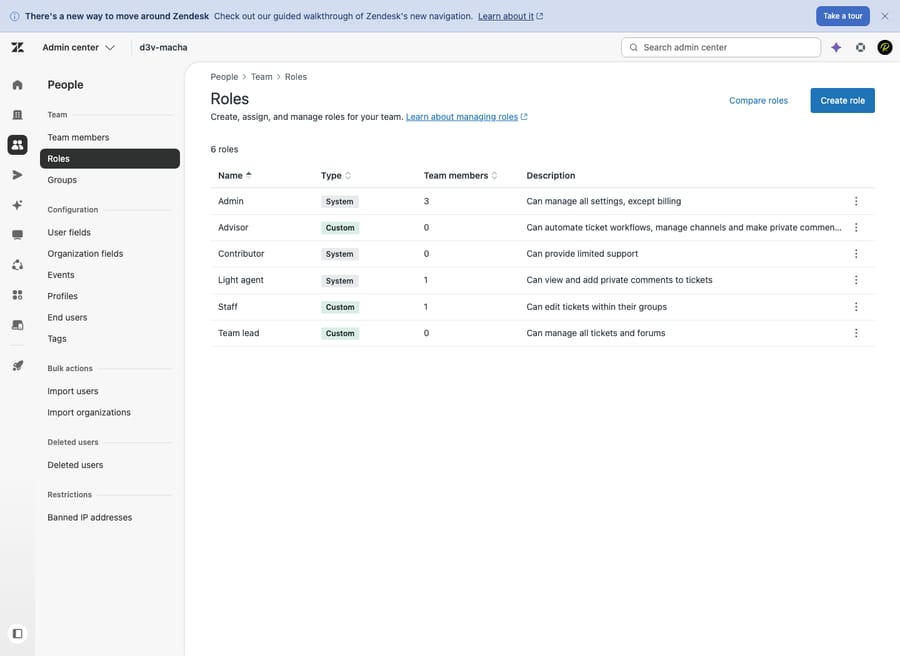
The full path is Admin Center → People → Team → Roles. This page lists every role on your account, the predefined ones Zendesk provides plus any you've built, and shows how many team members are assigned to each. Not seeing a Roles entry? You're not on Enterprise, or you're not signed in as an admin.
Step 2: Should you start from a predefined role or a clone?
You rarely need to build a role from a blank slate. Zendesk gives Enterprise accounts three predefined system roles that cover the most common shapes of access, and they're a sensible starting point:
- Advisor manages workflow and configuration but doesn't solve tickets. Advisors can create automations, macros, triggers and views, and set up SLAs and channels. Think of them as your process owners.
- Staff focuses on resolving tickets, with editing scoped to their own groups. This is the closest analog to a "standard agent" and the right base for most front-line roles.
- Team lead gets elevated access, including editing tickets across all groups plus user and group management. The base for supervisors and QA.
You have two ways to begin:
- Clone an existing role. On the Roles page, hover over the role nearest to what you want, click the options (•••) icon, and choose Clone. This copies every permission so you only adjust the deltas, which is faster and less error-prone than starting fresh.
- Create from scratch. Click Create role if none of the predefined roles is close.
Cloning Staff and tightening one or two permissions is, in practice, how most well-run accounts build their roles.
Step 3: What should you name the role?
Click into your new (or cloned) role and give it a unique Name and a clear Description.
Two rules worth knowing. The name can't be too similar to an existing role such as Admin or Administrator, and Zendesk will reject it if it is. And the description is not decoration: six months from now, "Tier 1: resolve own-group tickets, no deletes, no business rules" tells the next admin exactly what this role is for. Vague names like "Agent 2" are how role sprawl starts.
Step 4: Which permissions can a custom role control?
This is the heart of Zendesk role based access control. A custom role's permissions are grouped into 12 categories, and within each you toggle exactly what this role can see and do:
- Tickets. The big one. Control which tickets the role can access (only their own, their groups', or all), whether they can edit ticket properties, assign, merge, delete, and what level of comment access they get (public replies vs. internal notes only).
- Custom objects. Read and edit rights for any custom object records you've defined.
- Assets. Access to manage shared views, macros and similar shared assets versus only personal ones.
- People. Whether the role can view and edit end-user and team-member profiles, and manage groups and organizations.
- Channels. Permission to configure channels like Talk, messaging and the help center, or just use them.
- Agent workflow. Access to agent workspace behaviors and workflow tools.
- Business rules. Arguably the most sensitive after deletes: whether the role can create and edit automations, triggers, macros and SLAs. A bad trigger can affect every ticket, so guard this.
- Omnichannel routing. Whether the role can manage routing configuration.
- Security and privacy. Sensitive controls such as redaction and related privacy actions.
- Help center. Guide management rights. Guide also has its own separate Knowledge roles (Viewer, Editor, Manager) layered on top.
- Analytics. Access to Explore reporting: view dashboards only, or build and edit reports.
- Admin copilot. The newest category, controlling access to Zendesk's AI assistant for admins.
The full, current category list is documented in Creating custom roles and assigning agents. Older third-party guides still list eight categories; Zendesk has since broken them out further, so go by the live UI.
The classic worked example: a Tier 1 agent role might allow edit ticket properties and add public comments on their group's tickets, while denying delete tickets, merge tickets, and all of Business rules and People management. They resolve what they're assigned and can't reshape the workflow underneath them.
When the toggles match the job, click Save. Your role now appears on the Roles page, ready to assign. You can create up to 197 custom roles per account, per Zendesk's Managing custom roles, which is far more than any team should need.
Step 5: How do you assign a role to agents?
A role does nothing until someone holds it. There are two ways to assign it, and they suit different moments:
From the role (best for bulk): On the Roles page, open the role, click Actions → Assign role, search for the team members, select them, and confirm. Use this when you're rolling a new role out to a whole team at once.
From the team member (best for one person): Go to Admin Center → People → Team members, open the person, and set their Role from the drop-down. This is the natural flow when onboarding a single new hire.
One gotcha: Zendesk notes in Setting roles and access in Admin Center that some roles can't be set from the drop-down because of product and plan dependencies. On Suite Enterprise, for instance, agent access is governed by Support custom roles. If a role you expect isn't selectable, that dependency is usually why.
Step 6: When should you use light agents and contributors instead?
Not everyone who touches a ticket needs a full agent license. Two limited role types handle the people who only need to weigh in:
- Light agents. A limited role that can be CC'd on tickets, view tickets in their groups, and add private (internal) comments, but cannot be assigned tickets or edit them, and cannot create or edit reports. It suits subject-matter experts in engineering, finance or legal who advise but don't run the queue. Available on Suite Growth and above (or via add-on). We go deep on exactly what they can and can't do in what is a Zendesk light agent.
- Contributors. A restricted role that can view and add private comments on tickets in their groups, and doesn't occupy an agent seat in Support unless you manually upgrade it to an agent role.
Reaching for these instead of full agent seats is both a security win (least access) and a cost win (fewer paid seats). Use them for the people who only need to look and comment.
What are the best practices for Zendesk roles and permissions?
The mechanics are easy; getting the model right is what keeps a help desk healthy as it grows.
- Default to least privilege. Start every role from the most restrictive base that still lets the person do their job, then add only what's needed. It's far easier to grant a missing permission than to discover, after an incident, who could delete tickets.
- Build a role per function, not per person. "Tier 1," "Tier 2," "Workflow admin," "QA lead": roles that map to jobs scale, and roles named after people ("Sarah's role") become unmaintainable the moment Sarah leaves. This is also how you stay well under the 197-role ceiling.
- Guard Business rules and Delete hardest. The permissions that affect every ticket (triggers, automations, SLAs, and ticket deletion and merging) should sit with a small, senior group. Most agents never need them.
- Use light agents and contributors for advisors. Don't hand a full agent seat to someone who only needs to read and comment.
- Review roles on a schedule. Permissions drift. Audit who holds what once a quarter, and prune roles no one is assigned to.
- Document each role's purpose in its description. Every admin after you will need it.
What permissions should an AI agent get?
Once your roles are clean, a fair question is which "team member" handles the repetitive tickets, and what permissions it should have. This is where an AI agent enters the picture.
An AI agent like Macha isn't a help desk and it isn't a Zendesk replacement. It runs on top of your existing Zendesk, as an automation layer that operates within the boundaries you set. It reads an incoming ticket, pulls from your connected knowledge base and past conversations, and resolves the routine questions directly in the ticket, while still doing the housekeeping a good agent does (tagging, setting status, routing) and handing off to a human, with full context attached, whenever it isn't confident. You decide which queues it touches and what it's allowed to do, the same way you'd scope any role.
The honest framing: it's another integration to configure, and it's only as good as the knowledge you connect to it. A thin help center makes for a thin AI agent. On cost, Macha bills per ticket (one conversation, charged once however many steps it takes to draft, tag and route), not per resolution, starting at $299 a month for up to 750 tickets with setup and monitoring by the Macha team included. If a big share of your volume is repeatable questions your help center could already answer, that's the work you can take off your human agents' plates while your custom roles keep everyone scoped. You can try it free with $50 of free usage, no credit card required.
Frequently asked questions
What plan do I need for custom roles in Zendesk? Custom agent roles, and the Roles page where you build them, require an Enterprise plan: Suite Enterprise, Suite Enterprise Plus, or Support Enterprise. On Team, Suite Growth and Professional you get the standard Admin and Agent roles (plus light agents from Suite Growth up), but not build-your-own custom roles.
Where do I create a role in Zendesk? In Admin Center → People → Team → Roles, click Create role (or clone an existing one via the ••• options menu). Give it a unique name and description, set the permissions across each category, and click Save.
What permissions can I control in a custom role? Permissions are grouped into 12 categories: Tickets (view, edit, assign, merge, delete and comment access), Custom objects, Assets, People, Channels, Agent workflow, Business rules (automations, triggers, macros, SLAs), Omnichannel routing, Security and privacy, Help center, Analytics (Explore reporting) and Admin copilot.
How do I assign a role to an agent? Two ways: from the role's settings (Actions → Assign role, then search and select members) for bulk assignment, or from the individual's profile under Admin Center → People → Team members using the Role drop-down for a single person.
What's the difference between an agent, a light agent, and a contributor? A full agent works and resolves tickets. A light agent can view tickets and add private comments within their groups but can't be assigned or edit tickets (Suite Growth and up). A contributor is similarly limited and doesn't take an agent seat in Support unless upgraded. See what is a Zendesk light agent for the full breakdown.
How many custom roles can I create? Up to 197 per account. Build roles per function, not per person, and you'll need only a handful.
Can I change an agent's role later? Yes. Reassign at any time from either the Roles page or the team member's profile. Some roles aren't selectable from the drop-down due to plan and product dependencies (for example, Support custom roles on Suite Enterprise).
For how roles fit into the bigger picture, see the Zendesk ticketing system explained.
Setup steps and plan availability checked against Zendesk's official documentation on 24 September 2026. Zendesk updates its product periodically, so confirm labels and plan requirements in your own account before relying on them.
Add AI agents to your Zendesk
Macha reads the ticket, drafts the reply and takes the action, inside the Zendesk you already run.





