Intercom
 Shopify
 Stripe
 Slack
Slack Notion
 Google Workspace
 Confluence

The Zendesk Ticketing System Explained (Anatomy of a Ticket)


If you've just inherited a Zendesk account, the interface can feel like a cockpit — views down the left, a ticket in the middle, a wall of properties on the right, and business rules humming somewhere in the background. But underneath all of it sits one deceptively simple object: the ticket. Understand the ticket and you understand Zendesk, because nearly everything else — views, macros, triggers, SLAs, reporting, even the AI — is just a way of creating, organizing, or acting on tickets.

This guide is the plain-English tour I wish I'd had on day one. We'll cover what a ticket actually is and why ticketing matters, how a request flows through Zendesk from channel to closed, then the anatomy of a ticket — every field on that properties panel explained in real language. Finally we'll connect tickets to the rest of Zendesk, flag the mistakes new admins make, and look at where AI fits. The mechanics here are verified against Zendesk's own documentation.
What a ticket is — and why ticketing matters
A help desk ticket is a single record of one customer's request or issue, with all the context attached: who asked, what they need, the back-and-forth conversation, who's handling it, how urgent it is, and where it stands. When someone emails [email protected], fills out a contact form, or pings your chat widget, Zendesk turns that into a ticket.
Why bother wrapping a customer email in all this structure? Because once you're past a handful of requests a day, a shared inbox stops working:
- Nothing falls through. Every request becomes a tracked object with an owner and a status — no more "I thought you were replying to that."
- You can route and prioritize. Tickets can be sorted into queues, assigned to the right team, and triaged by urgency, instead of everyone reading every email.
- Context travels with the request. The full history, customer details, and internal discussion live on the ticket, so anyone who picks it up is instantly caught up.
- You can measure the work. Volume, response times, resolution times, and satisfaction all become reportable — which is impossible in a plain inbox.
That's the core idea behind the Zendesk ticketing system: convert messy, multi-channel conversations into consistent records you can route, resolve, and measure.
How a ticket flows through Zendesk
Before dissecting the parts, it helps to see the whole journey. A typical ticket moves through five stages:
- A channel brings the request in. Email, web form, help center, messaging/chat, social, or phone (Talk) — every channel funnels into the same ticketing backbone. Increasingly, an AI agent conversation can itself become a ticket, so automated chats and human handoffs live in one place.
- A ticket is created. Zendesk generates the record, assigns it a number, captures the requester, and stamps it New. Triggers can fire right here — auto-replying to the customer, tagging the ticket, or setting priority.
- It's assigned and routed. The ticket lands in a group (a team) and, ideally, with a specific agent. Routing can be manual (an agent grabs it from a queue) or automated (round-robin, skills-based, or rule-driven).
- An agent works it. Status moves to Open. The agent replies publicly, adds internal notes, asks for more info (Pending), or waits on a third party (On-hold). The conversation continues until the issue is handled.
- It's solved, then closed. The agent marks it Solved; after a set period with no further activity, Zendesk Closes it automatically. Closed is the end of the line — the requester can't reopen it.
We dig into every status, the rules that move tickets between them, and why a ticket can never go back to New, in Zendesk ticket statuses explained.
The anatomy of a ticket
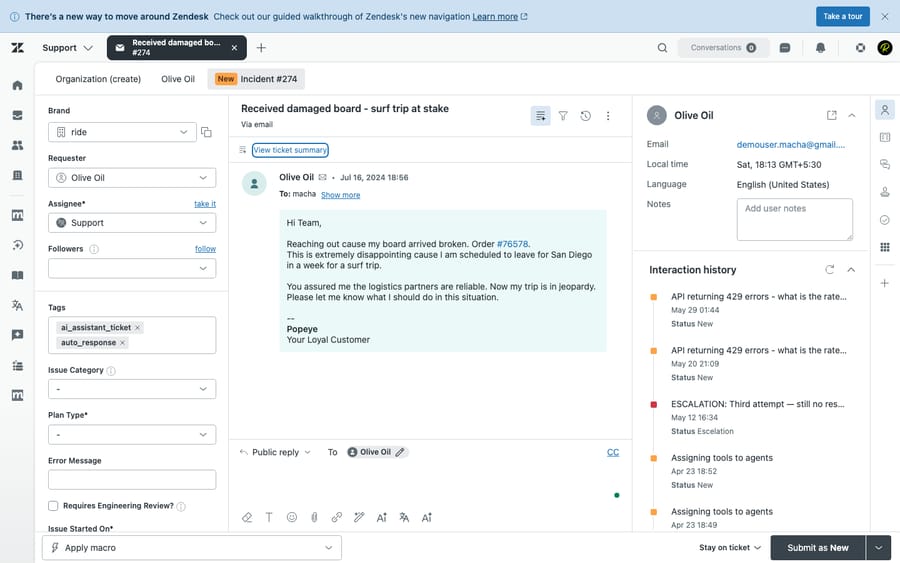
Open any ticket and the right-hand properties panel holds the fields that drive everything — routing, automation, SLAs, and reporting. Here's each part in plain English.
People on the ticket
- Requester. The customer the ticket is for — the person whose problem it is. There's exactly one requester per ticket, and they're who satisfaction surveys and most notifications go to. Get this wrong (for example, when you create a ticket on someone's behalf) and the customer never hears back.
- Assignee. The agent responsible for resolving it. A ticket can sit in a group with no individual assignee yet, but a clear owner is what stops things from stalling.
- Group. The team the ticket belongs to — e.g. Tier 1, Billing, or Technical. Groups are how you route work to the right pod of agents before (or instead of) naming a person.
- CCs and followers. Two different ways to loop people in. CCs are part of the email conversation and can reply. Followers (agents only) silently watch a ticket and get notified of updates without being visible to the customer — ideal for a manager or subject expert keeping an eye on things. The distinction trips up almost every new admin; we untangle requesters, CCs, and followers in this companion guide.
The content of the request
- Subject. The one-line summary — what shows up in views and search. Clear subjects make queues scannable.
- Description. The first comment on the ticket: the requester's original message. It's fixed as the opening of the thread and frames everything that follows.
- Comments — public replies vs. internal notes. This is the single most important thing for a new agent to internalize. A public reply is sent to the requester (and any CCs). An internal note is visible only to other agents — it never reaches the customer. The Agent Workspace color-codes them (notes are tinted yellow) precisely because confusing the two is how private remarks accidentally get emailed to customers. When in doubt, check which mode you're in before you hit submit.
The classification fields
These don't change the conversation — they describe and sort it, and they're what your automations and reports run on.
- Status. Where the ticket is in its lifecycle. Zendesk's standard statuses are New (untouched), Open (an agent is on it), Pending (waiting on the customer — it auto-flips back to Open when they reply), On-hold (waiting on a third party; optional, off by default, and hidden from the customer, who still sees Open), Solved (a resolution was submitted), and Closed (system-finalized and non-reopenable). Zendesk also supports custom statuses within those categories. Full breakdown in ticket statuses explained.
- Priority. How urgent the ticket is: Low, Normal, High, Urgent. Priority is what most SLA policies key off, so setting it consistently (manually or via triggers) directly affects which tickets get attention first.
- Type. What kind of work it is: Question (an answer is needed), Incident (something's broken for this customer), Problem (an underlying issue causing multiple incidents), or Task (something to do, optionally with a due date). Incidents can be linked to a Problem so that solving the Problem can solve them all at once. We cover how to use priority and type well — and the mistakes to avoid — in Zendesk ticket priority and type.
- Tags. Free-form labels on the ticket —
refund,vip,bug, whatever you define. Tags are added manually, by triggers/macros, or by AI. They're the connective tissue of automation: rules can fire on tags, views can filter by them, and reports can group by them. - Custom fields. Fields you add to capture data the standard ones don't — order number, product line, plan tier, a dropdown of issue categories. Combined with forms (different field layouts for different request types), custom fields are how you tailor Zendesk to your business. They're a topic of their own — see ticket fields vs. forms.
A useful mental model: People (requester, assignee, group, CCs/followers) say who; content (subject, description, comments) says what; classification (status, priority, type, tags, custom fields) says how to handle and measure it.
How tickets connect to the rest of Zendesk
Once you see the ticket as the atom, the rest of Zendesk clicks into place — almost every other feature exists to organize or act on tickets:
- Views are saved, filtered lists of tickets — your queues. "All unsolved tickets," "Open tickets assigned to me," "Urgent billing tickets": each is just a set of conditions over ticket fields. Views are where agents actually live day to day.
- Macros are one-click bundles of pre-written replies and field changes an agent applies manually — perfect for common, repetitive responses.
- Triggers are event-based automations that run the instant a ticket is created or updated (e.g. "if priority is Urgent, notify the on-call group"). Automations are the time-based cousins that run on a schedule (e.g. "if Pending for 4 days, send a reminder").
- SLAs (service level agreements) are timed targets — first reply within an hour, resolution within a day — measured against ticket fields like priority. Miss-risk tickets get surfaced so they don't slip.
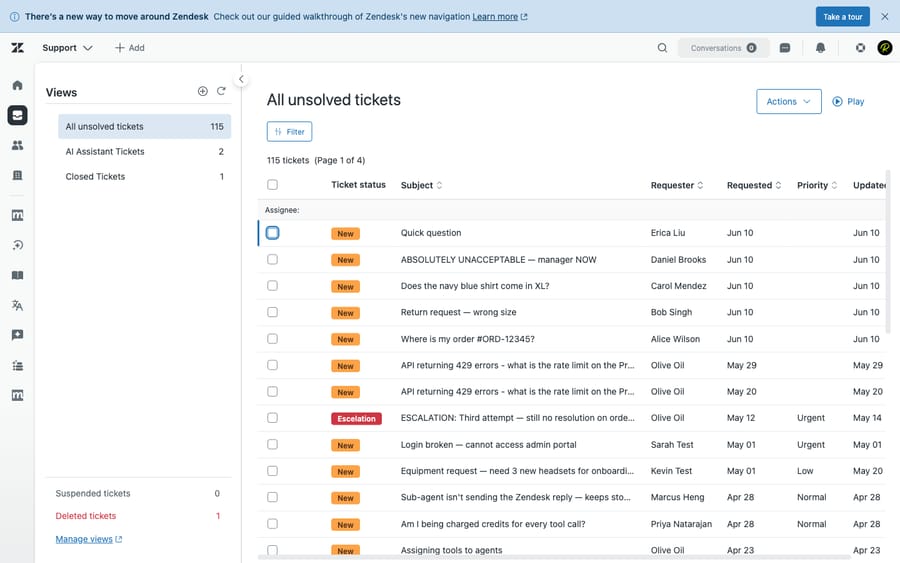
The throughline: build clean tickets (good fields, consistent tags) and every one of these features works better, because they all read from the same record.
Common beginner mistakes
A few traps catch nearly every new Zendesk team:
- Sending an internal note as a public reply (or vice-versa). Always confirm whether you're in public-reply or internal-note mode before submitting. This is the highest-stakes mistake on the list.
- Treating Solved like a filing cabinet. Solved isn't the same as Closed. A solved ticket can reopen if the customer replies; it only Closes automatically later. Don't be surprised when "done" tickets pop back into your queue.
- Confusing the requester with the assignee. The requester is the customer; the assignee is the agent. Creating a ticket with yourself as requester means the customer never gets the replies.
- Ignoring priority and type. Leaving everything at "Normal / -" guts your SLAs and reporting. Even light, consistent triage pays off fast.
- Tag sprawl. Free-form tags are powerful but get messy quickly. Agree on a small, documented tag vocabulary early rather than cleaning up thousands of one-off tags later.
- Letting "New" pile up. A growing New queue means intake isn't being triaged. A simple trigger or routing rule to move New tickets into the right group quickly keeps things flowing.
Where AI fits on top of the ticketing system
Everything above is the manual, human version of ticketing. The modern question is how much of it a machine can take off your plate — and ticketing is unusually well-suited to AI, because the work breaks down into discrete, automatable steps: read the request, classify it, route it, draft a reply, sometimes resolve it outright.
Zendesk has native AI for some of this, and there's also a layer worth knowing about: an AI agent layer like Macha sits on top of your existing Zendesk (it's not a help desk and not a Zendesk replacement). Connected to your tickets and knowledge, it can auto-triage incoming tickets (set type, priority, tags, and route them), draft replies for an agent to approve, and resolve routine tickets end to end — while anything it can't handle stays a normal ticket for a human, with full context intact.
The honest framing: it's another vendor and integration to manage, and it only performs as well as the knowledge and rules you connect to it. Crucially, Macha bills per ticket (one conversation, charged once, however much summarizing, tagging, routing, looking up and drafting happens inside it — and the model you pick doesn't change the price), not per resolution, because most automation isn't a "resolution" — it's work done along the way. If your New queue or repetitive replies are the bottleneck, that's exactly the gap an AI layer fills. We walk through it in how to automate Zendesk with AI. You can also try it free — $50 of free usage, no credit card required.
Frequently asked questions
What is a Zendesk ticket? A ticket is a single record of one customer's request, with all its context attached — the requester, the conversation, the assigned agent, and classification fields like status, priority, type, and tags. Every email, chat, form submission, or call to your support team becomes a ticket so it can be tracked, routed, resolved, and measured.
How does the Zendesk ticketing system work? Requests arrive from any channel (email, chat, web form, social, phone) and become tickets. Each ticket is assigned to a group and/or agent, worked through statuses from New to Open to Solved, and then automatically Closed. Along the way, business rules — triggers, automations, and SLAs — help route and prioritize the work, and agents organize their queues using views.
What's the difference between Solved and Closed in Zendesk? Solved means an agent has submitted a resolution, but the ticket can still reopen if the customer replies. Closed is set automatically by the system after a set period (commonly a few days) with no further activity — once Closed, the ticket can't be reopened or edited. You can't manually Close a ticket; only the system does.
What's the difference between a public reply and an internal note? A public reply is sent to the customer (and any CCs) and becomes part of the email conversation. An internal note is visible only to other agents and is never sent to the customer — it's for behind-the-scenes coordination. Zendesk visually distinguishes the two to prevent private notes from reaching customers by accident.
What are the standard Zendesk ticket statuses? New, Open, Pending, On-hold, Solved, and Closed. On-hold is optional and off by default (and hidden from customers, who see Open). Zendesk also supports custom statuses within these categories. See ticket statuses explained for the full lifecycle.
Can Zendesk tickets be triaged and answered automatically? Yes. Triggers and automations can set fields and route tickets the moment they arrive, and AI can go further — auto-classifying, drafting replies, and resolving routine tickets. An AI agent layer such as Macha runs on top of Zendesk to handle this while leaving harder tickets to humans; details in how to automate Zendesk with AI.
The bottom line
The Zendesk ticketing system looks complicated, but it rests on one object: the ticket. A request comes in from a channel, becomes a ticket, gets assigned and worked through a clear lifecycle, and ends up Solved then Closed — and the fields on that ticket (who, what, and how-to-handle-it) are what every other feature in Zendesk reads from. Learn to read a ticket's anatomy and set its fields consistently, and views, macros, triggers, SLAs, reporting, and AI all start working for you. From here, go deeper on the parts that matter most: statuses, fields and forms, requesters, CCs, and followers, and priority and type.
Ticketing mechanics verified against Zendesk's official documentation, June 2026. Zendesk updates its product periodically — confirm specifics in your own account before relying on them.
Add AI agents to your Zendesk
Macha reads the ticket, drafts the reply and takes the action, inside the Zendesk you already run.