Intercom
 Shopify
 Stripe
 Slack
Slack Notion
 Google Workspace
 Confluence

Followers, CCs & Requesters in Zendesk Explained


Open any Zendesk ticket and you'll see a small cast of people attached to it: a requester, an assignee, maybe a couple of CCs, and — if your admin has turned the feature on — a list of followers. Most of these are self-explanatory until the moment they aren't. Add the wrong person as a CC instead of a follower and you can accidentally expose an agent's email to a customer, or worse, leak an internal note into a public thread.

This guide explains exactly who's who on a Zendesk ticket — requester, submitter, assignee, CCs, and followers — and nails the one distinction people actually search for: CCs vs. followers. The short version is that CCs are public and can be customers, while followers are private and agents-only. The rest of this post is the detail behind that sentence, verified against Zendesk's official documentation.
The 30-second version
| Role | Who it is | Visible to the customer? | Can reply? |
|---|---|---|---|
| Requester | The person the ticket is for (usually the customer) | Yes — they're the main contact | Yes (it's their conversation) |
| Submitter | Whoever created the ticket (may differ from requester) | Sometimes — depends who it is | Yes |
| Assignee | The agent responsible for resolving it | The customer sees the brand/agent reply | Yes |
| CC | Anyone copied on the public conversation — end user or agent | Yes — CC'd agents' emails are exposed | Yes, on the public thread |
| Follower | An agent/admin silently watching the ticket | No — invisible to end users | Yes — but the point is to watch silently, so they use internal notes |
Keep that last column in mind: a CC is on the customer-facing conversation; a follower is watching from behind the glass. That single difference is the source of most Zendesk CC mistakes.
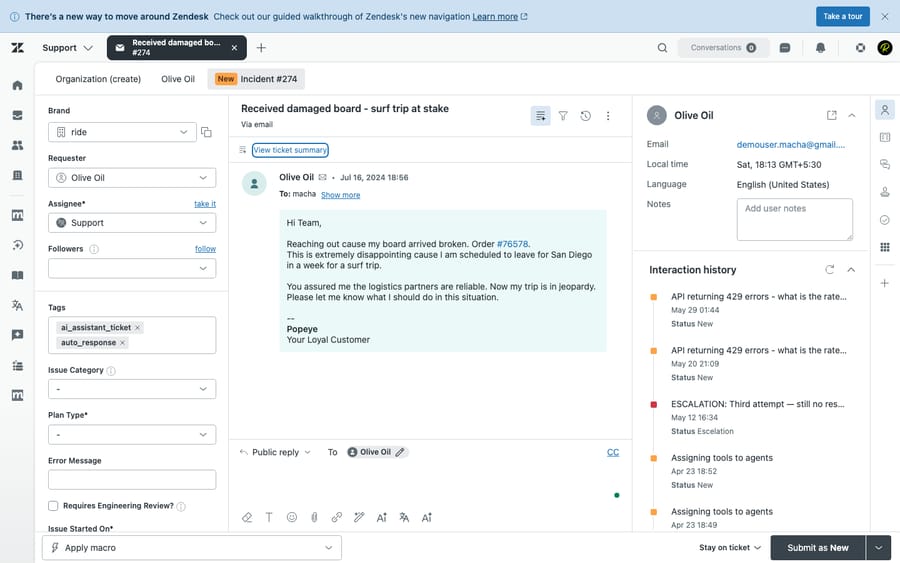
The people the ticket is about: requester, submitter, assignee
These three define the core of every ticket. They're set the moment a ticket is created and rarely change, but the distinction between them trips up new admins constantly. (For how tickets are created and flow in the first place, see our guide to the Zendesk ticketing system.)
- Requester — the person the ticket is for. This is almost always the customer with the problem. The requester is the primary end user on the conversation; replies go to them, and the ticket "belongs" to them from a reporting and SLA standpoint. Every ticket has exactly one requester at a time (though you can change it).
- Submitter — whoever actually created the ticket. Usually the submitter is the requester (a customer emails in, so they're both). But they diverge often: an agent who creates a ticket on behalf of a customer is the submitter while the customer is the requester; a phone agent logging a call is the submitter. The distinction matters for reporting — "tickets submitted by agents" vs. "by end users" tells you how much of your volume is proactive versus inbound.
- Assignee — the agent responsible for resolving it. One agent (and optionally a group) owns the ticket. The assignee is who the work is measured against; reassignment moves accountability. The customer doesn't see "assignee" as a label — they just see replies from your brand or the agent's name, depending on your settings.
The most common search here is requester vs. assignee, and the one-liner is simple: the requester is the customer the ticket is for; the assignee is the agent who has to fix it. They're on opposite sides of the conversation.
CCs: copying people on the public conversation
A CC (carbon copy) in Zendesk works the way CC works in email — the CC'd person is copied on the public ticket conversation. Per Zendesk's docs, CCs can be end users or agents, they receive email notifications when the ticket is updated, and they can reply on the public thread. Zendesk's docs state that a ticket can have up to 48 email CCs — plenty for normal use, but worth knowing if you mirror large email threads into Zendesk. Followers, by contrast, are effectively unlimited, since they're internal-only and don't ride on the email envelope.
The critical thing to understand is that CCs are visible. When an agent is added as a CC, their email address is visible to all end users in the thread. End users can see other CCs in the ticket header, just like a normal email chain. So a CC is the right tool when you genuinely want someone in the loop on the customer-facing conversation — a second customer contact, a teammate on the requester's side, or (occasionally) an agent whose involvement the customer is allowed to see.
Common uses for CCs:
- Adding a second stakeholder on the customer's side (e.g. the requester's manager) so they get updates.
- Looping in a colleague who needs to reply publicly to the customer.
- Mirroring an existing email thread where several people were already on the To/CC line.
Followers: agents who watch silently
A follower is the private counterpart to a CC. Followers are internal users only — agents and administrators — and they exist to let your team watch and collaborate on a ticket without the customer ever knowing. This is the feature people mean when they search "Zendesk followers."
Per Zendesk, a follower's name and email address don't appear in the email notifications sent to other people on the ticket, and they remain hidden from CC'd end users and other followers. Followers receive notifications about updates — and crucially, they receive both public comments and private (internal) comments on the conversation, so they see the full internal picture.
It's worth being precise here, because this is where a lot of write-ups get it wrong: a follower is a full agent, so Zendesk's docs say followers can "make private comments and public comments" — they are not restricted to internal notes. The point of following is silent monitoring, though, so in practice followers participate through internal notes and @mentions. If a follower posts a public reply, that reply lands on the customer-facing thread and surfaces them in the conversation — which defeats the whole reason you made them a follower instead of a CC. So followers can reply publicly; the intent is that they don't.
To loop another agent into the internal discussion, @mention them in an internal note (type @ and their name). That sends them a notification and pulls them into the private side of the conversation without exposing anyone to the customer — the natural companion to following.
Common uses for followers:
- A team lead or manager keeping an eye on an escalated ticket without inserting themselves into the customer thread.
- A subject-matter expert who needs to see the internal discussion and chime in with private notes.
- Cross-team collaboration (e.g. an engineer following a bug ticket) where you don't want the customer seeing internal staff.
The crux: CC vs. follower
This is the distinction the whole post hinges on, so here it is side by side:
| CC | Follower | |
|---|---|---|
| Who can be one | End users or agents | Agents/admins only |
| Visible to the customer? | Yes (email shown in thread) | No (hidden entirely) |
| Sees internal/private notes? | No — public conversation only | Yes — public and private |
| Can reply publicly? | Yes — publicly by design | Yes, but it defeats the purpose — they're meant to watch silently via internal notes/@mentions |
| Best for | Looping in customers or public participants | Internal watching & collaboration |
The practical rule Zendesk itself recommends: to bring another agent onto a ticket, add them as a follower, not a CC. If you CC a colleague, you expose their email to the customer and invite the customer to contact them directly off-channel. Followers keep your internal team structure private — which is almost always what you want when the extra person is staff.
Enabling the "CCs and followers" experience
The modern "CCs and followers" experience replaced Zendesk's older, email-only CC behavior, and it's controlled by an admin. If you don't see a Followers field on your tickets, it simply hasn't been turned on.
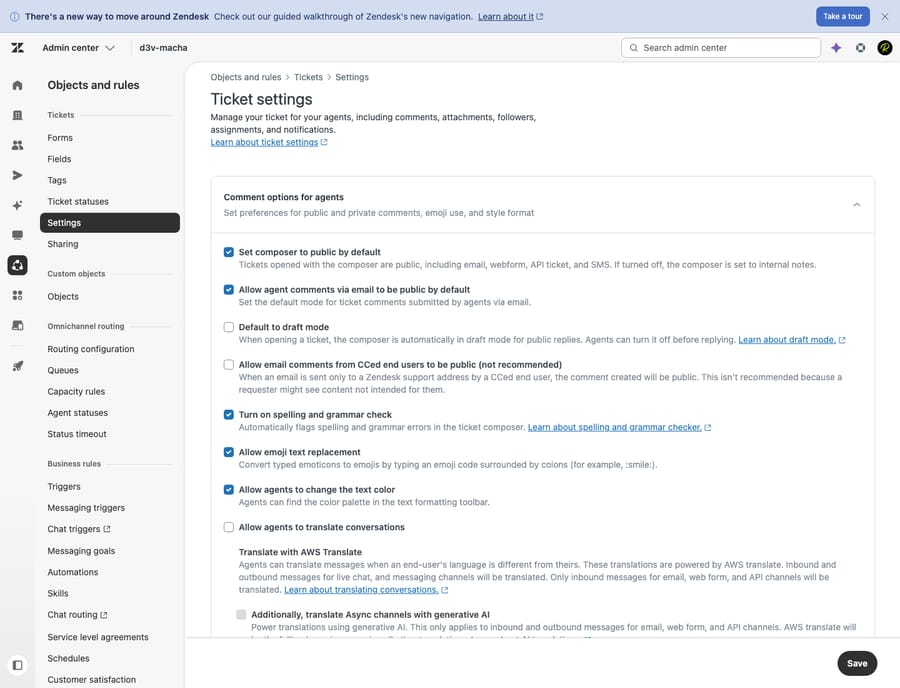
To enable and configure it, an admin goes to Admin Center > Objects and rules > Tickets > Settings, then expands CCs and followers on tickets. The key settings (using Zendesk's exact labels):
- Allow followers — turns on followers and adds the Followers field to the ticket interface.
- Allow CCs — turns on CCs (for agents and end users) and adds the CC line to tickets.
- CCs and followers blocklist — block specific email addresses or whole domains from ever becoming a CC or follower (only available when Allow CCs is on).
- Allow light agents to be added to tickets — lets requesters, agents, and existing CCs add light agents/contributors as CCs or followers.
- Allow end users to add CCs to requests — lets signed-in customers CC others from email replies and the help center.
- Automatically make a CCed agent a follower — when an agent is CC'd, Zendesk quietly converts them to a follower instead, so their email isn't exposed. This is a smart default to switch on.
One gotcha worth flagging: if Allow end users to add CCs to requests is enabled but Anybody can submit tickets is off, any non-registered user a customer tries to CC won't actually be copied and won't get notifications. (For where these ticket-level settings sit relative to the fields and forms customers fill in, see ticket fields vs. forms.)
How each one gets notified
Notifications are where the public/private split shows up in practice:
- Requester — gets the standard public email notifications for every public agent reply.
- CCs — receive the public ticket email when the ticket is updated, and can reply by email or in the interface. Agent CCs show up in the email header that everyone (including end users) can see.
- Followers — receive notifications for both public and private comments, but those notifications don't reveal them to anyone else on the ticket. In the agent interface, a follower simply sees the ticket and its internal notes.
So the same ticket update fans out differently: the customer and CCs see a clean public thread, while followers additionally see the internal commentary — invisibly.
Light agents and followers
Light agents (a free, read-mostly role that can view tickets and add internal notes but not respond publicly) pair naturally with followers, because both are about internal visibility. If the admin enables Allow light agents to be added to tickets, light agents can be added as CCs or followers. One quirk to know: light agents can't add or remove themselves as a CC — someone else has to do it. Following is the cleaner pattern for light agents anyway, since their whole job is to observe and advise internally.
Common mistakes to avoid
- CC'ing an agent who should've been a follower. This exposes the agent's email to the customer. Use a follower (or turn on Automatically make a CCed agent a follower).
- Assuming a CC can see internal notes — they can't. CCs only see the public conversation. If you need someone to see private notes, make them a follower.
- Forgetting that CCs can reply publicly. Anyone you CC can jump into the customer-facing thread. Don't CC a customer contact you didn't intend to give a voice.
- CC'ing a customer who shouldn't see prior context. The new CC sees the existing public conversation. If earlier replies contained details meant for the original requester only, you've now shared them.
- Wondering where Followers went. If the field is missing, it's the Allow followers setting — not a bug.
Where AI fits: keeping stakeholders in the loop automatically
Once you understand the people on a ticket, the natural next question is keeping them informed without manual babysitting. This is one place an AI agent layer helps. Macha sits on top of Zendesk (it's not a help desk itself — it works with the one you already run) and can automate the busywork around stakeholders: summarizing an escalated thread for a following manager as an internal note, drafting an update for CC'd contacts, or routing a ticket to the right group so the correct people end up watching it. Because Macha is priced per ticket rather than per resolution — one conversation, charged once however many summaries, drafts and routing steps it takes — the bill tracks the volume you handle rather than an outcome definition you don't control. It's only as good as the knowledge and rules you give it, so it complements your team's judgment rather than replacing it. You can try it on a free trial ($50 of usage, no credit card required).
Frequently asked questions
What's the difference between a CC and a follower in Zendesk? A CC is on the public conversation and can be an end user or an agent — CC'd agents' email addresses are visible to the customer, and CCs can reply publicly. A follower is an agent or admin only, is hidden from the customer, sees both public and private comments, and watches silently. Use CCs to loop in customer-side or public participants; use followers to bring in internal staff.
What's the difference between the requester and the assignee? The requester is the customer the ticket is for (the person who needs help). The assignee is the agent responsible for resolving it. They sit on opposite sides of the conversation.
What's the difference between the requester and the submitter? The requester is who the ticket is for; the submitter is who created it. They're usually the same person, but differ when an agent opens a ticket on a customer's behalf — then the agent is the submitter and the customer is the requester.
How do I add a CC to a Zendesk ticket? If your admin has enabled Allow CCs, open the ticket and add the person on the CC line in the conversation header (or CC them from an email reply). Remember a CC is public — to add a colleague privately, add them as a follower instead.
How do I turn on followers in Zendesk? An admin enables it under Admin Center > Objects and rules > Tickets > Settings > CCs and followers on tickets, then switches on Allow followers. That adds the Followers field to your tickets.
Can a CC see internal/private notes? No. CCs only see the public conversation. Followers see both public and private comments — so if someone needs to see internal notes, make them a follower, not a CC.
The bottom line
The people on a Zendesk ticket sort into two groups: those on the public conversation (requester, submitter, assignee, and CCs) and those watching privately (followers). The distinction that matters most day to day is CC vs. follower — CCs are visible and can be customers; followers are hidden and agents-only. Get that right and you avoid the two classic mistakes: exposing your agents' emails to customers, and assuming a copied person can see context they can't. Turn on Automatically make a CCed agent a follower, default to followers for internal staff, and reserve CCs for people who are genuinely meant to be on the customer-facing thread.
Feature behavior verified against Zendesk's official help documentation (June 2026). Zendesk updates its interface periodically — confirm exact menu labels in your own Admin Center.
Add AI agents to your Zendesk
Macha reads the ticket, drafts the reply and takes the action, inside the Zendesk you already run.