Intercom
 Shopify
 Stripe
 Slack
Slack Notion
 Google Workspace
 Confluence

Ticket Fields vs. Forms in Zendesk (Explained)


If you've spent any time in Zendesk's admin settings, you've seen two menu items that sound almost identical — Fields and Forms — and it's genuinely confusing which one does what. The distinction matters, though, because getting it wrong is how teams end up with a 25-question intake form that customers abandon, or three "duplicate" forms that all collect the same data.

Here's the one-sentence version to anchor everything below: a field captures one piece of data on a ticket; a form is a curated set of fields shown for a particular type of request. Fields are the building blocks. Forms are how you arrange them. This guide explains both — the system fields you get out of the box, the custom fields and field types you can add, conditional logic, what forms actually do, which plan tiers unlock the good parts, and the mistakes that quietly degrade your data. Everything here is verified against Zendesk's current help documentation (June 2026).
If you're newer to the platform, it's worth skimming how a Zendesk ticket works first — fields and forms are how you shape that ticket object.
Fields vs. forms: the core distinction
Think of a ticket as a record in a database. Every column in that record is a field: subject, status, priority, "what product is this about," "what's your order number." A form is a saved view that decides which of those fields appear, in what order, and with what instructions — for one kind of request.
| Ticket field | Ticket form | |
|---|---|---|
| What it is | A single data point on the ticket | A curated set of fields shown together |
| Answers | "What information do we capture?" | "Which questions does this request type ask?" |
| Example | "Order number," "Priority," "Region" | "Returns request" form vs. "Bug report" form |
| Reused? | One field can appear on many forms | A form is a specific arrangement of fields |
| Visibility | Per-field (agents only or end users too) | Selectable by the end user at submission |
A useful mental model: you design fields once, then mix and match them into forms for each request type. Change a field's options and it updates everywhere that field is used.
System (default) ticket fields
Every Zendesk ticket ships with a set of built-in system fields you can't delete (though you can often hide or reorder them). These are the backbone of routing, reporting, and automation:
- Subject and Description — the headline and body of the request.
- Status — the ticket's lifecycle stage: New, Open, Pending, On-hold, Solved, Closed.
- Type — Question, Incident, Problem, or Task (a problem can link many incidents).
- Priority — Low, Normal, High, Urgent; this is what most SLA policies key off.
- Requester — the customer the ticket is on behalf of.
- Assignee and Group — the agent and team responsible.
- Tags — free-form labels used heavily by triggers, automations, and views.
Type and Priority deserve special attention because they drive so much downstream automation — we cover them in depth in Zendesk ticket priority and type explained. System fields give you a working ticket out of the box, but they're generic. The moment you need to capture something specific to your business — an order ID, a plan tier, a device model — you reach for custom fields.
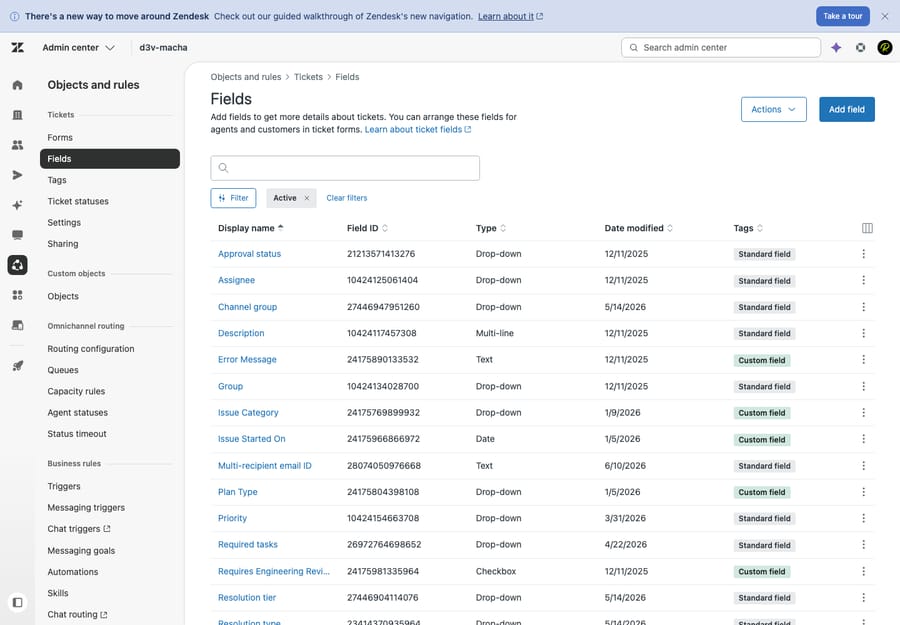
Custom ticket fields and the field types
A custom ticket field is any field you create yourself. Custom fields are available on every Support and Suite plan (Team, Professional, and Enterprise), so this isn't a feature gated behind upgrades — the gating, as we'll see, is on forms and conditional logic, not on having custom fields at all.
When you create one, the most important decision is the field type, because it determines how data is entered, validated, and — critically — whether it can drive automation. Zendesk supports eleven custom ticket field types (verified against Zendesk's "About custom fields and custom field types" doc):
| Field type | Best for | Generates tags? |
|---|---|---|
| Drop-down | One choice from a fixed list (up to 2,000 values) — e.g. category, product | Yes |
| Multi-select | Several choices from a list (up to 2,000 values) — e.g. affected features | Yes |
| Checkbox | A yes/no flag — e.g. "VIP customer," "data-loss reported" | Yes |
| Text | A short single-line answer (up to 65,536 chars) — e.g. order number | No |
| Multi-line | A longer free-text answer — e.g. "steps to reproduce" | No |
| Numeric | Whole numbers only — e.g. quantity, seat count | No |
| Decimal | Numbers with decimals — e.g. refund amount | No |
| Date | A date picker — e.g. event date, requested delivery | No |
| Regex | Text validated against a pattern — e.g. a SKU or postal-code format | No |
| Credit card | A card number with only the last four digits stored/visible | No |
| Lookup relationship | Linking a ticket to a related record — a user, organization, or custom-object record (e.g. tie a ticket to a specific asset or account) | No |
The "generates tags" column is the one most people overlook. Per Zendesk's doc, drop-down, multi-select, and checkbox fields generate tags — and those tags are what your triggers, automations, macros, views, and reports can act on. The mechanics differ slightly by type: for drop-down and multi-select, each option is a title + tag pair you define per value (the title shows to users, the tag drives business rules); for a checkbox, you enter a single tag that's applied to the ticket whenever the box is checked. The lookup relationship field, by contrast, does not generate tags — it stores a link to a related record (and isn't available in search or Explore), so it's for relating records rather than driving tag-based automation. A free-text "Category" field looks tidy but is nearly useless for routing; a drop-down "Category" field can fire a trigger that assigns the ticket to the right group. Rule of thumb: if a value needs to drive automation or reporting, make it a drop-down/multi-select/checkbox — not text.
Required vs. optional, and who can see the field
Two per-field settings shape the experience as much as the type does:
- Required vs. optional. You can require a field before a ticket is submitted, solved, or both. Note an important constraint: the required property is set at the field level and applies to every form the field appears on. If you need "Order number" required on the Returns form but optional elsewhere, Zendesk's own guidance is that you'll need separate fields — there's no per-form override of required-ness.
- Agent-only vs. end-user-visible. Each field can be visible to agents only, or also shown to (and editable by) end users in the help center and web form. Internal triage fields like "Refund approved by" should stay agent-only; "Order number" should be end-user visible so customers supply it up front.
Conditional fields
Conditional fields show or hide a field based on what's selected in another field on the same form. Pick "Hardware" as the issue category and a "Device model" drop-down appears; pick "Billing" and it stays hidden. This keeps a single form short and relevant instead of overwhelming everyone with every possible question.
Conditional ticket fields are a paid-tier feature: per Zendesk's current conditional ticket fields documentation, they're available on Suite Growth, Professional, Enterprise, and Enterprise Plus (some older third-party guides list Professional and up — the current official doc shows Growth and up, so confirm against your own plan).
What ticket forms actually are
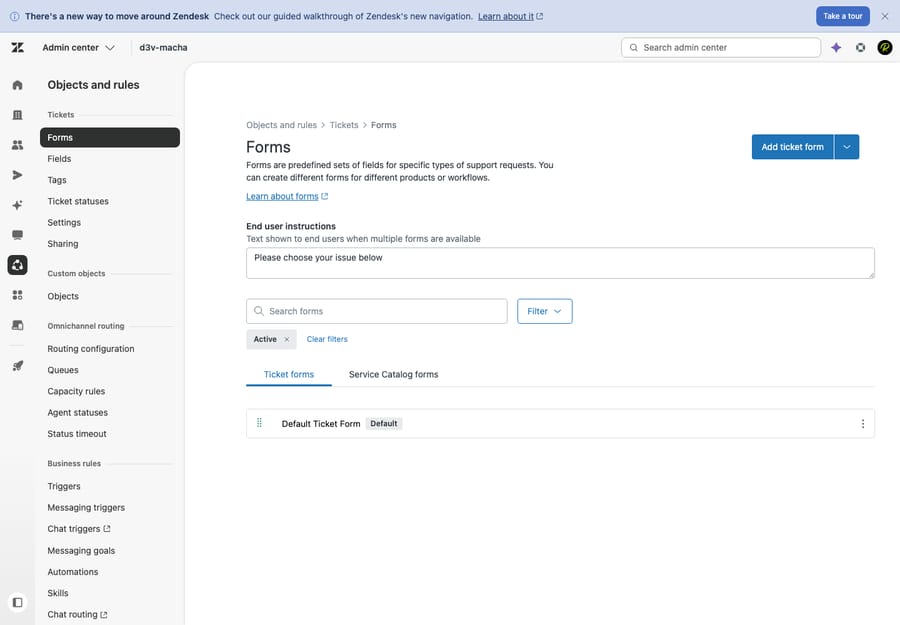
A ticket form is a named, ordered set of ticket fields presented for a specific request type. Every Zendesk account has one built-in Default Ticket Form, and on lower tiers that's all you get. The power comes from creating multiple forms so each request type asks only its relevant questions.
Why you'd want more than one form
- Different request types. A "Report a bug" request needs steps-to-reproduce and a severity field; a "Request a refund" request needs an order number and amount. Forcing both through one form means every customer sees fields that don't apply to them.
- Different products or brands. Multi-product companies route a "Mobile app" form differently from a "Billing" form, and can match forms to brands.
- Cleaner end-user choice. When end users open your help center, they pick the form that matches their problem from a drop-down, and only that form's fields render — which is far less intimidating than one mega-form.
Form settings that matter
- End-user instructions. Each form has a title and an optional instructions blurb shown to customers — use it to set expectations ("Include your order number to speed things up").
- Field ordering. You drag fields into the order they should appear; put the highest-signal questions first.
- End-user visible vs. agent-only forms. A form can be available to customers in the help center, or restricted to agents for internal-only request types.
When the default form isn't enough
If you're routing on ticket type tags, asking customers to describe things you could capture in a drop-down, or maintaining a single sprawling form with conditional fields papering over five different request types — that's the signal you've outgrown the default form and want multiple forms.
Which plan tiers gate forms and conditional fields
This is where buyers get tripped up, so here's the verified breakdown (June 2026, from Zendesk's Creating multiple ticket forms doc):
| Capability | Plans where it's available |
|---|---|
| Custom ticket fields | All — Suite Team, Growth, Professional, Enterprise, Enterprise Plus (and Support Team+) |
| Single default form | All plans |
| Multiple ticket forms | Suite Growth, Professional, Enterprise, Enterprise Plus (and Support Enterprise) — not Suite/Support Team |
| Conditional ticket fields | Suite Growth, Professional, Enterprise, Enterprise Plus |
The practical takeaway: Suite Team gives you unlimited custom fields but only one form and no conditional logic. If your support spans genuinely different request types, Suite Growth is the floor — it's the tier that unlocks both multiple forms and conditional fields. (For where these land in the broader lineup, our Zendesk pricing breakdown walks every tier.)
Best practices and common mistakes
Do:
- Use drop-downs/checkboxes for anything you'll route or report on. Tags are only generated by those types — free text is invisible to automation.
- Keep end-user forms short. Every required field is friction; ask only what you need to start work, and capture the rest with conditional fields or agent follow-up.
- Name fields for humans. "Order number," not "cf_ord_id_2." Agents and admins will thank you.
- Standardize before you scale. Agree on a category taxonomy once; retrofitting tags across thousands of tickets is painful.
- Add new fields to every form that needs them. Once you're running two or more ticket forms, creating a field does not automatically place it on your forms (not even the default one). You have to open each form and add the field manually — so after building a field, check every relevant form or it'll silently go uncollected.
Avoid:
- The mega-form. Twenty fields on one form tanks completion rates and trains customers to skip the help center entirely.
- Free-text where a drop-down belongs. "Region" as text gives you "US", "u.s.", "United States", and "usa" — four values for one thing, and zero reliable reporting.
- Duplicate forms that drift. Three near-identical forms become three maintenance burdens; consolidate with conditional fields where you can.
- Required-everywhere fields. Because required is set at the field level, marking a niche field required can block submission on unrelated forms. Check where a field is used before flipping that switch.
Where AI fits: stop asking humans to populate fields
Well-structured fields are the foundation for automation — but the data still has to get into them, and that's usually manual work for agents (reading a ticket, picking the right category, setting priority, tagging the product). It's tedious and inconsistent.
This is the gap an AI agent layer fills. Macha runs on top of Zendesk (it's not a help desk and not a Zendesk replacement) and can read an incoming ticket, classify it, and auto-populate the custom fields and tags — set the type, choose the right drop-down category, flag urgency — before a human ever opens it. Cleaner field data then makes every downstream trigger and report more reliable, which is a nice compounding effect.
The honest caveats: it's another integration to manage, classification is only as good as the categories and examples you give it, and Macha is priced per ticket (one conversation, charged once however many steps it takes, and never per ticket "resolved"). It's additive to your Zendesk setup, not a substitute for thinking through your fields. If auto-filling and triaging ticket data is the bottleneck, you can try it on a free trial ($50 of usage, no credit card required).
Frequently asked questions
What's the difference between a ticket field and a ticket form in Zendesk? A field captures one piece of data on a ticket (e.g. priority, order number). A form is a curated set of fields shown together for a specific request type (e.g. a "Returns" form). You build fields once and arrange them into forms.
What ticket field types does Zendesk support? Eleven custom types: drop-down, multi-select, checkbox, text, multi-line, numeric (integer), decimal, date, regex, credit card, and lookup relationship (which links a ticket to a related user, organization, or custom-object record). Only drop-down, multi-select, and checkbox generate tags for use in triggers, automations, and reports — lookup relationship does not.
Do I need a paid plan for custom ticket fields? No — custom fields are available on every Support and Suite plan. What's gated is multiple ticket forms and conditional fields, both of which require Suite Growth or higher (Team plans get a single default form only).
Can a field be required on one form but optional on another? No. Zendesk sets the required property at the field level, so it applies to every form the field appears on. To have different requirements, create separate fields.
What are conditional ticket fields? Fields that appear or hide based on another field's value on the same form — e.g. showing "Device model" only when "Issue type" is "Hardware." They require Suite Growth or higher and keep a single form short and relevant.
When should I create multiple ticket forms? When you support genuinely different request types (bugs vs. refunds vs. account changes), multiple products or brands, or want end users to self-select a relevant, shorter form instead of one long catch-all.
The bottom line
Fields and forms are the two halves of the same job: fields define what you capture, forms decide which fields a given request shows. Get the field types right — drop-downs and checkboxes for anything you'll automate, free text only for genuine prose — and your triggers, SLAs, and reports all get more reliable. Then use multiple forms (Suite Growth and up) to keep each request type focused instead of drowning customers in irrelevant questions. The fastest wins for most teams: convert free-text fields that should be drop-downs, trim required fields on end-user forms, and split one overloaded form into a few purpose-built ones. From there, automating the population of those fields is where the real time savings start.
Verified against Zendesk's official help documentation, June 2026. Field types, tag behavior, and plan gating change periodically — confirm the specifics against your own plan and Zendesk's current docs before you build.
Add AI agents to your Zendesk
Macha reads the ticket, drafts the reply and takes the action, inside the Zendesk you already run.