Intercom
 Shopify
 Stripe
 Slack
Slack Notion
 Google Workspace
 Confluence

Zendesk Ticket Priority & Type Explained


Two of the smallest fields on a Zendesk ticket — Priority and Type — quietly drive some of the biggest decisions in your help desk. They decide which tickets jump the queue, when an SLA clock starts ticking, what shows up in an agent's view, and how your reporting slices the day's work. Yet most teams either ignore them or set them by hand, one ticket at a time, which defeats the point.

This guide explains both fields in plain English: what the four priority levels mean and when each applies, what the four ticket types are (including the genuinely powerful Problem/Incident linking that most teams never switch on), why these fields matter downstream, and how to set them automatically instead of manually. If you want the broader context first, start with the Zendesk ticketing system explained — this is a deep dive on two of its most useful attributes.
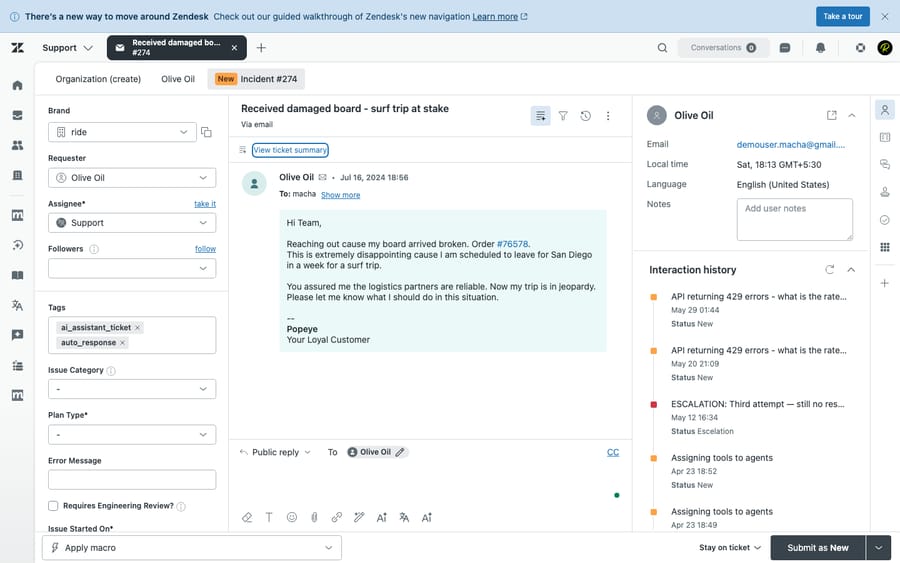
The Priority and Type fields live in the ticket's properties panel (left side of the open-ticket view). Priority sets urgency; Type classifies the nature of the request — and selecting "Incident" or "Problem" unlocks the linking workflow covered below.
The Priority field: four levels of urgency
Priority answers one question: how urgently does this ticket need attention? Zendesk ships four system-defined levels, in ascending order:
- Low — Minor issues, "nice to have" requests, questions with no time pressure. Cosmetic bugs, feature requests, general curiosity. These can wait.
- Normal — The default for most everyday support: a real issue or request that should be handled in the ordinary course of work, but isn't on fire.
- High — Something is meaningfully impaired and the customer is blocked or frustrated. A workaround may exist, but it needs prompt attention ahead of the normal queue.
- Urgent — Business-critical and time-sensitive: a production outage, a paying customer fully blocked, a security or data issue, anything where delay does real damage. Urgent tickets should interrupt the normal flow.
A useful way to choose the right level is the classic impact × urgency lens: impact is how many people (or how much revenue) the issue affects, and urgency is how fast it deteriorates. High impact and high urgency together is Urgent; high impact with a slower clock is typically High; low on both is Low. The matrix keeps the decision objective instead of "whoever shouts loudest gets Urgent."
A couple of practical notes on how the field behaves:
- The four values are system-defined — you can't rename "Urgent" to "P1" or add a fifth level. What an admin can do is configure the field to display all four levels or just Normal + High, which simplifies the dropdown for teams that don't need the full range.
- Priority can be left blank on creation. It only gets a value when an agent, a trigger, or an SLA workflow sets one — which is exactly why automating it matters (more below).
The Type field: four ways to classify a ticket
Where Priority captures urgency, Type captures the nature of the request. Zendesk offers four values, and each does something slightly different:
Question
A general inquiry or how-to — the customer wants information, not a fix. "How do I export my data?" Questions are the bread and butter of most help desks and usually map to knowledge-base answers and macros.
Incident
An instance of a known problem. One customer reporting "the dashboard won't load" is an incident. The power of this type is that an incident can be linked to a single Problem ticket — turning a flood of individual reports into one tracked root issue (see the next section).
Problem
The root cause behind one or more incidents. If the dashboard is down for everyone, that outage is the Problem; every customer who writes in about it is an Incident you link to it. You investigate and fix the Problem once.
Task
Something that needs to be done, often internal, and the only type with a due date. Setting Type to Task reveals a Due date field so you can schedule the work and track it to a deadline. Worth knowing: Zendesk's built-in due date is date-level only — it resolves to 12 PM in your account's time zone on the chosen day; if you need a specific time, a paid Due Time app in the Marketplace adds it.
Like Priority, the Type field can be left empty, and the four values are fixed.
Problem and Incident linking: the feature most teams miss
This is the part worth slowing down for, because it's where the Type field stops being a label and starts saving real work.
When the same issue is reported by many people — an outage, a broken checkout, a bad release — you don't have to manage twenty tickets in parallel. Instead:
- Create (or designate) one ticket as the Problem.
- Set the other reports to Incident and link each to that Problem ticket. You can link many incidents to a single problem.
- Work and solve the Problem ticket once.
Here's the payoff, verified against Zendesk's documentation:
- Solving the Problem automatically sets every linked Incident to Solved. You fix it once; the whole pile closes.
- The comment you add when solving the Problem is copied to all linked Incidents that aren't already solved — so every affected customer gets the same resolution message, automatically.
- Empty required fields on the linked Incidents are ignored during the mass-solve, so missing data won't block the bulk close.
- A couple of important gotchas: reopening a solved Problem does not reopen its Incidents — they stay solved — and solving an Incident directly does not solve the others. Always drive resolution from the Problem ticket.
For any team that deals with outages or shared bugs, this single workflow can turn an afternoon of repetitive ticket-closing into one action. It pairs naturally with Zendesk's ticket statuses — the mass-solve is literally flipping all those linked incidents from Open/Pending straight to Solved.
Why Priority and Type actually matter
These fields aren't just tidy metadata. Four core parts of Zendesk read them and act:
- SLAs. Service-level agreement policies are almost always keyed to Priority — e.g. a 15-minute first-reply target for Urgent, 8 hours for Normal. If Priority is blank or wrong, the SLA clock starts on the wrong target (or not at all). Priority is the input that makes SLAs meaningful.
- Views and queues. A well-run help desk sorts work into views like "Urgent + High, unassigned." Both fields are common view conditions, so accurate values are what put the right ticket in front of the right agent.
- Triggers and automations. Business rules fire on these fields — notify a manager when Priority becomes Urgent, escalate after time elapses on a High ticket, route all Problem tickets to the engineering queue. Type and Priority are among the most-used trigger conditions.
- Reporting. In Zendesk Explore, Type and Priority are core dimensions: ticket volume by type, resolution time by priority, how many incidents each problem spawned. Garbage in those fields means garbage in your dashboards.
In short: Priority and Type are the levers the rest of your automation and analytics pull on. They're worth getting right.
Set them automatically, not by hand
The most common mistake is treating these as fields an agent fills in manually on every ticket. At any volume that's slow, inconsistent, and forgotten under pressure. Better approaches, in roughly increasing sophistication:
- Triggers. The classic move: when a ticket arrives from your VIP organization, on a specific channel, or matching keywords like "down" or "urgent," a trigger sets Priority to High/Urgent or Type to Incident on creation. Reliable and free, but rule-based — it only catches what you've explicitly told it to look for.
- Forms and conditional fields. Let the customer's own selection on a support form pre-set Type or Priority, so it's classified before an agent touches it.
- Intelligent triage / AI. Zendesk's own AI can predict intent and sentiment and set fields accordingly; more broadly, an AI layer can read the actual message content and infer Priority and Type the way a human would — "this reads like an outage, mark it Urgent + Incident." This is far more flexible than keyword rules because it understands meaning, not just string matches. We cover the options end-to-end in how to automate Zendesk with AI.
Best practices and common mistakes
A few habits separate teams that get value from these fields from teams that don't:
- Stop marking everything Urgent. When half the queue is Urgent, nothing is — and your SLAs become noise. Reserve Urgent for genuine business-critical issues and let Normal be the honest default. Calibrate against impact × urgency, not customer tone.
- Actually use Problem/Incident. The single biggest missed opportunity. Teams handle ten copies of the same outage as ten unrelated tickets. Link them to one Problem and solve once.
- Don't solve incidents directly. As noted, that leaves the rest open. Drive every shared issue from its Problem ticket.
- Automate the inputs. If Priority and Type depend on a human remembering to set them, they'll be wrong often enough to corrupt your SLAs and reporting. Set them with triggers or AI at intake.
- Keep the values clean for Explore. Consistent Type usage is what lets you answer "how many incidents did that release cause?" later. Sloppy typing today is a blind spot next quarter.
A note on automating classification. If the manual-tagging problem is what brought you here, an AI agent layer like Macha runs on top of Zendesk and can read each incoming message to set Priority and Type from the content itself — then route, tag, or even draft a reply in the same pass. Worth being honest about the trade-offs: it's priced per ticket — one conversation, charged once however many steps it takes — so cost tracks the volume you hand it; it's another system to connect and maintain; and it's only as good as the rules and knowledge you give it. But for teams drowning in manual triage, automating the classification step is often where the time savings start. You can try it on your own tickets with a free trial ($50 of usage, no credit card required).
Frequently asked questions
What are the Zendesk ticket priority levels? Four, in ascending order: Low, Normal, High, Urgent. They're system-defined and can't be renamed or extended, though an admin can configure the field to show all four or just Normal + High. Priority is what most SLA policies are keyed to.
What are the four Zendesk ticket types? Question (a general/how-to inquiry), Incident (one instance of a wider problem), Problem (the root cause behind incidents), and Task (work to be done, with a due date). Setting a ticket to Incident or Problem unlocks the linking workflow.
What's the difference between a Problem and an Incident in Zendesk? A Problem is the underlying issue (e.g. an outage); an Incident is a single customer's report of that issue. You link many incidents to one problem, then solve the problem once — which automatically solves all the linked incidents and sends them your resolution comment.
Does solving a Zendesk Problem ticket close the linked incidents? Yes. Solving the Problem ticket automatically sets every linked Incident to Solved and copies your solve comment to any incident that isn't already solved. Note that reopening the Problem later does not reopen the incidents, and solving an incident directly won't solve the others.
Can I make a Zendesk ticket priority required or set it automatically? Yes. You can make Priority a required field, pre-set it from a support form, or — the better approach at volume — set it automatically with triggers, intelligent triage, or an AI layer that reads the message content. See how to automate Zendesk with AI.
Does the Zendesk Task type have a due date? Yes — Task is the only type with a built-in Due date field. It's date-level (resolving to 12 PM in your account's time zone on the chosen day); a paid Marketplace app adds a specific time of day if you need one.
The bottom line
Priority and Type look like trivia, but they're the inputs your SLAs, views, triggers, and reports all depend on. Get Priority right with a simple impact × urgency rule (and stop reflexively reaching for Urgent), use Type properly — especially the Problem/Incident linking that lets you solve a shared outage once and close every linked ticket automatically — and then stop setting these fields by hand. Move the work to triggers or AI so every ticket is classified accurately the moment it arrives. Do that, and the rest of your Zendesk workflow gets sharper for free.
Verified against Zendesk's help documentation, June 2026 (priority levels, ticket types, and problem/incident behavior). Zendesk updates its product periodically — confirm current behavior in your own instance.
Add AI agents to your Zendesk
Macha reads the ticket, drafts the reply and takes the action, inside the Zendesk you already run.