Intercom
 Shopify
 Stripe
 Slack
Slack Notion
 Google Workspace
 Confluence

Zendesk Ticket Statuses Explained (New → Open → Pending → On-hold → Solved → Closed)


Every Zendesk ticket carries a status — a single field that says where the conversation stands right now. It looks trivial, but it's one of the most load-bearing pieces of metadata in the whole system. Status is what your views filter on, what your SLAs pause and resume against, what your automations fire on, and what your reports count when they tell you how the team is doing. Get statuses right and the queue runs itself; get them wrong and tickets quietly rot, SLAs breach, and your metrics lie to you.

This guide walks through every standard Zendesk status in plain English — what it means, who it's waiting on, and exactly when to use it — then covers the two distinctions people search for most (On-hold vs Pending and Solved vs Closed), how custom statuses work now that Zendesk lets admins create their own, how statuses interact with SLAs, automations, and reporting, and the common mistakes that wreck a queue. Behavior here is verified against Zendesk's official ticket-lifecycle documentation (June 2026).
The lifecycle at a glance
A ticket moves through a predictable arc. A customer emails in, Zendesk creates a New ticket; an agent picks it up and it becomes Open; the agent needs something from the customer and sets it Pending; the customer replies and it flips back to Open; the agent has everything and submits a fix as Solved; a few days later the system files it away as Closed. That's the happy path.
| Status | Who it's waiting on | Set by | Customer can reopen? |
|---|---|---|---|
| New | Nobody yet — unassigned, untouched | System (on creation) | n/a |
| Open | The agent / your team | Agent or automation | n/a |
| Pending | The requester (customer) | Agent | — |
| On-hold (optional) | A third party — not the customer | Agent | — |
| Solved | Nobody — resolution sent | Agent or automation | Yes — a reply reopens it |
| Closed | Nobody — archived & locked | System only | No — needs a follow-up ticket |
The thing to internalize: status answers the question "whose court is the ball in?" New and Open mean it's on you. Pending and On-hold mean you're legitimately waiting on someone else. Solved and Closed mean the work is done. Let's take each one.
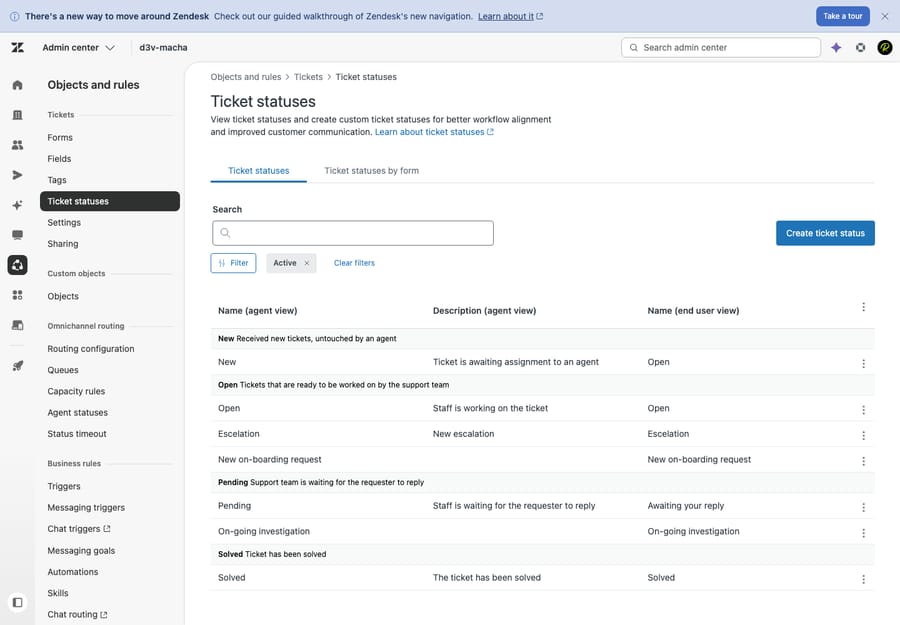
New — received, untouched by an agent
A ticket is New the moment it lands and before any agent has worked it. It signals one thing: no action has been taken yet. New is your intake queue — the tickets that need to be triaged, assigned, and acknowledged. A healthy team keeps the New count low and falling, because a growing pile of New tickets means requests are arriving faster than anyone is picking them up.
One quirk worth knowing: once a ticket leaves New, it can never go back to New. There's no "un-triage" button. New exists only at the very start of a ticket's life.
Open — assigned, an agent is working it
A ticket becomes Open when it's assigned to an agent and is actively in progress. Open is the universal "the ball is in our court" state — it's waiting on your team to do something, whether that's investigating, replying, or escalating. Importantly, Zendesk auto-flips tickets back to Open whenever a customer responds, so Open is also where reopened conversations land.
Because Open means "we owe the customer," it's the status your first-reply and next-reply SLA timers run against. A large or stale Open count is the clearest sign of a backlog — these are the tickets where the clock is ticking on you.
Pending — waiting on the customer to reply
Set a ticket to Pending when you've responded and now need something back from the requester — an answer to a clarifying question, a screenshot, an order number, confirmation that a fix worked. Pending means the ball is in the customer's court.
The magic of Pending is automatic: when the requester replies and adds a new comment, Zendesk resets the ticket to Open for you. You don't have to watch it. This is also why Pending is so important for clean reporting and SLAs — time spent legitimately waiting on a customer shouldn't count against your team's response metrics, and Pending is how Zendesk knows to pause certain timers.
On-hold — waiting on someone other than the customer
On-hold means you're blocked, but not by the customer — you're waiting on an internal third party: an engineer to ship a bug fix, a warehouse to confirm stock, a vendor to respond, another department to weigh in. The distinction from Pending is the who: Pending = waiting on the requester; On-hold = waiting on anyone else.
Two things make On-hold special:
- It's optional and off by default. On-hold is not active in a fresh Zendesk account — an admin has to turn it on (Admin Center → Objects and rules → Tickets → Ticket statuses → Status category settings → Activate On-hold ticket status category). If your agents don't see an On-hold option, that's why.
- It's an internal status. On-hold is visible to agents only. To the customer in your Help Center, an On-hold ticket still shows as Open — they don't need to know your workflow is stuck on a third party.
On-hold is genuinely useful: it lets you separate "tickets my team is actively working" from "tickets parked while we wait on someone else," which makes your real Open backlog far more honest.
On-hold vs Pending — the difference in one line
This is the single most-searched status question, and the rule is simple: Pending = waiting on the customer; On-hold = waiting on a third party. Use Pending when only the requester can unblock you, and On-hold when the requester has done their part and you're waiting on someone internal. Mixing them up pollutes your reporting — a queue full of "Pending" tickets that are actually blocked on engineering makes it look like customers are slow to respond when really you are.
Solved — resolved, but the customer can still reopen
Mark a ticket Solved when you've sent the resolution and believe the issue is handled. Solved doesn't lock anything down — it's a soft close. If the requester replies to a Solved ticket (e.g. "that didn't work" or "thanks!"), Zendesk automatically reopens it and reassigns it to the original agent. So Solved is best read as "done unless the customer says otherwise."
Closed — archived and locked, permanently
Closed is the final state. A Closed ticket is locked: its fields can't be edited, and crucially, the requester can no longer reopen it. If a customer comes back about a Closed ticket, Zendesk creates a follow-up ticket linked to the original rather than reviving it.
Two facts surprise people here:
- You can't manually close a ticket. Only the system closes tickets, via an automation. By default, the built-in "Close ticket" automation closes a ticket 4 days after it's marked Solved. (If you deactivate your automations, Zendesk applies a non-overridable rule that closes solved tickets after 28 days so nothing stays open forever.)
- Closed is forever. There is no reopening a Closed ticket — the follow-up ticket is the only path back.
Solved vs Closed — the difference in one line
Solved is reversible; Closed is permanent. Solved is the agent's signal that the work is done and the customer still has a window to reopen; Closed is the system's signal that the window has passed and the record is archived. Practically: you Solve tickets all day; you never Closed them yourself — the system does that on a timer, and once it has, a new ticket is the only way to continue the conversation.
For how status sits alongside the other fields that drive routing and prioritization, see Zendesk ticket priority and type explained, and for the bigger picture of how tickets, views, and triggers fit together, our Zendesk ticketing system explained guide.
Custom ticket statuses — beyond the standard six
For years Zendesk's statuses were fixed. Now admins can create custom ticket statuses for more granular workflows — think Escalated to Tier 2, Waiting on Engineering, Awaiting Refund Approval, or In Review — instead of cramming every situation into the same handful of states.
The mechanism is important, and it's where the standard statuses earn a second life: when custom statuses are activated, the standard statuses act as status categories. You create your own custom statuses under the Open, Pending, On-hold, and Solved categories — New and Closed are system-managed and don't take custom statuses. Every custom status belongs to one of those categories, and the category — not the label — controls behavior. A custom Escalated to Tier 2 status filed under the Open category behaves like Open for every SLA, trigger, automation, and report, while showing your agents the more descriptive name. This is what keeps custom statuses from breaking your existing rules.
Each custom status also has two names: an agent-facing name (what your team sees in the ticket interface) and a separate end-user-facing name (what the customer sees in the Help Center). That split lets you run an internal status like Pending — Legal Review while the customer simply sees something neutral like In progress — useful when your workflow language isn't something you want exposed to requesters.
How statuses interact with SLAs, automations, and reporting
Status isn't just a label — it's the trigger for most of Zendesk's automation machinery:
- SLAs. Service-level targets are tied to status. Reply-time targets run while a ticket is Open and are paused by Pending (and, depending on your policy, On-hold) so you aren't penalized for time spent waiting on the customer or a third party. Misusing statuses is one of the fastest ways to accidentally breach — or fake passing — an SLA. (Full detail in Zendesk SLA explained.)
- Automations. Time-based business rules key off status: the "Close ticket" automation acts on Solved tickets after N days; reminder automations can nudge agents about tickets sitting in Pending too long; you can auto-solve tickets that have been Pending without a reply for a set period.
- Triggers. Event-based rules fire on status changes — e.g. when a ticket moves to Solved, send a CSAT survey; when it reopens to Open, notify the assignee.
- Reporting. Your core operational metrics — backlog, resolution time, reopens, time-in-status — are all sliced by status. If statuses are applied inconsistently, every one of those numbers is suspect.
Common mistakes that wreck a queue
- Leaving everything Open. When agents never set Pending or On-hold, every waiting ticket looks like active backlog. Your Open count balloons, SLAs look worse than reality, and you can't tell what actually needs work right now.
- Using Pending when you mean On-hold. Parking an engineering-blocked ticket in Pending tells your reports the customer is slow to respond. Use On-hold for third-party waits (turn it on if it's not enabled).
- Solving prematurely to hit metrics. Marking tickets Solved before the customer confirms inflates resolution stats and produces a wave of reopens — which is itself a tracked, unflattering metric.
- Inventing custom statuses with no category discipline. A custom status filed under the wrong category will behave wrongly for SLAs and automations. Map each one to the category that matches how it should behave, not just how it reads.
- Forgetting Closed is final. Agents who expect to "reopen" a Closed ticket get stuck; train them that a follow-up ticket is the correct path.
Where AI fits — keeping statuses honest automatically
Most status mistakes are really consistency problems: humans forget to set Pending, sit on Open tickets, or never park a third-party wait as On-hold. This is exactly the kind of repetitive judgment that an AI layer is good at. An AI agent layer like Macha runs on top of Zendesk (it's not a help desk, and not a replacement for one) and can read an incoming ticket, draft and send the first reply, apply the right tags and priority, and set or progress the status — moving a ticket to Pending when it asks the customer a question, or back to Open when work resumes — so your queue stays clean without an agent remembering to do it.
Worth being honest about the model: Macha is priced per ticket — one conversation, charged once however many messages it takes, not per resolution — it only performs as well as the knowledge and rules you connect, and it's another integration to maintain. But for teams whose statuses drift out of sync, automating the bookkeeping is a high-leverage place to start. You can try it on a free trial ($50 of usage, no credit card required), and our guide to automating Zendesk with AI covers the workflow patterns in more depth.
Frequently asked questions
What are the Zendesk ticket statuses? The standard statuses are New (received, untouched), Open (assigned, agent working), Pending (waiting on the customer), On-hold (waiting on a third party — optional, admin-enabled), Solved (resolution sent, customer can still reopen), and Closed (archived and locked, can't be reopened). Admins can also create custom statuses within these categories.
What's the difference between On-hold and Pending in Zendesk? Pending means you're waiting on the requester (the customer); On-hold means you're waiting on someone else — an internal team or external vendor. On-hold is optional and must be activated by an admin; it's visible to agents only, and customers see it as Open.
What's the difference between Solved and Closed? Solved is a soft close set by an agent — if the customer replies, the ticket automatically reopens. Closed is permanent and set only by the system (by default 4 days after a ticket is Solved); a Closed ticket can't be reopened, so the customer must create a follow-up ticket.
Can you reopen a closed Zendesk ticket? No. Closed tickets are locked and can't be reopened by anyone. The only way forward is a follow-up ticket, which Zendesk links to the original. (A Solved ticket, by contrast, reopens automatically if the requester responds.)
Why doesn't On-hold appear in my account? On-hold is off by default. An admin has to activate the On-hold status category in Admin Center → Objects and rules → Tickets → Ticket statuses → Status category settings. Until then, agents won't see the option.
Can I create custom ticket statuses in Zendesk? Yes. Admins can create custom statuses, each assigned to one of the built-in categories (Open, Pending, On-hold, Solved), which controls how triggers, automations, and SLAs treat it. Each custom status has a separate agent-facing name and end-user-facing name.
The bottom line
Zendesk's six statuses encode a single, useful question — whose court is the ball in? New and Open are on you, Pending and On-hold are legitimate waits (on the customer and on a third party, respectively), and Solved and Closed mark the work done — with the key nuance that Solved is reversible and Closed is permanent and system-only. Layer custom statuses on top for granularity, but always map them to the right category so your SLAs, automations, and reports keep behaving. Use the statuses honestly and consistently and your queue, your service levels, and your metrics all start telling the truth.
Status behavior verified against Zendesk's official help documentation, June 2026. Zendesk occasionally changes defaults and packaging — confirm specifics in your own Admin Center.
Add AI agents to your Zendesk
Macha reads the ticket, drafts the reply and takes the action, inside the Zendesk you already run.