Shopify
 Stripe
 Slack
Slack Notion
 Google Workspace
 Confluence

What Is a Zendesk SLA? Policies, Metrics and Plans Explained (2026)


A Zendesk SLA puts a countdown on every ticket, measured against reply and resolution targets you set per priority. The setup choices that matter most are the metric, business versus calendar hours, and making sure every ticket has a priority.
Key takeaways
- A Zendesk SLA is a policy that sets reply, update and resolution time targets for each ticket priority and shows a countdown to the next target on the ticket.
- Zendesk measures 7 SLA metrics in 3 groups: reply time such as first reply time, update time such as pausable update, and resolution time such as total resolution time.
- SLA policies are unavailable on Suite Team and included from Suite Growth and Support Professional upward, while Group SLAs for internal handoffs require an Enterprise plan.
- Zendesk triggers cannot fire on SLA breach status, so escalating an at-risk ticket needs a time-based automation using the condition 'Hours until next SLA breach'.
- A Zendesk SLA only applies when the ticket's system Priority field has a value, so an untriaged ticket with no priority gets no SLA clock.

A Zendesk SLA is a policy that sets reply, update and resolution time targets for each ticket priority (Low, Normal, High, Urgent) and counts down to each target on the ticket itself. SLA policies are available from Suite Growth and Support Professional upward, not on Suite Team, and a ticket only gets an SLA clock if its Priority field has a value (Zendesk's SLA documentation, checked 24 September 2026).
| Question | Answer |
|---|---|
| What does it measure? | 7 metrics in 3 groups: reply time, update time, resolution time |
| What sets the target? | The ticket's system Priority field |
| Which clock? | Calendar hours or business hours, chosen per priority |
| Which plans? | Suite Growth, Professional, Enterprise, Enterprise Plus; Support Professional and Enterprise |
| Group SLAs? | Enterprise plans only |
| How do you escalate a breach? | Time-based automations; triggers can't fire on SLA breach status |
What is an SLA in Zendesk?
Zendesk defines a service level agreement as "a policy you define that specifies and measures the response and resolution times that your support team delivers to your customers." Put more concretely, it's a set of time targets a ticket is expected to meet — and Zendesk thinks of it as a contract that lays out performance measures for support by ticket priority.
That last part is the key. An SLA isn't one blanket deadline. It's a table of commitments that usually scales with urgency: an Urgent ticket might owe a first reply in 15 minutes, while a Low-priority one has four hours. The policy holds those promises, watches each ticket against them in real time, and flags anything that's about to fall short.
Why bother formalizing it? Because a target you don't measure is just a hope. SLAs make response standards visible, consistent, and reportable — agents see exactly which ticket needs attention next, managers can spot where the team is slipping, and you can prove to customers (or to an enterprise contract) that you're hitting the times you promised.
Which SLA metrics does Zendesk measure?
An SLA target is always built on a metric — the specific stopwatch Zendesk runs. There are seven, and they fall into three groups. You don't use all of them; you pick the ones that match what you're promising.
Reply-time metrics (how fast you respond):
- First reply time — the time between when a ticket is created and the first public reply from an agent. This is the single most-watched SLA metric in support, because the first response sets the customer's expectation for the whole interaction. If you only ever set one SLA, make it this one.
- Next reply time — the time between a customer's most recent unanswered public comment and your agent's next public reply. It governs the ongoing conversation, not just the opening, so a fast first reply doesn't lull into slow follow-ups.
Update-time metrics (keeping the conversation warm):
- Periodic update — the maximum time allowed between each public agent reply, so a long-running ticket never goes quiet on the customer.
- Pausable update — the same idea, but the clock only runs while the ticket is in New, Open, or On-hold status and pauses when you're legitimately waiting on the customer (Pending). It's the fairer version of periodic update for tickets that bounce back and forth.
Resolution-time metrics (how fast you finish — pick one of these):
- Requester wait time — the total time the ticket spends in New, Open, and On-hold statuses. It captures how long the customer waits overall, and deliberately excludes Pending (while you're waiting on them, they aren't waiting on you).
- Agent work time — the total time in New and Open only: the time the ticket actually sits in your team's court. It excludes On-hold (you're blocked by a third party) and Pending (you're blocked by the customer).
- Total resolution time — the full duration from creation to solved, including Pending. The strictest measure, and the one most external contracts mean by "resolution."
A quick mental model: the ticket statuses you choose to count are exactly what separate these resolution metrics. If your agents don't use Pending and On-hold consistently, your resolution SLAs will measure the wrong thing — which is one reason status hygiene and SLAs are so tightly linked.
How does a Zendesk SLA policy work?
A policy stitches three things together: conditions, targets, and hours of operation.
1. Conditions decide which tickets the policy applies to. Like any Zendesk business rule, an SLA policy starts with conditions built from ticket fields — for example, "Brand is Acme" or "Group is Billing" or a tag like enterprise. Zendesk evaluates policies top-down and applies the first one whose conditions match, so order matters. Tickets that match no policy simply have no SLA.
2. Targets are set per priority. Inside the policy you choose your metrics and then set a target time for each priority level — Low, Normal, High, Urgent. This is where the contract takes shape:
| Metric | Low | Normal | High | Urgent |
|---|---|---|---|---|
| First reply time | 8 hrs | 4 hrs | 1 hr | 15 min |
| Periodic update | — | 24 hrs | 8 hrs | 2 hrs |
| Total resolution time | 5 days | 3 days | 1 day | 8 hrs |
(Example targets — set your own based on what your team can actually sustain.)
One critical gotcha: the Priority field must have a value for the SLA to apply. A ticket left at no priority simply won't get an SLA clock. If you rely on SLAs, make sure a trigger sets a default priority on intake, or the policy quietly skips your untriaged tickets.
3. Hours of operation: business vs calendar hours. For each priority and target, you choose whether the clock counts in calendar hours (a 24/7 wall clock — every minute counts, nights and weekends included) or business hours (only the time during your support schedule counts). A "4-hour first reply" target means very different things under each: in calendar hours a ticket that arrives at 11pm is already three hours into its clock by 2am; in business hours it doesn't start ticking until you open.
Business-hours targets depend on a schedule being configured — your team's working days, hours, and holidays — and Zendesk calculates breaches against the schedule applied to the ticket. That makes business hours and schedules effectively a prerequisite for any realistic SLA. A common pattern: calendar hours for Urgent (you've promised 24/7 on the worst issues), business hours for everything else.
What happens when a Zendesk SLA is breached?
Once policies are live, every matching ticket carries its SLA targets with it. The next target due shows on the ticket and in views as a countdown — the calendar time left before the upcoming target is breached — so agents can see at a glance which ticket is closest to the edge.
To work SLAs day to day, the standard moves are:
- Add SLA columns to a view and sort ascending. Tickets that are most overdue (or closest to breaching) float to the top, so the team naturally works the riskiest ones first. This is the single most effective SLA habit.
- Use automations to escalate. Time-based automations can act on the conditions "Hours until next SLA breach" and "Hours since last SLA breach" — e.g. notify a lead when a ticket is within 30 minutes of breaching, or bump priority once it's overdue.
For looking back rather than working live, SLA achievement and breach reporting lives in Zendesk Explore, where a prebuilt SLAs dataset lets you track attainment rates over time by policy, priority, and metric.
One accuracy point worth flagging, because plenty of guides get it wrong: in Zendesk you cannot build triggers on SLA breach status. Triggers fire on ticket events, not on the SLA clock — so SLA escalation is an automation job (time-based), not a trigger job. Knowing this saves a frustrating afternoon trying to create a trigger that Zendesk won't let you build.
What are Group SLAs?
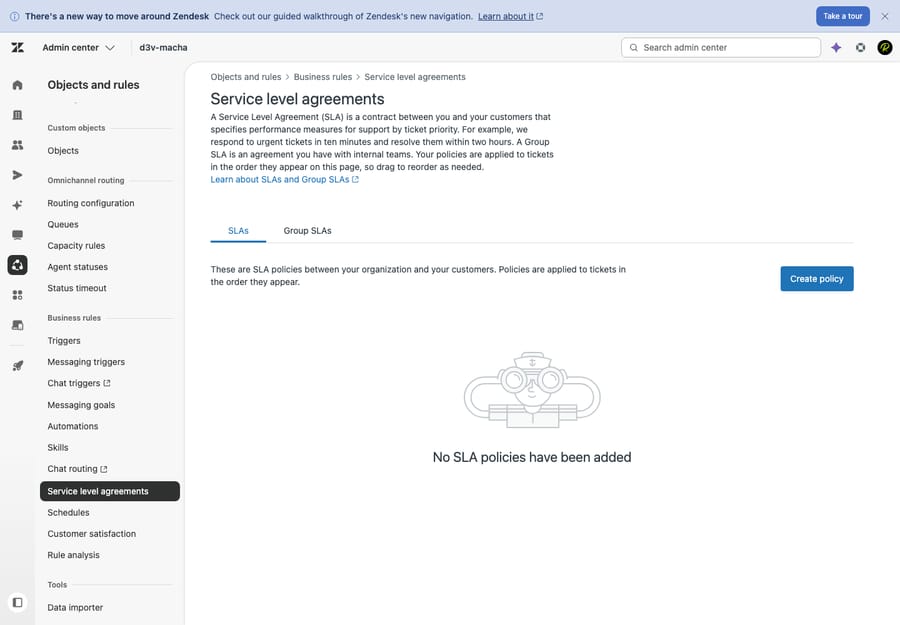
Standard SLAs measure your commitment to the customer. Group SLAs measure commitments between internal teams — how long a ticket is allowed to sit with a particular group before it's handed on. They're useful when a ticket flows through multiple teams (say Tier 1 → Tier 2 → Engineering) and you want each handoff to have its own internal clock, separate from the customer-facing promise. A Group SLA measures a single metric, group ownership time. Group SLAs are an Enterprise-only feature, and they appear on their own tab next to your standard SLAs.
Which Zendesk plans include SLAs?
SLAs are not available on the entry tier. Per Zendesk's plan availability for SLA policies:
| SLA policies | Group SLAs | |
|---|---|---|
| Suite Team | No | No |
| Suite Growth | Yes | No |
| Suite Professional | Yes | No |
| Suite Enterprise / Enterprise Plus | Yes | Yes |
| Support Professional | Yes | No |
| Support Enterprise | Yes | Yes |
In short: standard SLAs start at Suite Growth (or Support Professional); Group SLAs require Enterprise. If you're on a Team plan and SLA tracking is a hard requirement, that's a reason to step up a tier. (Zendesk changes packaging periodically — confirm against your own account and the current plan comparison before you buy.)
What SLA mistakes should you avoid?
A few habits separate SLAs that help from SLAs that just generate noise:
- Set targets you can actually hit. An aspirational "15-minute first reply on everything" that you breach 40% of the time is worse than an honest "1 hour" you meet. SLAs are a commitment, not a stretch goal — tie them to staffing reality.
- Use business hours unless you truly staff 24/7. Calendar-hour targets on a 9–5 team mean every overnight ticket arrives already breaching. Reserve calendar hours for the priorities you genuinely cover around the clock.
- Keep policies few. A long list of overlapping policies is hard to reason about, and only the first match applies anyway. Start with one or two and add more only when a real segment (a brand, a VIP tier) needs different commitments.
- Make sure priority is always set. No priority, no SLA. A default-priority trigger on intake is the usual fix.
- Pick the right resolution metric. Don't promise Total resolution time if your workflow legitimately parks tickets in Pending for days waiting on customers — Requester wait time or Agent work time may reflect your real obligation more fairly.
- Don't expect triggers to escalate breaches. Use views (sorted by SLA) and automations, as above.
How can AI help you hit first reply time?
The metric most teams struggle with is first reply time, and it's almost always a capacity problem: tickets pile up overnight or during spikes faster than agents can post that first response. This is exactly the gap an AI layer addresses.
Macha is an AI agent layer that runs on top of Zendesk — it's not a help desk and not a Zendesk replacement, so SLAs, policies, and everything above stay exactly as they are. Connected to your tickets and knowledge, it can post an accurate first reply the moment a ticket arrives — resolving the routine ones outright and drafting a head start on the rest — so your first-reply-time clock is satisfied even at 2am or mid-spike, while anything it can't handle stays a normal ticket for a human with full context. Honestly, it's another vendor and integration to manage, and it only performs as well as the knowledge you connect to it. On cost, Macha bills per ticket (one thread with one person, charged once however many drafts, tags, routes and lookups it takes), not per resolution, starting at $299/month for up to 750 tickets with setup and monitoring by the Macha team included, so the bill never hangs on an outcome definition you don't control. If first reply time is your weak number, that's the lever. More on the approach in how to automate Zendesk with AI — or try it free, $50 of free usage, no credit card required.
Frequently asked questions
What is an SLA in Zendesk? An SLA (service level agreement) is a policy you define that specifies and measures the response and resolution times your support team commits to. In Zendesk it's a set of time targets — like a first reply within an hour or a resolution within a day — applied to tickets based on conditions and set per ticket priority, with a live countdown shown on each ticket.
What is Zendesk first reply time? First reply time is the SLA metric that measures the time between when a ticket is created and the first public reply from an agent. It's the most commonly used SLA metric because the first response sets the customer's expectation for the entire interaction. Note that internal notes don't count — only a public reply stops the clock.
What's the difference between business hours and calendar hours in SLAs? Calendar hours count every minute, 24/7 — nights, weekends, and holidays all tick. Business hours only count time during your configured support schedule, so the clock pauses outside working hours. Business-hours targets require a schedule to be set up. Most teams use business hours for normal priorities and calendar hours only for issues they cover around the clock.
Which Zendesk plans include SLAs? SLA policies are available on Suite Growth, Professional, Enterprise, and Enterprise Plus (and on Support Professional and Enterprise) — but not on Suite Team. Group SLAs, which track internal team-to-team handoffs, are Enterprise-only.
Can I automatically escalate a ticket when its SLA is about to breach? Yes — with automations, not triggers. Time-based automations can use the conditions "Hours until next SLA breach" and "Hours since last SLA breach" to notify a lead or raise priority. You cannot build triggers on SLA breach status. The simplest day-to-day approach is a view with SLA columns sorted ascending, so the most at-risk tickets surface first.
Why isn't my SLA showing on a ticket? The most common cause is a missing priority — SLA targets are set per priority, so a ticket with no priority value gets no SLA clock. The other causes are the ticket not matching any policy's conditions, or matching a policy listed below one whose conditions also matched (only the first matching policy applies).
What are the three SLA settings to get right first?
A Zendesk SLA is a promise the platform keeps for you: a set of response and resolution targets, applied to tickets by condition and tuned per priority, measured against the metric that matches what you actually committed to. Get three things right and the rest follows — pick targets you can sustain, choose business hours unless you truly run 24/7, and make sure every ticket has a priority so the clock can start. From there, work SLAs through views and automations rather than expecting triggers to catch breaches, and the riskiest tickets will always rise to the top before they slip. To go deeper on the pieces SLAs lean on, see business rules, business hours and schedules, ticket priority and type, and ticket statuses.
SLA mechanics verified against Zendesk's official documentation, 24 September 2026. Zendesk updates its product and packaging periodically — confirm specifics in your own account before relying on them.