Intercom
 Shopify
 Stripe
 Slack
Slack Notion
 Google Workspace
 Confluence

Zendesk Business Rules: Macros vs. Triggers vs. Automations vs. SLAs (The Big Picture)


The first time you open Zendesk's Admin Center and see Macros, Triggers, Automations, Views, SLA policies, and Schedules sitting in the same neighborhood, they all blur together. They sound like they do the same thing — "make Zendesk do stuff automatically" — so people copy a recipe from a blog, paste it into the wrong one, and then wonder why their "auto-close after 4 days" rule never fires or their welcome email goes out three times.

This guide is the mental model that makes the whole automation layer click. Once you can answer one question for each building block — who or what makes it run, and when? — you'll always know which tool to reach for. We'll lay out all six pieces in a single comparison table, give you a plain "I want to… → use…" decision guide, then walk one real ticket through every rule end to end so you can see how they interlock. Each building block links to its own deep-dive, and the distinctions here are verified against Zendesk's own documentation.
What "business rules" actually means in Zendesk
In Zendesk, business rules is the umbrella term for the features that watch your tickets and act on them — primarily triggers and automations, with macros, views, SLAs, and schedules rounding out the same toolkit. They're the layer that sits on top of the ticketing system and turns a pile of raw tickets into a managed workflow: routed, prioritized, timed, and partly answered before a human even looks.
Here's the trick that untangles them. Each one differs on exactly two axes:
- What makes it run — a human clicking a button, an event (a ticket being created or updated), or the clock.
- What it does — change a ticket, organize tickets, or measure tickets.
Get those two facts straight for each feature and you'll never confuse them again.
The building blocks at a glance
| Building block | How it runs | What it does | Use it for |
|---|---|---|---|
| Macros | Manual — an agent clicks to apply it | Performs a prepared set of actions/replies on the current ticket | Common, repetitive replies an agent picks (refund steps, "we got your request") |
| Triggers | Automatic — event-based; fire instantly on ticket create or update | Change the ticket the moment something happens | Instant routing, notifications, setting priority/tags on arrival |
| Automations | Automatic — time-based; run roughly once an hour | Act after time elapses | "Close 4 days after Solved," nudge a stale Pending ticket |
| Views | On demand — you open the list | Organize: a saved, dynamic queue of tickets (it shows, never acts) | "All unsolved," "Urgent billing," "My open tickets" |
| SLAs | Measured continuously against ticket fields | Set & track response/resolution time targets by priority | Promising a first reply in 1 hour, resolution in 1 day |
| Schedules | Context other rules reference | Define business hours + holidays | Making SLAs and "within business hours" rules respect 9–5, Mon–Fri |
The single most useful sentence to memorize: macros are manual, triggers are event-based, automations are time-based. Almost every "why didn't my rule fire?" question comes from mixing up those three.
Macros — the manual one
A macro is a saved bundle of actions an agent applies with one click: a canned public reply, plus optional field changes like setting status to Pending, adding a tag, or assigning a group. The defining trait is that a macro never fires on its own — a human chooses to run it. That's exactly what makes it the right tool for responses that need a person's judgment about whether to send them: the refund-policy explainer, the "here's how to reset your password" walkthrough, the polite "we need a bit more info."
Because macros are manual, they're also the safest building block to experiment with — a bad macro just sits there until someone clicks it. We cover how to build them, share them across teams, and avoid macro sprawl in Zendesk macros explained.
Triggers — automatic and event-based
A trigger is an automatic rule that runs the instant a ticket is created or updated, executing its actions if the ticket's conditions match. This is your real-time, "if this happens, do that right now" engine. New ticket arrives with "refund" in the subject? A trigger can set priority to High, add a billing tag, route it to your Billing group, and email the customer an acknowledgement — all before an agent opens it.
The key word is event. Triggers don't watch the clock; they react to changes — if nothing happens to a ticket, nothing runs. Per Zendesk's documentation, triggers also run in order, top to bottom, on every single create-or-update event — which is the source of the most common trigger gotcha (more on that below).
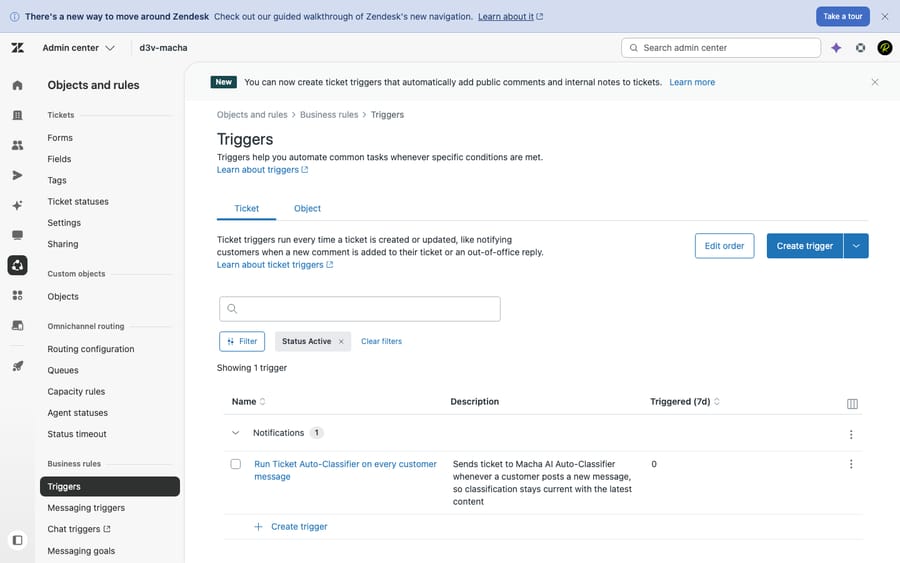
Triggers are the workhorse of Zendesk automation, and they reward careful ordering. The full setup, condition logic, and the cascade trap are in Zendesk triggers explained.
Automations — automatic and time-based
An automation looks a lot like a trigger — conditions and actions — but it runs on a completely different clock. Automations execute once per hour against all your non-closed tickets, and they're built to act when time has passed. The classic example: "if a ticket has been Solved for 4 days, set it to Closed." Or "if a ticket has been Pending with no customer reply for 48 hours, send a reminder."
The defining requirement is a time-based condition — something like Hours since solved (business) greater than 96. Without one, an automation would re-fire on the same ticket every hour forever, so Zendesk requires both a time condition and an action that changes the ticket so it no longer matches (a "nullifying" action). Per Zendesk's automation docs, automations run hourly (not necessarily on the hour), process up to ~1,000 tickets per hour, and update any one ticket a maximum of ~100 times.
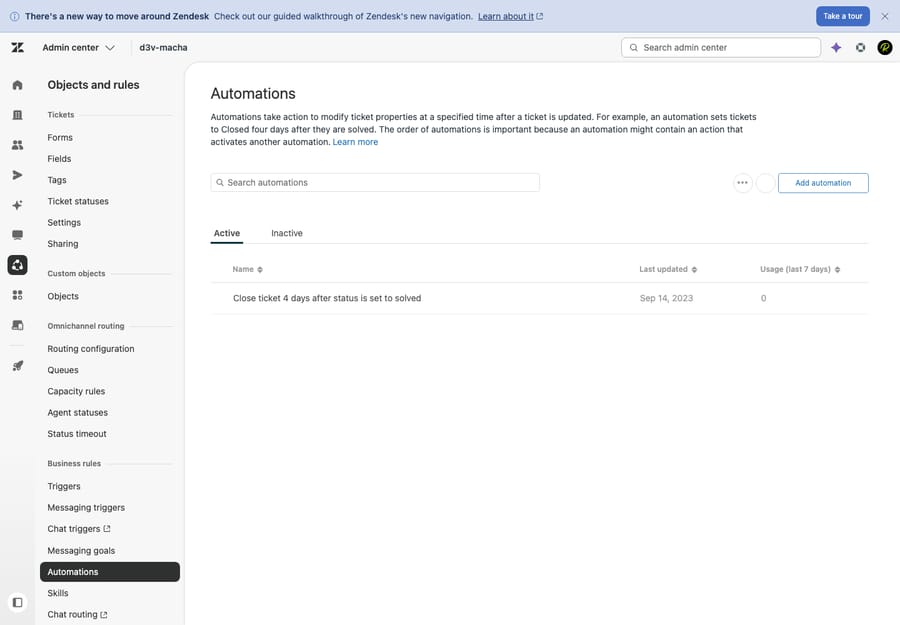
If you've ever tried to do something time-delayed with a trigger and it didn't work, this is why — triggers can't wait. We put the two side by side, including which to choose for each scenario, in automations vs. triggers.
Views, SLAs, and schedules — the supporting cast
The other three aren't "do something to the ticket" rules, but they're part of the same system and constantly interact with it.
- Views are saved, filtered lists of tickets — your queues. "All unsolved tickets," "Open tickets assigned to me," "Urgent billing." A view is a question you ask of your tickets ("show me everything matching these conditions"); it organizes and surfaces work but never modifies a ticket. Triggers and automations set the fields; views read them. Details in Zendesk views explained.
- SLAs (service level agreements) are time targets, not actions: first reply within 1 hour, resolution within 8 hours, keyed off fields like priority. Zendesk tracks the countdown and surfaces at-risk tickets so they don't slip — and triggers/automations are how you react to SLA states (e.g. notify a manager when a target is about to be breached). The full model is in Zendesk SLA explained.
- Schedules define your business hours and holidays. On their own they do nothing visible — but SLAs measured "in business hours" and any rule using a "within business hours" condition depend on them. Set a schedule and a 1-hour SLA on a ticket that arrives at 4:55pm Friday is due Monday morning, not at 5:55pm Friday. See Zendesk business hours and schedules.
Which one should I use? A quick decision guide
| I want to… | Use a… |
|---|---|
| Let an agent send a canned reply / apply common changes with one click | Macro |
| Set priority, tags, group, or send a notification the moment a ticket arrives or changes | Trigger |
| Do something after a delay (close after 4 days, nudge after 48 hours) | Automation |
| Give agents an organized queue of tickets to work | View |
| Promise and track a response/resolution time | SLA policy |
| Make all of the above respect your working hours | Schedule |
| Auto-route, draft, or resolve based on what the ticket actually means (not just keywords) | AI layer (see below) |
A simple tie-breaker between the two automatic rules: if the answer to "when should this happen?" is "as soon as X happens," it's a trigger. If it's "X hours/days after something," it's an automation.
How they work together: one ticket, every rule
Rules feel abstract in isolation, so here's a single ticket flowing through all six at once.
- A ticket arrives. A customer emails at 4:50pm on a Friday: "I was double-charged this month." Zendesk creates the ticket, stamps it New, and the event fires your triggers.
- Triggers act instantly. In order, your triggers detect "charge" in the body, set priority: High, add a
billingtag, assign it to the Billing group, and send the customer an auto-acknowledgement. All of this happens in well under a second, before any human is involved. - The SLA timer starts — on your schedule. Your "High priority → first reply within 1 hour" SLA policy kicks in. But because it's measured against your schedule (business hours: 9am–6pm, Mon–Fri), the 1-hour clock doesn't burn down over the weekend — it effectively starts Monday at 9am. Without the schedule, the ticket would show as breached by Saturday morning for no good reason.
- It lives in a view the whole time. From the moment it's created, the ticket shows up in the "Open billing tickets" view your Billing agents work from. The view didn't do anything — it's just continuously reflecting the fields the triggers set.
- An agent applies a macro. Monday morning, an agent opens the ticket, confirms the double charge, and clicks the "Refund issued — confirmation" macro: it inserts a prepared reply explaining the refund timeline and flips the status to Solved in one click.
- An automation closes it. Four days later, with no further customer reply, your automation ("Hours since solved > 96 → set status to Closed") runs during its hourly sweep and closes the ticket for good.
Six features, one ticket, zero conflicts — because each one was doing the job it's actually built for. That's the whole point of the mental model.
The interaction gotchas worth knowing
When rules misbehave, it's almost always one of these:
- Triggers cascade. Because triggers run in order on every update — and a trigger's own action counts as an update — one trigger firing can satisfy the conditions of a later trigger in the list. Order matters, and an early trigger can unintentionally feed a downstream one. Build and order them deliberately.
- Automations aren't instant — and they interact within the hour. An automation might run 50 minutes after a ticket becomes eligible, not the moment it crosses the line. And because they run in order during the hourly cycle, one automation's change can alter whether a later automation matches the same ticket in that same pass. Don't expect to-the-second timing from a time-based rule.
- Every automation needs an "off switch." A time condition without a nullifying action will try to re-fire hourly. Always include an action that changes the ticket so it stops matching.
- SLAs need a schedule to be sane. Calendar-hour SLAs on a team that doesn't work nights and weekends will show false breaches. Decide business-hours vs. calendar-hours per target.
- Views show, they don't fix. If tickets aren't landing in the right view, the fix is upstream — in the triggers/automations setting the fields the view filters on — not in the view itself.
Where AI fits on top of business rules
Business rules are powerful, but they're fundamentally deterministic: they match on fields, tags, and keywords, and do exactly what you told them. That's perfect for the predictable, mechanical work — if priority is High, route to Billing — and you should automate all of it with triggers, automations, macros, and SLAs. Rules are also free, native, and transparent; reach for them first.
The ceiling shows up the moment a decision needs judgment. A keyword trigger can't tell an angry "I was double-charged" from a calm "can you explain this charge?" It can't read a knowledge base article and draft an accurate, personalized answer. That's the gap an AI agent layer like Macha fills — and it sits on top of your existing Zendesk, not in place of it (Macha isn't a help desk and doesn't replace one). Connected to your tickets and knowledge, it can read what a ticket actually means to triage it, draft a reply for an agent to approve, or resolve a routine request end to end — while your trusty business rules keep handling the deterministic routing and timing around it.
The honest framing: it's another tool to configure and pay for, and it's only as good as the knowledge and rules you connect to it. And because most automation isn't a tidy "resolution" — a lot of it is summarizing, tagging, routing, or looking something up — Macha bills per ticket — one conversation, charged once however many of those steps it takes, from $299 a month for 750 tickets — rather than per resolution. Use rules for the deterministic layer; add AI where judgment is the bottleneck. We walk through that division of labor in how to automate Zendesk with AI, and you can try it on your own helpdesk — $50 of free usage, no credit card required.
Frequently asked questions
What are business rules in Zendesk? Business rules are the features that automatically watch and act on your tickets — primarily triggers (event-based) and automations (time-based), alongside macros (manual), views (organize), SLA policies (time targets), and schedules (business hours). Together they route, prioritize, time, and partly answer tickets so the work flows without manual babysitting.
What's the difference between Zendesk macros, triggers, and automations? Macros are manual — an agent clicks to apply a prepared reply and field changes. Triggers are automatic and event-based — they fire the instant a ticket is created or updated if conditions match. Automations are automatic and time-based — they run about once an hour and act after time has passed (e.g. close a ticket 4 days after it's Solved). The shorthand: macros = manual, triggers = events, automations = the clock.
When should I use a trigger vs. an automation? Ask "when should this happen?" If the answer is "as soon as X occurs" (a ticket arrives, a field changes), use a trigger. If it's "X hours or days after something," use an automation. Triggers react to events instantly; automations act on elapsed time during their hourly run. See automations vs. triggers.
How often do Zendesk automations run? About once per hour — not necessarily at the top of the hour — across all non-closed tickets. Each hourly cycle can act on up to ~1,000 tickets, and a single ticket can be updated by automations a maximum of ~100 times. That's why automations are unsuitable for anything needing instant or to-the-second timing.
Do macros run automatically? No. A macro only runs when an agent clicks to apply it. If you want a set of actions to happen automatically, you need a trigger (on an event) or an automation (on a time condition) — not a macro.
How do SLAs and schedules relate to business rules? SLAs set time targets (first reply, resolution) and track them, while schedules define your working hours so those targets only count business time. Triggers and automations are how you react to SLA states — for example, notifying a manager when a target is close to breaching. See SLAs and business hours and schedules.
The bottom line
Zendesk's business rules stop being confusing the moment you label each one by how it runs and what it does: macros are manual one-click bundles, triggers fire automatically on events, automations fire automatically on time, views organize, SLAs measure, and schedules supply the working-hours context the rest depend on. Match the tool to the job — "as soon as X" means trigger, "X hours later" means automation, "an agent decides" means macro — and the whole layer cooperates instead of fighting you. From here, go deep on each building block: macros, triggers, automations vs. triggers, views, SLAs, and business hours and schedules. And when you hit the ceiling of what keyword-and-field rules can decide, that's where an AI layer picks up.
Business-rule mechanics verified against Zendesk's official documentation, June 2026. Zendesk updates its product periodically — confirm specifics in your own account before relying on them.
Add AI agents to your Zendesk
Macha reads the ticket, drafts the reply and takes the action, inside the Zendesk you already run.