Intercom
 Shopify
 Stripe
 Slack
Slack Notion
 Google Workspace
 Confluence

Zendesk Views Explained: Organizing Your Ticket Queue


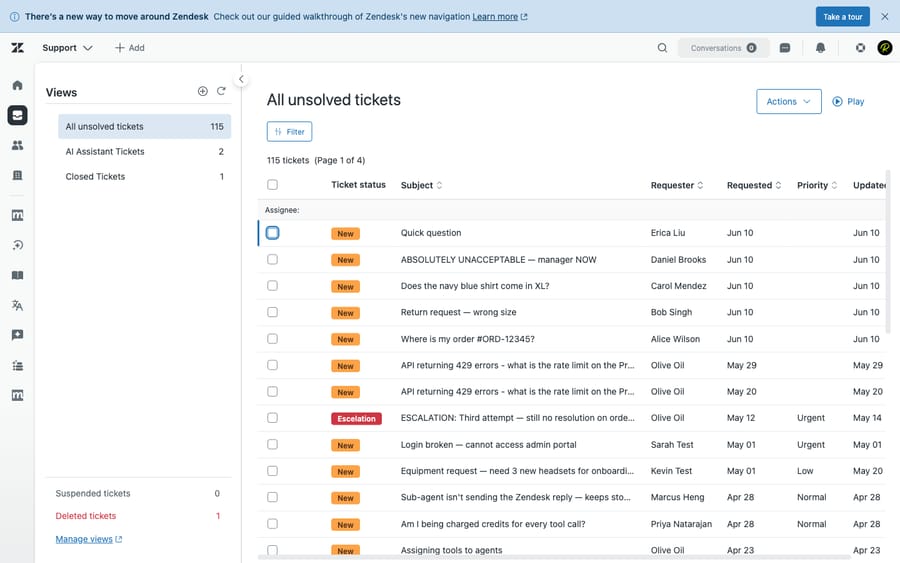
Ask any Zendesk agent where they actually work all day and the answer is rarely "the search bar." It's a view. The list on the left edge of the Agent Workspace — All unsolved tickets, Your unsolved tickets, Unassigned tickets — is the queue agents pull from, triage in, and clear down to zero. Get your views right and the whole team knows exactly what to work on next. Get them wrong (or leave the defaults untouched) and tickets quietly pile up in corners no one is looking at.
This guide explains what a view is, how views work under the hood, how they differ from search and filters, how to create one, and which views most support teams actually need. The mechanics here are verified against Zendesk's own documentation. Views are one of Zendesk's core business rules and organization tools — and they sit right on top of the ticket itself, so if you're fuzzy on what a ticket is, start there first.
What are Zendesk views?
A view is a dynamic, saved list of tickets that meet a set of conditions — a standing query over your tickets that updates itself in real time. You define the conditions once ("status is Open AND assignee is me"), and from then on the view shows every ticket that currently matches, dropping tickets as they stop matching and adding new ones as they qualify. Nobody maintains the list by hand; the conditions do the work.
That's the key word: dynamic. A view isn't a folder you drag tickets into — it's a live filter. The moment a ticket's status flips from Open to Solved, it leaves your "open" view on its own. This is why views are the natural home for a support queue: they always reflect the current state of the world, and each one is just a saved set of conditions over ticket fields like status, priority, group, assignee, and tags.
How Zendesk views work
Every view is built from four ingredients. Understanding each one is the difference between a queue that works and one that's noisy or empty.
Conditions (meet all / meet any)
Conditions are the filter. A view must include at least one of these core ticket properties — Status, Status category, Type, Group, Assignee, Requester, or Support type — so it always has something concrete to anchor on. You then add as many other conditions as you need (priority, tags, hours since update, custom fields, and more).
Crucially, Zendesk splits conditions into two buckets:
- Meet all of the following conditions — AND logic. Every condition must be true for a ticket to appear. Use this for precise queues like "Open and High priority and in the Billing group."
- Tickets can meet any of the following conditions — OR logic. A ticket appears if it matches any one of them. Use this to widen a net, e.g. "priority is High or Urgent."
Most useful views combine the two: a tight "all" block to scope the queue, plus an optional "any" block to broaden one dimension. (One caveat from the docs: a few time-based conditions like "Hours since…" aren't available in the "any" block.)
Columns
Columns control what data each ticket row shows — subject, requester, priority, group, the time it's been open, a custom field, whatever your team scans for. You can display up to 15 columns and drag them into the order you want. (Multi-select fields can't be used as columns.) Good column choices make a queue scannable at a glance; the right four or five beat a cluttered fifteen.
Sorting and grouping
Two controls shape the layout:
- Group by clusters rows under headers — by priority, by group, by status — so a long queue reads as tidy sections instead of one endless list.
- Order by sets the sort within the view, ascending or descending: oldest-first to attack the backlog, or priority-first to triage by urgency.
Shared vs. personal views
This is the one most new admins miss. There are two scopes:
- Shared views are created by admins (or agents with the right permission) and are available either to all agents or to all agents in a specific group. These are your team's standard queues — everyone sees the same list.
- Personal views are created by an individual agent for their own use only. Nobody else sees them. Great for an agent's private "things I'm watching" list, without cluttering the shared sidebar.
Rule of thumb: if more than one person needs it, it should be a shared, often group-scoped view. Personal views are for individual workflow, not team process.
The active-view limit (verify for your plan)
Zendesk caps how many views are accessible in the Views list. As of 2026, the first 100 shared views and the first 10 personal views appear in the sidebar — a big jump from the old default, which was 12 shared and 8 personal. On Enterprise plans, admins can use custom roles to deliberately restrict agents back to that 12/8 limit. The practical takeaway hasn't changed even though the number has: the sidebar is finite and ordered, so the views near the top get worked and the ones buried at the bottom get ignored. Order matters as much as the cap. Always confirm the current limit on your own plan, since Zendesk adjusts these.
Views vs. search vs. filters
These three get conflated constantly, and the distinction is worth nailing down because it's a common search query in its own right.
| Views | Search | In-view filters | |
|---|---|---|---|
| What it is | Saved, standing queue | Ad-hoc lookup | Temporary refinement inside a view |
| Persists? | Yes — permanent until edited/deleted | No — one-off | Until you sign out |
| Based on | Predefined conditions | A free-text query | Quick toggles on an open view |
| Archived tickets? | Excluded | Included | Excluded (it's filtering a view) |
| Best for | The work you do every day | "Find that one ticket from last March" | Narrowing today's queue on the fly |
The mental model: a view is a saved, standing queue; search is an ad-hoc question. You build views for the recurring work — the queues your team lives in. You reach for search when you need to find something specific right now, especially older or archived tickets, which views deliberately leave out. And in-view filtering is the in-between: a temporary way to narrow the view you're already looking at (say, show only High priority), and it sticks only until you sign out — it doesn't change the saved view for anyone else.
So "zendesk views vs filters" really has two answers depending on what someone means by "filter": search is the separate, ad-hoc tool, while filtering within a view is just a quick, throwaway refinement of a queue you already saved.
How to create a view in Zendesk
Creating a view takes a couple of minutes:
- In the Admin Center, go to Workspaces > Agent tools > Views (admins manage shared views here; agents create personal views from the Views list).
- Click Add view and give it a clear, scannable name — the name is what agents read in the sidebar, so "Unassigned – Tier 1" beats "View 7."
- Under Tickets must meet all of these conditions, add your scoping conditions (remember: at least one core property like Status or Group). Add an any block if you need OR logic.
- Set Columns (up to 15), then choose Group by and Order by.
- Set availability: a shared view for everyone, a shared view scoped to one group, or a personal view just for you.
- Preview to sanity-check the matched tickets, then Save.
Two minutes of thought on conditions and column choice here saves your whole team time every single day.
The views every support team should have
You don't need many — you need the right few. These cover almost everyone:
- Unassigned / needs triage. Status is New or Open and no assignee. This is your intake queue; if it grows, triage is falling behind.
- My open tickets. Assignee is (current user) and status is Open or Pending. The agent's personal work list.
- Breaching / at-risk SLA. Tickets approaching or past their SLA target. SLA targets are configured separately — see Zendesk SLAs explained — and a dedicated view surfaces the ones about to slip so they don't.
- Pending too long. Status is Pending with "hours since update" over some threshold — the tickets waiting on a customer who may have gone quiet, so you can nudge or close them.
- Unsolved by group. Group is Billing / Tier 2 / etc. Grouped by priority — the team-level queue each pod works from.
Views organize work — they don't route it
Here's a distinction that trips people up: a view is organization, not automatic assignment. A view shows you the tickets matching its conditions; it never moves a ticket, sets a field, or assigns an agent. If your "Unassigned" view is full, a view won't empty it — something has to actually assign those tickets.
That "something" is a different feature. Triggers fire the moment a ticket is created or updated and can set the group, priority, or tags — so a well-built trigger can route a ticket into the right team's queue automatically. Omnichannel routing goes further, distributing tickets to available agents by group, skill, and capacity. Views and routing are partners: routing decides where work goes, views decide how agents see and prioritize it once it's there.
This is also why a tidy view setup depends on clean tickets underneath. If triggers aren't setting priority and group consistently, even a perfect view shows you a messy queue.
Best practices and common mistakes
A few patterns separate teams whose views help from teams whose views are noise:
- Don't over-create. A sidebar with 40 views is a sidebar nobody reads. Keep shared views to the handful the team actually works, and order the most-used ones at the top (the sidebar is finite and ordered).
- Build team-based, group-scoped views, not a separate view per person. Scope shared views to groups so each pod sees its own queue; use personal views for individual quirks.
- Name views for what they are. "Urgent – Billing – Unassigned" tells an agent everything; "Copy of View 3" tells them nothing.
- Don't confuse a view with routing. A view that's always full is usually a routing problem, not a view problem. Fix it with triggers/omnichannel routing.
- Mind the active-view limit and ordering. Views buried below the cap effectively don't exist. Prune and reorder periodically.
- Use views to find problems, not just work them. A "New tickets older than 2 hours" view is an early-warning system for triage breaking down.
Where AI fits
Even a perfectly organized set of views still assumes a human opens each queue and works tickets down by hand. That's where an AI agent layer like Macha changes the math. Macha sits on top of your existing Zendesk — it isn't a help desk and doesn't replace one — and it can triage and route incoming tickets (set type, priority, tags, assign the group) and resolve routine ones outright, so fewer tickets ever reach a manual queue. Your views still exist for everything that genuinely needs a person; they just stay shorter because the repetitive volume is handled before an agent has to pull it.
To be honest about the trade-offs: it's another integration to manage, and it only performs as well as the knowledge and rules you connect to it. On cost, Macha bills per ticket (one conversation, charged once however many steps it takes — triage, tag, route, look up data, draft, resolve — whichever model it runs on), not per closed ticket, because most of that work is automation along the way rather than a single "resolution." If a perpetually full intake view is your bottleneck, that's exactly the gap an AI layer fills. You can try it free — $50 of free usage, no credit card required.
Frequently asked questions
What are Zendesk views? A view is a dynamic, saved list of tickets that meet conditions you define — a live queue that updates itself as tickets start and stop matching. Views are where agents work day to day: "All unsolved tickets," "Your open tickets," "Unassigned tickets," and so on. Each one is just a set of conditions over ticket fields like status, priority, group, and assignee.
What's the difference between Zendesk views and search (or filters)? A view is a saved, standing queue built from predefined conditions — it persists and excludes archived tickets. Search is an ad-hoc, one-off lookup across all your data and includes archived tickets, so it's how you find a specific older ticket. Filtering within a view is a temporary refinement that lasts only until you sign out and doesn't change the saved view for anyone else.
How do I create a view in Zendesk? In the Admin Center, go to Workspaces > Agent tools > Views, click Add view, name it clearly, set the conditions (at least one core property such as Status or Group), choose your columns and sort/group order, set availability (shared for everyone, shared to one group, or personal), preview the matched tickets, and save.
How many active views can I have in Zendesk? As of 2026, the Views list shows the first 100 shared views and the first 10 personal views; the older default cap was 12 shared and 8 personal, and Enterprise admins can restrict roles back to that limit. Because the list is finite and ordered, keep your most-used views near the top — and confirm the current limit on your plan, as Zendesk adjusts it.
What's the difference between a shared view and a personal view? Shared views are created by admins (or permitted agents) and are available to all agents or to a specific group — these are your team's standard queues. Personal views are created by an individual agent for their own use only and aren't visible to anyone else.
Do views automatically route or assign tickets? No. A view only organizes and displays tickets that match its conditions — it never assigns an agent or changes a field. Automatic routing is handled by triggers and omnichannel routing, which assign tickets into the queues your views then show.
The bottom line
A Zendesk view is a dynamic, saved list of tickets that meet conditions — the queue your agents actually work from. Build a small set of well-named, group-scoped shared views (plus a few personal ones), choose conditions and columns deliberately, and keep the most-used ones at the top of a finite, ordered sidebar. Remember the boundaries: views show work but don't route it (that's triggers and routing), and they're for standing queues, not the ad-hoc lookups that search handles. Get those few queues right and the whole team always knows what to do next. From here, see how the rest of the system fits together in the Zendesk business rules guide, and pair your views with SLA targets so the urgent work never slips.
Views mechanics verified against Zendesk's official documentation, June 2026. Zendesk updates its product periodically — confirm specifics, especially view limits, in your own account before relying on them.
Add AI agents to your Zendesk
Macha reads the ticket, drafts the reply and takes the action, inside the Zendesk you already run.