Intercom
 Shopify
 Stripe
 Slack
Slack Notion
 Google Workspace
 Confluence

Zendesk Triggers Explained: Conditions, Actions & Run Order


If macros are the buttons agents press by hand, triggers are the rules that act on their own. They're the quiet engine behind almost every "how did Zendesk know to do that?" moment — the auto-reply a customer gets seconds after emailing in, the ticket that lands in the right team's queue, the priority that gets bumped to Urgent before anyone has read a word. Get triggers right and a huge slice of triage runs itself. Get them wrong — bad ordering, a missing condition, an accidental loop — and they quietly misroute tickets, spam customers, or fight each other in ways that are genuinely hard to debug.

This guide is the plain-English reference for Zendesk triggers: what a trigger actually is, the two parts every trigger is built from (conditions and actions), the ALL-vs-ANY logic that trips up nearly everyone, why run order matters more than people expect, the default triggers Zendesk ships with, real examples, and the mistakes to avoid. The mechanics here are verified against Zendesk's own documentation.
Triggers are one of Zendesk's three business rules. If you want the bird's-eye view of how triggers, automations, and macros fit together, start with Zendesk business rules explained and come back here for the deep dive.
What is a trigger in Zendesk?
A trigger is an event-based business rule that runs immediately when a ticket is created or updated, and performs actions if its conditions are met. That one sentence carries the whole concept, so it's worth unpacking the load-bearing words.
- Event-based. A trigger doesn't run on a clock or when you tell it to. It runs in response to an event on a ticket — specifically, the ticket being created or updated. A reply, a status change, a field edit, an agent assignment: each is an update, and each update causes Zendesk to check every active trigger.
- Immediately. Triggers fire in real time, the instant the event happens. There's no waiting around. (This is the single biggest difference between a trigger and an automation — more on that below.)
- If its conditions are met. Every active trigger is checked on every ticket event, but a trigger only fires — only runs its actions — if the ticket matches its conditions at that moment.
So the mental model is: something happens to a ticket → Zendesk runs through your triggers → the ones whose conditions match do their thing. That's it. Everything else is detail.
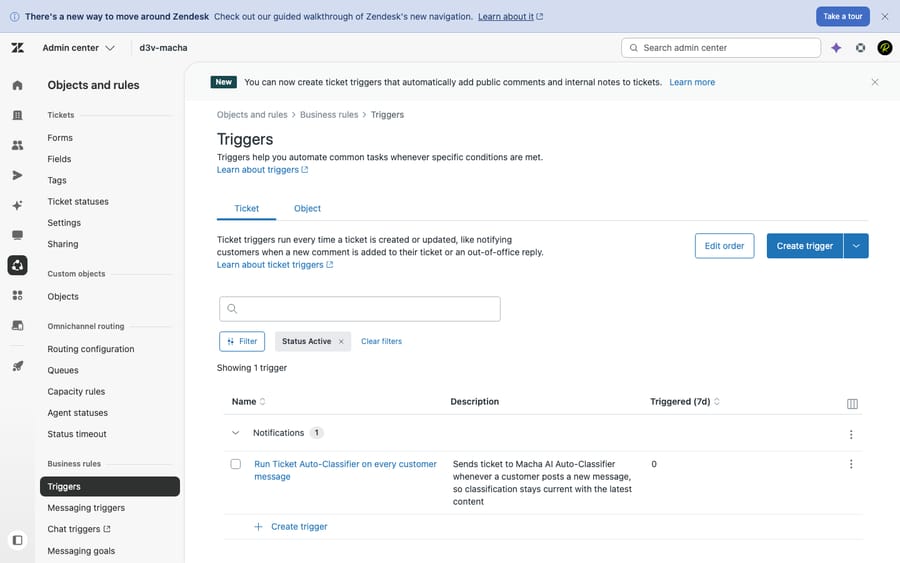
The anatomy of a trigger: conditions + actions
Every trigger is built from exactly two parts: conditions (the "if") and actions (the "then"). If this trigger's conditions are true, then do these actions.
Conditions — Meet ALL vs. Meet ANY
Conditions are the qualifications a ticket must satisfy for the trigger to fire. Each condition is a simple statement — a field, an operator, and a value — like Priority is Urgent, Channel is Email, or Ticket is Created.
The part that confuses almost every new admin is that Zendesk gives you two separate condition blocks, and they combine differently:
- Meet ALL of the following conditions uses AND logic. Every condition in this block must be true. Put conditions here when all of them are non-negotiable — e.g. the ticket must be newly created and come in via email and belong to a specific brand.
- Meet ANY of the following conditions uses OR logic. At least one condition in this block must be true. Put conditions here when any of several situations should count — e.g. priority is High or Urgent.
When you use both blocks together, the logic is: (all of the ALL conditions are true) AND (at least one of the ANY conditions is true). If you fill in the ANY block but none of those conditions match, the trigger won't fire — even if every ALL condition is satisfied. That interaction is exactly where people get stuck, so it's worth re-reading: ALL is a gate that must fully pass; ANY is a gate that needs just one match; both gates must open. Zendesk documents this distinction directly in its ALL vs. ANY reference.
A practical rule of thumb: reach for ANY only when you genuinely mean "one of these." When in doubt, model your logic in the ALL block and you'll avoid most surprises.
Actions — the "then"
Actions are what the trigger does once its conditions are met. Each action sets a field or performs an operation. The common ones:
- Set the priority, type, status, group, or assignee — the core of auto-triage.
- Add or remove tags — the connective tissue other rules, views, and reports read from.
- Notify — email the requester, the assignee, a group, or an external target (webhook).
- Set a custom field — stamp business data onto the ticket.
A single trigger can perform several actions at once: a "VIP escalation" trigger might set priority to Urgent, assign the ticket to a senior group, add a vip tag, and notify a Slack channel — all in one fire.
The critical distinction: triggers vs. automations
This is the one thing to lock in, because it's the most common point of confusion in all of Zendesk's business rules.
- A trigger fires on an EVENT — the instant a ticket is created or updated. It's reactive and immediate.
- An automation fires on TIME — it runs on a schedule (Zendesk checks them roughly hourly) and acts on tickets based on elapsed time, e.g. "if a ticket has been Pending for 4 days, send a reminder."
The litmus test: if the rule needs to happen the moment something changes, it's a trigger. If it needs to happen after some time has passed with nothing changing, it's an automation. You cannot build a "wait 24 hours then..." rule with a trigger, because triggers have no concept of time passing — they only know "an event just occurred." We compare the two side by side, with worked examples of when to use each, in automations vs. triggers.
It's also worth distinguishing triggers from macros: a macro is a manual bundle of actions an agent applies on purpose; a trigger is the automatic version that runs with no human in the loop.
Why run order matters
Here's the part that separates a clean Zendesk instance from a confusing one. Triggers run top to bottom, in the exact order they appear in your triggers list — and that order has real consequences.
When a ticket event occurs, Zendesk evaluates your active triggers in sequence from the top. Crucially, one trigger's actions can change the ticket in ways that affect whether a later trigger fires. Zendesk states it plainly: "Actions applied by one ticket trigger can affect how other triggers run and fire for a ticket." This is called cascading.
A concrete example. Suppose:
- Trigger A: if subject contains "refund", add tag
refund. - Trigger B (lower in the list): if tag is
refund, set priority to High and assign to the Billing group.
Because A runs before B, A stamps the refund tag first, and then B — running afterward in the same pass — sees that tag and escalates. Flip their order and B would run before the tag exists, so it would do nothing. Same two rules, completely different outcome, purely because of position.
Zendesk also re-evaluates the whole trigger list after a pass in which something fired: if any trigger changed the ticket, Zendesk runs through them again, and keeps doing so until a full pass completes with no new firing. That's powerful — but it's also how you can accidentally build a loop (see the mistakes below).
The takeaway: order your triggers deliberately. A good convention is to run "setup" triggers that stamp tags and normalize fields first, then "routing and escalation" triggers that depend on those fields after, then "notification" triggers last, so customers and agents are notified based on the ticket's final state rather than a half-processed one.
The default triggers Zendesk ships with
A fresh Zendesk account isn't empty — it comes with a set of standard ticket triggers already switched on, which is why a brand-new instance can already auto-reply to customers and notify agents. Knowing what's there saves you from rebuilding what already exists (or from being surprised by an email you didn't realize was being sent). The standard set, per Zendesk's documentation, includes:
| Default trigger | What it does |
|---|---|
| Notify requester and CCs of received request | Emails the customer (and CCs) confirming their request became a ticket. |
| Notify requester of new proactive ticket | Notifies the customer when an agent opens a ticket on their behalf. |
| Notify requester and CCs of comment update | Emails the requester/CCs when a public comment is added. |
| Notify assignee of comment update | Alerts the assigned agent when a comment is added to their ticket. |
| Notify assignee of assignment | Notifies an agent when a ticket is assigned to them. |
| Notify assignee of reopened ticket | Alerts the agent when a solved ticket reopens. |
| Notify group of assignment | Notifies a group when a ticket is assigned to it (with no individual assignee). |
| Notify all agents of received request | Alerts all agents of a new unassigned ticket. |
| Auto-assign to first email responding agent | Assigns the ticket to the first agent who replies by email (off by default). |
| Set tickets with no priority to normal | Stamps Normal priority on new tickets that arrive without one. |
Most teams keep the notification triggers, tune their wording, and switch off "Notify all agents of received request" once they have real routing in place.
Common Zendesk trigger examples
Beyond the defaults, here are the workhorse triggers most support teams end up building. Each is just conditions + actions:
- Auto-acknowledge new tickets. Conditions: Ticket is Created, Channel is Email. Action: notify requester with a "we've got it" reply. (The default handles this; teams customize the copy.)
- Route by group or skill. Conditions: Subject/description or About field matches "billing." Actions: set Group to Billing, add tag
billing. This is how tickets reach the right team automatically. - Escalate by priority. Conditions: Priority is Urgent. Actions: assign to the senior group, notify an on-call target.
- Set priority from a keyword or customer tier. Conditions (ANY): tag is
vipOR organization is "Enterprise." Action: set Priority to High. - Send a satisfaction survey. Conditions: Status changed to Solved, Channel is Email. Action: email the requester the CSAT survey on resolution.
- Tag and classify intake. Conditions: keyword match. Action: add a category tag so views, reports, and other triggers can act on it.
Notice how several of these depend on tags that another trigger sets — which is exactly why run order matters. For more on where triggers sit in the wider ticketing picture, see the Zendesk ticketing system explained.
Best practices and common mistakes
A few habits keep a trigger set healthy as it grows:
- Order intentionally. Tag/normalize first, route/escalate second, notify last. Reorder rather than duplicating logic.
- Add an exit condition to anything that loops. If a trigger updates a ticket, make sure its conditions can't be true again after it fires (e.g. check "tag is not
processed" and have the trigger addprocessed). This is the single best defense against runaway loops. - Test on a real ticket before trusting it. Create or update a test ticket and confirm the trigger fired as intended. Zendesk's per-ticket events log shows exactly which triggers fired and in what order — your best debugging tool.
- Use clear, namespaced names. "Routing — Billing keyword → Billing group" beats "Trigger 7." Future-you will be grateful.
- Group with categories. Zendesk lets you organize triggers into categories; use them so the list stays readable.
And the mistakes that bite teams most often:
- Infinite or runaway loops. A trigger whose action re-satisfies its own (or another trigger's) conditions can fire repeatedly during re-evaluation. Always design a stop condition.
- Misusing ALL vs. ANY. Putting mutually exclusive conditions in the ALL block (so it can never be true), or filling the ANY block when you meant ALL. When a trigger "won't fire," this is the first thing to check.
- Wrong order. A routing trigger placed above the tag-setting trigger it depends on simply never sees the tag.
- Notification spam. Overlapping notify triggers can email customers or agents multiple times for one update. Audit who gets notified, and when.
- Forgetting the defaults exist. Building a "new ticket auto-reply" without realizing the standard trigger already sends one — now the customer gets two.
Where AI fits on top of triggers
Triggers are brilliant at what they do, but they're fundamentally rigid if-this-then-that logic. A trigger can match the literal tag refund, but it can't understand that "I was double-charged and want my money back" is a refund request when the word "refund" never appears. It can route on a keyword, but it can't read intent, weigh nuance, or decide between two plausible queues. Every edge case you want it to handle has to be encoded by hand as another condition — and the rule set gets brittle as it grows.
That's the gap an AI agent layer like Macha fills. Macha sits on top of your existing Zendesk (it's not a help desk and not a Zendesk replacement) and adds natural-language understanding and judgment where rules run out: it can read a ticket the way a person would, classify and route it by meaning rather than keyword match, draft a reply, or resolve routine requests end to end — while anything it can't handle stays a normal ticket for a human, with full context intact. In practice the two work together: keep your triggers for the deterministic plumbing (notifications, SLA stamps, hard routing rules) and let AI handle the fuzzy, language-heavy decisions triggers were never built for.
The honest framing: it's another vendor and integration to manage, and it's only as good as the knowledge and instructions you connect to it. Macha bills per ticket — one conversation, charged once however many automated steps it takes, and whichever model you run it on — not per resolution, so the bill doesn't hang on an outcome definition you don't control. Pricing starts at $299 a month for 750 tickets, about $0.40 each. If keyword-only triggers keep misrouting your nuanced tickets, that's exactly the gap to close. You can try it free — $50 of free usage, no credit card required.
Frequently asked questions
What is a trigger in Zendesk? A trigger is an event-based business rule that runs immediately when a ticket is created or updated and performs actions if its conditions are met. Every trigger is built from conditions (the "if") and actions (the "then"). Triggers are how Zendesk auto-replies to customers, routes tickets, sets priority, and notifies agents without anyone clicking a button.
What's the difference between a trigger and an automation in Zendesk? A trigger fires on an event — the instant a ticket is created or updated — so it's immediate. An automation fires on time — it runs on a schedule (roughly hourly) and acts on tickets based on elapsed time, like "if Pending for 4 days, send a reminder." If you need something to happen the moment a ticket changes, use a trigger; if you need it to happen after time passes, use an automation.
What's the difference between Meet ALL and Meet ANY conditions? "Meet ALL" uses AND logic — every condition in that block must be true for the trigger to fire. "Meet ANY" uses OR logic — at least one condition in that block must be true. If you use both blocks, the trigger fires only when all of the ALL conditions are true and at least one of the ANY conditions is true.
Does the order of Zendesk triggers matter? Yes — a lot. Triggers run top to bottom in the order they appear in your list, and one trigger's actions can change a ticket in ways that affect whether a later trigger fires (cascading). Zendesk also re-evaluates the list after a firing pass. A good convention is to run tag/setup triggers first, routing and escalation next, and notifications last.
What default triggers does Zendesk come with? A new account ships with standard ticket triggers including "Notify requester and CCs of received request," "Notify assignee of assignment," "Notify assignee of comment update," "Notify group of assignment," "Notify all agents of received request," and "Set tickets with no priority to normal," among others. They're why a fresh Zendesk can already auto-reply to customers and notify agents.
How do I stop a Zendesk trigger from looping? Give it an exit condition. If a trigger updates a ticket, make sure its conditions can't be true again after it fires — for example, have it add a processed tag and include "tag is not processed" in its conditions. Because Zendesk re-evaluates triggers after each firing pass, a rule that re-satisfies its own conditions can fire repeatedly without one.
The bottom line
A Zendesk trigger is just if these conditions, then these actions — running automatically the instant a ticket is created or updated. Master three things and you've mastered triggers: the conditions vs. actions anatomy, the ALL (AND) vs. ANY (OR) logic that decides whether a trigger fires, and the run order that decides how your triggers interact. Build them deliberately — setup first, routing next, notifications last, with stop conditions on anything that loops — and a large share of your triage runs itself. Where rigid if-this-then-that logic runs out, an AI agent layer adds the language understanding and judgment triggers were never designed for. Next, see how triggers compare to their time-based cousins in automations vs. triggers, or step back to the business rules overview.
Trigger mechanics verified against Zendesk's official documentation, June 2026. Zendesk updates its product periodically — confirm specifics in your own account before relying on them.
Add AI agents to your Zendesk
Macha reads the ticket, drafts the reply and takes the action, inside the Zendesk you already run.