Intercom
 Shopify
 Stripe
 Slack
Slack Notion
 Google Workspace
 Confluence

What Are Zendesk Macros? A Plain-English Guide


If you've spent more than a week answering support tickets, you've felt it: the same question lands for the fifth time today, and you find yourself typing — or worse, copy-pasting from a Google Doc — the same "Here's how to reset your password" reply you've sent a hundred times. Zendesk macros exist to kill that busywork. A macro is a saved, reusable bundle of a prepared reply plus a set of ticket changes that an agent applies in a single click.

The single most important thing to understand about macros — and the thing that trips up almost every new admin — is that they are manual. An agent looks at a ticket, decides a macro fits, and applies it. Macros never fire on their own. The moment you want something to happen automatically, you've left macro territory and you're talking about triggers or automations instead. We'll draw that line clearly below.
This guide covers what a macro actually is, everything a macro can do, the difference between personal and shared macros, the underrated :: trick for organizing them, real examples, best practices and common mistakes, and exactly when to reach for a macro versus a trigger versus an automation. The mechanics here are verified against Zendesk's own documentation.
What is a macro in Zendesk?
In Zendesk's own words, a macro is "a prepared response or action that an agent can manually apply when they are creating or updating tickets." Two parts of that sentence carry all the weight:
- A prepared response or action. A macro can insert canned reply text, change ticket fields, or both at once. It's not just a text snippet — it can do real work on the ticket.
- An agent can manually apply. Crucially, macros contain only actions, never conditions. A trigger says "if X happens, then do Y." A macro has no "if" — it's just the "then." The agent is the condition. They read the ticket, judge that the macro fits, and click to apply it.
That's the whole concept. A macro is a shortcut an agent reaches for, the same way you'd reach for a saved reply in Gmail — except a Zendesk macro can also retag, reassign, and re-prioritize the ticket in the same motion.
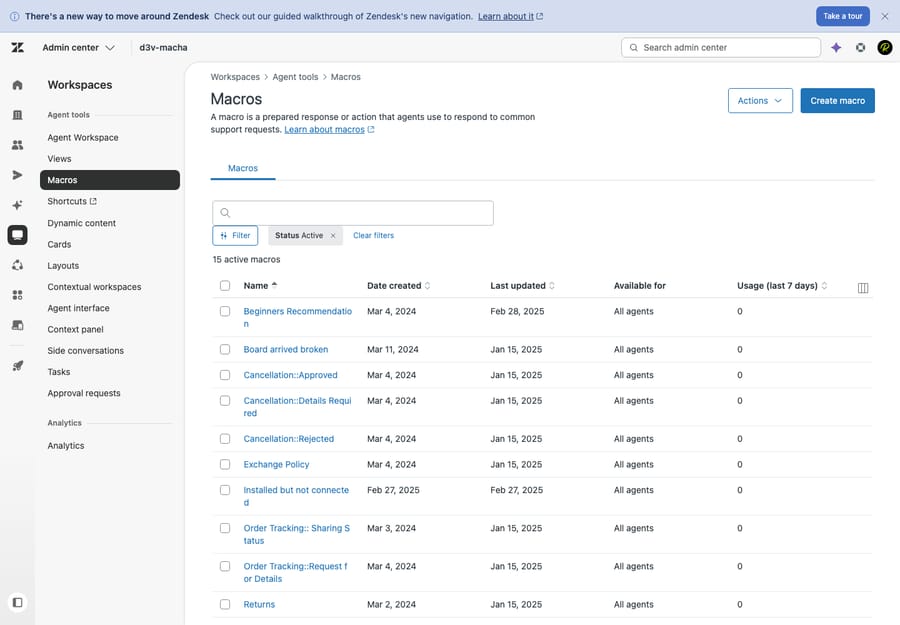
If the broader vocabulary here is still fuzzy — tickets, fields, statuses, tags — it's worth a quick detour through the Zendesk ticketing system explained first, since macros act on every one of those parts.
What a macro can actually do
People assume a macro is "a canned reply," but the reply is just one of the actions it can carry. A single macro can bundle any combination of the following in one click:
- Insert comment text. Add a public reply to the customer or an internal note to your teammates — the most common use by far.
- Set the status. Move the ticket to Open, Pending, Solved, and so on. A "Solved + thanks" macro that replies and closes out the ticket in one click is a staple.
- Set priority and type. Bump a ticket to Urgent, or mark it as a Question, Incident, Problem, or Task.
- Add or remove tags. Drop a
refund_requestedorescalatedtag — which is powerful, because a tag a macro adds can in turn fire a trigger (more on that below). - Change the assignee or group. Reassign the ticket to a specific agent or hand it to another team, e.g. route a billing question to the Billing group.
- Update custom fields. Set your own dropdowns and fields — product line, plan tier, issue category.
- Set the subject, add followers, attach files, and start side conversations. The longer tail of actions for tidying up or looping in the right people.
So the realistic mental model isn't "a snippet" — it's "a one-click recipe." A well-built macro can reply to the customer, set the status to Solved, tag the ticket password_reset, and bump the type to Question, all from a single menu choice. That's why macros are the workhorse of a fast support team: they collapse a multi-step manual update into one action, and they make those updates consistent across every agent.
Personal vs. shared macros
Macros come in two scopes, and knowing which is which saves a lot of confusion:
- Personal macros are private to the agent who made them. Per Zendesk, "a personal macro can only be used by the creator but is visible to admins." These are an individual's own shortcuts — your personal "ask for a screenshot" reply, worded the way you like it. Any agent can generally create their own.
- Shared macros are available to a whole team or the entire account. "Admins, and agents in custom roles with permission, can create shared macros." These are the official, sanctioned responses everyone is meant to use — and an account can hold up to 5,000 of them, so the real constraint is rarely the cap but the chaos that comes with letting the library sprawl.
The practical rule: shared macros are how you enforce a consistent voice and consistent ticket handling across the team; personal macros are scratch space for an individual's habits. Admins can see and manage every shared macro regardless of who created it, which matters for the cleanup work we'll get to.
Organize macros with the :: trick
This is the single most useful tip in the whole guide, and Zendesk barely advertises it. When you name a macro, Zendesk reads double colons (::) as category separators and automatically nests your macros into folders — no separate "category manager" required.
Name a macro Orders::Returns::Return Policy Info and agents won't see a flat, scary list of 200 macros. They see a clickable Orders folder, which opens a Returns subfolder, which contains the Return Policy Info macro — exactly like folders on your computer. You can nest several levels deep (Cancellation::Approved, Cancellation::Denied, Billing::Refund::Full), and different branches can have different depths. Zendesk documents the :: nesting convention in its guide to organizing macros; as a practical rule of thumb (ours, not a Zendesk-stated limit), keeping roughly five to ten macros per final folder keeps things scannable for agents working under pressure.
The difference between a 200-macro library agents actually use and one they ignore is almost always this naming discipline. A flat list is unsearchable; a tidy tree is a menu.
Placeholders: making macros feel personal
A canned reply that says "Hi there" feels canned. Zendesk macros support placeholders (and dynamic content) so a saved reply can still address the customer by name and pull in live ticket data. Drop {{ticket.requester.first_name}} into your macro and the customer sees their actual first name; {{ticket.id}} inserts the ticket number, and so on. (One caveat straight from the docs: placeholders can behave oddly on Problem-type tickets, where you may need to escape them — worth knowing before you wonder why a reply rendered strangely.) Dynamic content takes this further, letting one placeholder resolve to different languages based on the requester's locale — so a single macro serves a multilingual audience.
Zendesk macro examples
Concrete beats abstract. Here are macros real teams keep on hand:
General::Request more info— public reply asking for an order number or screenshot, sets status to Pending.General::Solve + thank you— a warm closing reply that also sets status to Solved, for tickets that are clearly done.Billing::Refund::Approved— replies confirming the refund, sets type to Question, adds tagrefund_approved, and reassigns to the Billing group.Account::Password reset— pastes the step-by-step reset instructions and tagspassword_resetfor reporting.Internal::Escalate to T2— adds an internal note template ("Escalating — customer impact: …"), bumps priority to High, and assigns to the Tier 2 group. Note this one writes a private note, not a customer reply.Shipping::Delay apology— an empathetic reply for late-delivery tickets, leaving status at Open so the agent can keep working it.
Notice the pattern: each one bundles a reply with the field changes that always go with it, so the agent never forgets to tag or re-status the ticket.
Best practices (and common mistakes)
Macros are easy to create and therefore easy to over-create. A few habits keep the library healthy:
- Keep it tight. A focused set of well-maintained shared macros beats hundreds of near-duplicates. If two macros do almost the same thing, merge them.
- Name with the
::convention from day one. Retrofitting categories onto a flat list of 300 macros is miserable; structure them as you go. - Bundle the field changes, not just the text. A reply-only macro that leaves the agent to manually set status and tags defeats half the point. Put the whole recipe in the macro.
- Review usage and prune. The Macros admin shows a Usage column (last week/month/year). Macros nobody applies are clutter — archive or delete them on a schedule.
- Mind public vs. internal. Decide deliberately whether a macro posts a public reply or an internal note. A macro built as an internal note that someone wires up as a public reply is how private remarks reach customers.
The common mistakes are the inverse of the above: macro sprawl (every agent creating overlapping personal macros that should be one shared one), flat naming (no ::, so nobody can find anything), stale text (a macro still quoting last year's pricing or a deprecated process), and — the big conceptual one — expecting macros to run themselves. They don't. If you catch yourself wishing a macro would "just apply automatically when a refund ticket comes in," you actually want a trigger.
Macros vs. triggers vs. automations
This is the distinction that unlocks Zendesk. All three are part of Zendesk's business rules, and they differ on one axis: what makes them run.
- Macro — manual. An agent applies it, by hand, in one click. No conditions; it just performs its actions when chosen. Use it for repetitive responses an agent decides to send.
- Trigger — event-based. Runs automatically the instant a ticket is created or updated and its conditions are met. "When a ticket is created with priority Urgent, notify the on-call group." Use it for things that should happen immediately, every time, without a human.
- Automation — time-based. Runs automatically on a schedule, based on time elapsed. "When a ticket has been Pending for 4 days, send a reminder." Use it for follow-ups, escalations, and SLA nudges.
A clean way to remember it: a macro is the agent pressing a button, a trigger is "the moment something happens," and an automation is "after some time passes." They also work together — a macro can add a tag, and a trigger watching for that tag can then take over automatically. For the full picture of how all three fit, start with the Zendesk business rules guide (our hub on this), and go deep on the automatic side in Zendesk automations vs. triggers.
Where AI fits — beyond the macro menu
Macros are a brilliant manual shortcut, but notice their ceiling: an agent still has to read each ticket, decide which macro fits, find it in the menu, and apply it. With a few dozen macros that's fine. With a few hundred, "which macro do I use here?" becomes its own slow, error-prone task — and the macro only ever inserts the text you wrote, regardless of the specifics of the customer's question.
This is the gap an AI agent layer like Macha fills. Macha isn't a help desk and it's not a Zendesk replacement — it runs on top of your existing Zendesk. Instead of an agent hunting for the right macro, Macha reads the ticket and the customer's actual question, pulls from your knowledge base and past tickets, and drafts (or sends) a context-aware reply — while also handling the field updates a macro would, like tagging, setting status, and routing. Where a macro inserts one fixed paragraph, the AI composes a response to this customer's specific issue, and escalates anything it can't confidently handle to a human with full context attached.
The honest framing: it's another integration to set up, and it's only as good as the knowledge you connect to it. On cost, Macha bills per ticket — one conversation, charged once however many steps it takes, whether that's drafting a reply, tagging, routing, or resolving — not per closed ticket, because most automation isn't a "resolution," it's work done along the way. If you find your team's real bottleneck is volume of repetitive replies rather than typing speed, that's the line where macros stop scaling and an AI layer starts paying off. You can try it free — $50 of free usage, no credit card required.
Frequently asked questions
What is a macro in Zendesk? A macro is a prepared response and/or set of ticket actions that an agent applies manually, in one click, while working a ticket. It can insert reply text, set status and priority, add tags, change the assignee or group, and update fields. Unlike triggers and automations, a macro contains only actions (no conditions) and never runs on its own — an agent has to apply it.
Are Zendesk macros automatic? No. Macros are agent-triggered and manual by design. If you want something to happen automatically when a ticket is created or updated, use a trigger; if you want it to happen after time passes (like a follow-up reminder), use an automation.
What's the difference between a macro and a trigger? A macro is applied manually by an agent and has no conditions. A trigger runs automatically the moment a ticket meets its conditions on creation or update. Put simply: a macro is a button an agent presses; a trigger fires by itself when an event happens.
What can a Zendesk macro do? A single macro can add a public reply or internal note, set status/priority/type, add or remove tags, change the assignee or group, update custom fields, set the subject, add followers, attach files, and start side conversations — any combination, all in one click.
What's the difference between personal and shared macros? A personal macro is private to the agent who created it (though admins can see it). A shared macro is available to a team or the whole account and is typically created by admins (or agents with the right custom-role permission). Shared macros enforce consistency; an account can hold up to 5,000 of them.
How do I organize my Zendesk macros into categories? Use double colons in the macro name. Zendesk reads :: as a category separator, so naming a macro Orders::Returns::Return Policy Info automatically nests it into an Orders › Returns folder in the agent's macro menu. No separate category tool needed — just the naming convention.
The bottom line
A Zendesk macro is the simplest, most reliable productivity win in the whole product: a one-click recipe that bundles a prepared reply with the field changes that always go with it. The defining trait — and the thing to never forget — is that macros are manual: an agent reads the ticket and applies the macro. The instant you want something to run on its own, you've crossed into triggers (event-based) or automations (time-based). Keep your library tight, name everything with the :: convention, lean on placeholders for personalization, and prune by usage, and macros will quietly save your team hours a week. When the bottleneck shifts from typing the reply to deciding which reply and finding it, that's the signal to look at an AI layer on top of Zendesk. From here, see how macros sit alongside the rest of Zendesk's business rules and how the automatic side works.
Macro behavior verified against Zendesk's official documentation, June 2026. Zendesk updates its product periodically — confirm specifics in your own account before relying on them.
Add AI agents to your Zendesk
Macha reads the ticket, drafts the reply and takes the action, inside the Zendesk you already run.