





 Shopify
 Stripe
 Slack
Slack Notion
 Google Workspace
 Confluence

What Is Macha Studies? Bulk AI Analysis of Up to 20,000 Support Tickets per Run


Most support teams can't say what share of their queue is billing, refunds or urgent without reading the tickets. Macha Studies reads them for you, filling the columns you define for every ticket in a Zendesk search.
Key takeaways
- Macha Studies, shipped May 30, 2026, runs an AI model over Zendesk tickets and returns a grid with one row per ticket and one column per question.
- Each Macha Studies run is capped at 20,000 records, and a test run samples 10 to 50 records so the schema can be checked before the full batch.
- Macha Studies shows the cost estimate before a run starts and charges only for records that process successfully, so cancelled and errored rows cost nothing.
- In a real 57-ticket Study on GPT-5, 23 tickets (40%) were billing related, none were refund requests, and 11% scored the top urgency level of 5.
- The Studies Report view, added June 5, 2026, turns Yes/No and choice columns into bar charts and Number columns into histograms with min, mean, median and max.

Studies is Macha's bulk ticket-analysis feature: you point an AI model at up to 20,000 Zendesk tickets per run, define the columns you want answered (Yes/No, choice, number or text), and get back a grid with one row per ticket and one column per question. It shipped on May 30, 2026, the charted Report view followed on June 5, 2026, and a finished run can be pushed into a Knowledge Source that your agents search on live tickets.
It gives you a repeatable way to bulk analyze support tickets without a data engineer, a CSV export pipeline, or a prompt you paste into a chat window a hundred times. Because it runs inside Macha, the agent layer already sitting on your help desk, the analysis doesn't end as a slide.
| Item | Detail |
|---|---|
| Input source | Zendesk Tickets, scoped by a Zendesk search query and optional date range (more sources are on the roadmap) |
| Column types | Yes/No, single choice, multiple choice, number, short text, long text |
| Run limit | 20,000 records per run; split larger jobs by date range |
| Test run | Samples 10 to 50 records before the full batch |
| Billing | Estimate shown before you confirm; only records that process successfully are charged |
| Outputs | Sortable grid, Report charts, CSV export, push to a Knowledge Source |
For the screenshot-by-screenshot worked example, see Studies: run an AI analysis across thousands of support tickets. What follows is the release tour and the honest limits.
What is a Study, and what isn't it?
A Study is a saved definition of three things: a source (which records), a scope (which subset of them), and a schema (the columns the AI fills for each one). Run it and Macha processes every record in parallel against the model you pick, producing a frozen results grid you can sort, filter, export or feed downstream. In the sidebar it also appears as AI Analysis.

Two things to be clear about up front. First, Studies is analysis, not automation. It's the read-only counterpart to Macha's live agents: the agents handle tickets as they arrive, and Studies reads the ones that already happened. Second, Macha is not a ticketing tool or a replacement for your analytics suite. It's the AI agent layer on top of your existing help desk, and Studies is the part of that layer that turns your back catalogue into structured, queryable data.
How do you build a Study?
The builder walks Source → Scope → Extract → Review, and it's designed so you never start an expensive run blind.
1. Source: pick what you're reading
The first input source is Zendesk Tickets; more record types are on the roadmap. If you have two Zendesk accounts connected, each shows up as its own instance. Tickets are where the richest, messiest and most underused support data lives.

2. Scope: narrow it down
You scope the batch with a Zendesk search query (the same syntax as the Zendesk search bar, such as tags:refund or status:open priority:urgent) and an optional date range, then choose which ticket fields the AI gets to see: subject, description, status, priority, tags, custom fields and the full comment thread. That field picker matters more than it looks. Narrowing what the model reads keeps it focused and keeps the cost down. Macha's docs flag custom fields and the full comment thread as the expensive options, since each adds an API call per ticket; if a question only needs the subject and the first message, don't feed it the whole back-and-forth.

3. Extract: define the columns
This is the core of it. Each column you add is a question the AI answers for every record, and you pick the answer type that matches the shape of the answer:
- Yes / No (boolean) for true-false flags: is this billing-related?
- Single choice / Multiple choice when the model must pick from a fixed list: category: shipping, returns, technical. You add options as pills: type a value and hit Enter, or paste a comma-separated list and Macha splits it.
- Number for counts or scores: urgency 1 to 5
- Short text / Long text for free-form answers: a one-line summary
Each column takes optional guidance so the model knows how to decide, plus an overall instructions box for tone and edge cases. Typed columns are what make the output aggregatable later: a Yes/No becomes a bar chart, a Number becomes a histogram. Free text stays free text.

4. Review: see the cost before you run
Before anything runs, Studies makes you look at the cost. The review screen shows the exact matching record count, the cost per record (the badge sits next to the model selector) and the total estimate, calculated from the same query the run will use. A confirmation modal then asks you to commit once, explicitly, before any work starts.

A few guardrails sit around that gate:
- Test runs sample 10 to 50 records so you can validate your schema and guidance before committing to the full batch. Test runs are flagged so they don't clutter your real history.
- Cancel anytime. Cancellation is graceful, and you are charged per successful record, never up front. Errored and cancelled records cost nothing.
- A hard 20,000-record cap per run keeps costs predictable. For bigger jobs, split by date range.
- Every run keeps a frozen snapshot of the config, schema and model it used. Editing the parent Study later never rewrites past runs.
That estimate-and-confirm flow is the design decision I'd point to first. A batch over thousands of tickets is a real spend, and the gate exists so it's never a surprise. If a one-off big run needs more headroom than your monthly allowance, you can add a top-up instead of moving up a tier. See the pricing page for the current tiers.
What did a real 57-ticket Study find?
Here's a real run from our test Zendesk: the last 30 days of tickets, four columns (a one-line Summary, two Yes/No flags for Billing related and Refund requested, and a 1 to 5 Urgency number), run on GPT-5. The estimate came back at 57 records, and it finished at 57 of 57 processed, 0 errors.
The grid is the raw material. The Report view, added on June 5, 2026, is where it pays off. Open it from a completed run and Studies aggregates every reportable column into a visual: Yes/No and choice columns become bar charts (label, count, percentage); Number columns become histograms with min, mean, median and max on top. Click any bar to drill into the exact records behind it, in a modal that reuses the same results table.
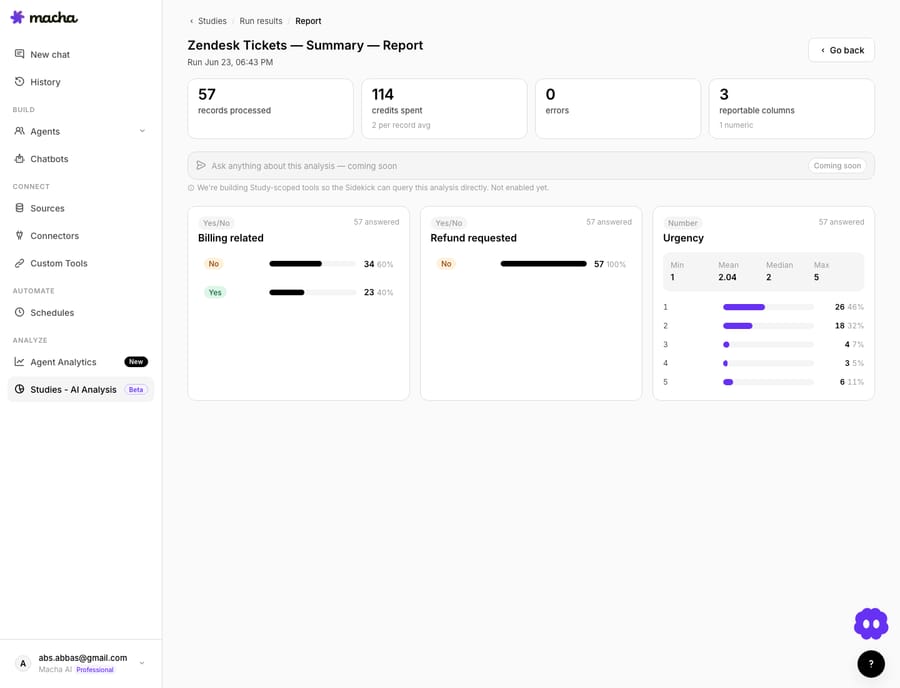
Here's what those 57 tickets said:
| Column | Result |
|---|---|
| Billing related | Yes 23 (40%) · No 34 (60%) |
| Refund requested | Yes 0 · No 57 (100%) |
| Urgency (1 to 5) | min 1 · mean 2.04 · median 2 · max 5; 46% at level 1, with an 11% tail at level 5 |
That's a usable read on a queue in a few minutes. Billing touched 40% of this window, a strong signal that a billing-capable agent (or a Stripe connection) would earn its keep. Not one ticket was an outright refund request, so a refund-automation flow would sit idle here. Urgency is low to moderate on average but carries a real tail: 11% landed at the top of the scale, exactly the tickets you'd want routed fast. Those are staffing, routing and build-order decisions you'd otherwise make on gut feel.
(There's also an "Ask anything about this analysis" Sidekick bar at the top of the report. It shipped disabled, as a "coming soon" preview: study-scoped Q&A is on the way, and Macha leaves the input inert until then rather than risk a confident wrong answer over your data.)
How do Study results reach your agents?
Most ticket-analysis tools stop at the chart. With Studies, a completed run can be pushed to a Knowledge Source. Each result row becomes a document, indexed through Macha's existing embeddings pipeline, so the structured insights from your Study become searchable context your agents draw on when they handle live tickets. The push modal shows how many records will become documents and your source-limit usage before you commit.
Analyse the past, then let the present agents use it. That turns a one-off report into a feedback loop, and it works because Studies lives in the same place as the agents.
The same machinery has since spread. Continuous Auto-Eval (June 30, 2026) runs inside your Studies list, grading each autonomous conversation on whether the agent followed its instructions. Agent Simulations (August 12, 2026) use the same per-record grader to replay past tickets through an agent with its write tools stubbed. And the AI Knowledge Builder (August 12, 2026) is the purpose-built route if your goal is turning resolved tickets into knowledge base articles rather than a results grid.
How does Studies compare to dedicated ticket analytics tools?
If you've shopped this category, you've seen the pitch. SentiSum says AI "can categorize 100,000 support tickets in minutes"; tools like Unwrap.ai (see this ticket-analysis roundup) surface systemic themes. They're capable, and for pure voice-of-customer analytics at scale they go deeper on theme discovery than Studies does today.
The trade-off is integration. Those are separate platforms you export into and read out of. Studies is a feature of the layer already attached to your help desk, so your scope is a live Zendesk search, your output can become agent knowledge in two clicks, and you don't add another login, data export or contract. If your goal is analyse to act rather than analyse to dashboard, that proximity is the point.
When should you use Studies, and when shouldn't you?
Use Studies to:
- Quantify your queue before you build agents: what's worth automating, and what's rare.
- Backfill clean structure onto years of inconsistently tagged tickets.
- Measure a change: run the same Study over two date ranges and compare.
- Seed agent knowledge from real resolved tickets.
Be honest about the limits, too:
- It is a real spend like everything else. A batch over thousands of records costs money; the estimate-and-confirm gate stops it being a surprise, but plan the spend.
- The first source is Zendesk Tickets. If your history lives in another help desk, you're waiting on more record types (on the roadmap).
- It's analysis, not real-time monitoring. A Study is a snapshot of a batch you scope, not a live stream. Re-run it to refresh.
For most teams the first Study pays for itself the moment it kills one "I think most of our tickets are about X" assumption that turns out to be wrong.
FAQ
What records can Studies analyze? Zendesk tickets today, scoped by a Zendesk search query, an optional date range, and the specific fields you let the AI see. More record sources are on the roadmap.
How much does it cost to bulk analyze tickets? The model you pick sets a cost per record, and you see the total estimate before you confirm. You're charged only for records that process successfully; cancelled and errored rows cost nothing. See pricing for current tiers, and note you can add a top-up for one-off large runs.
How many tickets can one Study run process? Up to 20,000 records per run. For larger jobs, split the Study by date range and run it more than once.
Can I test before running the whole batch? Yes. A Test run samples 10 to 50 records so you can validate your schema and guidance first. Test runs are flagged so they don't clutter your history.
What can I do with the results? Sort and filter the grid, view the Report charts, export to CSV, or push the run into a Knowledge Source so your agents can search the insights on live tickets.
Which plans include Studies? Macha now sells one plan priced by ticket volume, and every tier includes every feature, Studies and the Report view among them. See the pricing page for details, or the changelog for the full release notes.
How do you run your first Study?
If you've ever wanted a straight answer to "what's actually in our support queue," a Study gives you one in minutes. Studies run on the free trial and on every paid plan (from $299 a month for 750 tickets): connect Zendesk and run your first analysis, or read the Studies docs for the full walkthrough.
Written by Abbas (Customer Support & AI, Macha) · Reviewed by Ankeet Guha (Co-founder & CTO) · Published 2026-06-24 · Last updated 2026-09-24.






