





 Shopify
 Stripe
 Slack
Slack Notion
 Google Workspace
 Confluence

What Is the Difference Between Admin and Member Roles in Macha?


Macha gives every organization two roles: Admins build agents and run the account, while Members use agents and see the setup read-only. Here is how to invite people, what each role can change, and where the two-role model runs out.
Key takeaways
- Macha has two team roles: Admins create and edit agents, connectors, custom tools and triggers and manage billing and the team, while Members only use agents and view the setup read-only.
- Macha Admins invite teammates from Settings, then Team, by entering an email address and selecting a role, and can switch anyone between Admin and Member at any time.
- Macha usage alert emails go to organization Admins once each at 50%, 80% and 90% of the shared monthly ticket allowance.
- Deleting a Macha organization is Admin-only and runs on a 30-day schedule that can be cancelled before agents, connectors, conversations and data are removed.
- Macha's two-role model has no per-agent permissioning: every Admin can edit every agent in the organization, and Members cannot edit any agent.

Macha has two team roles, Admin and Member: Admins build and configure agents, connectors, custom tools and triggers and also manage billing and the team, while Members can only use agents and view the setup read-only. You invite people from Settings → Team, choose their role on the invitation, and can switch anyone between the two roles at any time.
| Capability | Admin | Member |
|---|---|---|
| Use agents and chat | Yes | Yes |
| View agents, connectors and tools | Yes | Read-only |
| Create, edit or delete agents, connectors, tools and triggers | Yes | No |
| Invite, remove and re-role teammates | Yes | No |
| Billing, subscription and usage alerts | Yes | No |
| Organization settings and organization deletion | Yes | No |
Your account is an organization: one shared workspace that holds your connectors, agents, knowledge sources, Studies, and a single pooled monthly ticket allowance. Everyone you invite joins that organization with one of the two roles. Team seats are unlimited on every plan, so the question is never how many people you can add, only what each of them should be able to change.
If you've managed roles in Zendesk, Slack, or a GitHub org, the model will feel familiar. It's the same least-privilege idea, pared down to the two roles most support teams need.
How do Admin and Member roles differ in Macha?
Everything in Macha is scoped to your organization. That's the unit that owns the work and pays the bill, so team management comes down to one question: who is allowed inside this organization, and at what level?
There are two answers, and the split is builders vs. users, not "account owner vs. everyone else." People get this wrong, so it's worth stating plainly (it's spelled out in the Team docs):
- Admin: full access to everything in the organization. Admins build and operate: create, edit, and delete agents; connect and manage integrations; create custom tools; set up triggers; and use agents and chat. Admins also own the account: they invite and remove teammates, manage billing and the subscription, and change organization settings.
- Member: a use-and-view role. Members can use agents and chat with them, and they can view agents, connectors, and tools read-only. They cannot create, edit, or delete agents, connectors, tools, or triggers, and they cannot manage team members or billing.
The model that holds: Admins configure the product; Members consume it. The docs put it directly: "Assign the Member role to people who only need to interact with agents. Reserve Admin access for team leads or operations staff who manage the setup." A support lead or ops owner who builds and tunes agents is an Admin; someone who just needs to chat with a deployed agent or look at how something is wired is a Member. You can have more than one Admin, and for most teams you should (more on that below).
Macha's role model is intentionally lean: two roles, not a twelve-row permission matrix. The trade-off is that it's coarse. There's no "can build agents but can't see billing" middle role yet. If you need someone to build, you make them an Admin. See the watch-outs before you plan around it.
How do you invite a teammate to Macha?
Team management lives in Settings → Team. As an Admin, you enter the person's email address, select a role, and send the invitation. They get an email with instructions to join; once they accept and log in, they appear in your organization's member list with the access that role allows. Each person's role, Admin or Member, shows as a badge on their row, and you can switch anyone between the two at any time from the same list.
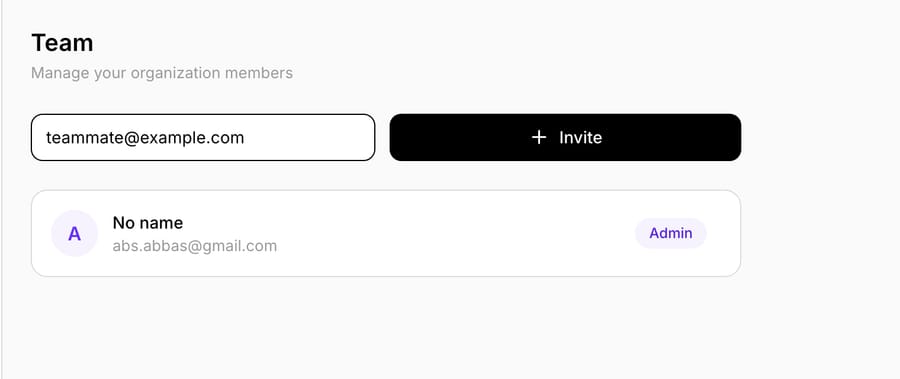
A few practical notes that save headaches later:
- Invite new people as Members, then promote with intent. It's tempting to make everyone an Admin "so they're not blocked." Resist it. Switching a Member to Admin later is one click on their row, and keeping the account controls (and all build access) in a small, known group is the whole point. Anyone who needs to build agents has to be an Admin, so promote deliberately.
- One organization, shared resources. Anyone you invite immediately shares the org's connectors, knowledge, and ticket allowance. There's no per-member sandbox: a Member's agent runs draw down the same monthly allowance as everyone else's. That's a feature (no silos) and a thing to watch (see watch-outs).
- Each person gets their own profile. Display name and personal preferences live on the per-user Profile, separate from organization settings. Removing someone revokes their access to your organization without touching the org, and it doesn't delete their Macha account: they can still log in to any other organizations they belong to.

What can only Admins change?
Admin-only covers two different kinds of thing. The first is everything that builds or changes the product; the second is the account-level controls you'd never want a brand-new teammate to touch.
Building and configuring agents
Per the Team docs, creating, editing, and deleting agents, plus connecting integrations, creating custom tools, and setting up triggers, is Admin-only. Members can use a deployed agent and view how it's wired, but they can't change it. Anyone on your team who designs, tunes, or ships agents needs the Admin role; there's no separate "builder" role that stops short of billing.
Billing, plans, and the ticket allowance
Your subscription, payment method, plan, and top-ups are Admin territory. Macha is one plan priced on ticket volume, from $299 a month for 750 tickets up to $3,999 for 10,000, and a ticket is one thread with one person, charged once whichever model the agent runs on. Because the allowance is shared, the person who controls billing also controls the team's runway. Admins also receive the usage alert emails, sent once each at 50%, 80% and 90% of the allowance, so the people who can top up are the ones who hear about it. Keeping billing with Admins means a Member can't change the plan or expose the card.

Organization settings
The organization's name, identity, and account-wide configuration are Admin-only. These settings define the workspace itself rather than any single agent, which is exactly what belongs behind a role gate.

Privacy and data management
Privacy settings hold data export and deletion. Any user can export their own data or schedule deletion of their own account, but deleting the organization is Admin-only. It runs on a 30-day schedule: the deletion can be cancelled within 30 days, after which agents, connectors, conversations, documents, triggers and custom tools are permanently removed and every member loses access.

Team management itself
Finally, the power to invite, remove, and re-role teammates is Admin-only: only the people with full control can grant or revoke control. Members can't manage the team at all.
What can Members do, and what can't they?
Be precise here, because it's easy to assume wrong. According to the Team docs, Member is a use-and-view role, not a builder role. A Member can:
- Use agents and chat: interact with deployed agents and run them on day-to-day work.
- View the setup read-only: see agents, connectors, and tools to understand how things are wired, without the ability to change them.
A Member cannot:
- Create, edit, or delete agents, connectors, custom tools, or triggers.
- Manage team members (invite, remove, or change roles).
- Manage billing or the subscription.
Member is the right role for people who only need to interact with your agents: frontline staff using a deployed agent, a stakeholder who wants to look at the configuration, a reviewer checking outputs. The moment someone needs to build or change something, they need Admin. That coarse split is the deliberate trade-off in Macha's model: it keeps role-based access control simple, at the cost of a middle "builder without account access" tier (see watch-outs).
How should you assign roles safely?
Two roles is a small surface, but a few access-control habits still pay off. These aren't Macha rules; they're the same practices Microsoft, GitHub, and the broader RBAC literature recommend for any team tool, applied to Macha's model.
Default to Member; grant Admin only to people who build. Follow the principle of least privilege: invite everyone as a Member, and promote to Admin only when someone needs to build, configure, or own the account. Because Admin is all-or-nothing in Macha, with build access and billing access together, granting it is a real decision, not a default.
Keep at least two Admins. A single-Admin organization is a liability: if that person is on leave or leaves the company, nobody can manage billing, settings, or the team until you sort out access. Macha's own docs make a related point: transfer Admin responsibilities before anyone deletes their account. ShareGate makes the same point about Teams ownership: always have at least two owners so a workspace is never orphaned. We suggest two to three Admins for most support teams.
Review access on a schedule. Quarterly is a reasonable cadence: open Settings → Team, scan the list, and confirm everyone there still needs to be, paying special attention to who holds Admin. Access reviews that focus on exceptions and outliers catch the contractor nobody remembered to remove.
Offboard the same day. When someone leaves the team, remove them from the organization that day. Because Macha is org-scoped with a shared ticket allowance, a stale account isn't just a security gap; it's standing access to spend your month's tickets.
| Habit | Why it matters in Macha |
|---|---|
| Invite new people as Member | Keeps billing, settings, and team controls in a small group |
| Keep 2–3 Admins | No single point of failure for the account |
| Quarterly access review | Catches stale contractors and over-granted Admins |
| Same-day offboarding | Stale accounts can spend the shared ticket allowance |
Watch-outs: when two roles isn't enough
Here's where Macha's model has edges you should plan around.
- The roles are coarse: there's no "builder without billing" middle tier. Because building agents is Admin-only, anyone who needs to create or tune an agent must be a full Admin, which also hands them billing, organization settings, and the power to remove other people. If you want a teammate to build agents but not see payment details, the two-role model can't express that today. Manage it by team convention, or use a separate organization.
- There's no per-agent permissioning. Every Admin can edit every agent in the organization; you can't lock a production agent so only certain Admins can change it. Members can't edit any agent. If per-agent access control is a hard requirement, raise it before you scale the team.
- The ticket allowance is shared and pooled. Any teammate's agent runs, including a Member chatting with a deployed agent, draw on the same org allowance. When it runs out, agents pause until an Admin moves up a tier or adds a top-up; there are no overage charges. Admins can monitor usage and manage the balance in billing.
- Admin carries real authority. An Admin can change the plan, edit the payment method, remove other people (including other Admins), and schedule the organization for deletion. Treat the Admin role as the trusted inner circle, not a convenience setting.
- Roles govern one organization, but you can have several. If you need to separate two business units, two brands, or production from a sandbox with different people in each, that's a job for multiple organizations, not roles. A single Macha login can belong to many organizations, and per the docs nothing is shared between them: each org has its own agents, connectors, tools, data, and billing. The two roles always operate inside one organization.
None of these are dealbreakers for the teams Macha is built for: a focused support or CX org running AI agents on top of Zendesk, Freshdesk, Gorgias, Front, HubSpot or Intercom. They're the boundaries of a deliberately simple model, and it's better to know them up front.
FAQ
How many roles does Macha have? Two: Admin and Member. Per the Team docs, Admins have full access: building and managing agents, connectors, tools, and triggers, plus billing, organization settings, and team management. Members are a use-and-view role: they can use agents and chat, and view the setup read-only, but cannot create, edit, or delete anything or manage team and billing.
How do I add someone to my Macha organization? As an Admin, go to Settings → Team, enter the person's email, select a role, and send the invitation. After they accept and log in, they appear in your member list, where you can change their role at any time. See the docs for the current step-by-step.
Can a Member build or edit agents? No. Creating, editing, or deleting agents, connectors, custom tools, and triggers is Admin-only. Members can use and chat with deployed agents and view the setup read-only, but they can't change it. Anyone who needs to build agents must be an Admin.
Can a Member see billing or change the plan? No. Billing, the subscription, the payment method, and usage are Admin-only, and usage alert emails go to Admins. Members can use agents and view the product, but can't touch account-level controls.
Can I have more than one Admin? Yes, and you should. Keeping two to three Admins means the account is never stranded if one person is unavailable or leaves.
Do team members each get their own allowance? No. Macha uses a single shared ticket allowance for the whole organization, so any teammate's agent usage, including a Member chatting with a deployed agent, draws from the same pool. Seats themselves are unlimited on every plan.
Can I give someone build access without billing access? Not with the two roles today. Building agents requires Admin, and Admin also includes billing, organization settings, and team management; there's no "builder only" middle role. If you need that separation, manage it by convention or use a separate organization, and flag the requirement to us.
Can I restrict a teammate to just one agent? Not with roles today. Members can't edit any agent, and every Admin can edit every agent; there's no per-agent permissioning. If you need that kind of isolation, use a separate organization, and tell us if granular per-agent permissions are a requirement for you.
Does removing a teammate delete their Macha account? No. Removing a member revokes their access to your organization only. They keep their Macha login and can still use any other organizations they belong to.
How do you get your team set up?
Team management in Macha is a five-minute task: invite your people from Settings → Team, keep most of them as Members, name two or three Admins, and put a quarterly access review on the calendar.
If you're just getting started, spin up a free trial ($50 of usage, no credit card required), connect your help desk, and invite the people who'll build your agents with you. For the full reference, see the Macha docs, or read more capability walkthroughs on the blog.
Written by Abbas (Customer Support & AI, Macha) · Reviewed by Ankeet Guha (Co-founder & CTO) · Published 2026-06-24 · Last updated 2026-09-24.






