
 Shopify
 Stripe
 Slack
Slack Notion
 Google Workspace
 Confluence

How Do You Test an AI Agent Before It Goes Live on Macha?


Test a Macha agent in the Try it tab, replay past Zendesk tickets in Agent Simulations with write tools stubbed, then do one real Test Run on a low-stakes ticket. Go live with writes posting as internal notes or waiting for confirmation, and switch to autonomous only after real runs look right.
Key takeaways
- Macha agents can be tested three ways before launch: the Try it chat, Agent Simulations on past Zendesk tickets, and a single real Test Run.
- A Macha Test Run executes the agent once on a real ticket you pick and takes real actions, so run it on a low-stakes or throwaway ticket.
- Agent Simulations replay past Zendesk tickets with write tools stubbed while read tools run for real, and score each record on instruction adherence.
- The safe rollout ladder ends with autonomous mode only after live runs with internal notes or confirmation have been reviewed in Agent Analytics.
- Money-moving actions such as refunds should keep a confirmation step and be tested in Simulations first, where the write is stubbed.

Test a Macha agent in three places before it touches customers: the Try it tab, where you chat with the agent and every write action waits on a confirmation card; Agent Simulations, which replay past Zendesk tickets with write tools stubbed out; and a single Test Run on a low-stakes ticket, which takes real actions. Then go live with writes posting as internal notes or waiting for confirmation, and only switch to autonomous once a batch of real runs looks right.
| Method | What it runs on | Do write actions fire? | Use it for |
|---|---|---|---|
| Try it tab | A private chat, real prompt, tools and model | Only if you approve the confirmation card | Checking reasoning and wording |
| Agent Simulations | Past Zendesk tickets, capped at a number you set | No, write tools are stubbed | Testing a prompt change across many records |
| Test Run | One real ticket you pick | Yes, it takes real actions | A final end-to-end rehearsal |
How do you start with a Test Run?
Every agent has a Test Run option on its configuration screen. You pick a real ticket and hit Start test run, and the agent runs once against that ticket, doing every step as it would if it were switched on. The panel spells out the catch: a test run takes real actions. It will send messages, update records and execute tools for real. It's a controlled rehearsal, not a sandbox, so run it on a safe or low-stakes ticket (or a throwaway test ticket) while you're still tuning the agent.
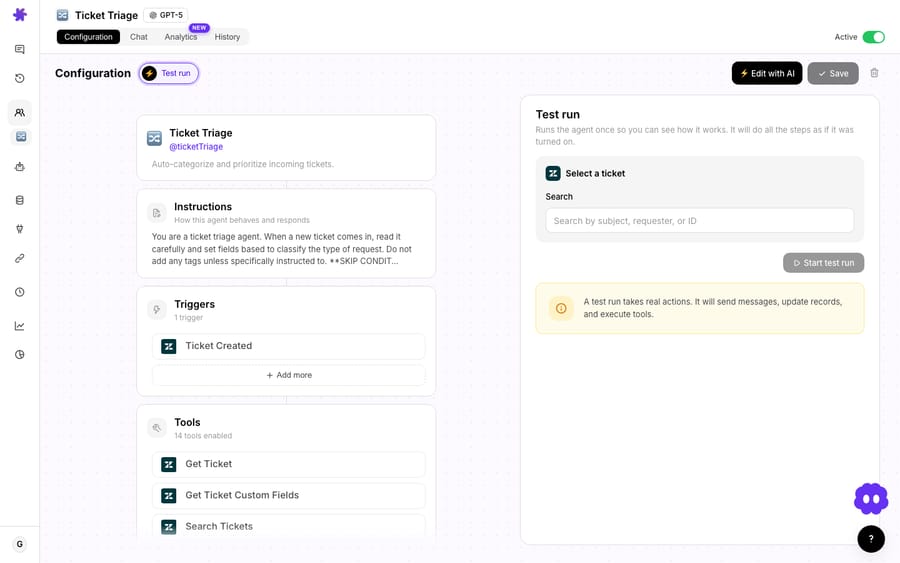
Run it on a few representative cases, an easy one, a tricky one and an edge case you're worried about, and watch how the agent reasons through each. Because the actions are real, stick to tickets where a stray reply or field change won't matter.
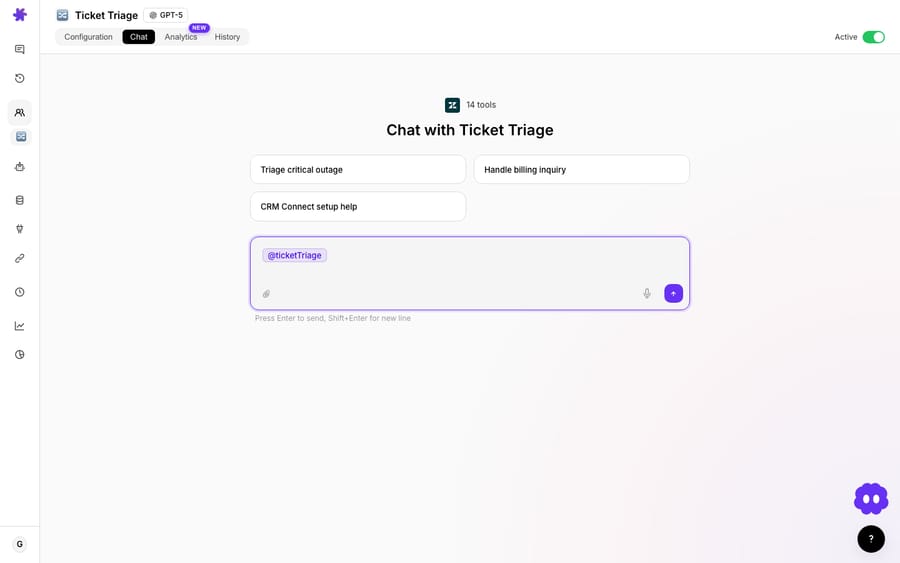
If you'd rather not touch real tickets at all, start one step earlier. The Try it tab is a private chat with the agent: real prompt, real tools, real model, no customer traffic. Write tools ship with confirmation on by default, so you can reject a card to see what the agent would have written without firing it. Agent Simulations go further: they replay past Zendesk tickets with write tools stubbed, while read tools such as knowledge search and order lookups run for real, and each record gets a verdict on whether the agent followed its instructions.
What should you look for when testing?
A test tells you a lot if you know what to check:
- Did it pick the right tools? Watch the tool calls. Is it looking up the order, reading the right fields, using the tools you intended?
- Is the answer accurate? Does it pull from your knowledge correctly, or guess?
- Are the field updates correct? If it tags or sets priority, are those right?
- Does it escalate sensibly? Try a case it shouldn't handle. Does it hand off cleanly instead of bluffing?
- Is it efficient? A run that takes a sane number of steps is healthy; one that goes in circles is a warning sign (see stopping infinite loops).
When something's off, the fix is almost always in the instructions. Tighten them, adjust the tools, and test the same cases again.
What does a safe rollout ladder look like?
Testing isn't one step. It's a ladder you climb as trust grows:
- Try it and Simulations. Chat with the agent and replay past tickets with writes stubbed; refine until it behaves.
- Test Run. One real, low-stakes ticket, end to end, knowing its actions are real.
- Internal notes or confirmation first. When you go live, set write actions to post as internal notes or require confirmation, so a human sees the work before customers do.
- Watch real runs. Review live runs in Agent Analytics: the answers, the tool use and the message counts.
- Go autonomous. Once a batch of real runs looks right, let the agent act on its own. Autonomous mode has no confirmation step, which is why you earn your way up to it.
Each rung removes a little more of the human checkpoint, and only after the previous rung showed the agent can be trusted.
Which actions need the most testing?
Not all actions carry the same risk. Calibrate your testing to the stakes:
- Read-only or internal actions (looking things up, tagging, summarizing, internal notes) are low risk. Test them, but you can let them run sooner.
- Customer-facing replies deserve more watching. Keep them on confirmation or internal notes until you've seen many good ones.
- Money-moving or destructive actions (refunds, deletions) deserve the most caution. Keep a confirmation step and test the edge cases hard, in Simulations first where the write is stubbed.
What habits keep an agent safe after launch?
- Re-test after every meaningful change, not just at launch. Editing instructions changes behavior, and a Simulation on the same past tickets shows you exactly what moved.
- Start write actions safe (internal notes or confirmation) and widen as trust grows.
- Re-check Agent Analytics after going live and watch for abnormal message counts.
Frequently asked questions
What does Test Run do? It runs the agent once against a real ticket you pick, with real connector data, and it takes real actions: replies, field updates and tool calls all fire. Use a low-stakes or throwaway ticket, or use Simulations if you want writes stubbed.
How do I know an agent is ready to go live? When it behaves correctly across a range of Try it chats and Simulation records, and then, on real runs started with internal notes or confirmation, it keeps doing the right thing.
Will testing change real tickets? It depends on the method. Agent Simulations stub every write tool, so nothing changes. Try it asks for confirmation on write actions by default, but a write with confirmation turned off fires for real. A Test Run takes real actions on the ticket you pick.
What if the agent does the wrong thing? Tighten its instructions and adjust its tools, then test again on the same cases. Most issues are instruction issues.
How careful should I be? Match it to risk: light on read-only and internal actions, heavy on customer-facing and money-moving ones.
Build and test your first agent: simulate it before a single customer sees it. $50 of free usage, no credit card required. Start free.