
 Shopify
 Stripe
 Slack
Slack Notion
 Google Workspace
 Confluence

How Do You Chat With Your AI Agents on Macha?


You chat with a Macha agent from the main window's agent list or from the agent's own chat bar, and every write action it proposes waits for you to confirm it. A trigger is the third way to use an agent, and it runs autonomously with no confirmation step.
Key takeaways
- Macha agents can be chatted with from the main window's agent list or from the agent's own chat bar, and a trigger runs them autonomously instead.
- In Macha chat, write actions such as updating a ticket or sending a message show a confirmation card and wait for Confirm or Cancel, while read-only lookups run on their own.
- Macha chat accepts up to 3 attached files per message, with images up to 5 MB and documents such as PDF or CSV up to 10 MB.
- Macha's autonomous mode, started by a trigger, executes write actions immediately with no confirmation step, which is why agents are tested in chat first.

To chat with a Macha agent, pick it from the agent list in the main window or open it from the left menu and type in its chat bar; any write action it proposes then waits for you to click Confirm. Read-only steps like searching or looking up a ticket run without asking. The third way to use an agent is a trigger, which runs it autonomously with no confirmation step.
| Way in | How you start it | Confirmation on writes? |
|---|---|---|
| Main window | Open the agent list (or click the agent icon) and pick one | Yes |
| The agent itself | Open the agent from the left menu and use its chat bar, with suggested prompts | Yes |
| Trigger (autonomous) | Attach a trigger; the agent runs when it fires | No |
Watch it
How do you start a chat with a Macha agent?
You can reach an agent's chat from two places, whichever fits your flow:
- From the main window. Hit the button to see a list of your available agents and pick one (you can also click the agent icon to open the same list).
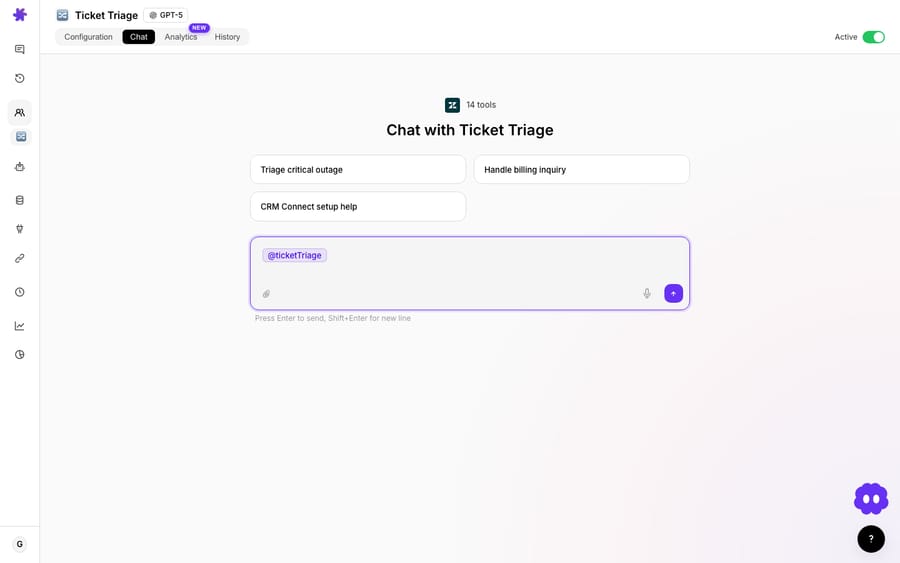
- From the agent itself. Open an agent from the left menu, then use the chat bar at the top. The agent is already selected, and you'll see its name, description and a few suggested prompts to get started.
Either way you land in a conversation with the agent you chose. Responses stream in as the agent writes them, and you can attach up to 3 files per message: images up to 5 MB, documents such as PDF, DOCX, CSV or XLSX up to 10 MB. To start over, click New chat.
What is chatting with an agent good for?
Chat isn't a demo mode. It's a way to get work done:
- Test an agent. Before you let an agent run autonomously, chat with it on real examples and watch what it does and what it would change. (More in how to test an agent.)
- One-off tasks. Need something done once: summarize this ticket, look up that order, draft a reply? Ask the agent in chat instead of building automation for it.
- Work side by side. Use the agent as a copilot while you handle a ticket. Let it pull data, draft and suggest while you decide what goes out.
Will the agent change anything without asking?
No. In chat, write actions ask for confirmation. When an agent is about to update a ticket, create a record or send a message, it first says what it's going to do and why, then shows a confirmation card with the action and its parameters. You click Confirm to let it proceed or Cancel to stop it. Read-only steps (fetching data, searching, looking things up) run automatically.
That's the difference from autonomous mode, where an agent running from a trigger executes write actions immediately, with no confirmation step. Chat keeps a human in the loop by design, which is why it's the right place to build trust in an agent before you let it run on its own. (See autonomous mode vs. interactive chat for the full comparison.)
Where does chat fit in an agent's lifecycle?
A typical agent lifecycle uses both modes:
- Build the agent: instructions, tools and data sources.
- Chat with it to test and refine: watch its decisions, approve or reject its actions, tighten the instructions.
- Add a trigger and let it run autonomously once you trust it.
- Come back to chat any time for ad-hoc tasks or to debug behavior.
When should you chat and when should you automate?
The two modes suit different moments:
| You want to… | Use |
|---|---|
| Try an agent before trusting it | Chat: test it, approve its actions |
| Do something just once | Chat: just ask |
| Work a ticket alongside the agent | Chat: copilot style |
| Handle every new ticket hands-free | A trigger (autonomous) |
| Run a job on a schedule | A scheduled trigger |
The rule of thumb: chat when you want a human in the loop; use a trigger when you want the work to happen without you. Most agents start in chat, with confirmation on every write, and move to a trigger once you trust them.
Frequently asked questions
How do I chat with an agent? Hit the button (or agent icon) to pick from your agent list, or open the agent from the left menu and use the chat bar. It'll be pre-selected with suggested prompts.
What's chat good for? Testing agents, one-off tasks, and working alongside an agent as a copilot.
Will the agent change things while I chat? Only with your confirmation. Write actions show a confirmation card and wait for Confirm or Cancel; read-only lookups run on their own.
How is chat different from autonomous mode? Chat keeps a human in the loop (confirmation on writes); autonomous mode, fired by a trigger, runs write actions with no confirmation.
Can I send files to an agent in chat? Yes, up to 3 per message: images up to 5 MB, documents up to 10 MB and audio up to 25 MB.
Do I have to choose between chat and automation? No. Most agents are tested in chat, then run autonomously on a trigger, and you can still chat with them any time.
What should you remember about agent chat?
Chat is the hands-on way to work with your agents: start one from the main window or the agent itself, use it to test, run one-off tasks or copilot a ticket, and rely on confirmation before every write to stay in control. It's where you build trust in an agent before handing it a trigger.
Try it: build an agent and chat with it on a real ticket. $50 of free usage, no credit card required. Start free.