Shopify
 Stripe
 Slack
Slack Notion
 Google Workspace
 Confluence

How Do You Connect ClickUp to Zendesk? Native App vs AI Agent (2026)


A ticket lands in Zendesk, but the task tracking that customer's request, whether a bug fix or a feature, lives in ClickUp one tab over. You can hand tickets to ClickUp with its own Zendesk app, or give an AI agent live ClickUp lookups and actions inside the ticket.
Key takeaways
- ClickUp's native Zendesk app converts a ticket into a ClickUp task in one click, shows the task's status and assignee inside Zendesk, and updates Zendesk when the task is resolved.
- A Macha Custom Tool calls ClickUp's REST API at api.clickup.com/api/v2 with a personal token starting pk_ or an OAuth Bearer token, so an AI agent can check a task mid-ticket.
- Macha Custom Tools split ClickUp actions into Read tools, which run freely, and Write tools such as creating a task or posting a comment, which can sit behind a confirmation step.
- Macha's Custom Tools directory lists more than 200 tools, and on the trial and every plan the Macha team builds and tests the ClickUp tools for you, at about $0.40 a ticket including setup and a dedicated success manager who handles your changes.

You connect ClickUp to Zendesk in two ways: ClickUp's own Zendesk app, which turns a ticket into a ClickUp task in one click and shows the task's status inside Zendesk, or a Custom Tool that lets an AI agent call ClickUp's REST API at api.clickup.com/api/v2 in the middle of a ticket. The first is a hand-off for human agents. The second lets the agent look up a task's status or post a comment while it answers the customer.
| ClickUp's native Zendesk app | Macha Custom Tool | |
|---|---|---|
| What it does | Creates ClickUp tasks from tickets, links tasks, shows status and assignee in Zendesk | Lets an AI agent read or write ClickUp data mid-ticket |
| Setup | Install from the Zendesk Marketplace | Done for you by the Macha team, with a dedicated success manager, included |
| Auth | ClickUp account connection | ClickUp personal token (starts pk_) or OAuth |
| Who uses it | Human agents handing work to product or engineering | The AI agent answering the customer |
Framing first. Macha runs on top of the Zendesk you already use. It's an AI-agent layer, not a Zendesk or ClickUp replacement. Your agents keep working in Zendesk; Macha reads the ticket, reasons, and reaches into ClickUp to answer or act.
What does the native ClickUp Zendesk app do, and where does it stop?
ClickUp offers a native Zendesk Support app in the Zendesk Marketplace. ClickUp's integration page describes three jobs: convert a ticket into a ClickUp task in one click, with its details and attachments; show the task's status, assignee and updates inside Zendesk; and update Zendesk automatically when the ClickUp task is resolved. If all you need is for a human agent to hand a request to the product team and watch status flow back, that may be enough.
Where it stops:
- It's hand-off and linking, not in-context reasoning. It creates and links tasks and pulls status back; it doesn't let an AI agent decide to look something up mid-conversation, pass the right parameters, and reason over the result.
- It's installed and configured per Zendesk instance. The app comes from the Zendesk Marketplace and does what its author decided it should.
- It's fixed. You get the task fields and mapping the app exposes, not the specific query or write your workflow needs (e.g. "what's the status of this customer's linked task?" or "add a comment to it").
For a lot of teams, the task hand-off is fine. For anyone who wants their AI agent to actually use ClickUp, there's a lighter, more flexible path.
Why would an AI agent need ClickUp live?
The high-value version of this integration isn't a linked task. It's the agent doing the work. A customer emails Zendesk asking "did that bug I reported get fixed?"; the agent recognizes them, looks up the linked ClickUp task, and answers "yes, it's marked Complete" or "it's in review, targeted for this release", grounded in ClickUp rather than a stale copy. That's what a Custom Tool enables.
How do you connect ClickUp to Zendesk with a Custom Tool?
A Custom Tool is a single action you define once and point at ClickUp's API. No extra app install, no code.
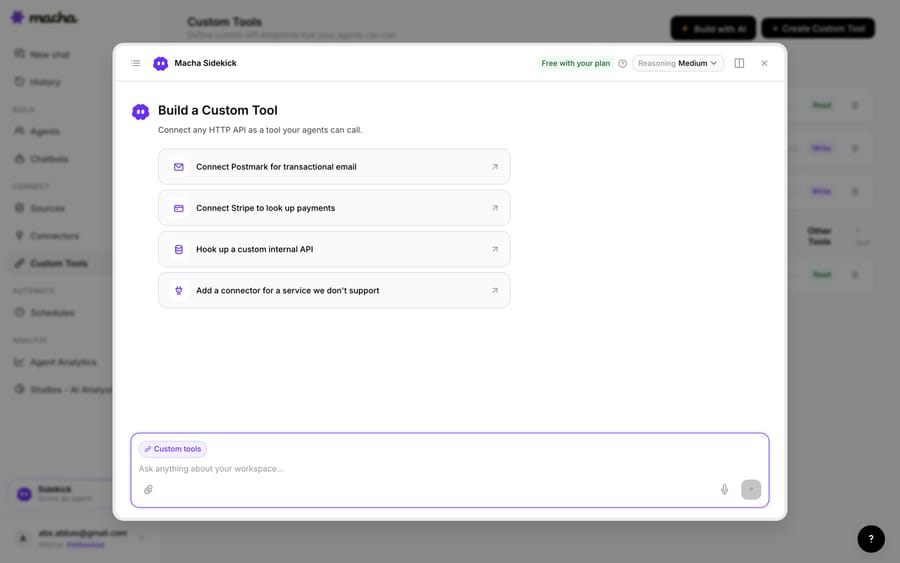
1. Point it at the ClickUp API. ClickUp's REST API lives at api.clickup.com/api/v2. Per ClickUp's authentication docs, a personal token starts with pk_ and goes in the Authorization header as-is; an app built on OAuth sends Authorization: Bearer with its access token. You give Macha the endpoint and credentials. The built-in Sidekick can scaffold the request from a plain-English description if you'd rather not fill in the form.
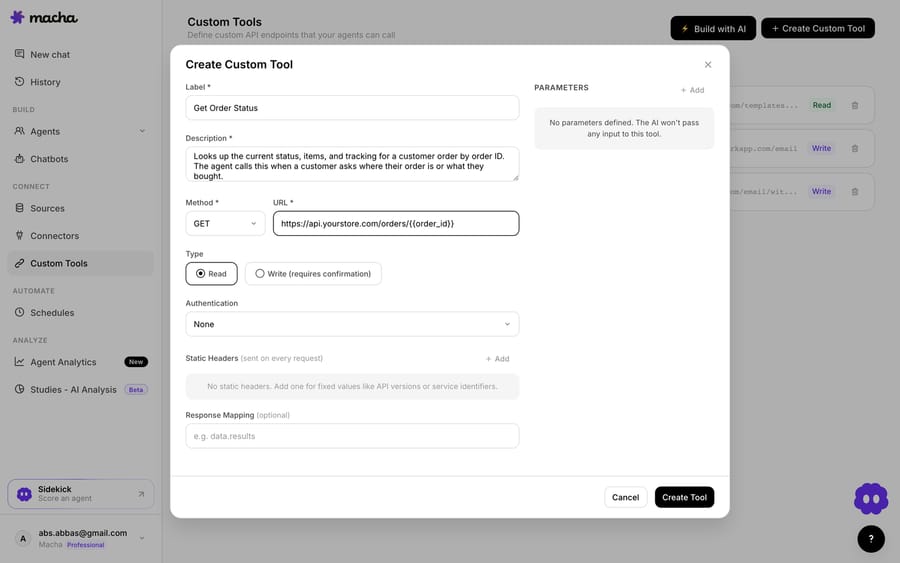
2. Define the action. Give it a label and a description the AI uses to decide when to call it (e.g. "Get the ClickUp task status for a customer's linked request"), set the method and URL (a call against the ClickUp REST API, with a placeholder like {{task_id}}), and choose Read or Write. A lookup is a Read; creating a task or posting a comment is a Write, and you can require confirmation before a Write runs.
3. The agent uses it live. Once the tool exists, the agent calls it mid-ticket, passes the task ID or customer reference, and reasons over the ClickUp record it gets back, answering the question or taking the next step.
Is it safe to let an AI agent write to ClickUp?
Because a Custom Tool can reach into ClickUp, the guardrails matter. Read tools (lookups) run freely. Write tools (create a task, post a comment, change a status) are where you put a confirmation step, so nothing changes in ClickUp without a check. Each tool is scoped to one action and you choose which agents can use it. The API token handles credentials, so secrets never live in the conversation.
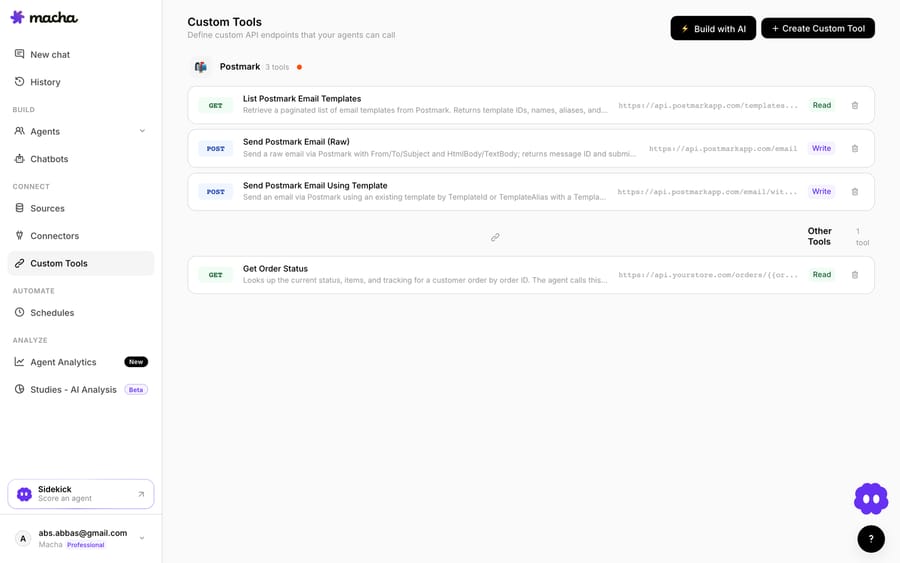
Teams usually build a few ClickUp tools and group them (a "get task status," a "create task from ticket," a "post a comment") alongside tools for their other systems.
Should you use the native app or a Custom Tool?
- Use the native ClickUp Zendesk app if you just want to create and link tasks and watch status sync back for human agents.
- Use a Custom Tool when you want your AI agent to look up live ClickUp data or take an action from the ticket, or you need a specific query or write the native app doesn't expose. The two can coexist. Macha is the done-for-you option: the Macha team builds and tests the ClickUp tools and the agent on your Zendesk, then runs it in safe mode, with drafts as internal notes, until the drafts are right. That's included on the trial and every plan at about $0.40 a ticket, which covers setup and a dedicated success manager who handles your changes.
What else can the agent do once it reaches ClickUp?
The same pattern covers more: check a linked task's status before answering, read who owns a request to route it, create a task from a bug report, or post a customer update as a comment. And because Custom Tools aren't ClickUp-specific, the same approach connects your CRM, billing system, or internal API. See the Custom Tools integration directory, which lists more than 200 tools, or the full pillar on building custom Zendesk integrations. Macha runs the same agents on Zendesk, Freshdesk, Gorgias, Front, HubSpot or Intercom.
Custom API tools are included on Macha's single plan, priced by ticket volume from $299 a month for up to 750 tickets, with setup by the Macha team and a dedicated success manager included. See how Custom Tools work, browse the integration directory, or start a free trial with $50 of free usage and wire up your first ClickUp tool.
Frequently asked questions
Does Zendesk have a native ClickUp integration? Yes. ClickUp's Zendesk Support app turns tickets into ClickUp tasks, shows task status and assignee inside Zendesk, and updates Zendesk when a task is resolved. It's hand-off and linking focused; a Custom Tool adds live, agent-driven lookups and actions.
Do I need an engineer to connect ClickUp to Zendesk this way? No. On the trial and every plan, the Macha team builds and tests the ClickUp tools for you. To build one yourself, you describe the action in plain English and Macha's Sidekick scaffolds the ClickUp request, auth, and parameters. Technical teams can go deeper with full control over the endpoint, headers, and response mapping.
Can the agent update ClickUp, or only read it? Both. Reads (lookups) run freely; writes, such as creating a task or posting a comment, can sit behind a confirmation step, and you control which agents can use them.
Is it secure? The tool is scoped to a single action, limited to the agents you choose, and authenticated with your ClickUp token, so the credential never appears in the conversation.
Which ClickUp token should I use? For a single workspace, a personal token (it starts with pk_) is the quickest. If you're building something other ClickUp workspaces will connect to, ClickUp's OAuth flow issues a Bearer access token instead.