
 Shopify
 Stripe
 Slack
Slack Notion
 Google Workspace
 Confluence

How Do You Create an AI Agent from a Template on Macha?


Macha's Agent Templates gallery gives you ready-made agents with instructions and tools already written and wired, so a triage or order-lookup agent takes a couple of clicks. You then tailor the instructions, tools, trigger and knowledge to your own workflow.
Key takeaways
- On Macha, creating an agent from a template means opening Agent Templates, reviewing a template's instructions and tools, and clicking Use Template to open it in the editor.
- The Macha Agent Templates gallery groups agents into Support, E-Commerce, Billing, Research, Productivity and Automation tabs, and held 36 templates when our screenshot was taken.
- Macha filters the template gallery by the connectors an organization has set up, so connecting a new integration can make more templates appear.
- A Macha template gets a new agent about 80% of the way there, leaving the last 20% for your instructions, tools, trigger and knowledge.
- Many Macha templates ship without a trigger, so the agent does nothing on its own until you add the event that should run it.

To create an AI agent from a template on Macha, open Agent Templates from the left menu, click a template to read its instructions and tools, then click Use Template: Macha creates the agent immediately and opens it in the agent editor. You then edit the instructions, trim the tools, and add a trigger and knowledge so it fits your workflow.
| If your biggest queue is... | Start from |
|---|---|
| Unsorted incoming tickets | Ticket Triage Agent or Ticket Router |
| "Where's my order?" | Order Lookup Assistant |
| Refund requests | Refund Handler |
| Urgent tickets getting missed | Escalation Manager |
| Long threads agents keep re-reading | Ticket Summarizer |
| Replies written from scratch | Customer Reply Assistant |
Watch it in action
What's in the template gallery?
From the left menu, open Agent Templates. The gallery is a library of pre-built agents for the jobs support and ops teams do most, filtered into tabs: Support, E-Commerce, Billing, Research, Productivity and Automation. When we took the screenshot below, the gallery held 36 templates. Each card shows the template's name, a one-line description and the connectors it uses.
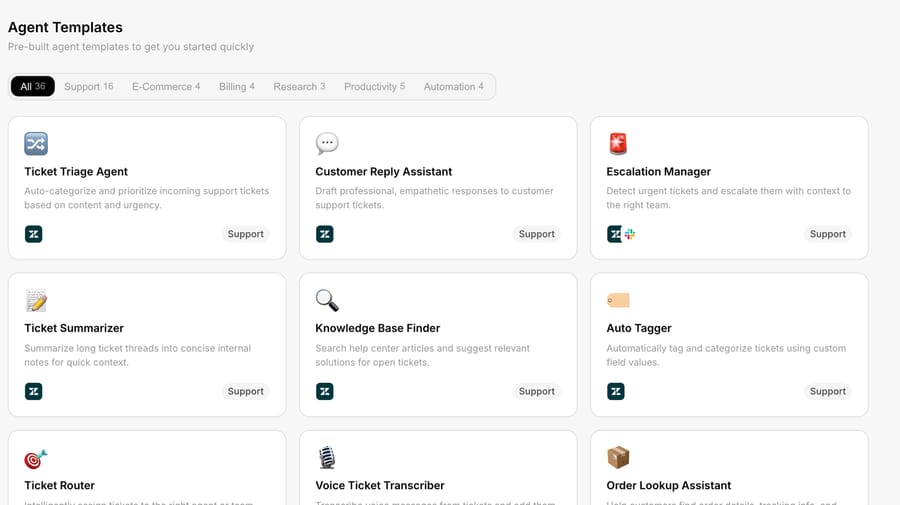
A few you'll find: Ticket Triage Agent, Customer Reply Assistant, Escalation Manager, Ticket Summarizer, Auto Tagger, Order Lookup Assistant and Refund Handler. Each is a working configuration rather than a blank canvas.
The set you see depends on what you've connected. Per the Agent Templates docs, the gallery is filtered by your organization's connectors, so connecting a new integration can add templates. Support templates come in help-desk variants that use each desk's own tools: the Gorgias triage template reaches for macros, and the Front version uses inboxes, tags and teammate assignment because Front has no native priority field.
What can you see before you use a template?
Click a template, say an e-commerce one, and you can inspect exactly what you're getting before you use it:
- the instructions that drive it,
- the tools it enables, and
- the trigger it recommends, if any. About half the templates recommend one, but it is marked Manual setup: it isn't added for you.
A template isn't a black box. You read its instructions and see its tools, so you know what the agent will do before it touches a ticket.
How do you use a template and customize it?
Click Use Template and Macha creates the agent with the template's instructions, connectors and tools, then takes you to the agent editor. The agent is ready to chat with straight away. Nothing stays locked to the template: from here it's a normal agent, and you can (and usually should) update the instructions, tools and triggers to match your workflow.
The customization is the important part. A template gets you 80% of the way with a sensible default; the last 20% is making it yours:
- Edit the instructions to reference your products, policies and tone.
- Add or remove tools so it can do exactly what you want and nothing you don't. Write tools such as refunds can require a human to confirm before they run.
- Add the trigger that should run it. Most templates leave this to you, since when an agent fires is specific to your setup. (See how to set up a trigger.)
- Point it at your knowledge (Help Center, docs) so its answers are grounded in your content.
When should you build from scratch instead?
- Start from a template when one is close to your job. It saves writing instructions and wiring tools from zero, and it shows you how a well-built agent is structured.
- Build from scratch (or with AI, where Sidekick builds the agent from a description) when your workflow is unusual, or once a blank agent is faster than adapting a template.
Many teams use templates to learn the patterns, then build their own once they know what good looks like.
Which template should you start with?
Match the template to your most painful, most repetitive ticket type:
- Drowning in unsorted tickets? → Ticket Triage Agent (categorizes and prioritizes by content and urgency).
- Lots of "where's my order?" → Order Lookup Assistant (Shopify order details, tracking and delivery status).
- Refund requests eating time? → Refund Handler (keep it on confirmation at first).
- Urgent tickets slipping through? → Escalation Manager.
- Agents rewriting the same summary over and over? → Ticket Summarizer, which writes long threads up as an internal note.
Pick the one that maps to your biggest queue, customize it, and you'll feel the impact fastest. Add a second once the first is running cleanly.
What are the best practices for template agents?
- Always customize the instructions. The template's defaults are generic; yours should reference your specifics.
- Trim the tools to exactly what the agent needs.
- Add your trigger and knowledge, since templates often ship without them.
- Test it before going live, as with any agent.
Frequently asked questions
What are agent templates? Ready-made agents with pre-written instructions, recommended connectors and pre-selected tools for common jobs (triage, replies, refunds, order lookup) that you can use as-is or customize.
Where do I find them? Under Agent Templates in the left menu; browse by category tab.
Why don't I see every template? The gallery only shows templates whose connectors your organization has set up. Connect another integration and more templates can appear.
Can I see what a template does before using it? Yes. Open it to view its instructions, tools and any recommended trigger before you create the agent.
Do I have to customize it? You don't have to, but you should. At minimum, edit the instructions for your business and add a trigger and knowledge.
Do templates come with triggers? Not switched on. About half the templates (18 of 36 when we checked) show a Recommended Trigger, such as New Ticket Created for the Ticket Triage Agent, labelled "Manual setup". Clicking Use Template creates the agent with no trigger, then Macha offers the recommended one in a prompt you can accept with one click or skip with "I'll do this later". The rest leave the trigger entirely to you.
Start from a template: open the gallery, pick one, and have an agent running in minutes. $50 of free usage, no credit card required. Start free.