
 Shopify
 Stripe
 Slack
Slack Notion
 Google Workspace
 Confluence

How Do You Build an AI Agent on Macha? Three Ways, Step by Step (2026)


You can build an AI agent on Macha three ways: describe it to Sidekick with Build with AI, configure it by hand, or start from a template. Each route ends with the same five parts, a test run, and a trigger that takes the agent live.
Key takeaways
- Macha offers three ways to build an agent: Build with AI through Sidekick, Create Agent from a blank configuration, or a pre-built template such as ticket triage.
- Every Macha agent has five parts to set: Instructions, Model, Tools, Knowledge and Triggers, and the model choice does not change the per-ticket price.
- A Macha test run has Sidekick create a real ticket or message in the connected workspace, run the agent against it, and write a review with tweaks.
- Once a trigger fires a Macha agent, write actions execute immediately without the confirmation card used in chat, so writing agents should start on internal notes.
- Ticket Triage, Ticket Summarizer and a WISMO order-lookup agent are the three suggested first builds, because triage and summaries never reply to customers.
You build an AI agent on Macha in one of three ways from the Agents page: click Build with AI and describe the agent in plain language, click Create Agent and fill in each part by hand, or start from a template such as ticket triage. Every route ends with the same five parts, a test, and a trigger.
| Route | What you do | Best for |
|---|---|---|
| Build with AI | Describe the agent to Sidekick; it sets the name, instructions, tools, triggers and sub-agents from your connected integrations | The fastest first agent |
| Create manually | Start from a blank configuration and set every field yourself | Full control over each setting |
| Start from template | Pick a pre-built setup for a common workflow like ticket triage or customer replies | Standard jobs you want running quickly |
Is there a video walkthrough?
Where do you start building an agent?
Everything begins in the Agents section. From there you pick Build with AI, Create Agent for a blank setup, or a template from the template library.

How does Build with AI work?
This is the easiest starting point: you describe the agent you want and Macha assembles it. One thing worth knowing up front: "Build with AI" is Sidekick, Macha's built-in assistant. Clicking it opens the Sidekick panel (scoped to "Your agents"), and you build the agent by chatting with it. According to Macha's docs, it configures the agent's name, instructions, tools, triggers and sub-agents based on the integrations you've already connected.

- Click Build with AI (this opens Sidekick) and describe the agent in plain language. Be specific: "Create an agent that summarizes closed tickets, including the customer's issue, what resolved it, and the final status" beats "make a summary agent." The more detail you give, the better the result.
- Let it build. Sidekick reviews your request and proposes the agent: name, handle, short description, and the full instructions. Confirm it ("yes, please") and it creates the agent.
- Open the agent and review it. Click the created agent and you'll see the name, handle, description and instructions already filled in. Review everything. It's AI-generated, so treat it as a strong first draft, not a finished product.
- Edit by asking. Forgot something? Click Edit with Sidekick on the agent's configuration page and say "Also capture the customer's name and organization in the summary." Confirm, and it updates the agent. You can keep refining this way, or edit the text directly.
What do you fill in when you build an agent manually?
Prefer to set it up yourself? Click Create Agent and fill in the same five parts every agent has:
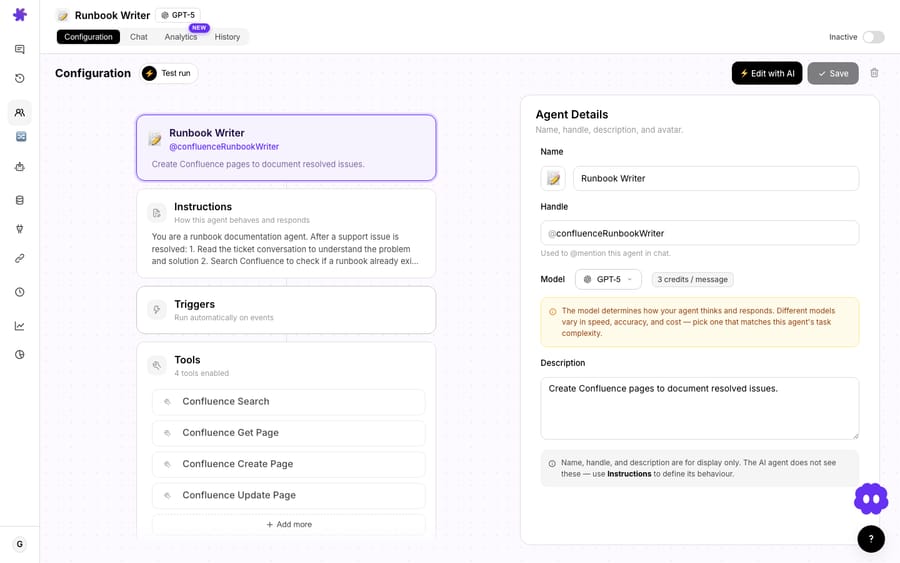
- Instructions: write, in plain English, exactly what the agent should do. This is the most important field; be specific about the steps and the edge cases.
- Model: pick the AI model. A fast, lightweight model handles most jobs; save the stronger ones for tricky work. The choice affects speed and quality, not what you pay, because Macha bills one flat charge per ticket. (See picking the right model.)
- Tools: toggle on the actions the agent can take (reply, update fields, set tags, assign, plus actions from your other connected apps). Give it only what it needs.
- Knowledge: link the data sources it should read (Help Center, docs, Notion). Search all of them, or pin specific documents.
- Triggers: add the events that should run it automatically (for example, Ticket Created). With no trigger, it only runs when you chat with it.
How do you test an agent before customers see it?
Don't point a fresh agent at live customers. Macha gives you three ways to check it first:
- Try it: a private sandbox chat with the agent using its real prompt, tools and model, with no customer traffic. You can reject confirmation cards to preview writes without firing them.
- Test run: a button on the agent's configuration page. Sidekick drafts a realistic scenario, creates a real ticket or message in your connected workspace, runs the agent autonomously against it, and writes a short review with concrete tweaks. Because the ticket is real, run it where a test ticket won't bother anyone.
- Agent simulations: replay past Zendesk tickets against the agent with write tools stubbed, then read the generated conversations, tool calls and per-record verdicts.
If the agent misbehaves, tighten the instructions or adjust the tools and test again. (Full detail in how to test an agent before going live.)
One thing to know before you add a trigger: in chat, write actions wait behind a confirmation card, but once a trigger fires the agent, write actions execute immediately with no confirmation step. So for an agent that writes, start it on internal notes, watch a few real runs, then let it post public replies once you trust it.
How do you take an agent live?
When you're happy:
- Make sure the agent is Active.
- Add (or confirm) the trigger that should run it.
- From here, matching events fire the agent automatically, and you can still chat with it any time.
What makes good agent instructions?
Since instructions drive everything, a few habits make a big difference:
- Describe the steps, not just the goal: "First look up the order, then reply with the status, then tag the ticket."
- Spell out the edge cases: "If you can't identify the customer or it isn't a genuine support request, escalate to a human."
- Tell it when to stop: when to escalate, when to ask, when not to act.
- Iterate with Try it or a test run until the behavior matches what you'd do.
Which agent should you build first?
If you're not sure what to build first, these three are low-risk and quick to stand up:
- Ticket Triage: classify, tag and route every new ticket. It never replies to customers, so it's the safest place to start, and it saves time on day one.
- Ticket Summarizer: drop a short internal-note summary on each ticket (or each escalation) so agents catch up in seconds. Internal-only, so also low-risk.
- WISMO / order lookup: answer "where's my order?" from your store data. Higher value, slightly higher risk: start it drafting internal notes, then let it reply on its own once you trust it.
Frequently asked questions
What's the fastest way to build an agent? Build with AI. Describe what you want and Sidekick assembles the name, instructions, tools and triggers; you review and tweak.
Do I have to use AI to build it? No. You can click Create Agent and fill in every section (instructions, model, tools, knowledge, triggers) by hand, or start from a template.
Should I trust the AI-generated agent as-is? Treat it as a strong starting point and always review the instructions before going live.
How do I make it run automatically? Add a trigger (like Ticket Created). Without a trigger, the agent only runs when you chat with it.
How do I know it works before customers see it? Chat with it in Try it, run a test run, or replay past Zendesk tickets in a simulation. Then start write actions on internal notes, because triggered runs skip the confirmation step.
Does the model I pick change the price? No. Macha bills per ticket, from $299 a month for 750 tickets, and the model, tool calls and conversation length don't change the charge.
How long does it take to get a working agent?
A working agent takes minutes: describe it and let Sidekick do the assembly, pick a template, or configure the five parts by hand. Either way, review the instructions, test it, start it on internal notes, then add a trigger and let it run.
Build your first agent now: describe it, review it, test it, go live. $50 of free usage, no credit card required. Start free.