





 Shopify
 Stripe
 Slack
Slack Notion
 Google Workspace
 Confluence

What Is a Human-in-the-Loop AI Agent? Tool Calls, Confirmations and Attachments in Chat


Before an AI agent touches a live ticket, you should watch it work: ask it something, see which tools it calls, and approve the moment it tries to change anything. In Macha that check happens in the agent's Chat tab, where every write action waits for your Confirm.
Key takeaways
- A human-in-the-loop AI agent runs read-only lookups on its own but stops before every write action until a person clicks Confirm or Reject.
- Macha's chat accepts up to 3 files per message: images up to 5 MB, documents up to 10 MB with text extracted, and audio up to 25 MB.
- Attaching a trigger moves a Macha agent from human-in-the-loop chat to human-on-the-loop mode, where write actions execute immediately with no confirmation card.
- A Test run from an agent's Configuration tab takes real actions once against a record you pick and does not pause for confirmation the way chat does.
- Macha bills a chat session as one ticket regardless of tool calls or model, at about $0.40 on the $299 plan for 750 tickets.
A human-in-the-loop AI agent does its reasoning and read-only lookups on its own, then stops before any write (updating a ticket, creating a record, sending a message) and waits for a person to click Confirm or Reject. In Macha that gate lives in each agent's Chat tab, where you can also attach up to 3 files per message and watch every tool call stream in. It's how you catch a wrong reply, a bad field update or a misfired tool before it reaches a customer. Below: what the HITL patterns are, how they differ from looser oversight, and how each plays out in Macha's chat, including the line where chat ends and autonomy begins.
| How the agent runs | Read actions | Write actions | Oversight model |
|---|---|---|---|
| Interactive chat | Run automatically | Pause on a "Requires confirmation" card | Human-in-the-loop (HITL) |
| Test run (Configuration tab) | Run automatically | Execute immediately, once, on a record you pick | Preview of human-on-the-loop |
| Trigger attached | Run automatically | Execute immediately on every event | Human-on-the-loop (HOTL) |
What does "human-in-the-loop" actually mean?
"Human-in-the-loop" (HITL) gets used loosely, but it has a precise shape: the agent pauses mid-execution, surfaces a decision, and cannot continue until a human approves, rejects, or edits what it proposed. The defining property is that the human sits on the critical path of a specific action, not merely that a human is "involved somewhere." Redis's production guide puts it plainly: HITL is "a family of related patterns where the agent pauses mid-execution, collects human input, and resumes the workflow."
That family is worth knowing, because not every checkpoint is the same checkpoint.
What are the main HITL patterns?
- Approval / confirmation gate. The agent proposes a specific action and waits for an explicit yes before executing. This is the pattern reserved for writes that carry risk — sending a message, updating a record, executing a transaction. It's exactly what Macha's chat does on every write, and it's the primitive every major framework ships: AWS Bedrock Agents calls it user-confirmation, LangChain and the OpenAI Agents SDK expose it as tool-level approval.
- Interrupt-and-resume. Mechanically, a clean approval gate is an interrupt that pauses the run, checkpoints the agent's state, and resumes from that checkpoint once a human answers — rather than throwing the work away and starting over. Permit.io's breakdown describes the four moving parts: an interrupt that pauses a flagged action, a notification to the approver, a review interface showing the proposed action and the agent's reasoning, and a resume mechanism that proceeds, modifies, or cancels.
- Human-as-tool. Instead of gating fixed actions, the agent treats "ask a human" as just another tool it can call when its own uncertainty crosses a threshold — pausing to request disambiguation, then resuming with the answer folded into its context. Useful when what needs review can't be enumerated in advance.
- Escalation / handoff. When the agent hits something it shouldn't decide — a refund above a limit, an angry VIP, a policy edge case — it hands the whole interaction to a person rather than asking yes/no on one action. This is the boundary between automation and a human queue, and it's a deliberate design choice, not a failure state.
How do HITL, HOTL and HIC differ?
HITL is one point on a spectrum of oversight, and confusing the points is where teams get burned. DeepScribe's framing lays out three models:
| Model | Who's on the critical path | Trade-off | Fits |
|---|---|---|---|
| HITL — human-in-the-loop | Human must act before the agent proceeds | Control over speed | High-risk, irreversible, or low-volume writes; testing a new agent |
| HOTL — human-on-the-loop | Agent acts autonomously; human monitors and can intervene | Speed over control | High-volume, reversible work with good observability |
| HIC — human-in-command | Human decides when and whether the system runs at all | Governance over throughput | Setting policy, scope, and the trigger conditions themselves |
The shorthand is useful: HITL trades speed for control; HOTL trades control for scale. A new agent you don't trust yet belongs in HITL. A proven agent clearing a thousand reversible tickets a day belongs in HOTL. And the decision to flip one from the first to the second — to attach the trigger — is HIC. Macha's design maps onto exactly this: chat is your HITL surface, a triggered agent is HOTL, and you deciding to attach the trigger is the human-in-command moment.
When does a Macha agent ask for confirmation, and when does it act alone?
Every agent you build on Macha can run in exactly two modes, and the difference is entirely about who is in the loop.
Interactive chat is the HITL surface. You are present the whole time. The agent reads your message, decides what to do, gathers what it needs — and then pauses before any write action to ask for confirmation. You review what it wants to do and with what parameters, approve it, and only then does it execute. This is the safest mode, and it's the right place to put a new agent through its paces.
Autonomous mode kicks in the moment you attach a trigger to the agent. When the trigger fires — a new ticket, a scheduled run, a webhook — the agent reads the event, decides on the next steps, and executes write actions immediately. There is no human in the loop and no confirmation step, by design: that's the whole point of automation. This is the human-on-the-loop end of the spectrum, and it only works if you've already earned trust in chat.
The recommended sequence is the same one most production teams converge on independently: configure the agent's instructions, tools, and data sources → test it in chat until you trust it → then attach a trigger to make it autonomous.
How do you start a chat with an agent?
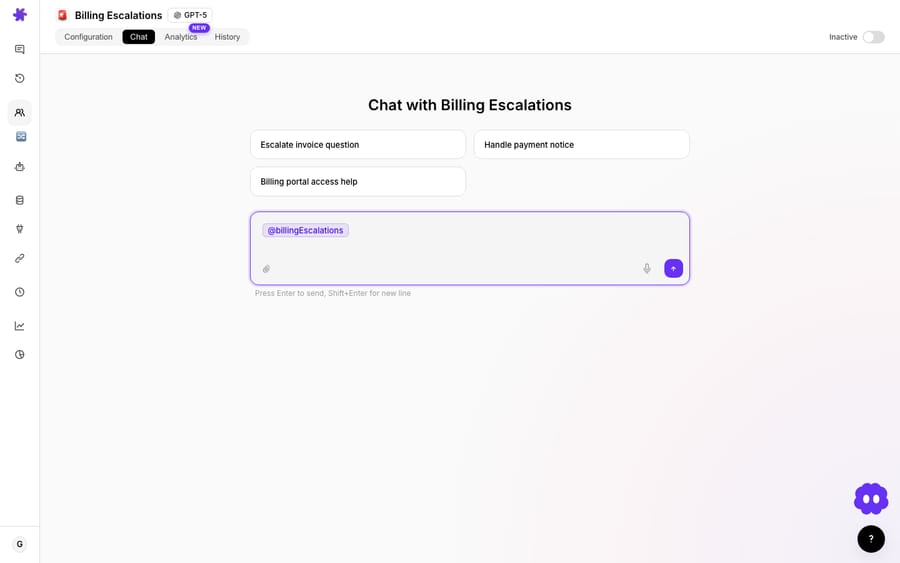
To chat with an agent, click it from your dashboard or pick it from the sidebar. You land on a welcome screen showing the agent's name, its description, and a few suggested prompts to get you moving. The input already has the agent @mentioned, so you're aimed at the right agent from the first keystroke.
Type your message and press Enter to send (Shift+Enter for a new line). The agent processes the message, reaches for its connected tools if it needs information, and replies. Responses stream in token by token, so you can start reading the answer before it finishes generating, which matters when an agent is narrating a multi-step lookup. Reasoning-capable models also show their live chain of thought in a side drawer labeled Thinking.
Already mid-conversation and want a clean slate? The New chat button next to the tabs clears the thread and drops you back on the welcome screen. Past conversations live in the sidebar with their full history intact, so reopening one lets the agent pick up the context exactly where you left it.
What files can you attach in chat?
A lot of real support questions arrive with a file attached — a screenshot of an error, a PDF invoice, a CSV export. You can hand those straight to the agent in chat.
Click the paperclip icon in the message input to open the file picker, or drag and drop files onto the input area. A dashed border appears while you're dragging to confirm the drop zone. You can attach up to 3 files per message, and the way each file is consumed depends on its type:
| File type | Limit | How the agent uses it |
|---|---|---|
| Images (PNG, JPG, etc.) | 5 MB | Sent as visual content — the agent can see and describe what's in the image |
| Documents (PDF, DOCX, CSV, XLSX, TXT) | 10 MB | Text is extracted and included in your message, so the agent can read and analyze the contents |
| Audio | 25 MB | Stored and made available for processing |
For spreadsheets this is genuinely useful: the agent gets the full text content of the sheet, so you can ask it to summarize, filter, compare rows, or sanity-check a calculation against the data you just dropped in. An image attachment lets a triage agent "read" the screenshot a customer pasted and route on what it actually shows.
How do tool calls and confirmations work in chat?
This is the part that earns the agent your trust, and it's the approval-gate pattern from the taxonomy above, made concrete. As the agent works, it doesn't just hand you a final paragraph — it shows its work. When it needs information, it makes a tool call, and you see which tool ran and what it returned, inline in the thread. Read-only operations — fetching a ticket, searching the knowledge base, looking up an order — run automatically, without confirmation, because nothing changes and there's no reason to slow them down.
Write operations are different. When an agent wants to update a ticket, create a record, or send a message, it stops and surfaces a confirmation card — labelled "Requires confirmation" — showing exactly what it intends to do. A Show details expander reveals the full parameters, and you click Confirm to let it proceed or Reject to stop the action cold. Nothing is written until you say so.
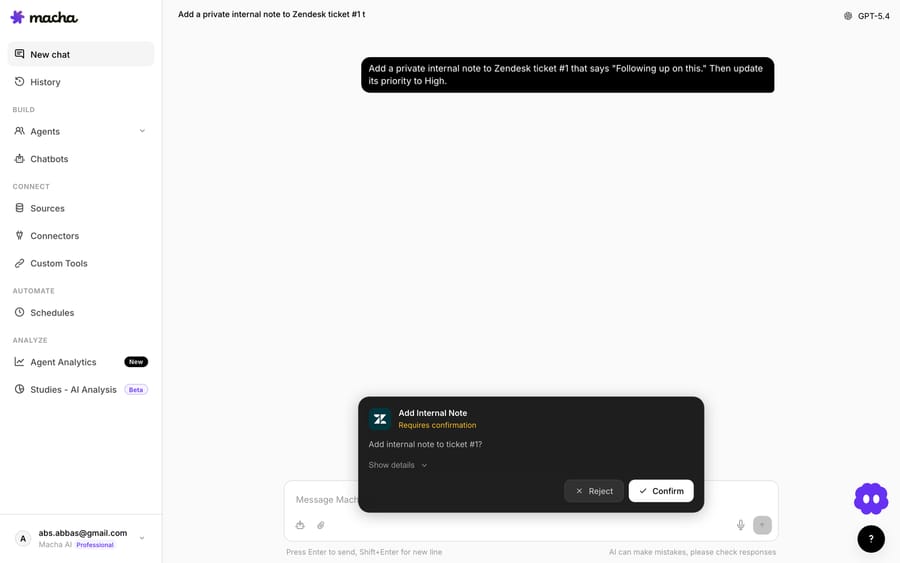
That single gate is what makes interactive chat safe to point at production data. You can run an agent against a real ticket, watch it propose a public reply or a field change, expand the parameters, and read exactly what it will do before anything happens — catching the "it was about to mark this solved" or "it picked the wrong macro" mistakes while they're still hypothetical. Tool-level approval like this is the same safety primitive that Mastra and others recommend reserving for "actions that carry risk, such as sending a message or executing a transaction" — Macha just applies it to every write by default in chat.
A note on cost: Macha bills per ticket, not per resolution and not per action. A chat session is charged once however many lookups, writes and messages it takes, and the model you run doesn't change the price. Plans start at $299 a month for 750 tickets, about $0.40 each (see the pricing page), so a few exploratory chats cost very little.
Can an agent return tables and generated files in chat?
Agent responses aren't plain text. They render full Markdown — bold and italic, bullet and numbered lists, code blocks with syntax highlighting, links, and tables. Wide tables scroll horizontally inside the chat so a 12-column result never blows out the page layout.
Agents can also create files for you. Any agent assigned the File Tools connector — a built-in connector that needs no setup — can generate a file and return a download link right in the thread. Supported formats:
- Spreadsheets (
.xlsx) — structured data across multiple sheets, with formatting and formulas - CSV — simple comma-separated data
- PDF — formatted reports and documents
- Word (
.docx) — rich text documents
You just ask. "Create a spreadsheet with this month's sales data" or "Generate a PDF report of the open tickets" is enough — the agent does the lookups, builds the file, and hands back a link. Because File Tools ship by default, file generation works the moment the connector is assigned, with nothing to configure. (See the File Tools integration for the full format list.)
How is a test run different from chat?
There's one more way to exercise an agent before you trust it: a Test run from the agent's Configuration screen. A test run executes the agent once against a real record (for example, a specific Zendesk ticket you pick) so you can see the full end-to-end behavior exactly as the live trigger would drive it.
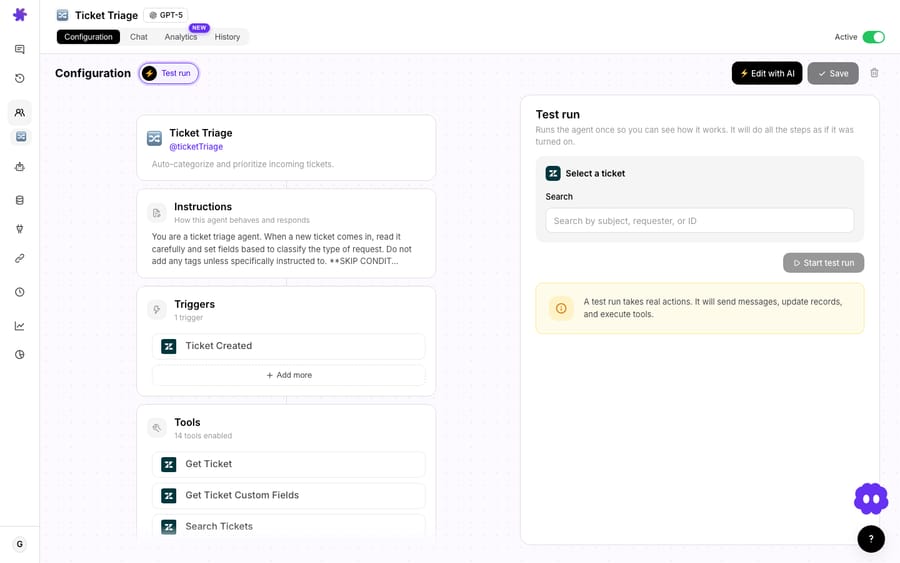
Read the warning on that panel carefully, because it's the honest one: "A test run takes real actions. It will send messages, update records, and execute tools." Unlike interactive chat, a test run is a preview of autonomous (HOTL) behavior — it does not pause for per-action confirmation. That's exactly why it's valuable (you see what automation will really do) and exactly why you point it at a safe or disposable ticket the first few times. Use chat when you want to approve each step; use a test run when you want to watch the agent fly the whole route on its own, once.
When is chat the wrong way to test an agent?
Interactive chat is the right tool for a lot of jobs, but it isn't the answer to everything — and pretending otherwise would set you up badly.
- Chat is not a load test. "It worked when I tried it once" doesn't generalize, because agents are non-deterministic. A handful of manual conversations proves the happy path; it doesn't cover the edge cases real traffic brings. For confidence across versions, pair chat with repeatable test runs from the agent's Configuration tab, and with simulations that replay past tickets against the agent.
- Confirmation prompts don't survive automation. The Confirm/Reject gate exists only in interactive chat (the HITL surface). The instant you attach a trigger, writes execute without asking (HOTL). So the safety you feel in chat is not the safety you get in production — it's there to help you decide whether production is safe, not to guard it.
- Chat doesn't scale to your queue. It's a cockpit, not a conveyor belt. Resolving a thousand tickets a day is a job for an autonomous agent on a trigger; chat is where you earn the right to turn that on.
- A test run is not reversible. Because a test run takes real actions, running one against a live customer ticket will really email that customer. Pick the target deliberately.
Used for what it's good at — exploration, debugging, file work, and the careful first look at a new agent — chat is the highest-signal, lowest-risk window you have into how an agent thinks.
FAQ
What is a human-in-the-loop AI agent? It's an agent that pauses mid-execution and waits for a person to approve, reject, or edit a specific action before it runs. In Macha, that surface is interactive chat: the agent does its reasoning and read-only lookups on its own, but every write action stops at a "Requires confirmation" card until you press Confirm.
What's the difference between human-in-the-loop and human-on-the-loop? HITL puts a human on the critical path — the agent can't proceed until you act. Human-on-the-loop (HOTL) lets the agent act autonomously while a human monitors and can intervene. HITL trades speed for control; HOTL trades control for scale. Macha's chat is HITL; an agent on a trigger is HOTL.
Does the agent ask before every action? Only before write actions — updating a ticket, creating a record, sending a message. Read-only operations like fetching, searching, and looking up data run automatically without a prompt, because they don't change anything.
What files can I attach, and how many? Up to 3 files per message: images (PNG/JPG, ≤5 MB) are sent as visual content the agent can see; documents (PDF, DOCX, CSV, XLSX, TXT, ≤10 MB) have their text extracted into the message; audio (≤25 MB) is stored for processing. Use the paperclip or drag-and-drop onto the input.
Can an agent generate a file for me? Yes — any agent with the File Tools connector (built in, no setup) can produce .xlsx, .csv, .pdf, or .docx files and return a download link in the chat. Just ask it to create the file.
Does chatting and testing cost anything? Yes, but very little. Macha bills per ticket: a chat session is charged once, however many model steps and tool calls it takes, and the model you run doesn't change the price. At $299 a month for 750 tickets that is about $0.40 a session; the free trial includes $50 of usage. See the pricing page for the tiers.
How do you try human-in-the-loop chat on your own agent?
The fastest way to understand an agent is to talk to it. Start a free trial ($50 of usage, no credit card required), open any agent's Chat tab, and ask it to do something that touches a tool — then watch the "Requires confirmation" card appear before it writes. When you trust what you see, attach a trigger and let it run. The full walkthrough lives in the Chat doc, and the Agents doc covers how to build the agent you'll be chatting with.
Written by Abbas (Customer Support & AI, Macha) · Reviewed by Ankeet Guha (Co-founder & CTO) · Published 2026-06-24 · Last updated 2026-09-24.






