





 Shopify
 Stripe
 Slack
Slack Notion
 Google Workspace
 Confluence

Zendesk Security Checklist (2026): Which Settings Should Admins Fix First?


Zendesk's Security overview page in Admin Center grades your security settings for you, and on our demo instance it flagged 4 Critical items that take under a day to fix. The score leaves out API tokens and OAuth grants, which matter more now that Zendesk deactivates all API tokens on 30 April 2027.
Key takeaways
- Zendesk admins should fix agent two-factor authentication, the security contact email and native password sign-in first, the settings the Security overview rated Critical on our demo instance.
- On one checked Zendesk Suite Enterprise demo instance, the Security overview page reported 4 Critical, 9 Recommended, 8 Healthy and 0 Unavailable ratings.
- Settings the Zendesk Security overview labels Informational, including API token review and OAuth token review, sit outside the summary, so 67 active OAuth tokens moved nothing.
- Zendesk accounts can no longer create API tokens from 27 October 2026, and Zendesk deactivates all remaining API tokens on 30 April 2027 in favour of OAuth.
- Without the Advanced Data Privacy and Protection add-on only one ticket deletion schedule can be active at a time; with it, Suite and Support Enterprise accounts can activate up to 10.

Fix these first: require two-factor authentication for agents (or move them to SSO), set a security contact email, and turn off native password sign-in once SSO works. Those are the settings Zendesk's own Security overview page in Admin Center rated Critical when we ran it on a demo instance, and the page grades every relevant setting for you.
| Priority | Setting | How the Security overview rated it | Effort |
|---|---|---|---|
| 1 | Security contact email | Critical (not set) | Thirty seconds |
| 2 | Two-factor authentication for agents, or SSO with MFA at the identity provider | Critical (not required) | An afternoon |
| 3 | Native password sign-in for agents and users | Critical (enabled, Low) | After SSO works |
| 4 | API tokens and OAuth grants | Informational (not scored) | Before 27 October 2026 |
| 5 | Private attachments, card redaction, deletion schedules | Recommended | Depends on retention policy |
Where is Zendesk's Security overview page?
It lives at Admin Center → Account → Security → Overview, or go straight to /admin/account/security/overview. Zendesk's plan box for the page lists it on all Suite plans: Team, Growth, Professional, Enterprise and Enterprise Plus. The box does not mention Support-only plans, so check your own admin before planning around it. It needs an admin role.
The page does two things. It gives you an overall health donut, and on our instance it grouped settings into four categories: Authentication, Account access controls, Tickets and attachments, and Auditing and monitoring. There's an Export CSV button, which is the fastest way to get a posture snapshot you can diff month over month.
We ran it against a Zendesk Suite Enterprise demo instance of our own, not a production desk. That distinction matters in both directions: the findings below are not a report on anyone's real security posture, and a sandbox is exactly the kind of account that gets configured once and never revisited, which is what makes it a useful specimen rather than a good example.
On that instance the summary read: 4 Critical, 9 Recommended, 8 Healthy, 0 Unavailable.
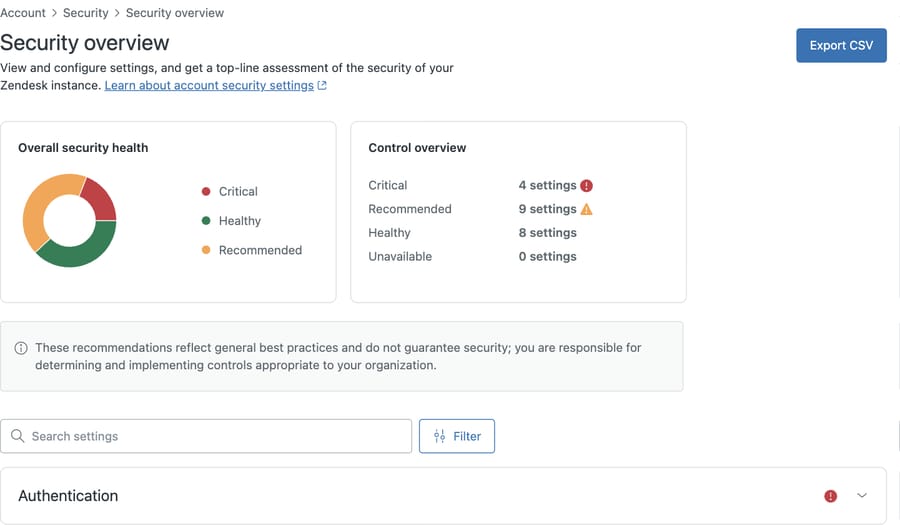
Zendesk attaches a caveat to all of it, and it's worth quoting because it sets the right expectation: "These recommendations reflect general best practices and do not guarantee security; you are responsible for determining and implementing controls appropriate to your organization."
How do the Security overview ratings work, and what is left out of the score?
Zendesk's help article names four ratings. Critical means fix it. Recommended means review advised. Healthy means it matches Zendesk's guidance. Unavailable means Zendesk couldn't retrieve the setting, usually because an endpoint was inaccessible or the viewer lacked the privileges.
The page itself also shows a label the article does not mention: Informational. It's the one to understand properly, because Informational settings are not counted in the summary at all. Our instance had 21 rated settings adding up to the 4 / 9 / 8 summary. Everything marked Informational sat outside that arithmetic entirely.
Excluding them is defensible, because settings like "how many admins should you have" have no universally correct answer. It's worth naming the incentive underneath it, though: Zendesk built the page and Zendesk decides the grading, so the score is bounded by what a vendor is willing to flag as a problem inside its own product. Nothing here is dishonest. The effect is simply that the number you're shown reads better than your actual exposure, and the gap between the two is made of settings nobody is being prompted to check.
Which settings does Zendesk rate Critical?
Four settings were rated Critical, and the pattern is worth recognizing because it's common to accounts that were set up quickly and never revisited.
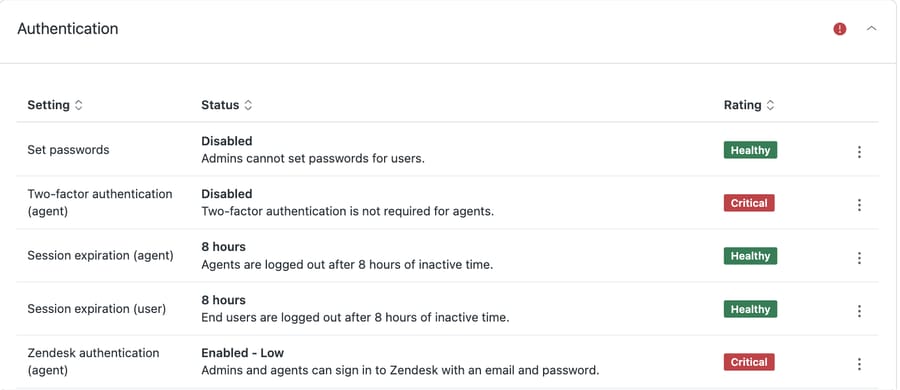
Two-factor authentication (agent): "Two-factor authentication is not required for agents." This is the fix that closes the most risk for the least effort. Every agent account is a route to every ticket in the instance, and agents are the population most likely to be phished, because they read mail from strangers all day as their actual job.
Zendesk authentication (agent): "Enabled - Low. Admins and agents can sign in to Zendesk with an email and password." The rating sits at Critical while native password sign-in is enabled at the "Low" security level, which is what the status string reports. Zendesk's own guidance is to centralize on single sign-on and then switch native password auth off, so there is one place to revoke access when somebody leaves.
Zendesk authentication (user): the same setting for end users. Whether this matters depends on what your Help Center exposes.
Security contact email: "Not set. There is no contact identified to notify about security incidents." This is the one almost nobody knows exists. It costs thirty seconds and determines whether a security notice from Zendesk reaches a human who can act on it, or an inbox nobody reads.
What do the nine Recommended settings protect?
Rather than march through them, it helps to see what each group is actually defending.
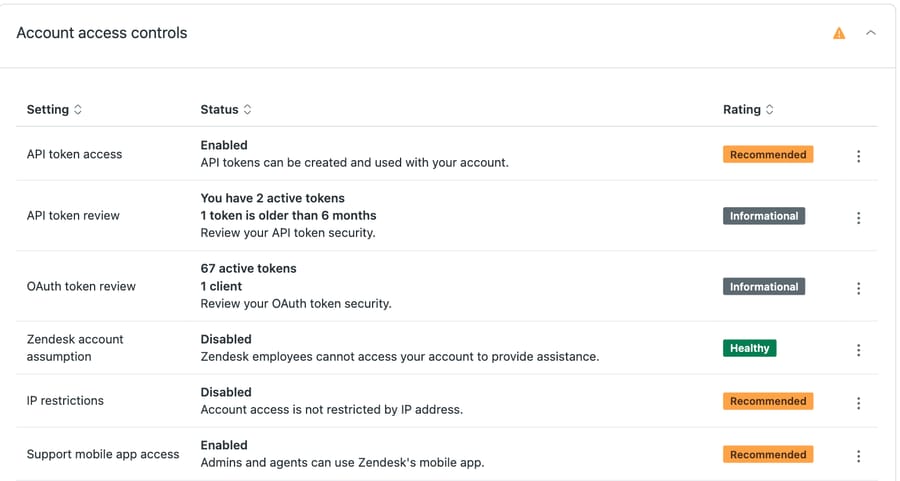
Reaching your account at all. IP restrictions, Support mobile app access, and API token access. That last one is a common gap: API tokens bypass SSO entirely, so an account with perfect SSO and loose token policy is not locked down.
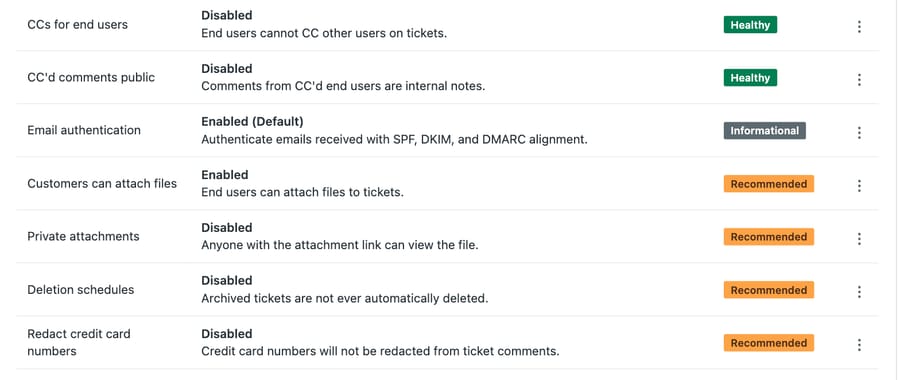
What leaves in a ticket. Private attachments was rated Recommended on our instance with the status "Anyone with the attachment link can view the file." That's the sort of default that surprises people. Redact credit card numbers was disabled. Customers can attach files was enabled, which is usually correct but worth a deliberate decision.
What you keep, and for how long. Deletion schedules disabled means "archived tickets are not ever automatically deleted," which is a compliance question disguised as a storage setting.
Second-factor for end users. Two-factor authentication (user), which depends entirely on what your Help Center lets a signed-in customer see.
What does the security score not count?
Here's where the Security overview is worth reading against the grain. Several settings on our instance were rated Informational, so none of them affected the health score. These four are the ones we'd actually act on:
| Setting | Status on our instance | Why it matters |
|---|---|---|
| API token review | 2 active, 1 over six months old | Nobody is prompted to look at them. From 27 October 2026 accounts can no longer create new tokens, and Zendesk deactivates all remaining ones on 30 April 2027. OAuth is the replacement. |
| OAuth token review | 67 active tokens, 1 client | Every app you ever authorized still holds its grant. |
| Admin user review | "3 active Support admins" | Admin count only ever drifts upward. |
| Automatically delete PII | Disabled | "Deleted users' personally identifiable information (PII) is not automatically deleted from the audit log." |
| Email authentication | "Enabled (Default)" | "Authenticate emails received with SPF, DKIM, and DMARC alignment." Rated Informational, so the thing standing between your support address and a convincing spoof is scored as a note. |
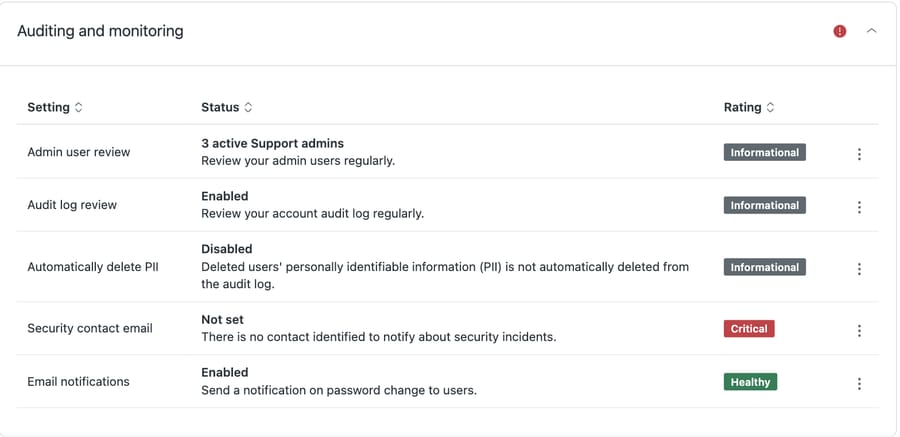
Marketplace apps deserve the same treatment and do not get it from the score. An installed app holds whatever access it was granted at install time, that grant survives the person who approved it, and nothing on this page counts it. Work through Admin Center → Apps and integrations → Zendesk Support apps, and for each one ask who installed it, whether the tool is still in use, and whether it needs to be visible to every agent or can be role-restricted. Uninstall is the only revocation.
The numbers on our instance make the point better than the argument does. API token review reported 2 active tokens, 1 of them older than six months. OAuth token review reported 67 active tokens across 1 client. Both were rated Informational, so neither moved the health score by a single point.
The first two are the ones we'd act on first. An API token or OAuth grant is a credential that survives an employee leaving, a vendor being churned, and a password reset. Neither shows up as a problem in your score, and both answer a question the seed of every security review asks: what still has access that shouldn't?
You can enumerate both from the API rather than the interface:
GET /api/v2/api_tokens.json
GET /api/v2/oauth/clients.json
GET /api/v2/oauth/tokens.json?all=true
The ?all=true matters: without it an admin gets only their own tokens, sees nothing to revoke, and concludes the account is clean. Cross-reference the results against your current team list and your current vendor list. Anything you can't attribute to a person or a system still in use is a revocation candidate.
Can you run the security check through the API?
Two API calls give you a posture snapshot for scripting or a monthly cron.
GET /api/v2/account/settings.jsonRead active_features for what's switched on and the api block for token policy. Note that api_password_access, api_password_access_end_users and api_token_access are separate switches, so check all three; one does not cover the others.
There is no security block on that response. The posture object lives on its own admin-only endpoint:
GET /api/v2/security_settingswhich is where settings like assumption duration and password policy actually live.
GET /api/v2/users.json?role=adminThat's your admin review, in one request. Pair it with the Export CSV from the Security overview page and you have a monthly diff that takes about five minutes.
If you already run webhooks or triggers against sensitive fields, add those to the same review. A webhook posting ticket bodies to an endpoint nobody owns any more is the same category of problem as a stale token, and the Security overview doesn't look at them.
In what order should you fix Zendesk security settings?
- Security contact email. Thirty seconds, and it's rated Critical for a reason.
- Pick one of two authentication paths, and do not stack them. Zendesk's two-factor authentication applies only to native email-and-password sign-in: "It's not available for users who sign in using third-party authentication, such as Google authentication services, JWT, or SAML." So either enforce 2FA on native auth, or move to SSO and enforce MFA at your identity provider. Enrolling agents in Zendesk 2FA and then switching them to SSO wastes the enrolment.
- If you chose SSO, disable native password auth after it works, not before. In that order, or you will lock yourself out.
- Disable password access to the API, and review existing tokens and OAuth grants.
- Private attachments, if your tickets carry documents.
- Deletion schedules and PII deletion, matched to whatever your retention policy actually says. Check the ceiling first: without the Advanced Data Privacy and Protection add-on, which is Suite and Support Enterprise only, only one ticket deletion schedule can be active at a time, so a policy with several retention rules will not fit. With the add-on you can activate up to 10. If you are acting on the card-redaction row too, note it needs Suite Growth or Support Professional and above.
- Export the CSV and put a recurring reminder in the calendar. Posture drifts; a snapshot you can diff is worth more than a one-off audit.
Common questions
Where is the Zendesk Security overview page? Admin Center → Account → Security → Overview, or /admin/account/security/overview. You need an admin role, and Zendesk lists it on every Suite plan from Team to Enterprise Plus.
When do Zendesk API tokens stop working? Accounts can no longer create new API tokens from 27 October 2026, and Zendesk deactivates all remaining tokens on 30 April 2027. Move integrations to OAuth before then.
Does a Healthy score mean my Zendesk is secure? No, and Zendesk says so on the page itself. The score covers rated settings only. Informational items, including API and OAuth token review, are excluded from it, and nothing in the score looks at your webhooks, apps or trigger configuration.
Should I turn off Zendesk password authentication? Once SSO is working for everyone who needs access, yes. That's Zendesk's own recommendation, and it's why native password sign-in is rated Critical while it's enabled. Confirm SSO works first.
Do API tokens respect SSO? No. A token authenticates on its own, which is why token policy and token review matter independently of how good your SSO setup is.
How often should I review this? Monthly is a reasonable default, using the CSV export as your diff. Review immediately after anyone with admin access leaves.
Where does an AI layer fit in a Zendesk security review?
Security settings decide who can reach your data. They have no effect on how much work arrives, which is a different problem with a different answer.
Macha sits on top of the Zendesk you already run. It reads the ticket, including custom field values and attachments, and can classify it, add an internal note, or post a public reply, using the triggers and webhooks you already configured as its entry point. Two things worth knowing in a security context: it connects through the Zendesk integration rather than requiring a shared agent password, and customer-facing actions run behind confirmation gates and do not fire unattended by default. It suits teams already committed to Zendesk who want agents working inside the ticket. Billing is per ticket, from $299 a month for up to 750 tickets, so one thread with one person is one charge however many replies it takes.
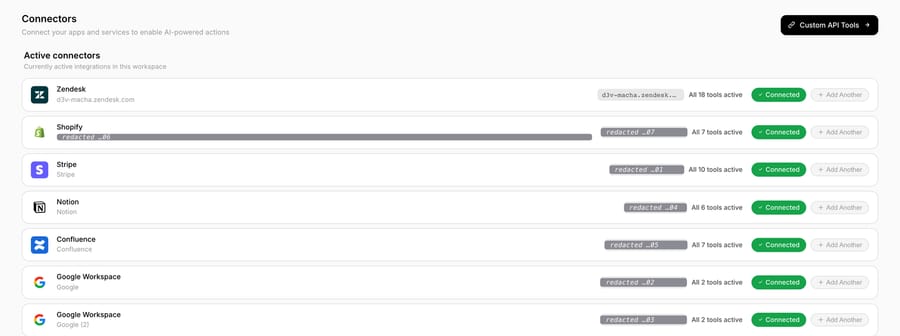
That screen is worth reading the way this post reads the Security overview. Each connector is a standing grant, and the credential column is exactly the kind of thing an audit should account for. Ours is redacted here for the obvious reason, which is also the reason to check yours.
Start your free trial and connect your Zendesk in a few minutes.






