





 Shopify
 Stripe
 Slack
Slack Notion
 Google Workspace
 Confluence

How Does Zendesk Ticket Routing Work? Groups, Round Robin and Capacity (2026)


Zendesk routes tickets with four mechanisms: triggers and groups pick the owning team, views shape the queue, omnichannel routing picks the agent by status and capacity, and skills narrow who is eligible. On our own instance the default capacity rule allowed 5 email tickets per agent while the account settings API reported 1.
Key takeaways
- Zendesk's omnichannel routing assigns tickets directly to an available agent based on status and capacity, while triggers and groups only decide which group owns a ticket.
- Zendesk's account settings API reports max_email_capacity of 1, but the Capacity Rules API at /api/v2/capacity/rules shows the default rule as Email 5, Messaging 3, Talk 1 for 6 assignees.
- Zendesk round robin counts an offered call or messaging ticket as a turn even if the agent declines, so declining agents push work onto the rest of the team.
- In Zendesk's worked example, round robin assigns the next ticket to the agent last assigned 5 minutes ago, while highest spare capacity picks the agent with spare capacity 3.
- Custom queues are available only on Zendesk Professional and Enterprise plans, while Team and Growth accounts rely on group-based routing and the auto_route_ocr tag for email.

Zendesk routes tickets with four mechanisms: triggers put a ticket in a group, views show a team its queue, omnichannel routing picks the individual agent by status and capacity, and skills narrow who is eligible. Omnichannel routing offers two assignment methods, highest spare capacity (the default) and round robin, and on our own instance its default capacity rule allowed Email 5, Messaging 3 and Talk 1 per agent, even though the account settings API reported 1.
Which Zendesk routing mechanism decides what?
| Mechanism | Decides | Cannot decide |
|---|---|---|
| Triggers and groups | Which group owns the ticket | Which person, or whether they are busy |
| Views | What a queue looks like to a team | Who works any individual ticket |
| Omnichannel routing | Which agent receives it, based on status and capacity | What the ticket is about |
| Skills | Which agents are eligible for it | Anything, without a trigger to apply the skill |
Group assignment answers one question: which group owns this ticket. Triggers push tickets into a group, and the ticket then waits in a view for someone to claim it. That's pull-based, and it works fine until the queue is big enough that claiming becomes its own job.
Omnichannel routing answers the second question. It reads who is online, what their capacity is, how much they are currently holding, and assigns directly to a person, covering email, messaging and Talk from one set of rules. That's a genuine improvement in a busy queue. It also means the system now has an opinion about how much work a person can hold, and that opinion ships set to 1 by default.
What do you need before turning on omnichannel routing?
Omnichannel routing and round robin are available on every Zendesk Suite plan (Team, Growth, Professional, Enterprise and Enterprise Plus) and on the Support Team, Professional and Enterprise plans, per Zendesk's setup and round robin articles, checked September 24, 2026.
Agent Workspace has to be active. If your account has a Chat subscription, native messaging or Sunshine Conversations must also be active. And Zendesk's own advice for any account created before December 5, 2024 is to switch routing on during off-hours, because the moment it's enabled every agent is set offline and prompted to choose a new status.
One more behavior change to warn your team about: with omnichannel routing on, the focus mode option in Agent Workspace is hidden, and focus mode moves into the routing configuration instead.
What does omnichannel routing default to on a new instance?
We turned omnichannel routing on in a sandbox nobody had touched and read the account settings back immediately. Nothing below was customized; this is what the checkbox alone gives you.
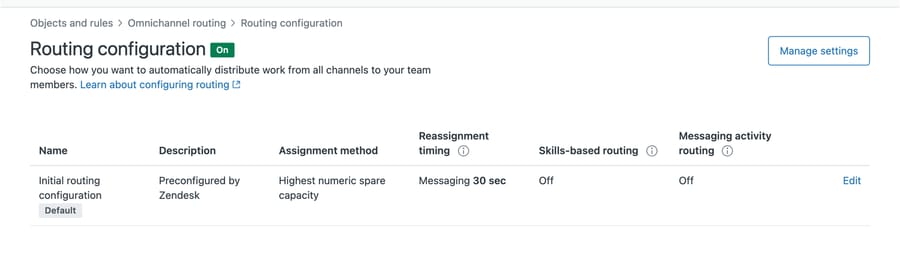
routing.enabled          true
assignment_method        highest_spare_capacity
max_email_capacity       1
max_messaging_capacity   1
skills_enabled           false
reassignment_messaging   true, 30 second timeout
queues                   0
autorouting_tag          auto_route_ocr
Those two capacity values look alarming. An agent who can hold 1 email ticket at a time would stall any real queue. So we opened the Capacity rules page to see it in the interface.
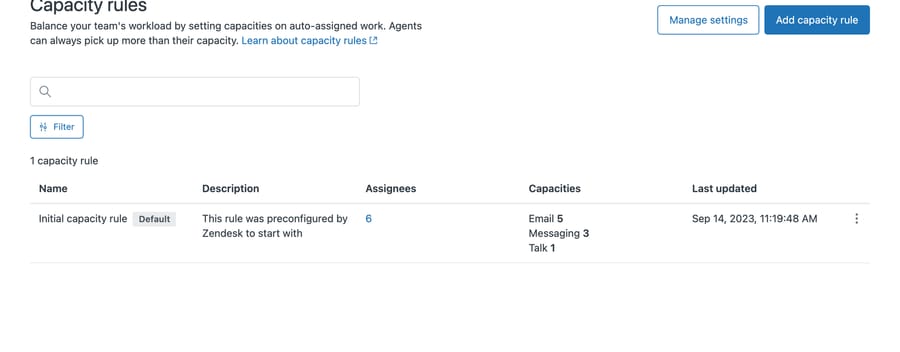
It says something different. The Initial capacity rule, preconfigured by Zendesk and applied to 6 assignees, sets Email 5, Messaging 3, Talk 1. That's the rule in force. The API's max_email_capacity: 1 isn't what your agents are working under.
The two numbers live behind different endpoints, and the obvious one is wrong
max_email_capacity sits in the account settings object, under routing. Reading it as an account-wide ceiling is an inference from where it lives rather than something the reference states, and it's worth holding loosely. The rule that governs your agents is a separate object, served by the Capacity Rules API at /api/v2/capacity/rules. Note the slash; we kept typing an underscore, guessed capacity_rules, routing/capacity_rules and omnichannel/capacity_rules, got 404 from all three, and briefly concluded there was nothing there. It does exist. Guessing a REST path and reasoning from the 404 is how you end up confidently wrong, which is the same failure this whole section is about.
Query the documented endpoint and you get the real figures:
GET /api/v2/capacity/rules

[{ "name": "Initial capacity rule",
   "description": "This rule was preconfigured by Zendesk to start with",
   "default": true,
   "assignees": { "count": 6 },
   "capacities": { "email": 5, "messaging": 3, "voice": 1 } }]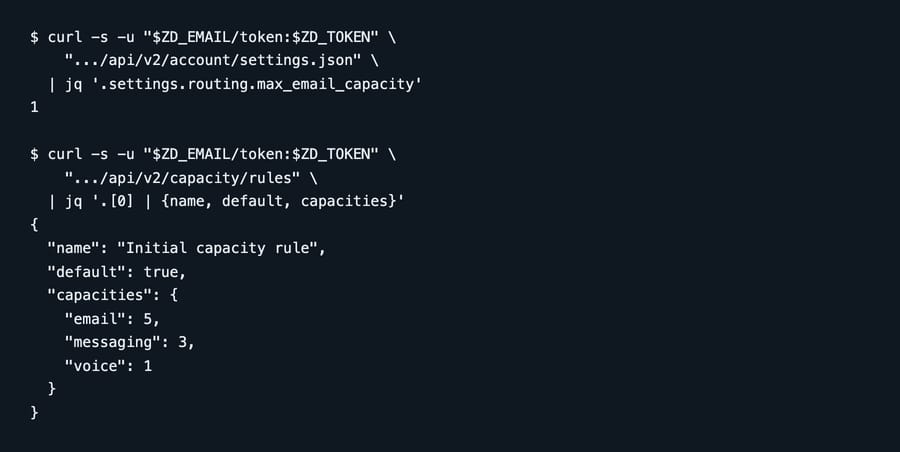
Same account. Two endpoints. Two answers. So audit capacity against /api/v2/capacity/rules, not against account settings. An audit script pointed at the settings object reports 1 and is wrong by a factor of 5. See our Zendesk API guide if you have not used these endpoints before.
Capacity is a preference, not a ceiling
Zendesk states it on the Capacity rules page: "Agents can always pick up more than their capacity", and the documentation confirms it: "it's still possible for agents to exceed the specified capacity by manually assigning work in excess of the limits." Routing uses the number to decide who gets the next ticket. It doesn't stop anyone taking more.
How does Zendesk round robin decide whose turn it is?
You get two assignment methods, set in Admin Center under Objects and rules, Omnichannel routing, Routing configuration:
- Highest spare capacity (the default) sends the next ticket to whoever has the most room for that channel, measured as a percentage or as a numeric value.
- Round robin sends it to whoever has gone longest without receiving work for that channel.
The choice sounds cosmetic and isn't, because of what Zendesk counts as receiving work. Per its round robin documentation, three things count as an assignment for round robin purposes:
- Any ticket assignment, whether it came from routing or a human doing it manually.
- A call or messaging ticket being offered to an agent, whether or not they take it.
- A ticket assigned to an agent being reopened.
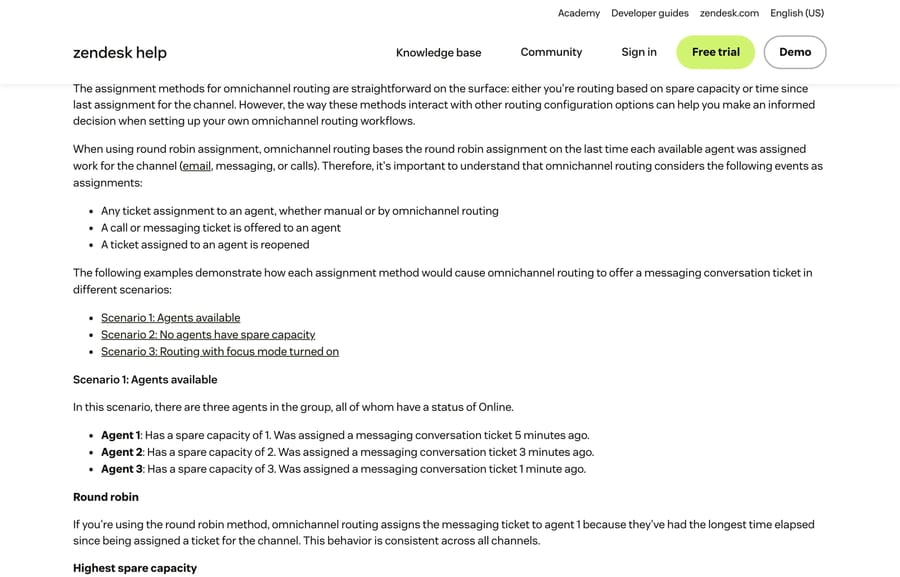
The second one is the trap. An agent who is offered a conversation and declines it has still used up their turn, so a team where two people routinely decline will see work concentrate on everyone else while the dashboard shows an even distribution of offers. If round robin is distributing unevenly, that's the first thing to check, and the fix is a conversation with the agents rather than a settings change.
Zendesk's own worked example is worth internalizing. Three online agents: agent 1 has spare capacity 1 and was assigned 5 minutes ago, agent 2 has spare capacity 2 and was assigned 3 minutes ago, agent 3 has spare capacity 3 and was assigned 1 minute ago. Round robin gives the ticket to agent 1, the longest wait. Highest spare capacity gives it to agent 3, the emptiest. Same team, same moment, opposite outcomes.
Pick round robin when fairness of turns is the point: a small team, similar ticket types, and agents who care about even distribution. Pick highest spare capacity when throughput is the point and ticket sizes vary, because it keeps the emptiest person working.
Why do tickets sit unassigned while agents look idle?
The most common symptom, and it usually has one of five causes.
No group is assigned. For group-based routing, which is what Team and Growth get and what the standard queue uses, this is Zendesk's first requirement and the easiest to overlook: tickets must have a group before routing will touch them.
Everyone is at capacity. With the default rule that is 5 concurrent email tickets each. Check the rule, not the API field.
Nobody is in a routing-eligible status. Routing reads agent status, and being logged in is a different thing. An agent who's never set a status isn't a candidate.
Email tickets are missing the auto-routing tag. This one catches everybody. Talk and messaging route automatically, but an email ticket has to carry the auto-routing tag to enter the standard omnichannel queue. On our instance that tag is auto_route_ocr. If no trigger applies it, email tickets don't enter routing and sit in their group.
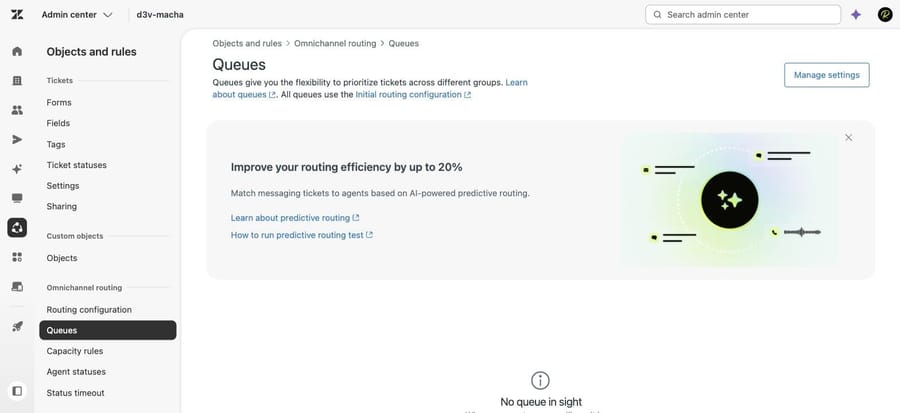
No queues exist. We had 0 custom queues, which means no custom routing rules, so everything falls back to default behavior. That was still true when we re-opened the same instance on September 20, 2026.
Why do skills-based routing rules quietly do nothing?
skills_enabled was false on our default instance, and turning it on is only half of it. Skills are applied to tickets by triggers, and the skill-related trigger actions only appear once you have created at least one skill. Two more behaviors decide whether a skilled ticket ever routes:
- A Required skill stays part of the routing criteria indefinitely and doesn't time out.
- An optional skill stops being considered once a skills timeout occurs, which is why a ticket can sit and then land with somebody who doesn't have the skill.
If skills are assigned to only some agents, work concentrates on those agents, which looks like a routing bug and is really an administration gap.
Which three routing settings should you change first?
1. Read your actual capacity rule before changing anything. Open Capacity rules in Admin Center rather than querying account settings. Rules apply to a set of assignees rather than to a group, which is why the screenshot above reads Assignees 6. You can set different numbers per rule and pick who each covers, so a team handling long investigations sits lower than one doing quick replies.
2. Create the auto-routing trigger before you expect email to route. A trigger that adds the auto-routing tag on ticket creation is the piece that connects your email channel to routing. Without it you've switched routing on for messaging and Talk only, which is a confusing half-state to debug.
3. Decide whether you need queues at all. Queues route to a primary group and fall back to a secondary one after a wait. They earn their keep when you have real overflow behavior to express. With one group, the default configuration is fine and a queue adds nothing.
Which Zendesk plans get custom queues?
Zendesk splits this by tier. On Team and Growth, "omnichannel routing uses group-based routing". On Professional and Enterprise, "you can choose between using custom queues or group-based routing with the standard omnichannel routing queue". So custom queues are a Professional-and-above tool. If you are on Growth, the section above about deciding whether you need queues doesn't apply to you, and the auto-routing tag is the only path email has.
Why does Zendesk keep two capacity numbers?
Two capacity numbers exist in two places and Zendesk's own help documentation reconciles them nowhere. Both are individually defensible: a conservative account-wide fallback can't be accused of burying an agent on day one, and a starter rule of 5 gives a usable out-of-the-box experience.
The incentive worth naming is which of the two gets the attention. Capacity rules are part of omnichannel routing, the newer thing Zendesk wants accounts to adopt, so that surface gets the interface, the documentation and the authoritative value. The older field in account settings stays put because removing it would break whatever already reads it. A vendor is rewarded for making the new feature work well and is rewarded not at all for maintaining a signpost on the old one.
The cost of having both lands on you, quietly. Nothing in either surface says "this figure is superseded", the field names don't hint at a hierarchy, and the endpoint that returns the authoritative value isn't one most people would guess. An admin auditing capacity the fast way gets a confident, wrong answer with nothing to indicate it. That isn't a vendor being dishonest. It's a vendor documenting two features separately and never writing the paragraph that connects them.
How do you check routing settings through the API?
The whole routing configuration comes back in one request, which is faster than the interface and gives you something you can diff after a change:
GET /api/v2/account/settings.jsonThe routing object holds enabled, assignment_method, skills_enabled, the reassignment timeouts and autorouting_tag. All of those are trustworthy. The two capacity fields are the exception, for the reason above.
Where does an AI layer fit in Zendesk routing?
Routing decides which person receives a ticket. It's got no opinion about what the ticket says, which is why a well-routed queue can still be a big one. Deciding what a ticket is, so it reaches the right group in the first place, is a different job, and our guide to AI ticket routing and triage covers that side. Capacity rules will happily distribute mislabeled tickets evenly.
Macha on Zendesk runs on top of the Zendesk you already have. It reads the ticket, including custom field values and attachments, and can classify it, write fields back, add an internal note, or post a public reply, using your existing triggers and webhooks as the entry point. In routing terms that matters because a ticket classified and enriched before assignment reaches the right person with the context already attached. It suits teams whose routing is sound and whose queue is simply longer than the people in it can work, and it's the wrong fit if your problem is one missing auto-routing trigger, which costs nothing to add.
Setup runs through the Zendesk integration, and billing is per ticket, so one thread with one person is one charge however many replies it takes, from $299 a month for 750 tickets on published pricing, with setup and monitoring by our team included and $50 of free usage to start.
How we researched this
The default-state figures, the two-endpoint discrepancy and four of the five screenshots come from our own Zendesk sandbox, d3v-macha, where we turned omnichannel routing on and read the configuration back before changing anything. Those findings were recorded before September 9, 2026. We opened the same instance again on September 20, 2026 to shoot the Queues page, which still holds no custom queues, and we didn't re-run the API comparison. Everything else was checked against Zendesk's current documentation on September 20, 2026, and the setup and round robin articles again on September 24, 2026: the article on turning on omnichannel routing, the round robin article, the capacity rules article, the routing configuration article and the queuing and assignment scenarios article.
Frequently asked questions
What is the difference between Zendesk routing and group assignment? Group assignment decides which team owns a ticket, usually through a trigger, and then the ticket waits in a view for someone to claim it. Omnichannel routing decides which individual agent receives it, based on their status and how much they are already holding, and assigns it directly.
How do I set up round robin in Zendesk? In Admin Center, go to Objects and rules, Omnichannel routing, Routing configuration, and change the assignment method from highest spare capacity to round robin. It assigns to whoever has gone longest without work for that channel.
Why is round robin distributing work unevenly? Because Zendesk counts an offer as a turn. Any manual or routed assignment, any call or messaging ticket offered to an agent whether or not they accept, and any reopen of a ticket they own all reset their clock. Agents who routinely decline still consume their turn.
Why are my Zendesk tickets not being assigned? Check the capacity rule in Admin Center first, since the default rule is Email 5, Messaging 3, Talk 1. Then check agent statuses, then whether email tickets carry the auto-routing tag, then whether the ticket has a group at all.
Why does the API say my capacity is 1? Because you're reading the wrong object. max_email_capacity lives in the account settings object; the rule actually applied to your agents is served by the Capacity Rules API at /api/v2/capacity/rules. On our instance those two disagreed, 1 against 5.
Does omnichannel routing work for email? Yes, by one of two routes. With the standard queue, an email ticket has to carry the auto-routing tag, which a trigger applies. With custom queues the tag stops being a requirement, and Zendesk routes email, messaging and calls to whichever queue they match. A ticket matching no custom queue isn't swept into the standard one: it still needs a group assignment, and email still needs that tag.
What is the difference between queues and groups? A group is who owns the work. A queue is a routing rule that can send work to a primary group and fall back to another after a wait. Custom queues are Professional and above.
Does Zendesk routing affect SLAs? Not directly. It changes who gets the ticket and when, so it changes whether SLA targets are met, but the policies themselves are evaluated independently.
Can I turn omnichannel routing off again? Yes. Note that Zendesk documents the disruption of turning it on: the moment it's enabled, every agent is set offline and prompted to choose a new status, so plan the switch for a quiet hour whichever way you go.
Sources: Turning on and setting up omnichannel routing · Using round robin routing for email, messaging conversations, and call tickets · Creating capacity rules to balance agent workloads · Managing your omnichannel routing configuration · Omnichannel routing ticket queuing and assignment scenarios · Account settings API reference · Capacity Rules API reference






