Intercom
 Shopify
 Stripe
 Slack
Slack Notion
 Google Workspace
 Confluence

How Do You Set Up SLA Policies in Zendesk? (2026 Step by Step)


You create a Zendesk SLA policy under Admin Center, Objects and rules, Business rules, Service level agreements, then set conditions and a target per priority. Most broken SLAs come down to tickets with no Priority value or a breach escalation built as a trigger instead of an automation.
Key takeaways
- Zendesk SLA policies are created under Admin Center, Objects and rules, Business rules, Service level agreements, by clicking Create policy and setting conditions and per-priority targets.
- A ticket's system Priority field must hold Low, Normal, High or Urgent for any SLA policy to apply, regardless of the policy's other conditions.
- Zendesk applies only the first SLA policy whose conditions match, so a broad catch-all placed above a VIP policy stops the VIP policy from ever firing.
- SLA breach escalation needs a time-based automation using Hours until next SLA breach or Hours since last SLA breach, because triggers cannot act on SLA breach status.
- Zendesk's docs list SLA policies on Suite Growth and above but not Suite Team, and the pricing page now shows Suite Professional at US$115 per agent per month.

To set up an SLA policy in Zendesk, go to Admin Center → Objects and rules → Business rules → Service level agreements, click Create policy, set conditions, enter a target per priority for each metric, order the policy, and save. Two things decide whether it works: every ticket needs a value in the system Priority field, and breach escalation has to be an automation, because Zendesk does not let triggers act on SLA breach status. Every step below is checked against Zendesk's own documentation as of September 2026.
| Requirement | What you need |
|---|---|
| Plan | Suite Growth, Professional, Enterprise or Enterprise Plus, or Support Professional or Enterprise. Not Suite Team. |
| Group SLAs | Enterprise only |
| Business-hours targets | A business-hours schedule created first |
| Every covered ticket | A value in the system Priority field (Low, Normal, High or Urgent) |
| Breach escalation | A time-based automation, not a trigger |
| Shortest target allowed | 15 seconds |
If you want the concepts first (what the seven metrics mean, how requester wait time differs from total resolution time, Group SLAs), read Zendesk SLAs explained. This post is the hands-on setup.
What do you need before you create an SLA policy?
Check these two things before you open the admin, or you'll build a policy that doesn't behave.
1. You need the right plan. Zendesk's documentation lists SLA policies on Suite Growth, Professional, Enterprise, and Enterprise Plus and on Support Professional and Enterprise, but not on Suite Team. Group SLAs, for internal team-to-team handoffs, are Enterprise only. One wrinkle for new buyers: the public pricing page at zendesk.com/pricing now shows Suite Team at US$55 per agent per month and Suite Professional at US$115 (both billed yearly), with no Suite Growth listed. If you are buying today and need SLAs, Suite Professional is the cheapest self-serve Suite plan on that page. Existing Growth accounts keep SLA policies per the docs.
2. You need a schedule if you want business-hours targets. Most teams want their SLA clock to pause overnight and on weekends rather than count around the clock. That only works if a business-hours schedule (your working days, hours, time zone and holidays) exists first. Without one, "business hours" has nothing to pause against and you'll rack up phantom 3 a.m. and Sunday breaches. Set the schedule up before the SLA, then come back here.
One more prerequisite that bites everyone: every ticket the SLA should cover needs a value in the Priority field. Zendesk's docs are blunt about it: "If the system Priority field is blank, the SLA will not apply, even if all other conditions are met." More on fixing that in Step 3.
Step 1: Where do you create an SLA policy in Zendesk?
In Zendesk, head to Admin Center → Objects and rules → Business rules → Service level agreements, then click Create policy. If you don't see "Service level agreements" in that menu, you're almost certainly on a plan that doesn't include SLAs (see the plan requirement above).
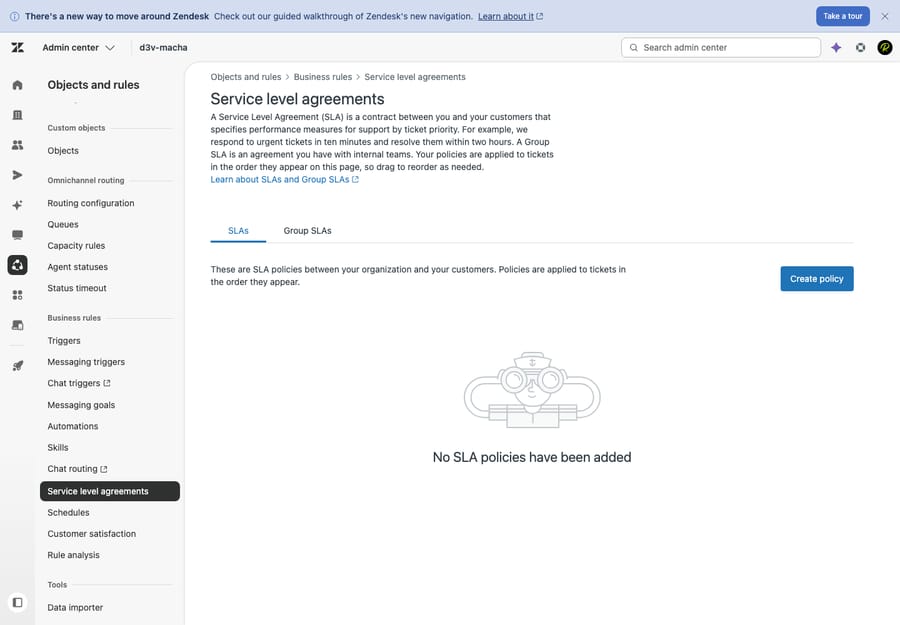
This screen lists any existing policies in priority order (top to bottom) and, on Enterprise, shows a separate Group SLAs tab. For now we're building a standard, customer-facing policy.
Step 2: How should you name the policy?
Give the policy a clear name and description. It's only for your future self and teammates, but it pays off the moment you have more than one policy. Name it for who or what it covers, not the times (Standard customers, Enterprise / VIP, Billing queue), because the targets inside may change but the segment usually won't. A one-line description ("First reply + resolution targets for all standard, non-VIP tickets") saves the next admin from opening the policy to figure out what it's for.
Step 3: Which tickets should the policy apply to?
Conditions decide which tickets this policy governs. Like any Zendesk business rule, you build them from ticket fields, with "meet all" (AND) and "meet any" (OR) condition blocks.
Common ways teams scope an SLA policy:
- By priority: often no condition at all, letting the targets per priority do the work (the most common setup for a single, account-wide policy).
- By group:
Group is Billing, so the billing team has its own commitments. - By organization or tag:
Organization is Acmeor tagvip, to give a premium segment tighter targets. - By brand: if you run multiple brands with different promises.
If you want one policy to cover all your tickets, you can leave conditions effectively open, but be deliberate about it because of ordering (Step 5).
The non-negotiable rule: the system Priority field must have a value (Low, Normal, High, or Urgent) for the SLA to apply, whatever your conditions say. Custom priority fields don't count. So make sure something sets priority on intake. The usual fix is a trigger that stamps a default priority (say, Normal) on new tickets, or consistent agent triage. Skip this and the policy quietly ignores every untriaged ticket. (For how priority and type work, see Zendesk ticket priority and type.)
Step 4: What targets should you set per priority?
This is the heart of the policy. You pick the metrics you want to commit to, and for each one you enter a time target for every priority (Low, Normal, High, Urgent). Zendesk's seven metrics fall into three groups:
- Reply time: First reply time, Next reply time
- Update time: Periodic update, Pausable update
- Resolution time: Requester wait time, Agent work time, Total resolution time
You don't use all seven. Most teams start with First reply time (it sets the customer's expectation for the whole interaction) and one resolution metric. Pick the resolution metric that matches what you actually promise: Requester wait time excludes Pending (time you're waiting on the customer), Agent work time counts only New and Open, and Total resolution time counts everything, including Pending, which makes it the strictest. The differences are explained in SLAs explained; choosing wrong here is the most common reason a "resolution SLA" feels unfair.
For each metric, enter a target per priority. A realistic starting table for a standard policy:
| Metric | Low | Normal | High | Urgent |
|---|---|---|---|---|
| First reply time | 8 hrs | 4 hrs | 1 hr | 15 min |
| Periodic update | — | 24 hrs | 8 hrs | 2 hrs |
| Total resolution time | 5 days | 3 days | 1 day | 8 hrs |
(Example only. Set times your team can actually sustain. The minimum target Zendesk allows is 15 seconds.)
Business hours vs. calendar hours. For each priority and target, choose calendar hours (every minute counts, 24/7) or business hours (only time inside your schedule counts; the clock pauses when you're closed). A "4-hour first reply" means very different things under each: in calendar hours a ticket arriving at 11 p.m. is three hours into its clock by 2 a.m.; in business hours it doesn't start until you open. A common pattern is calendar hours for Urgent (you've promised 24/7 on the worst issues) and business hours for everything else. Business-hours targets only work if a schedule exists.
Step 5: In what order does Zendesk apply SLA policies?
Zendesk evaluates SLA policies top-down and applies the first one whose conditions match, so a ticket gets exactly one policy and order is not cosmetic. Zendesk's own advice is to order policies roughly with the most restrictive at the top and the least restrictive at the bottom.
In practice that means a narrow Enterprise / VIP policy (tighter targets, specific conditions) must sit above a Standard customers catch-all. If the catch-all is on top and its conditions match everything, your VIP policy below it never fires. Drag to reorder on the SLA list screen.
Step 6: What happens when you save?
Click Save. The policy starts tracking matching tickets as they are created or updated; it doesn't rewrite the history of tickets already closed. From then on, matching tickets carry their SLA targets as a live countdown.
Step 7: How do you surface SLAs and escalate breaches?
A saved policy is only half the job. If agents can't see the clock and nobody is alerted when a target is at risk, the SLA is just a number in a report after the fact. Two moves make SLAs operational.
a) Build an at-risk view. This is the most effective SLA habit. Open or create a view, choose Edit view, and under formatting Add column → SLA. Then set Order by → SLA, Ascending. The column shows the calendar time left before each ticket's next target breaches, and ascending order floats the most overdue (or closest-to-breaching) tickets to the top, so the team works the riskiest ones first.
b) Escalate with an automation, not a trigger. This is the gotcha that trips up most admins: Zendesk states that you can't create triggers based on SLA or group SLA breach status. Triggers fire on ticket events, not on the SLA clock. Escalation is an automation job, because automations are time-based and can act on the conditions "Hours until next SLA breach" and "Hours since last SLA breach." For example:
- Hours until next SLA breach is (calendar) less than 1 → add tag
sla_at_risk, notify the team lead. - Hours since last SLA breach is (calendar) greater than 0 → raise priority or notify a manager.
Zendesk has no native "send a notification on breach" setting; the automation conditions above plus the at-risk view are how you build escalation yourself. Automations run roughly once an hour, so an "under 1 hour" condition is the tightest warning you can reliably build this way.
Step 8: How do you test an SLA policy?
Don't trust an SLA you haven't watched run. Create (or update) a test ticket that matches the policy's conditions and make sure it has a priority set. Then confirm:
- The SLA badge / next-target countdown appears on the ticket and in your at-risk view.
- The target matches the priority you set (an Urgent test ticket should show your Urgent first-reply target, not the Normal one).
- Business vs. calendar hours behave as expected: if it's a business-hours target and you're currently closed, the clock should be paused.
- Post a public reply and confirm the first-reply clock stops (internal notes should not stop it).
- Let a target lapse (or shorten one temporarily) and confirm your escalation automation fires.
If the SLA doesn't show at all, the usual cause is a missing priority value. The other causes are the ticket not matching any policy's conditions, or matching a higher policy first (ordering).
What are the best practices for Zendesk SLA policies?
- Start with one or two policies. Only the first matching policy applies, so a long overlapping list is hard to reason about. Add policies only when a real segment (a brand, a VIP tier, a team) needs different commitments.
- Set targets you can actually hit. An aspirational "15-minute reply on everything" you breach 40% of the time is worse than an honest "1 hour" you meet. An SLA is a commitment, not a stretch goal; tie it to staffing.
- Use business hours unless you truly staff 24/7. Reserve calendar hours for the priorities you cover around the clock.
- Always set priority on intake. A default-priority trigger is the cheapest insurance against SLAs silently skipping tickets.
What mistakes stop an SLA policy from working?
- Forgetting the priority field. No priority, no SLA clock. This is the number-one reason a policy "isn't working."
- Business-hours targets with no schedule. The clock counts around the clock, and you breach overnight and on weekends through no fault of the team.
- Wrong policy order. A broad catch-all above a specific VIP policy means the VIP policy never fires.
- Trying to escalate breaches with a trigger. It can't be done. Use an automation with the breach-hours conditions plus the at-risk view.
- Over-promising on resolution. Don't commit to Total resolution time if your workflow legitimately parks tickets in Pending for days; Requester wait time may reflect your real obligation more fairly.
Can AI help you hit first reply time?
The target most teams struggle to meet is first reply time, and it's almost always a capacity problem: tickets pile up overnight or during spikes faster than agents can post that first response. An AI layer addresses that gap without changing anything you set up above.
Macha is an AI agent layer that runs on top of Zendesk, Freshdesk, Gorgias, Front, HubSpot or Intercom. It is not a help desk and not a Zendesk replacement, so your SLA policies, schedules and escalations stay exactly as configured. Connected to your tickets and knowledge, it can post an accurate first reply the moment a ticket arrives, resolving routine ones outright and drafting a head start on the rest, so the first-reply clock is met at 2 a.m. or mid-spike, while anything it can't handle stays a normal ticket for a human with full context. It is another vendor to maintain and only as good as the knowledge you connect. On cost, Macha bills per ticket: one conversation, charged once however many steps it takes (draft, tag, route, look up data, resolve), not per resolved ticket. The plan starts at $299 a month for up to 750 tickets, with setup and monitoring by the Macha team included. If first reply time is your weak number, that's the lever; more in how to automate Zendesk with AI, or start a trial with $50 of free usage and no credit card.
Frequently asked questions
How do I set up an SLA in Zendesk? Go to Admin Center → Objects and rules → Business rules → Service level agreements and click Create policy. Name it, set conditions for which tickets it applies to, enter time targets for each metric per priority (Low, Normal, High, Urgent), choose business or calendar hours, order it correctly among your other policies (first match wins), and save. Make sure tickets have a priority value or the SLA won't apply.
Which Zendesk plan do I need for SLAs? Zendesk's documentation lists SLA policies on Suite Growth, Professional, Enterprise, and Enterprise Plus, and on Support Professional and Enterprise, but not on Suite Team. Group SLAs are Enterprise only. The public pricing page no longer lists Suite Growth, so new buyers who need SLAs usually land on Suite Professional at US$115 per agent per month billed yearly.
Why isn't my SLA policy applying to tickets? The most common cause is a missing priority value: SLA targets are set per priority, so a ticket with no value in the system Priority field gets no SLA clock. Other causes: the ticket doesn't match the policy's conditions, or it matches a different policy listed above this one (only the first matching policy applies).
How do I escalate a ticket when its SLA is about to breach? Use an automation, not a trigger; Zendesk doesn't allow triggers based on SLA breach status. Time-based automations can act on the conditions "Hours until next SLA breach" and "Hours since last SLA breach" to add a tag, raise priority, or notify a lead. Pair this with a view that has an SLA column ordered ascending so at-risk tickets surface first.
What's the difference between business hours and calendar hours when setting targets? Calendar hours count every minute around the clock, including nights and weekends. Business hours count only the time inside your configured schedule, so the clock pauses when you're closed. Business-hours targets only work if a schedule exists. Most teams use business hours for normal priorities and calendar hours only for issues they cover 24/7.
Do SLAs apply to existing tickets? A new or edited policy starts tracking matching tickets as they are created or updated after you save it; it doesn't retroactively rewrite already-closed history.
Which two mistakes cause most SLA problems?
Almost every "my SLA isn't working" moment comes from one of two things: a ticket with no priority, or an attempt to escalate breaches with a trigger instead of an automation. Get those right, order your policies most specific first, and the riskiest tickets rise to the top of your at-risk view before they slip. From here, deepen the concepts in SLAs explained, and shore up the foundations in business hours and schedules, ticket priority and type, and views.
SLA setup steps verified against Zendesk's documentation and pricing page, September 2026. Zendesk updates its product and packaging periodically, so confirm specifics in your own account.
Add AI agents to your Zendesk
Macha reads the ticket, drafts the reply and takes the action, inside the Zendesk you already run.