





 Shopify
 Stripe
 Slack
Slack Notion
 Google Workspace
 Confluence

How Do You Find Your Way Around Zendesk Admin Center? A Guided Tour for New Admins (2026)


Zendesk Admin Center is a separate application at its own URL, holding billing, security, team members, channels, business rules and integrations in seven sections. Its search box and a handful of bookmarked URLs get you to most settings faster than the sidebar.
Key takeaways
- Zendesk Admin Center runs as a separate application from the agent workspace, with configuration at yoursubdomain.zendesk.com/admin and agents working at yoursubdomain.zendesk.com/agent.
- Zendesk Admin Center is organized into seven sections: Account, People, Channels, AI, Workspaces, Objects and rules, and Apps and integrations.
- Macros live under the Workspaces section in Zendesk Admin Center, reached through the breadcrumb Workspaces, Agent tools, Macros, rather than alongside Objects and rules.
- Zendesk billing admins have the same subscription permissions as the account owner, except cancelling products or accounts and managing payments.
- The Zendesk account settings API endpoint GET /api/v2/account/settings.json returns an active_features object listing which features are currently switched on.

Zendesk Admin Center is the separate application at yoursubdomain.zendesk.com/admin where account-wide configuration lives, organized into seven sections: Account, People, Channels, AI, Workspaces, Objects and rules, and Apps and integrations. The fastest way around it is the search box at the top of every page, and the settings most admins open weekly (triggers, macros, API tokens, usage meters) each have a stable URL you can bookmark.
Why does Admin Center have its own URL?
The distinction matters because it explains the URL. Your agents work at yoursubdomain.zendesk.com/agent. Configuration lives at yoursubdomain.zendesk.com/admin. They're different front-ends over the same account, and you switch between them with the product tray in the top-left.
Zendesk's Admin Center guide describes it as the central place for "global, cross-product settings such as account ownership, subscriptions, security settings, integrations, and custom objects." In practice it also absorbed a large amount of Support-specific configuration, which is why triggers, automations, views and macros all live here rather than in the agent interface.
That absorption is the source of most new-admin confusion. If you learned Zendesk before the migration, roughly half your muscle memory now points at the wrong place.
What lives in each of the seven sections?
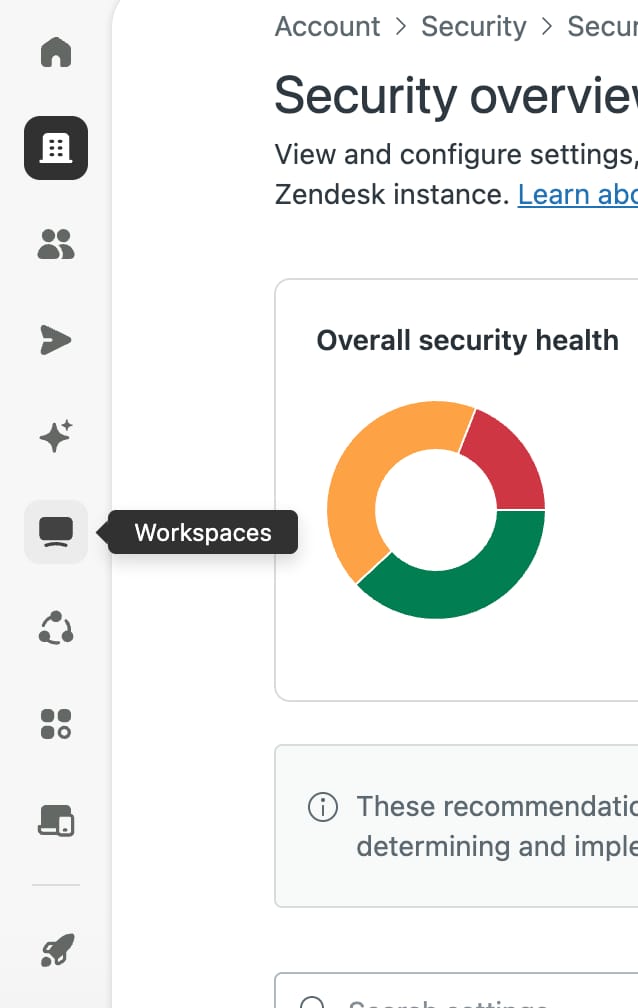
The left rail is icon-only until you open a section. Here is what sits behind each one.
| Section | What lives there |
|---|---|
| Account | Billing and subscription, account owner, security settings, audit log, usage meters, branding, sandbox |
| People | Team members and roles, end users, organizations, user and organization fields, bulk actions, tags |
| Channels | Email and support addresses, messaging and the Web Widget, Talk, social, and the classic widget |
| AI | Automated resolutions setup, intent and knowledge configuration, agent-facing AI features. (The automated-resolutions usage dashboard lives under Account → Usage.) |
| Workspaces | Agent Workspace configuration, macros, views, contextual workspaces |
| Objects and rules | Ticket forms, fields, tags, ticket statuses, custom objects, business rules (triggers, automations, SLAs), omnichannel routing |
| Apps and integrations | The Marketplace, private apps, APIs and tokens, webhooks, connections, targets |
Two of those groupings catch people out. Omnichannel routing sits under Objects and rules, not under People, even though it decides which person gets the work. And macros live under Workspaces, not under Objects and rules with the other business rules, because Zendesk treats them as an agent tool rather than an automation.
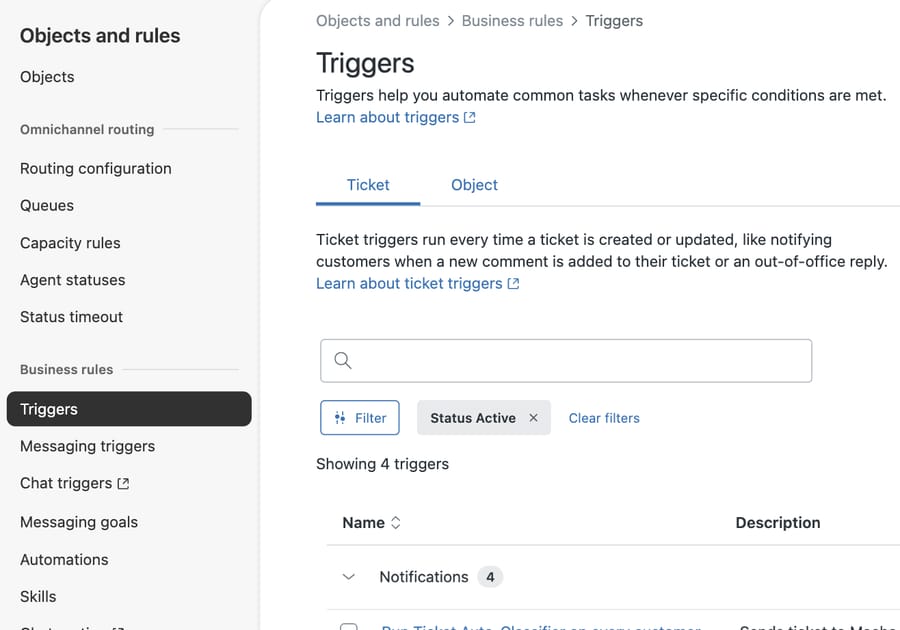
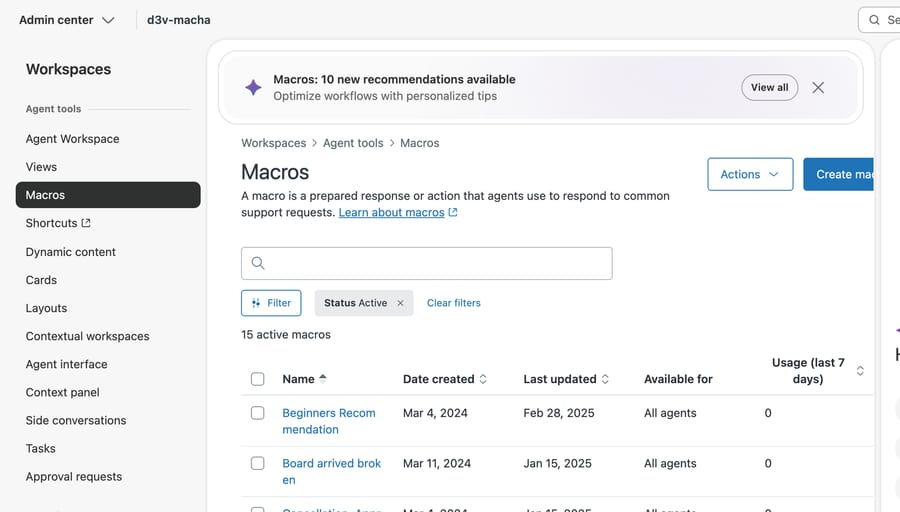
The breadcrumb is the tell: Workspaces > Agent tools > Macros. If you go looking for macros beside triggers and automations you will not find them, and the search box will get you there faster than the sidebar will.
What is the fastest way to find a setting?
This is the single habit worth forming on day one. Admin Center has a search field at the top of every page, and it resolves settings by name straight to the page. Zendesk's own guide says the same: "You can search for settings in Admin Center to find where they are located."
Guessing URLs is unreliable. Omnichannel routing lives at /admin/objects-rules/omnichannel-routing/routing-configuration. When we tried the shorter, more obvious /admin/objects-rules/rules/routing on our Enterprise instance, it returned "Nothing to see here. The page you're looking for either doesn't exist or you don't have access to it." Worth knowing why: Zendesk documents skills-based routing under Objects and rules → Business rules → Skills, and the sidebar in the screenshot above shows Skills sitting in that group. So a blank screen can mean a wrong path or a feature that isn't switched on, and from the outside those look identical. That ambiguity is the real reason guessing is a poor way to navigate.
Typing "omnichannel routing" into the search box instead returns Routing configuration, Queues, Capacity rules, Agent statuses and Status timeout as five separate results, and you pick the one you want.
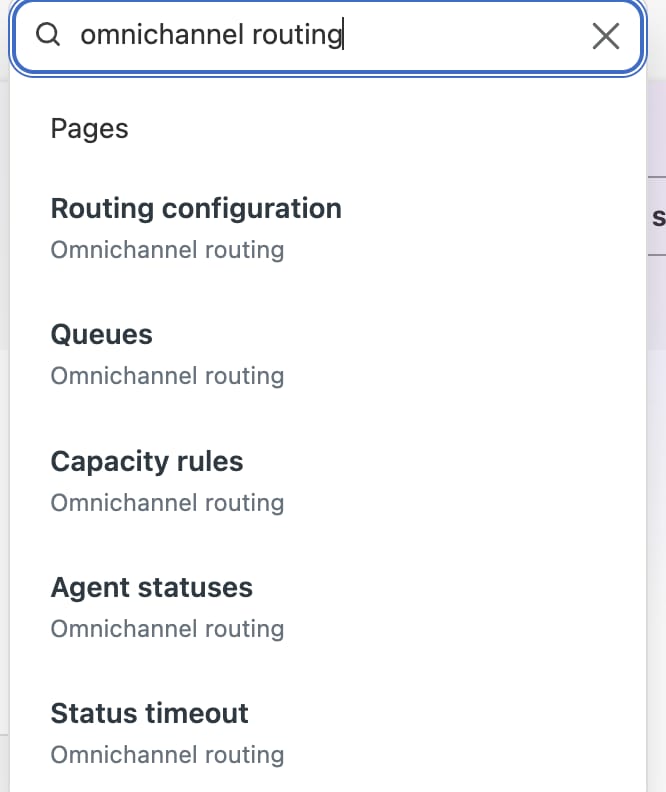
The sidebar is fine for browsing when you already know the neighborhood. For anything specific, search is faster and it does not depend on you remembering Zendesk's taxonomy.
What are the direct URLs for the settings you open most?
Search is faster than the sidebar, but a bookmark is faster than search. Every path below was taken from a Zendesk Enterprise demo instance in August 2026, either from the link itself or by loading the page. Prefix each with https://yoursubdomain.zendesk.com.
| Setting | Path |
|---|---|
| Admin Center home | /admin/home |
| Security overview | /admin/account/security/overview |
| API tokens | /admin/apps-integrations/apis/zendesk-api/settings/tokens |
| Storage usage | /admin/account/usage/storage |
| API usage | /admin/account/usage/api |
| Automated resolutions usage | /admin/account/usage/automated-resolutions |
| Triggers | /admin/objects-rules/rules/triggers |
| Automations | /admin/objects-rules/rules/automations |
| Macros | /admin/workspaces/agent-workspace/macros |
| Omnichannel routing configuration | /admin/objects-rules/omnichannel-routing/routing-configuration |
| Admin copilot recommendations | /admin/ai/admin-copilot/recommendations |
Note the shape: the section name is the first segment, so /admin/objects-rules/... and /admin/account/... are predictable once you know which section owns the setting. The part that isn't predictable is the middle segment, which is why omnichannel routing sits under omnichannel-routing rather than rules.
One naming quirk worth knowing: the sidebar calls it Status timeout, while the setting you configure there is the idle timeout, which is how Zendesk's documentation refers to it. If you search the docs for "idle timeout" and then hunt the sidebar for a page by that name, you won't find one.
What is deliberately not in Admin Center?
Admin Center is cross-product, but it is not universal. Several things stay in their own products:
- Guide: Help Center themes, article settings, and the knowledge base structure are managed inside Guide.
- Explore: reporting and dashboards live in Explore, not Admin Center. Admin Center only shows you usage meters.
- Talk number management: some call routing detail stays in the Talk product console.
- Chat legacy settings: accounts still on the classic Chat product manage parts of it in the old dashboard.
If you cannot find something in Admin Center, the product it belongs to is the next place to look.
What should you check on the Admin Center home page?
The Admin Center home page is more useful than it looks. On an instance in use it surfaces three things worth checking weekly.
Usage meters. Direct links to automated resolutions usage, storage usage, and API usage. These are the numbers that quietly become a problem before anyone notices, and they are one click from the front page.
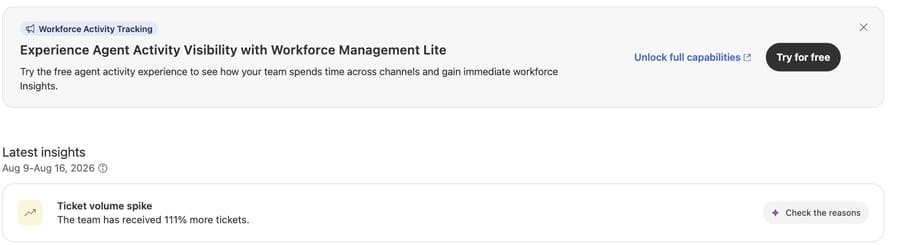
Latest insights. A rolling weekly panel that flags anomalies. On the instance we checked, it reported a ticket volume spike with 111% more tickets than the previous week, with a "Check the reasons" action that breaks the spike down. It is the closest thing Zendesk gives you to an unprompted alert.
Setup prompts. Banners for half-finished configuration, such as messaging that was switched on but never completed.
Be aware that the same page carries upgrade promotions. A "Try for free" card for Workforce Management Lite sits in the same visual space as your real insights, and the incentive there is Zendesk's, not yours. Read the panel, ignore the pitch.
Who can see what in Admin Center?
Access to Admin Center varies by role. Zendesk is explicit that "the features you can access in Admin Center varies depending on whether you're an account owner, admin, or agent" (Using Zendesk Admin Center).
In practice:
- Account owner: there is exactly one per account, and only the owner can cancel products, manage payment methods and transfer ownership. Subscriptions are not owner-only: the owner can appoint billing admins, who Zendesk says "have the same subscription permissions as the account owner, except for cancelling products or accounts and managing payments." If you are waiting on the owner to change a plan, you may not need to be.
- Admins: everything else, including security, team members, channels and business rules.
- Agents: a heavily reduced view. Zendesk says agents get "a version of Admin Center Home that's tailored to their permissions and needs", and most will see little beyond that and their own profile.
If a setting you expect is missing, check your role before you assume the feature is not on your plan. Both produce the same symptom: the page simply is not there.
How do you check which features are actually switched on?
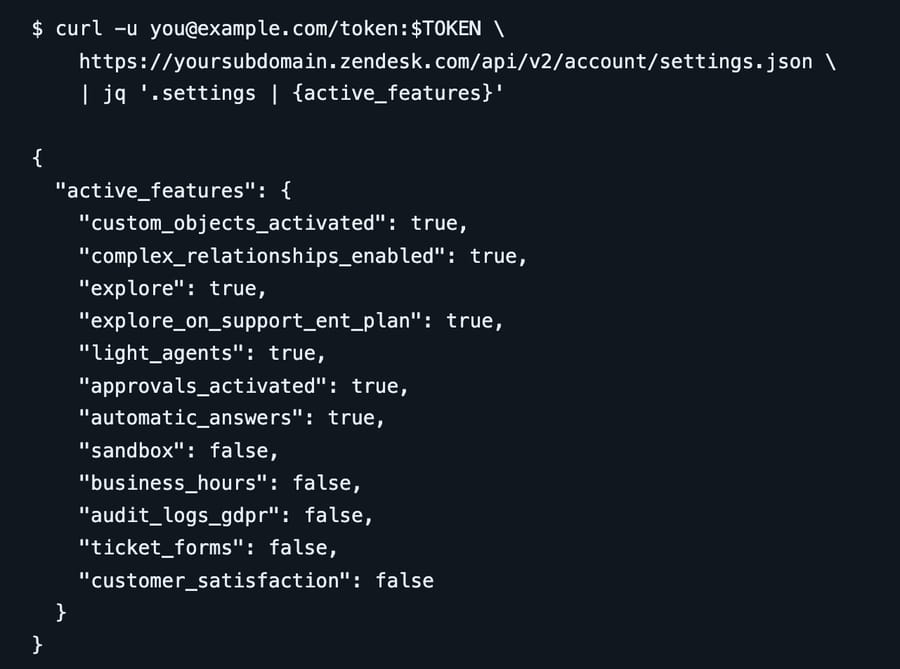
Admin Center shows different sections depending on your plan and your role, and it doesn't always tell you which is which. The fastest way to get a definitive answer is the account settings API, documented in the Zendesk developer reference:
GET https://yoursubdomain.zendesk.com/api/v2/account/settings.jsonThe active_features object lists what is switched on, which isn't the same as what your plan entitles you to. On the Zendesk Suite Enterprise demo instance we used for this guide, custom_objects_activated and explore_on_support_ent_plan returned true, while sandbox and business_hours returned false.
Both of those tell you something, and neither tells you what it looks like. explore_on_support_ent_plan is a flag named for a Support plan on an account running Suite, so the name describes Zendesk's internal gating history rather than your subscription. And sandbox: false is narrower than it looks. The reference defines it as "Account has a sandbox", so it reports whether one currently exists, which is a different question from what your plan allows. On that instance the Admin Center page read "Your plan includes 2 sandboxes. You've created 0 of 2 available" while the flag read false, and the flag flipped to true the moment we created one. We read it as an entitlement at first, which is the wrong question.
Read it as a state report and not a permission, and it is still the fastest check you have: one request tells you the current state of every feature flag, and you can then ask separately whether a false is an entitlement problem or just an unset switch.
In what order should a new admin work through Admin Center?
If you have just inherited an account, work through it in this order. Each step depends on the one before it.
- Account → Security. Set authentication, session length, and two-factor requirements before you add anyone. SSO belongs here too.
- People → Team members and roles. Decide who is an admin before you decide anything else. Roles are the blast radius for every later mistake.
- Channels. Confirm your support addresses and forwarding actually work. Broken email is the failure that generates the most tickets about tickets.
- Objects and rules → Ticket fields and forms. Data structure first. Business rules that depend on fields you have not created yet will need rebuilding.
- Objects and rules → Business rules. Triggers, then automations, then SLAs.
- Apps and integrations. API tokens and webhooks last, once there is something stable to integrate with.
- Account → Audit log. Turn it on and know where it is before you need it.
Common questions
How do I get to Admin Center? Go to yoursubdomain.zendesk.com/admin, or use the product tray in the top-left of the agent interface and pick Admin Center. You need an admin or account-owner role to see most of it.
Why can't I find a setting I know exists? Three possibilities, and they look identical: the feature isn't enabled, your role can't see it, or it lives in a product rather than in Admin Center. Check the active_features API response first, then your role, then Guide or Explore.
What's the difference between Admin Center and Support settings? Admin Center absorbed most of what used to be Support settings, including triggers, automations, views and macros. A handful of product-specific settings stayed behind in Guide, Explore and Talk.
Can agents access Admin Center? Less than an admin, more than nothing. Zendesk gives agents "a version of Admin Center Home that's tailored to their permissions and needs", so it is a reduced surface rather than an absent one. Full access belongs to admins and the owner, and within that, payments and cancellation are owner-only while subscription changes can be delegated to a billing admin.
Is there one Admin Center per brand? No. Admin Center is account-wide. Brands are configured inside it, not alongside it.
Where does an AI layer fit next to Admin Center?
Admin Center is a control plane. It decides where work goes, who can touch it, and what shape the data takes. It does not read a ticket or answer one, and no amount of configuration will make it do so.
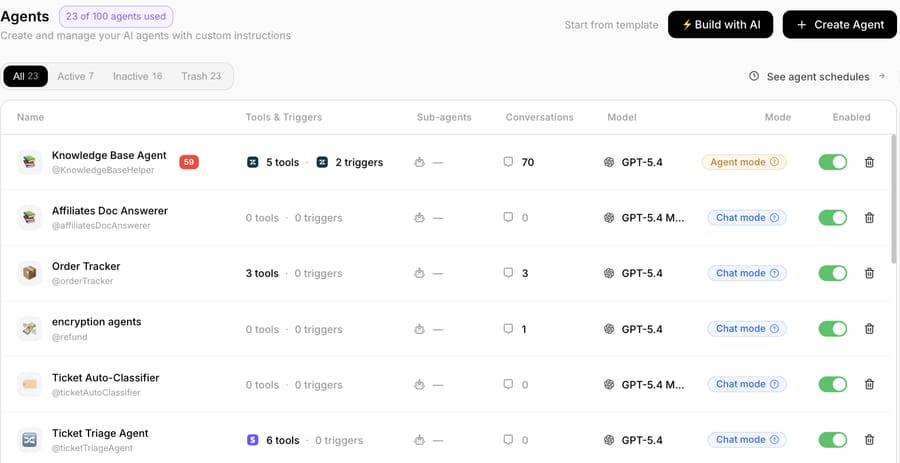
That is the gap Macha fills. It connects to the Zendesk you already run, reads the ticket including its custom field values and attachments, and can classify it, add an internal note, or post a public reply, using the same triggers and webhooks you configured in Admin Center as its entry point. It suits teams already committed to Zendesk who want agents acting inside the ticket itself. Setup runs through the Zendesk integration, and billing is per ticket, so a thread that takes eight replies costs the same as one that takes two.
Start your free trial and connect it to your Zendesk in a few minutes.






