Intercom
 Shopify
 Stripe
 Slack
Slack Notion
 Google Workspace
 Confluence

What Are Zendesk Custom Fields? Types, Users and Organizations (2026)


A Zendesk ticket only knows a handful of things out of the box, such as the requester, subject, status, priority and type. Custom fields on tickets, users and organizations are how you record the order number, plan tier or region your team actually works from.
Key takeaways
- Zendesk supports eleven custom ticket field types, and only drop-down, multi-select and checkbox fields generate the tags that triggers and views act on.
- Zendesk drop-down and multi-select fields each hold up to 2,000 values, and text and multi-line fields hold up to 65,536 characters.
- Conditional ticket fields in Zendesk need a Growth plan or higher, are not available on Team, and allow up to 1,500 conditions per user type on each form.
- Zendesk lookup relationship fields link a ticket to a user, organization or custom-object record, work in triggers and views, and have appeared in Explore reporting since April 2023.
- Custom user and organization fields support the same types as ticket fields except credit card, and a drop-down or checkbox organization field can tag every ticket that company submits.

Zendesk custom fields are fields you add to tickets, users and organizations to capture data Zendesk doesn't collect by default, such as an order number, plan tier or VIP flag. There are eleven custom ticket field types, only three of which (drop-down, multi-select and checkbox) generate the tags that triggers and views act on, and custom fields are included on every Support and Suite plan from Team up. Zendesk's field-type page now also lists a multi-lookup relationship field on Professional plans and above. Everything here was checked against Zendesk's help documentation in September 2026.
If you're still untangling how fields relate to forms, start with our companion piece on ticket fields vs. forms. This post assumes you know a field is one data point and goes deep on the custom kind.
What is a Zendesk custom field, and why does it matter?
A custom field is any field you create yourself to capture data Zendesk doesn't collect by default. Zendesk ships with system fields — Subject, Description, Status, Type, Priority, Group, Assignee, Requester, Tags — that you can't delete. Custom fields are the ones you add on top, and they're where Zendesk stops being a generic inbox and starts being shaped to your operation.
The payoff isn't just tidier records. Structured custom-field data is what lets Zendesk route ("Product line" → the right team), prioritize ("Customer tier" → the right SLA), collect context up front (an end-user "Order number" field), and report on anything specific to your business — "How many refund tickets came from Enterprise accounts last quarter?" is only answerable if both facts live in fields. (We unpack each of those mechanisms further down.)
The catch is that the field type you choose determines how useful the data is. Get it right and the field powers automation and reporting. Get it wrong (free text where a list belonged) and you've collected data you can't reliably use.
What are the eleven custom ticket field types?
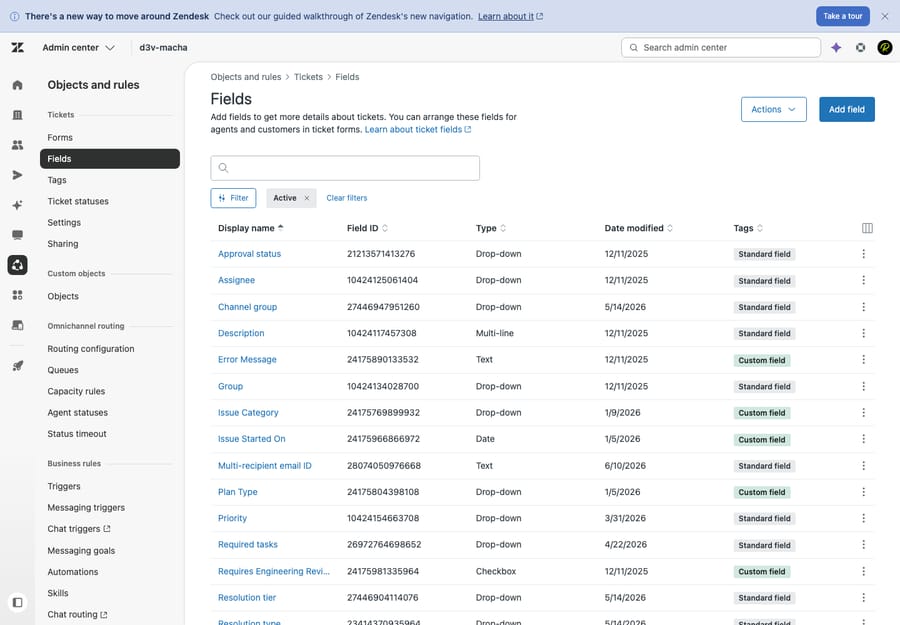
When you create a custom ticket field (in Admin Center → Objects and rules → Tickets → Fields), the first and most consequential choice is the type. Zendesk supports eleven custom ticket field types, checked against Zendesk's "About custom field types" documentation in September 2026. The same page lists a multi-lookup relationship field, which links one ticket to several records, on Professional plans and above and on Support Enterprise.
| Field type | Best for | Generates tags? |
|---|---|---|
| Drop-down | One choice from a fixed list (up to 2,000 values) — category, product, reason | Yes |
| Multi-select | Several choices from a list (up to 2,000 values) — affected features | Yes |
| Checkbox | A single yes/no flag — "VIP," "data-loss reported" | Yes |
| Text | A short single-line answer (up to 65,536 chars) — order number | No |
| Multi-line | A longer free-text answer — "steps to reproduce" | No |
| Numeric | Whole numbers only — quantity, seat count | No |
| Decimal | Numbers with decimals — refund amount | No |
| Date | A date picker — event date, requested delivery | No |
| Regex | Text validated against a pattern — SKU, postal code | No |
| Credit card | A card number where only the last four digits are stored/shown | No |
| Lookup relationship | A link to a related user, organization, or custom-object record | No |
A few of these deserve a closer look because they're easy to misuse:
- Drop-down vs. text is the single most important decision you'll make repeatedly. A drop-down constrains input to a known list, so the data stays clean and machine-readable. Free text lets a customer (or agent) type "US," "u.s.," "United States," and "usa" — four spellings of one value, and zero reliable reporting. Reach for text only when the answer is genuinely open-ended prose.
- Lookup relationship is the newest and most misunderstood type. Instead of storing a value, it stores a link to another record — a user, an organization, or a custom object (e.g. tying a ticket to a specific asset or contract). Lookup fields work as conditions in triggers and views, and Zendesk added them to Explore reporting in April 2023. What they don't do is generate tags, so a rule that keys on tags won't see them.
- Credit card masks all but the last four digits, so it's the only safe way to capture a card reference in a ticket — never use a plain text field for that.
Which field types generate tags?
Three ticket field types automatically generate tags: drop-down, multi-select, and checkbox. Tags are the connective tissue Zendesk uses to act on field values.
The mechanics differ slightly by type:
- For drop-down and multi-select, each option is a title + tag pair you define per value. The title is what users see; the tag is what your automation reads.
- For a checkbox, you enter a single tag that gets applied to the ticket whenever the box is checked.
The other eight types (text, multi-line, numeric, decimal, date, regex, credit card, lookup relationship) store a value but generate no tag. That's the crux of the most common custom-field mistake: a free-text "Category" field looks tidy, but because it produces no tag, your triggers and views can't act on it. A drop-down "Category" with the same options can fire a rule that routes the ticket the instant it arrives. Rule of thumb: if a value needs to drive automation or reporting, make it a drop-down, multi-select or checkbox, not text.
How do required, visibility and conditional settings work?
Two per-field settings shape the experience as much as the type does, plus one form-level behavior worth knowing:
- Agent-only vs. end-user-visible. Each field can be visible to agents only, or also shown to (and editable by) end users in the help center and web form. Keep internal triage fields like "Refund approved by" agent-only; make "Order number" end-user visible so customers supply it up front.
- Required vs. optional. You can require a field before a ticket is submitted, solved, or both. Important constraint: the required property is set at the field level and applies to every form the field appears on — there's no per-form override. If you need "Order number" required on a Returns form but optional elsewhere, you'll need separate fields.
- Conditional fields. A conditional field shows or hides based on another field's value on the same form (pick "Hardware" → a "Device model" drop-down appears). This keeps one form short instead of overwhelming everyone. Conditional ticket fields need a Growth, Professional, Enterprise or Enterprise Plus plan, so they're not available on Team, and each form takes up to 1,500 conditions per user type (Zendesk: Creating conditional ticket fields).
Can you add custom fields to users and organizations?
Yes. Custom fields also exist on user profiles and on organization records, not only on tickets, and many admins never use them.
- Custom user fields attach data to a person — a loyalty number, account type, signup date, "internal champion." You set them under Admin Center → People → Configuration → User fields (Zendesk: Adding custom fields to users).
- Custom organization fields attach data to a company — contract tier, account manager, renewal date, region. You set them under Organization fields (Zendesk: Adding custom fields to organizations).
Why this matters: data on a ticket describes one request; data on a user or organization describes the customer, and it persists across every ticket they ever open. Capture "Plan tier" as an organization field once, and every ticket from that company carries the context without re-asking or re-tagging.
(A note on how we verified this: the ticket Fields admin in the screenshot above is a first-hand capture from our own Zendesk dev instance. The User fields and Organization fields admin screens sit behind a login wall on that test account, so rather than fabricate a screenshot we've described those screens and cited Zendesk's official user-fields and organization-fields docs for every type and behavior claim below.)
User and organization fields support the same types as ticket fields with one exception: credit card is not supported. Zendesk's docs are explicit — the user-fields doc states "Credit card fields are not supported for users," and the organization-fields doc says admins can "create any custom field type for an organization, except credit card." So for users and orgs you get drop-down, multi-select, text, multi-line, numeric, decimal, checkbox, date, regex, and lookup relationship — multi-select is fully supported (both docs reference configuring "drop-down and multi-select fields"); credit card is the only ticket type that's off the table. But two behaviors are different from ticket fields:
- They use a field key, not a tag, by default. Each user/org field has a field key used in placeholders and the API rather than generating a ticket tag automatically.
- Drop-down and checkbox user/org fields can optionally add tags to tickets. There's a setting that applies the value's tag to that user's (or organization's) tickets — so a "VIP" checkbox on an organization can tag every ticket that company submits. And drop-down/checkbox user and organization fields can be used directly in business-rule conditions (e.g. "requester's account type is Enterprise"), which is how you route or escalate based on who the customer is, not just what they're asking.
The practical upshot: put customer attributes on the user or organization, and per-request attributes on the ticket. Mixing those up (re-collecting "Plan tier" on every ticket) is a classic source of dirty data.
What do custom fields feed in the rest of Zendesk?
Custom fields are inputs to everything else. Once the data is structured, your business rules can read it:
- Triggers fire on field values the moment a ticket is created or updated — "if Product = Billing, assign to the Finance group."
- Automations run on a schedule against field values — "if Priority is High and Status is Pending for 24 hours, escalate."
- Views filter and group tickets by any field — a queue of "Open tickets where Region = EMEA."
- SLAs can target tickets by field — a tighter response target for "Customer tier = Enterprise."
- Explore reporting lets you slice metrics by field values — volume by product line, resolution time by category.
Every one of these is only as good as the field feeding it. A free-text field that should have been a drop-down is invisible to all five. This is why the type decision compounds: get it right once and routing, SLAs, and reports all get more reliable for free.
What are the limits and plan requirements?
A few constraints worth keeping in mind:
- Value limits. Drop-down and multi-select fields support up to 2,000 values each; text and multi-line fields hold up to 65,536 characters.
- Plan gating. Custom ticket, user, and organization fields are available on all Support and Suite plans (Team and up), so there's no upgrade required just to have custom fields. What's gated is conditional ticket fields (Growth and above), multiple ticket forms (Suite Growth and above) and multi-lookup fields (Professional and above).
- Forms don't auto-update. Once you're running two or more ticket forms, creating a new field does not automatically add it to your forms — you must open each form and add it manually, or the field silently goes uncollected.
What should you do, and avoid, with custom fields?
Do:
- Use drop-downs/checkboxes for anything you'll route or report on. Only those types (plus multi-select) generate tags — free text is invisible to automation.
- Put customer attributes on users/orgs, request attributes on tickets. Don't re-collect "Plan tier" on every ticket when it belongs on the organization.
- Name fields for humans ("Order number," not "cf_ord_2"), and define a small, agreed taxonomy before you scale.
- Mask sensitive data with the credit card type — never plain text.
Avoid:
- Free text where a drop-down belongs — the "US / u.s. / usa" problem destroys reporting.
- Too many fields. Every required field is friction; a 20-field intake form tanks completion rates. Capture only what you need to start work and use conditional fields for the rest.
- Required-everywhere fields. Because required is set at the field level, marking a niche field required can block submission on unrelated forms.
- Ignoring user/org fields and cramming customer-level data onto every ticket.
Can AI fill custom fields automatically?
Yes, and it's worth doing. Well-structured fields are the foundation for automation, but the data still has to get into them, and that's usually an agent reading a ticket, picking the right category, and setting priority by hand. It's tedious and inconsistent, which quietly undermines the clean data your rules depend on.
This is the gap an AI agent layer fills. Macha runs on top of Zendesk (it's not a help desk and not a Zendesk replacement) and can read an incoming ticket, classify it, and auto-populate the custom fields and tags (set the type, choose the drop-down category, flag urgency) before a human opens it. Cleaner field data then makes every downstream trigger, SLA and report more reliable.
The honest caveats: it's another integration to manage, classification is only as good as the categories and examples you give it, and Macha is one plan priced by monthly ticket volume, from $299 a month for up to 750 tickets, charged per ticket (one conversation, charged once however much summarizing, tagging, routing and drafting it takes), with setup and monitoring by the Macha team included. It's additive to a well-designed field setup, not a substitute for one. If auto-filling and triaging field data is your bottleneck, you can try it on a free trial ($50 of usage, no credit card required).
Frequently asked questions
What is a custom field in Zendesk? A custom field is one you create yourself to capture data Zendesk doesn't collect by default — an order number, plan tier, product line, or VIP flag. Custom fields exist on tickets, on user profiles, and on organization records, and they're what your triggers, SLAs, views, and reports read from.
What are the custom ticket field types in Zendesk? There are eleven: drop-down, multi-select, checkbox, text, multi-line, numeric (integer), decimal, date, regex, credit card, and lookup relationship (which links a ticket to a related user, organization, or custom-object record). Professional plans and above also get a multi-lookup field that links a ticket to several records. Only drop-down, multi-select, and checkbox generate tags for use in business rules — the rest store a value but no tag.
Do custom fields exist on users and organizations too, or only tickets? Both. Beyond ticket fields, Zendesk supports custom user fields (data on a person) and custom organization fields (data on a company). They persist across every ticket that user or org opens, so you capture customer-level attributes once instead of re-tagging every ticket. User and org fields support the same types as ticket fields except credit card — multi-select is supported (Zendesk's docs state "Credit card fields are not supported for users" and that you can "create any custom field type for an organization, except credit card"). Drop-down and checkbox user/org fields can optionally add tags to tickets and be used in business-rule conditions.
Which Zendesk custom field types generate tags? Drop-down, multi-select, and checkbox. For drop-down and multi-select, each option is a title + tag pair you define; for a checkbox, you set one tag applied when it's checked. Text, multi-line, numeric, decimal, date, regex, credit card, and lookup relationship generate no tags — so use a drop-down for anything you'll route or report on.
Can a custom field be required on one form but optional on another? No. The required property is set at the field level and applies to every form the field appears on. To require a field on only one form, create a separate field for that form.
Do I need a higher plan for custom fields? No. Custom ticket, user, and organization fields are available on all Support and Suite plans, including Team. What requires a Growth plan or higher is conditional ticket fields and multiple ticket forms, not custom fields themselves.
Which two decisions matter most?
The two decisions that matter most are type and location. Choose drop-downs, multi-selects, and checkboxes for anything you'll automate or report on (they're the only types that generate tags), and reserve free text for genuine prose. Then remember that fields aren't only for tickets: customer attributes belong on users and organizations, where they persist across every request and can still drive routing and tagging. Get those choices right and your triggers, SLAs, views, and reports all get cleaner and more reliable. From here, see how fields combine into intake layouts in ticket fields vs. forms, and how the tags they generate feed business rules.
Checked against Zendesk's help documentation in September 2026. Field types, tag behavior and plan gating change periodically, so confirm specifics against your own plan before you build.
Add AI agents to your Zendesk
Macha reads the ticket, drafts the reply and takes the action, inside the Zendesk you already run.