Intercom
 Shopify
 Stripe
 Slack
Slack Notion
 Google Workspace
 Confluence

Zendesk Explore Explained: Reporting & Dashboards


Every other part of Zendesk is about handling a single request — a ticket comes in, an agent works it, a [trigger](/blog/zendesk-ticketing-system-explained) fires, an SLA clock ticks. Zendesk Explore is the part that zooms out. It's Zendesk's reporting and analytics product: the place where thousands of individual tickets, calls, and chats turn into dashboards you can actually make decisions from — how fast you reply, where backlogs build, which agents are drowning, whether customers are happy.
Key takeaways
- Creating custom reports and dashboards in Zendesk Explore requires Explore Professional or Enterprise; on Explore Lite, users can only view the prebuilt dashboards Zendesk provides.
- The Explore live dashboard requires at least Suite Professional, where it is read-only, while Suite Enterprise allows cloning, scheduling, drilling in, and building custom live dashboards.
- Explore data syncs roughly every 24 hours on Explore Lite, about hourly on Professional and Enterprise, and only Enterprise gets near-real-time live data.
- The Messaging dataset in Explore, covering the modern web, mobile, and social messaging channel, requires Suite Professional or above.
- Every report in Explore combines a metric, such as ticket count or first reply time, with one or more attributes, such as status, assignee, or channel, that slice the metric into segments.

The catch is that Explore has its own vocabulary — datasets, metrics, attributes, queries, dashboards — and the interface assumes you already know it. This guide is the plain-English tour. We'll cover what Explore is and how it's packaged, the prebuilt dashboards you get for free, the difference between metrics and attributes (the single concept that unlocks the whole tool), how the query builder works, sharing and scheduling, live dashboards, what each plan tier actually unlocks, and the mistakes that quietly make your reporting useless. Everything here is verified against Zendesk's own documentation.
What Zendesk Explore is
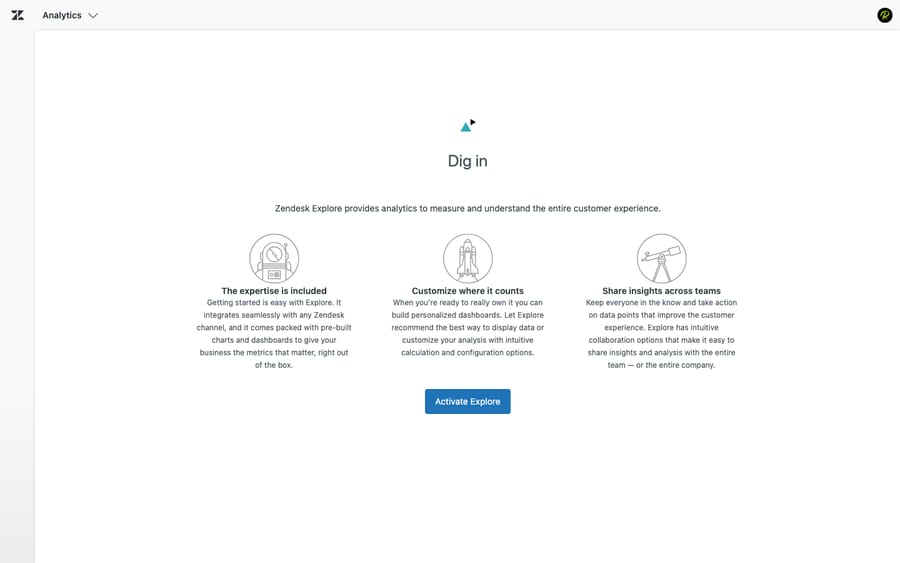
Explore is Zendesk's analytics layer. It connects to the data your Zendesk products already generate — Support tickets, Talk calls, Chat sessions, messaging conversations, Guide article activity — and lets you analyze it through dashboards and reports. It replaced the older "Insights" (a rebranded GoodData) reporting and is now the native way to measure a Zendesk operation.
Explore is included in every Zendesk Suite plan — you don't buy it as a separate product. What differs by plan is how much you can do with it, which is where most of the confusion comes from (more on tiers below). The mental model worth holding onto: Explore is read-only on your support data. It doesn't change tickets or run automations; it observes and reports. If you want a primer on which numbers are worth watching once you're in there, we keep a running list in Zendesk metrics to track.
Prebuilt dashboards: what you get out of the box
The fastest win in Explore is that you don't start from a blank page. Zendesk ships prebuilt dashboards for each of its products, and they populate automatically as soon as you have data:
- Zendesk Support dashboard — the big one. Ticket volume, who created and solved tickets, first reply time, full resolution time, reopens, CSAT, backlog, and agent/group breakdowns. For most teams this single dashboard answers 80% of "how are we doing?"
- Zendesk Talk dashboard — call volume, wait times, abandonment, talk time, and agent activity for phone support.
- Zendesk Guide dashboard — knowledge base performance: article views, searches, self-service ratio, and which articles deflect tickets.
- Messaging and Chat dashboards — live and historical conversation volume, response times, and satisfaction for the web widget, mobile SDK, and social channels.
Every Explore user — regardless of plan — can view these prebuilt dashboards. They're the baseline. The line that splits the product is whether you can go beyond them and build your own.
Datasets: where the data comes from
Before you can build anything custom, you have to understand datasets. A dataset is a curated collection of the metrics and attributes for one product or data source. When you start a new report, the first thing Explore asks is which dataset to use — and picking the wrong one is one of the most common beginner mistakes, because a metric simply won't exist in a dataset that doesn't track it.
The main datasets are:
- Support — Tickets (the workhorse: everything about ticket lifecycle, SLAs, and agent activity)
- Support — Updates history (granular, change-by-change ticket events)
- Talk (phone)
- Chat (legacy live chat)
- Messaging (the modern web/mobile/social messaging channel — note this dataset requires Suite Professional or above)
- Guide (knowledge base / help center)
- Sell (if you use Zendesk's CRM)
Rule of thumb: build agent and ticket reports on the Tickets dataset, channel-specific reports on that channel's dataset, and only reach for Updates history when you genuinely need to count individual changes (like how many times a ticket was reassigned).
Metrics vs. attributes — the concept that unlocks Explore
If you learn one thing about Explore, learn this. Every field in a dataset is either a metric or an attribute, and reports are built by combining the two.
- Metrics are the numbers — the quantifiable things you measure. Ticket count, number of replies, first reply time, full resolution time, CSAT score, calls answered. Metrics get aggregated (summed, averaged, counted).
- Attributes are the descriptors — the qualitative things you slice by. Ticket status, assignee name, group, channel, priority, tags, ticket created date. Attributes don't get summed; they break a metric into segments.
The pattern of every report is the same: a metric, sliced by one or more attributes. "Number of tickets (metric), by channel (attribute)." "Average first reply time (metric), by agent (attribute), over the last 30 days (a date attribute as a filter)." Once you internalize "metrics are what I count, attributes are how I cut it," the query builder stops being intimidating.
The query builder
Custom reports are built in the query builder (Zendesk calls a single report a "query"). The flow is consistent:
- Pick a dataset (e.g. Support — Tickets).
- Add a metric to the Metrics panel — say, "Tickets."
- Add attributes to the Columns and Rows panels to slice that metric — e.g. "Ticket group" on rows, "Ticket created — month" on columns.
- Add filters to scope it — date ranges, a specific brand, only solved tickets.
- Choose a visualization — table, column, line, KPI, etc. Explore suggests a sensible default and you adjust.
- Save the query so it can be dropped onto a dashboard.
Reports live independently and are then assembled onto dashboards — a dashboard is just a canvas of saved queries plus text, filters, and layout. Build the report once, reuse it on as many dashboards as you like.
Sharing, scheduling, and live dashboards
A dashboard nobody sees doesn't change behavior, so distribution matters.
- Sharing. Dashboards can be shared internally with agents and admins, and (on higher tiers) externally with stakeholders who don't have a Zendesk seat.
- Scheduling. You can schedule a dashboard to be emailed on a recurring cadence — a weekly Monday-morning support summary to the leadership inbox, for example — so reporting becomes a push, not a pull.
- Live dashboards. Explore has a prebuilt live dashboard that shows near-real-time queue status, agent availability, and channel activity — the "ops wall" view for a team lead watching the floor. It requires at least Suite Professional, and what you can do with it depends on your plan: on Professional the live dashboard is read-only (you can share it, but you can't clone, export, schedule, drill into it, or build your own live dashboards), while on Enterprise it behaves like any other dashboard — you can clone it, schedule it, drill in, and build custom live dashboards and live data widgets that update in near real time.
A related gotcha: data freshness differs by plan. On Explore Lite, data syncs roughly every 24 hours. On Professional and Enterprise, syncs run about hourly (a new sync starts roughly an hour after the previous one finishes). Only Enterprise gets the near-real-time live data. So if a dashboard looks "behind," it's usually the sync interval, not a bug.
Plan availability — who can build what
This is the part worth pinning down before you promise anyone a custom report. Explore comes in three capability tiers, and they map to your Suite plan:
| Capability | Explore Lite | Explore Professional | Explore Enterprise |
|---|---|---|---|
| View Zendesk's prebuilt dashboards | Yes | Yes | Yes |
| Create custom reports & dashboards | No | Yes | Yes |
| Share & schedule dashboards | No | Yes (standard) | Yes (advanced) |
| Live dashboard | — | Read-only | Full (clone/drill/custom) |
| External sharing & advanced features | No | Limited | Yes |
| Data refresh | ~24 hours | ~Hourly | ~Hourly + near-real-time live |
The headline: Lite can only look at the dashboards Zendesk built for you — it can't create custom reports or dashboards at all. The ability to actually build your own reporting starts at Professional, and the live/real-time and advanced-sharing capabilities are gated to Enterprise. If your team keeps hitting "you don't have permission to create this," it's almost always the Explore tier, not a settings problem. (Zendesk's plan packaging and pricing move over time — confirm your exact entitlements in-account before relying on them.)
Limits and watch-outs
Explore is powerful but it isn't a general-purpose BI tool, and a few realities catch teams out:
- It reports on Zendesk data, period. It won't natively blend in your CRM, billing system, or product analytics. For cross-system reporting you'll export, or pipe Zendesk data into a warehouse/BI tool.
- Sync lag is real. Outside of Enterprise live data, numbers are minutes-to-hours behind. Don't use a standard dashboard as a real-time queue monitor.
- Datasets are siloed. You generally can't mix metrics from two different datasets in one report, which surprises people trying to combine, say, Talk and Tickets data in a single view.
- The learning curve is the query builder. Prebuilt dashboards are easy; genuinely custom reporting (calculated metrics, custom attributes, nested filters) has a real ramp.
Best practices
- Start from a prebuilt dashboard and clone it. Don't build from scratch. Copy the Support dashboard and tweak — it's faster and you inherit sensible definitions.
- Pick the right dataset first. Decide Tickets vs. Messaging vs. Updates history before you start dragging fields, or you'll waste time hunting for a metric that lives elsewhere.
- Standardize your definitions. Agree as a team on what "resolution time" or "first reply time" means, and tie reports to your SLA policies so the dashboard and your commitments measure the same thing.
- Schedule the reports leaders actually read. A scheduled weekly summary beats a beautiful dashboard nobody opens.
- Date-filter everything. Unbounded reports get slow and misleading; default to a rolling window.
Common mistakes
- Chasing vanity metrics. Raw ticket volume and "tickets solved" feel good but say little about quality. Pair them with first reply time, full resolution time, reopen rate, and CSAT.
- Using the wrong dataset. Building a messaging report on the Tickets dataset (or vice versa) produces numbers that look plausible and are quietly wrong.
- Confusing Solved with Closed. They're different statuses with different report implications — a "solved tickets" count and a "closed tickets" count won't match, and that's expected.
- Ignoring sync lag. Treating an hourly-synced dashboard as live, then panicking when it doesn't match the agent's screen.
- Letting only one person know Explore. When the single "reporting person" leaves, the dashboards calcify. Document your custom metrics.
Where AI shows up in your Explore numbers
If you're running automation on top of Zendesk, it surfaces in Explore like any other activity — and that's a useful way to keep automation honest. An AI agent layer such as Macha sits on top of your existing Zendesk (it's not a help desk and not a Zendesk replacement); when it triages, drafts, or resolves tickets, those actions land on real tickets, so the impact shows up in your normal Explore dashboards — deflection rate, first reply time, volume handled without a human, reopen rate on AI-touched tickets.
Two honest framings worth keeping straight. First, watch reopen rate and CSAT on AI-handled tickets, not just deflection — a high deflection number with rising reopens isn't a win. Second, on cost: Macha bills per ticket — one conversation, charged once, whether the agent summarizes, tags, routes, looks up data, drafts or resolves, and whichever model you choose — not per resolution, so the bill never hangs on an outcome definition you don't control. Explore is exactly where you'd validate whether that work is paying off. If you want to see it reflected in your own reporting, you can try it free — $50 of free usage, no credit card required.
Frequently asked questions
What is Zendesk Explore? Zendesk Explore is Zendesk's reporting and analytics product. It connects to the data your Zendesk products generate — Support, Talk, Chat, messaging, and Guide — and turns it into dashboards and custom reports so you can measure response times, resolution times, volume, agent performance, and customer satisfaction. It's included in every Zendesk Suite plan.
Is Zendesk Explore free / included in Suite? Yes — Explore is bundled with every Zendesk Suite plan; you don't buy it separately. What changes by plan is capability: lower tiers can only view Zendesk's prebuilt dashboards, while building custom reports and dashboards requires Explore Professional or Enterprise.
What's the difference between a metric and an attribute in Explore? A metric is a quantifiable number you measure — ticket count, first reply time, CSAT. An attribute is a descriptor you slice by — status, assignee, channel, priority, date. Every report combines them: a metric, broken down by one or more attributes.
Can I create custom dashboards in Zendesk Explore? Only on Explore Professional or Enterprise. On Explore Lite you can view the prebuilt dashboards Zendesk created, but you can't create custom reports or dashboards. If you're seeing "no permission" errors when trying to build, it's almost always your Explore plan tier.
What is the Explore live dashboard? A prebuilt dashboard that shows near-real-time queue status, agent availability, and channel activity. It requires at least Suite Professional. On Professional it's read-only (you can share it but not clone, schedule, or drill in); on Enterprise it's fully editable and you can build your own live dashboards and widgets.
How often does Zendesk Explore data refresh? On Explore Lite, data syncs about every 24 hours. On Professional and Enterprise it syncs roughly hourly (a new sync starts about an hour after the last finishes). Only Enterprise's live dashboards and live data widgets update in near real time.
The bottom line
Zendesk Explore is the lens that turns a busy help desk into something you can actually manage. The product itself comes free with Suite, the prebuilt dashboards answer most day-one questions, and the whole custom-reporting system rests on one idea: a metric, sliced by attributes, drawn from the right dataset. The two things to get straight before you rely on it are your plan tier (Lite views, Professional builds, Enterprise goes live and real-time) and your definitions (so the dashboard and your SLAs measure the same thing). Nail those, schedule the reports leaders read, and watch quality metrics — not just volume — and Explore becomes the feedback loop that makes everything else in your Zendesk better.
Explore mechanics verified against Zendesk's official documentation, June 2026. Zendesk updates its product and plan packaging periodically — confirm specifics in your own account before relying on them.
Add AI agents to your Zendesk
Macha reads the ticket, drafts the reply and takes the action, inside the Zendesk you already run.