





 Shopify
 Stripe
 Slack
Slack Notion
 Google Workspace
 Confluence

Freshdesk Migration Checklist and Timeline (2026): What Moves, What You Rebuild


Moving onto Freshdesk is like relocating a house: tickets, contacts and history travel intact, but SLAs, automation rules and reports get rebuilt in the new place. Teams that treat it as a one-click import go live and find their escalation rules never came across.
Key takeaways
- A Freshdesk migration runs in three phases: pre-migration setup with a demo run and a review of 20 random tickets, the full transfer plus a delta pass, then validation across the first 48 hours.
- Tickets, contacts, attachments, tags and knowledge base articles move into Freshdesk with a migration tool, while SLA policies, time and event automations, dispatch rules and reports are rebuilt by hand.
- Freshdesk's native CSV importer handles only contacts and companies, overwrites a contact whose email already exists, and requires at least 10 tickets in the account first.
- Help Desk Migration cites one Freshdesk move of 4,000+ tickets, including all contacts and companies, in 1 hour, and also migrates canned responses and scenario automations.
- A safe Freshdesk rollback plan keeps the old help desk read-only, not deleted, for at least a week after cutover, with a go/no-go checkpoint after validation.
A Freshdesk migration runs in three phases: prepare (pre-create custom fields, disable automations, run a free demo migration and check 20 random tickets), run the full transfer plus a delta pass, then validate before cutover while the old system stays read-only for at least a week. Tickets, contacts, attachments and knowledge base articles move with a migration tool; SLA policies, automation rules and reports get rebuilt by hand.
| Phase | When | Key steps |
|---|---|---|
| 1. Pre-migration | Days before | Name an owner, pre-create custom fields, disable automations, demo migration, review 20 random tickets |
| 2. Migration | Cutover window | 24-hour heads-up, freeze configuration, full run, delta pass |
| 3. Validation | First 48 hours | Spot-check records, test rebuilt SLAs and rules, fix article links, verify agent access |
| Rollback cover | At least a week | Old system read-only, go/no-go checkpoint, migrated tickets tagged |
What moves to Freshdesk and what do you rebuild?
This distinction shapes the whole plan. The records that describe your customers and their history migrate cleanly. Most of the configuration that describes how your help desk behaves does not; it has to be recreated in Freshdesk's interface. Based on Help Desk Migration's Freshdesk data migration checklist, the split looks like this:
| Category | Moves in a migration | You rebuild by hand |
|---|---|---|
| Tickets & conversations | Yes — descriptions, replies, public/private notes | — |
| Contacts & companies | Yes, matched on email address | — |
| Attachments & inline images | Yes — including Base64 inline images | — |
| Custom fields | Yes — if pre-created in Freshdesk first | — |
| Tags & ticket status | Yes | — |
| Agent & group assignments | Yes — once agents are matched | — |
| Knowledge base articles | Yes — with folder/category structure | — |
| SLA policies | No | Recreate under Admin → Workflows |
| Automations, triggers, dispatch rules | No | Rebuild rule by rule |
| Canned responses & scenario automations | Yes with Help Desk Migration, mapped to Freshdesk equivalents | Email templates still recreated manually |
| Reports & dashboards | No | Rebuild in Analytics |
The line to internalise: most operational logic doesn't port. The Import to Freshdesk app in the Freshworks Marketplace is published by Help Desk Migration, not Freshworks, and it moves records plus canned responses and scenario automations, not SLA policies or time and event rules. Budget real hours for rebuilding SLAs and automations; that work is often the longest pole in the tent, not the data transfer itself.
Should you use Freshdesk's native CSV import or a paid migration tool?
Freshdesk ships a native importer, but it's narrower than most people assume. Out of the box, the CSV import handles contacts and companies — you upload a UTF-8 CSV with a header row, map columns to Freshdesk fields, and a row whose email matches an existing contact overwrites that contact. Custom fields must exist before the import, and Freshdesk requires at least 10 tickets in the account before a contact import succeeds. That's useful for a fresh contact list, and it's free. What it does not do is bring across tickets, full conversation threads, attachments, or historical timestamps.
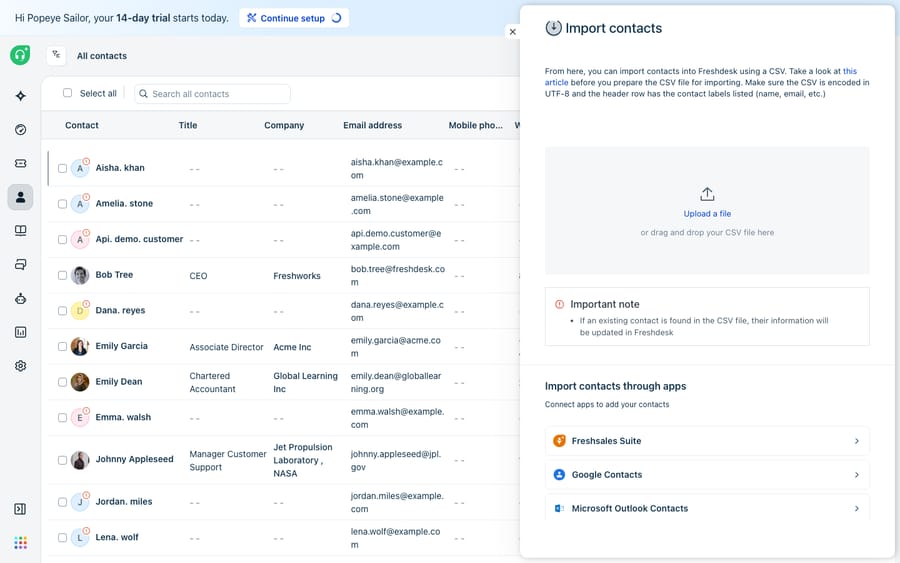
For a real switch from another help desk — where you need ticket history, conversations, and attachments preserved — you reach for a dedicated tool like Help Desk Migration's Import to Freshdesk. Help Desk Migration cites one Freshdesk move of 4,000+ tickets, including all contacts and companies, in 1 hour, and lets you filter which records move and rerun a free demo as often as you need. The tradeoff is honest: the native importer is free but contacts-only; the paid tool costs money but preserves the history your agents need to answer follow-ups. Pick based on whether you're seeding a list or relocating a support history.
What goes on the pre-migration checklist?
Do this in the days before you touch any data. Rushing here is where most migrations break.
- Name an owner. One person owns the plan, the go/no-go call, and the rollback decision.
- Provision the destination. Create agents, groups, business hours, and — critically — pre-create every custom field, because fields must exist before records can map into them.
- Grab API credentials. Note the source platform's API URL and key; the migration tool needs both.
- Disable interfering automations. Before any test run, turn off ticket-creation, time-triggered, and scenario automations so migrated tickets don't trigger a flood of stale rules. (Alternatively, tag migrated tickets and exclude them from rules.)
- Run a demo migration. Transfer a small sample, then review 20 random tickets for comment authors, agent assignment, custom fields, attachments, tags, and inline images. Download the demo report for migrated/failed/skipped records.
- Pick your timing. Choose a low-volume window and decide whether the old system stays live during the transfer.
What happens during the migration?
Once the demo checks out, you run the full migration. A few rules keep it clean:
- Send the 24-hour heads-up to agents (template below), then a "stop using the old system" cutoff message when the full run starts.
- Freeze configuration. Don't edit fields, agents, or groups mid-run — changing the target's shape while data lands is how mappings break.
- Let it run. Duration scales with volume and attachments: a small account can finish in about an hour (the 4,000-ticket example above), while years of history can take days. Skipping attachments speeds it up. You can keep handling tickets in the source or target while it works.
- Plan a delta pass. If the old system stayed live, run a delta migration afterward to catch records created or updated during the transfer. Check whether your migration plan includes it before you schedule the cutover.
How do you validate the migration before go-live?
Going live isn't "the import finished" — it's "we verified it." Work this list before you flip the switch:
- Spot-check records. Confirm tickets, contacts, conversations, custom fields, tags, and attachments are present and correctly attributed.
- Test the rebuilt logic. Fire test tickets through your new SLA policies, automations, and dispatch rules — the parts that didn't migrate. This is where surprises hide.
- Fix knowledge base links. Update internal article links and re-upload inline images before the old system expires.
- Verify agent access. Confirm profiles, roles, and permissions landed correctly for every agent.
- Watch the first 48 hours. Keep the source system readable (not writable) as a reference until you're confident nothing's missing.
What does a Freshdesk rollback plan look like?
Every migration needs an exit. The good news: a well-run migration is additive — you're importing into Freshdesk, not deleting the source — so rollback is mostly about not committing prematurely.
- Keep the source system read-only, not deleted, for at least a week post-cutover. It's your source of truth if something's off.
- Define a go/no-go checkpoint. If post-migration validation fails on something material (missing conversations, broken assignments), the owner calls it: pause routing to Freshdesk and send agents back to the source while you diagnose.
- Isolate imported data. Tagging migrated tickets means you can bulk-identify or, if needed, delete a bad batch and re-run — without touching anything created natively in Freshdesk.
- Never let both systems be "live" for writing at once beyond the planned overlap. Dual-write chaos is worse than a delayed cutover.
What should you tell agents before and at cutover?
Communication is half the migration. Here's a template to adapt — one message 24 hours out, one at cutover.
Subject: Freshdesk migration — starting tomorrow at [time] Team, we're moving to Freshdesk. Starting [date/time], the full data migration begins. Your tickets, contacts, and history are all coming with us. During the transfer, please [keep working in the old system / stop new work in the old system] until you get the all-clear. A few rules you'll rebuild (SLAs, canned responses) may look different at first — that's expected. Questions to [owner].
Subject: We're live on Freshdesk — please switch now Freshdesk is live. Please stop using [old system] and work all new tickets in Freshdesk from now. If a ticket looks like it's missing history, don't panic or edit it — flag it to [owner] and we'll check the migration report. Thanks for your patience through the switch.
Where does an AI layer fit after you land on Freshdesk?
Once you're live, the rebuild backlog is real — SLAs, automations, and routing rules all need reconstructing. That's the moment many teams reconsider how much of that logic they want to hand-code versus hand to an agent, and it's worth weighing the build-versus-buy tradeoff honestly. The broader category of AI agents for customer service exists to do the reasoning-heavy triage-and-reply work that brittle rule chains struggle with.
Macha is one such layer, and to be clear about what it is: it runs on top of the Freshdesk you just migrated into as a native connector — it does not replace Freshdesk or compete with it. You connect Macha with your subdomain and API key, and it reads and writes the same tickets you just imported: triaging by intent, drafting or posting grounded replies, and looking up order or account status through a custom tool that turns a REST API into something the agent can call. That means a chunk of the post-migration automation you'd otherwise rebuild rule by rule can be handled by AI agents you configure instead. Macha's connector is for Freshdesk specifically — not Freshchat, Freshservice, or Freshcaller — and Macha bills per ticket, one conversation charged once however many messages it takes, never per resolution; the pricing page breaks that down.
FAQ
What data actually migrates to Freshdesk, and what doesn't? Tickets and conversations, contacts, companies, attachments, tags, notes, agent assignments, and knowledge base articles migrate with the right tool, and Help Desk Migration also moves canned responses and scenario automations. SLAs, time and event automations, dispatch rules, and reports do not migrate; you rebuild those manually in Freshdesk's interface.
How long does a Freshdesk migration take? The transfer scales with volume: Help Desk Migration cites 4,000+ tickets with all contacts and companies in 1 hour, while large histories can take days. Budget separately for pre-migration setup and for rebuilding automations and SLAs, which is often the longer task.
Can I migrate with Freshdesk's free native import instead of a paid tool? Only partly. The native CSV importer handles contacts and companies — useful for seeding a list — but it doesn't bring across tickets, conversation history, or attachments. For a real help-desk switch you need a dedicated migration tool such as Help Desk Migration, which offers a free demo migration on your real data.
What's a safe rollback plan if the migration goes wrong? Keep your old system read-only (not deleted) for at least a week, define a go/no-go checkpoint after validation, tag migrated tickets so a bad batch can be isolated and re-run, and never let both systems accept new writes at the same time beyond the planned overlap.
Does adding AI to Freshdesk mean replacing it? No. A layer like Macha connects to Freshdesk as a native connector and runs on top of it — it doesn't replace your help desk. After migrating, it can handle triage and grounded replies while Freshdesk stays the system of record.
Migrated in and staring down a rebuild backlog? Start a free trial of Macha and connect it to your Freshdesk in minutes.






