





 Shopify
 Stripe
 Slack
Slack Notion
 Google Workspace
 Confluence

Why Is My Freshdesk Article Not Showing on the Portal? 5 Checks (2026)


A Freshdesk article that agents can see but customers can't is usually blocked by its publish status, its folder's visibility, its category's portal link, or the portal's login setting. Visibility is set per folder, not per article, which is the setting most teams miss.
Key takeaways
- A Freshdesk article hidden from customers is usually blocked by one of five settings: publish status, folder visibility, category-to-portal association, the Who can view solutions setting, or search indexing delay.
- Freshdesk sets knowledge base visibility per folder, not per article, so every article inherits its folder's Visible to setting, such as All users or Logged in users.
- Freshdesk folders offer seven audience options, and anything other than All users hides the folder's articles from a signed-out portal visitor.
- Anonymous access needs both Admin, Channels, Portals, Settings set so Who can view solutions is everybody and the containing folder set to All users.
- Freshdesk's approval workflow, which adds the In review and Approved article statuses, is available only on the Enterprise plan according to Freshworks.

A Freshdesk article that agents can see but customers can't is almost always blocked by one of five settings: the article isn't Published, its folder isn't visible to that visitor, its category isn't associated with the portal they're on, the portal's Who can view solutions setting requires a login, or search simply hasn't picked up a fresh edit yet. Check them in that order and you'll find the blocker in a few minutes.
| # | Likely cause | Where to check | Fix |
|---|---|---|---|
| 1 | Article still a Draft or In review | Article Properties → status | Set status to Published and save |
| 2 | Folder hidden from the visitor (Logged in users, All agents, a company or segment) | Solutions → Category → Folder → Visible to | Set folder to All users (or the right segment) |
| 3 | Category not associated with the portal | Solutions → category → portal selection | Associate the category with the correct portal |
| 4 | Portal blocks unauthenticated access | Admin → Channels → Portals → Settings | Set Who can view solutions to everybody |
| 5 | New or edited article not yet searchable | Portal search box | Wait a few minutes and retest; confirm steps 1 to 4 first |
Why can I see an article that customers can't?
The agent view and the customer portal view are governed by different rules. Inside Freshdesk, an agent with knowledge base permissions can see drafts, in-review articles, and articles in folders restricted to logged-in users or agents, none of which a signed-out visitor is entitled to. So "I can see it" tells you almost nothing about what the public sees.
For an article to appear on the portal for a given visitor, every gate above it has to open: the article has to be Published (not Draft or In review), the folder it lives in has to be visible to that visitor, the category has to be associated with the portal they're on, and the portal has to allow that person to view solutions at all. Miss one and the article vanishes for them while staying visible to you. The fixes below walk that stack top to bottom.
Which checks should I run first?
Work through the table above in order. The first four rows cover the overwhelming majority of "article not showing" cases; the last one covers the "it's there but search won't find it" variant.
One correction to a common assumption: Freshdesk sets visibility per folder, not per article. Freshworks' own knowledge base setup guide lists the audience options on the folder, and every article in that folder inherits them. If you've been hunting for a "Visible to" dropdown on the article itself, that's why you can't find it.
Is the article actually published?
Start inside the article itself. Open it and look at its Article Properties panel.
Publish state. Freshdesk articles move through Draft → In review → Approved → Published, and only a Published article is eligible to appear on the portal. The review and approval steps come from the approval workflow, which Freshworks says is available only on the Enterprise plan. Per Freshworks' Manage your knowledge base documentation, you can catch anything left behind with the All drafts, In review and Published articles list views, filtered by portal and language.
Freshworks' older help article on per-article visibility options (article 228176) now sits behind a login, and the current public guide describes visibility at the folder level only. So once the status is Published, the next place to look is the folder.
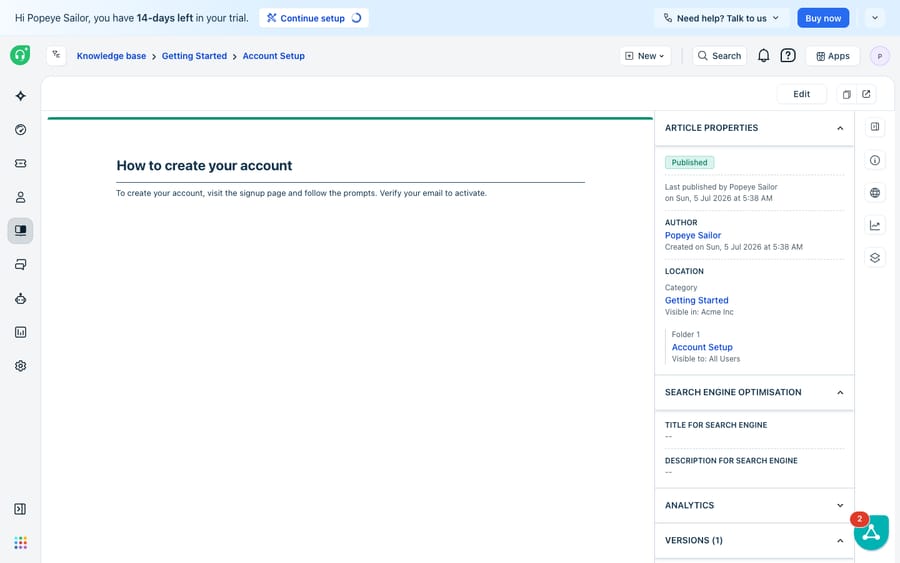
The screenshot above shows the healthy state you're aiming for: status Published and the folder set to Visible to: All Users. The "Visible in: Acme Inc" line is the category-to-portal association, and it matters just as much. An article can be published and public and still miss the portal you expect if its category is pointed at a different one.
Who is the folder visible to?
Because visibility lives on the folder, the folder's Visible to setting decides who can read every article inside it. Freshworks lists seven options:
- All users: customers, agents and connected Freshchat bots.
- All agents: agents only, hidden from customers.
- Logged in users: customers who have signed in to the portal.
- Bot: connected Freshchat bots only.
- Companies, Contact segments and Company segments: named customers or groups.
Anything other than All users hides the folder's articles from a signed-out visitor. To fix it:
- Go to Solutions, open the relevant category, and select the folder.
- Open the Visible to dropdown for that folder.
- Choose All users for a public help center, or the specific companies or segments you intend.
- Save, and re-check the article on the portal in a private browser window.
If you run a closed help desk, this is also where the classic "recent articles" widget breaks: the recent-articles placeholder only surfaces public articles, so folders locked to logged-in users won't feed it.
Is the category linked to the right portal?
Two portal-level settings sit above everything you've done so far. The first is category-to-portal association. When you create or edit a category, Freshdesk asks you to choose the portal it appears on, and you can pick more than one. An article whose category isn't associated with the portal a visitor is browsing won't show there, and unassociated categories sit in their own "Unassociated categories" view. If you run several product portals, confirm the article's category is tied to the one your customer is actually visiting.
Does the portal let signed-out visitors read solutions?
The second portal-level setting is the master gate. Per Freshworks' guide on letting customers view articles without signing in, go to Admin → Channels → Portals → Settings and set Who can view solutions to everybody. If this is restricted to logged-in users, no amount of "All users" visibility on the folder will expose an article to an anonymous visitor: the portal turns them away before folder rules even apply. The reverse is also true. Setting the portal to everybody does nothing for an article whose folder is still set to Logged in users, so both settings have to agree.
Why can't portal search find a published article?
Once an article is published and visible, portal search is the last layer, and it behaves differently from a simple "is it live" check. Search indexing isn't instant, so if you just hit Publish or saved an edit, give it a few minutes and retest before concluding search is broken.
The bigger issue is that matching is fairly literal. Long-standing user reports in the Freshworks community note it doesn't always treat word variants (like "register" and "registering") as equivalent, so a customer's phrasing has to be reasonably close to your article's wording to get a hit. Adding the words customers actually use to the title and first paragraph helps more than any setting. If search still returns nothing, re-confirm the publish state and folder visibility: an unpublished article, or one in a logged-in-only folder, is excluded from anonymous portal search results regardless of how good the query is.
Separately, if your complaint is that the portal isn't showing up in Google, as opposed to the on-portal search box, that's an SEO indexing question, not a Freshdesk visibility one. The usual fixes are checking your canonical and alternate tags and submitting the affected URLs through Google Search Console's URL Inspection tool to request a re-crawl.
What can't Freshdesk's portal fix, and where does an AI layer help?
Freshdesk's visibility model is doing exactly what it's designed to do: give you deterministic control over who sees what. Publish states, folder-level audiences, portal gating and segment targeting are all useful once you understand the stack. This isn't a bug. It's layered access control.
Where it runs out of road is on the customer's side of the search box. Portal search is keyword-literal: it can't reason about intent, it doesn't reliably normalize word variants, and it returns a list of links a frustrated customer still has to read through. A published, visible article can go unfound simply because the visitor typed the problem in words that don't match your title. And none of this helps the customer who never visits the portal and just emails a ticket.
This is the seam where an AI agent layer fits, and it's worth understanding the broader category of AI agents for customer service before reaching for one. Macha is one such layer that runs on top of the Freshdesk you already use as a native connector. It doesn't replace your help desk, your portal, or your knowledge base. You connect Macha to Freshdesk with your subdomain and API key, and it reads the same published solution articles your portal serves, then uses them to answer customers by intent rather than exact keyword: drafting or posting a grounded reply directly in the ticket, and pulling live order or account status through a custom tool when the article alone isn't enough. It sits alongside the automations you already run in Freshdesk, and our guide on how to automate Freshdesk with AI walks the options.
Two plain caveats. Macha's connector is for Freshdesk specifically, not Freshchat, Freshservice, or Freshcaller. And Macha bills per ticket: one conversation, charged once however many messages it takes, from $299 a month for 750 tickets, never per resolution. The pricing tracks the conversations you handle rather than an outcome definition you don't control. The clean division of labor: keep Freshdesk's knowledge base and portal as the system of record for what's documented and who can see it, and put an agent on top for the part portal search can't do.
FAQ
Why can I see a Freshdesk article but customers can't? Because the agent view and the public portal apply different rules. A signed-out visitor only sees articles that are Published, sitting in a folder Visible to All users, in a category associated with the portal, on a portal whose Who can view solutions setting allows anonymous access. If any of those is stricter, the article stays visible to you and hidden from them.
Where do I change article and folder visibility in Freshdesk? Visibility is set on the folder, under Solutions → Category → Folder → Visible to, and every article in the folder inherits it. The options are All users, All agents, Logged in users, Bot, Companies, Contact segments and Company segments. To give one article a different audience, move it to a folder with that audience.
How do I let customers read articles without logging in? Go to Admin → Channels → Portals → Settings and set Who can view solutions to everybody, and make sure the containing folder is Visible to All users. Both are required for unauthenticated access.
Why isn't my new article showing up in portal search? Indexing takes a few minutes after you publish or edit, so wait briefly and retest. Search is also fairly literal, so a customer's wording has to be close to the article's. Confirm the article is published and its folder is public first, because unpublished or restricted articles are excluded from anonymous search.
Do I need the Enterprise plan for article approvals? The approval workflow is available only on Freshdesk's Enterprise plan, according to Freshworks.
Can I add AI to my Freshdesk knowledge base without replacing it? Yes. An AI agent layer like Macha connects to Freshdesk as a native connector and reads your existing published articles to answer customers by intent. It runs on top of your portal and knowledge base rather than replacing them, and it works alongside your current visibility rules and automations.
Want customers to get answers even when portal search can't find the article? Start a free trial of Macha ($50 of usage, no credit card) and connect it to your Freshdesk.






