Shopify
 Stripe
 Slack
Slack Notion
 Google Workspace
 Confluence

How to Integrate Freshdesk with Slack (Beyond the Basics)


Most guides to connecting Freshdesk and Slack stop at "install the app and get a ping in a channel when a ticket comes in." That is a fine start, but it leaves the two systems talking in one direction only — Freshdesk shouts, Slack listens, and nobody replies. This guide is for the next step: wiring up the parts of the native integration that actually move information both ways, turning Slack DMs into tickets with a slash command, controlling exactly which events reach which channels through automation rules, and — just as importantly — being clear about where the native app genuinely stops and you need middleware, a paid third-party tool, or a different layer entirely. If you only need the basic notification setup, this goes further than that.

What "two-way" really means with the native app
Before configuring anything, it helps to be precise about what the free Freshworks-published Slack app can and can't do, because "two-way sync" is a phrase that gets stretched. The native app is very good at pushing rich, event-driven notifications out of Freshdesk and into Slack, and it supports a genuine inbound path in two specific forms: agents can turn a Slack DM into a ticket with a slash command, and a reply or private note added inside Freshdesk can be pushed back to the relevant Slack channel as a message.
What it does not do out of the box is full bidirectional field-level sync — editing a ticket's priority, status, or custom fields from Slack and having that write back, priority-based routing, or SLA-driven escalation into Slack. Per the ClearFeed teardown of the integration, those deeper behaviours are exactly where third-party tools and middleware come in. So think of the native app as "rich outbound notifications plus a lightweight inbound ticket-creation channel," not a full mirror of your help desk inside Slack.
Step 1: Install the app from the Freshworks Marketplace
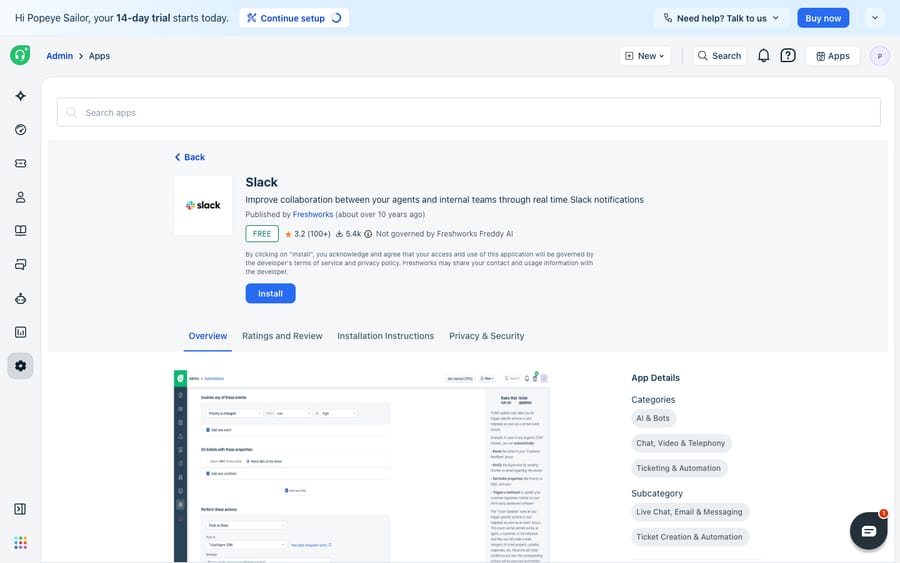
The integration is a marketplace app, published by Freshworks itself, and it's free. Per the official Slack app documentation:
- Log in to Freshdesk as an administrator (a plain agent account can't install marketplace apps).
- Click the Marketplace icon in the top-right, then Marketplace Apps.
- Search for Slack and click to enable the app.
- When prompted, authorize your Slack account — use one with admin privileges and access to the channels you want, because that authorization scope determines which channels Freshdesk can post to.
- Select the channels the helpdesk should reach. The app lets you pick up to 20 public and 20 private channels.
- Toggle the features you want: "Allow DM to agent" and "Allow slash command."
- Click Update.
A quick reality check on plans: the Slack app is available on Growth, Pro, and Enterprise — not the Free/Sprout tier — for both Freshdesk and Freshdesk Omni. If your Marketplace search comes up empty, your plan (or your role) is usually the reason.
Step 2: Turn Slack DMs into tickets with a slash command
This is the inbound half people miss. Once "Allow slash command" is enabled, agents can create a Freshdesk ticket straight from a Slack conversation using /create_fd_ticket. It's genuinely useful when an internal teammate reports a problem in a DM that really should be tracked as a ticket rather than lost in a thread.
A few specifics worth knowing before you rely on it:
- Each agent has to run a one-time authorization — from their Freshdesk agent profile settings, they click "Authorize Slack" to link their identity. Without it, the command won't create tickets under their name.
- Running
/create_fd_ticketon a DM pulls in, by default, the previous 200 messages of context. - You can cap that with an argument:
/create_fd_ticket 70grabs only the last 70 messages. - Only text content is carried over; files come through as clickable links, not attachments.
- Note the regional caveat — the slash command is documented as available in the North American region only, so confirm it against your own account before promising the workflow to your team.
Step 3: Control what reaches Slack with automation rules
The install screen gets you connected; automation rules are where you decide what actually shows up in Slack and where. This is the difference between a channel that's genuinely useful and one everyone mutes on day two. Notifications are driven by Freshdesk's own automation engine, not a settings panel in the app.
- To post when a new ticket is created: Admin → Workflows → Automations → Ticket creation tab → New rule, add your conditions (priority is Urgent, group is Tier-2, etc.), and set the action to notify Slack in the channel you choose.
- To post on updates: Admin → Workflows → Automations → Ticket updates tab → New rule, scoped to the events you actually care about — a status change to Escalated, say, rather than every single edit.
One practical formatting tip from the docs: when you write custom notification messages, use the text-only dynamic variables — {{ticket.description_text}}, {{ticket.latest_public_comment_text}}, and {{ticket.latest_private_comment_text}} — rather than their HTML-bearing equivalents, or your Slack messages arrive full of raw markup. Because you're using the full automation engine, you get its full targeting power: route Urgent tickets to an incident channel, VIP-company tickets to an account channel, and leave everything else out of Slack entirely. That routing-by-rule mindset is the same one that underpins automating Freshdesk with AI more broadly.
Native app vs. middleware vs. a third-party sync tool
When the native app runs out of road, you have three broad options. They trade off cost, depth, and maintenance very differently.
| Approach | Best for | Two-way depth | Cost / gating |
|---|---|---|---|
| Native Freshworks Slack app | Outbound notifications + slash-command ticket creation | Partial: DM→ticket in, Freshdesk reply→Slack message out | Free; Growth/Pro/Enterprise only |
| Middleware (Zapier, Pipedream, Make) | Custom event→action wiring without code | As deep as you build it, event-by-event | Per-task/usage pricing; you own the logic |
| Dedicated sync tool (e.g. ClearFeed) | True bidirectional threads, field edits from Slack, auto-ticketing | Deep, but configured in the partner's product | Paid tier; separate account required |
The honest note on that last column: the deep field-mapping and bidirectional configuration lives in the third-party product's own account, not inside Freshdesk. You can't set it up from the Freshdesk Marketplace listing alone — the marketplace page shown above is where you install and read about the app, not where a live two-way sync is configured. If a vendor promises "full two-way sync," expect a separate subscription and a separate admin console.
The honest limits — and where an AI layer fits
Credit where it's due: the native Slack app is free, published by Freshworks, and does its core job well. For most teams, "Urgent tickets ping the on-call channel, and agents can spin a DM into a ticket" is 80% of the value with zero extra spend. Don't reach for a paid tool before you've actually hit the native ceiling.
But it's worth naming that ceiling honestly. The native integration is a messaging bridge — it tells people a ticket exists, or lets someone file one. It does not do the reasoning: it can't read the ticket, decide the priority is wrong, pull the customer's order status, or draft the reply. Every Slack notification still resolves to a human going back into Freshdesk to actually do the work. And the "two-way" replies it does support are notifications about activity, not a true synchronized mirror you can trust as a system of record.
That's the seam where an AI agent layer sits — and it's worth thinking through the build-versus-buy tradeoff before adding one. The wider category of AI agents for customer service exists to do the reasoning-heavy part a notification bridge can't. Macha is one such layer: it runs on top of the Freshdesk you already use as a native connector — it does not replace your help desk, and it isn't a Slack app either. You connect Macha to Freshdesk with your subdomain and API key, and it reads and writes the same tickets your Slack notifications point at: triaging by intent, drafting or posting grounded replies, and looking up order or account status through a custom tool that turns a REST API into something the agent can call. So the Slack ping stops being "someone go handle this" and becomes "this is already drafted, approve it."
Two honest boundaries: Macha's connector is for Freshdesk specifically — not Freshchat, Freshservice, or Freshcaller — and credits are consumed per AI action, not per resolution, which the pricing page breaks down. Keep the native Slack app for the human-to-human collaboration it's built for; layer an agent on top for the actual answering the app was never designed to do.
FAQ
Does the Freshdesk Slack integration support true two-way sync? Partially. The native app pushes rich notifications from Freshdesk into Slack and supports two inbound paths — creating a ticket from a Slack DM with /create_fd_ticket, and pushing a Freshdesk reply or private note back to a Slack channel. It does not natively support editing ticket fields from Slack, priority routing, or SLA escalation; those require a third-party tool like ClearFeed or middleware such as Zapier or Pipedream.
How do I create a Freshdesk ticket from Slack? Enable "Allow slash command" during setup, have each agent authorize Slack from their Freshdesk agent profile, then run /create_fd_ticket in a Slack DM. It pulls the previous 200 messages by default; add a number (e.g. /create_fd_ticket 70) to limit it. Note the slash command is documented for the North American region only.
Which Freshdesk plans include the Slack app? The Slack app is available on the Growth, Pro, and Enterprise plans for both Freshdesk and Freshdesk Omni. It is not available on the Free/Sprout tier, and you must be an administrator to install marketplace apps.
How do I control which tickets trigger a Slack notification? Through Freshdesk's automation engine, not the app itself. Go to Admin → Workflows → Automations → Ticket creation (or Ticket updates) → New rule, set conditions like priority or group, and target a specific channel — so only the tickets you care about reach Slack.
Can I add AI to the Freshdesk–Slack workflow without replacing Freshdesk? Yes. An AI agent layer like Macha connects to Freshdesk as a native connector and runs on top of your existing help desk. It doesn't replace Freshdesk or the Slack app — it does the reasoning the notification bridge can't, drafting or sending grounded replies and looking up data, while your Slack notifications and automation rules stay exactly as they are.
Ready to turn Slack pings into answers instead of to-dos? Start a free trial of Macha and connect it to your Freshdesk in minutes.
Add AI agents to your Freshdesk
Macha reads the ticket, drafts the reply and takes the action, inside the Freshdesk you already run.