



 Intercom
 Shopify
 Stripe
 Slack
Slack Notion
 Google Workspace
 Confluence

How Does the Freshdesk Ticketing System Work? Statuses, Views and Automations (2026)


Freshdesk turns every email, chat, call and form into a ticket, and nearly every other feature (views, filters, SLAs, automations, Freddy AI) exists to create, sort or act on that ticket. Learn the ticket and its four statuses and the rest of the workspace makes sense.
Key takeaways
- The Freshdesk ticketing system moves every ticket through four default statuses, Open, Pending, Resolved and Closed, and any customer reply sends a ticket back to Open.
- Freshdesk's current documentation names its three automation rule types Ticket Creation, Ticket Updates and Hourly Triggers, replacing the older Dispatch'r, Observer and Supervisor names.
- Freshdesk Hourly Triggers scan tickets once every hour and only match tickets updated in the last 30 days, so any time condition must be one hour or longer.
- Freshdesk's Priority field is hard-coded to Low, Medium, High and Urgent because SLA policies depend on it, while the Source field holds 13 default channel values.
- Freshdesk's pricing page lists Growth at $19, Pro at $55 and Enterprise at $89 per agent a month billed annually, with Freddy AI Copilot a $29 add-on on Pro and Enterprise.

The Freshdesk ticketing system turns every email, portal form, chat, call and social message into one object, a ticket, which moves through four default statuses (Open, Pending, Resolved, Closed) and is acted on by three kinds of automation rule: Ticket Creation, Ticket Updates and Hourly Triggers. Freshworks' own docs now use those three names for the engines older guides call Dispatch'r, Observer and Supervisor. Mechanics below are checked against Freshdesk's documentation and the pricing page on 24 September 2026; Freshworks revises its UI periodically, so confirm labels in your own account. If you're weighing Freshdesk against Zendesk, the Zendesk ticketing system explained is the matching deep-dive; the two products use different names for similar ideas.
| Part | What Freshdesk gives you |
|---|---|
| Statuses | Open, Pending, Resolved, Closed, plus custom statuses (Growth and up) |
| Priority | Low, Medium, High, Urgent; hard-coded because SLA policies depend on it |
| Source | 13 default channel values, set automatically, not editable |
| Ticket list layouts | Card, Table, Inbox; 30, 50 or 100 tickets per page |
| Automation rules | Ticket Creation, Ticket Updates, Hourly Triggers (formerly Dispatch'r, Observer, Supervisor) |
| Plans | Growth $19, Pro $55, Enterprise $89 per agent a month, billed annually |
| AI | Freddy AI Copilot, $29 per agent a month on Pro and Enterprise |
What is a Freshdesk ticket, and why use ticketing at all?
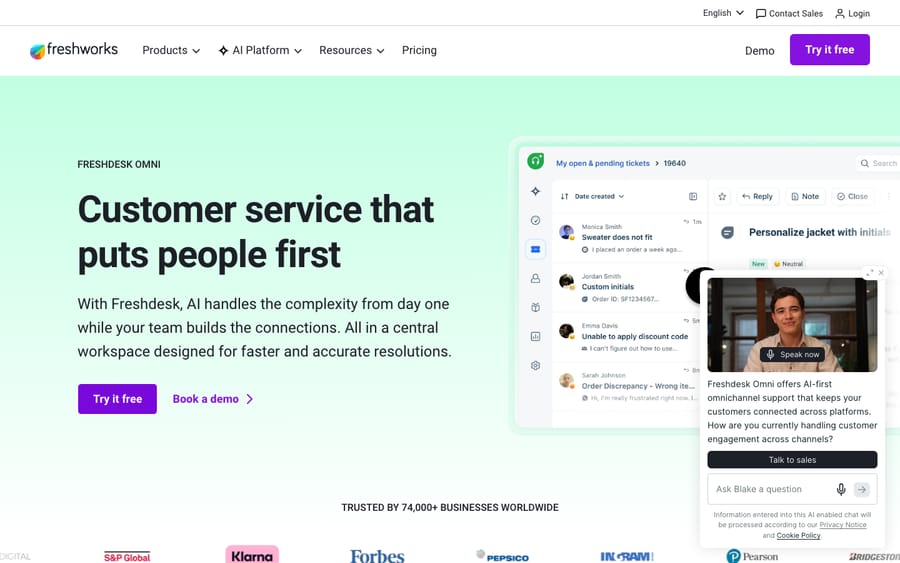
A ticket is a single record of one customer's request, with all its context attached: who asked, what they need, the full back-and-forth, who's handling it, how urgent it is, and where it stands. When someone emails [email protected], fills out a form on your portal, starts a chat, calls, or DMs you on social, Freshdesk turns that interaction into a ticket.
Why wrap a customer email in all this structure? Because once you're past a handful of requests a day, a shared inbox falls apart:
- Nothing falls through. Every request becomes a tracked object with an owner and a status, so no more "I thought you had that one."
- You can route and prioritize. Tickets get sorted into groups, assigned to the right agent, and triaged by priority, instead of everyone reading every email.
- Context travels with the request. Full history, customer details, and private discussion live on the ticket, so anyone who picks it up is instantly caught up.
- You can measure the work. Volume, first-response time, resolution time, and CSAT all become reportable, which a plain inbox makes very hard.
That's the core idea: convert messy, multi-channel conversations into consistent records you can route, resolve, and measure.
Which channels create Freshdesk tickets?
One of Freshdesk's strengths is that requests from very different places all become the same kind of object. A ticket can be created from:
- Email: forward or connect your support mailbox and every inbound email becomes a ticket. This is still the most common source for most teams.
- The support portal: a customer-facing help center where people submit a ticket through a web form (and search your knowledge base first).
- Chat / messaging: the Freshchat widget on your site or app; conversations land as tickets in the same workspace.
- Phone: Freshcaller/Freshdesk telephony logs calls (and voicemails) as tickets.
- Social: Facebook, Instagram, and WhatsApp messages and mentions can flow in as tickets.
- API: create tickets programmatically from your own app, an order system, or another tool.
How Freshdesk records where a ticket came from is the Source field, which has 13 default choices that are auto-populated by the channel and can't be edited or deleted, only reordered. The payoff of all these channels feeding one system: your agents work email, chat, phone, and social side by side, in one queue, with one set of tools.
What does the Freshdesk Tickets workspace look like?
Everything an agent does starts on the Tickets tab. Its job is simple to state: show every ticket in the account, then let you narrow that list down until you're looking at exactly the work in front of you. Per Freshworks' Understand the Ticket List View documentation, the workspace is built from four moving parts that all point at the same underlying list: the views selector, the layout switcher, the sort control, and the Filters panel.
Layouts and sorting: how the same list is displayed
The list can be shown three ways, and the choice is purely about how much you want to see at a glance:
- Card: the default layout, which surfaces only the most important fields per ticket in a scannable stack.
- Table: a spreadsheet-style grid where Contact and Subject are fixed columns and you customize the rest. Best for triage at volume.
- Inbox: a mailbox-style experience for agents who think in email.
On top of the layout sits a sort control (created date, priority, due-by, and so on) and a page-size selector offering 30, 50, or 100 tickets per page once you cross 30 (the choice is local to the agent and resets each session). None of this changes which tickets you see; that's the filters' job.
Views: saved filters that shape the queue
A view is the single most important organizing concept in the workspace, because it's how a shared queue stops being chaos. A view is a saved set of filters with a name, and Freshdesk sorts them into folders you reach from the Ticket Views selector:
- Default: pre-built views everyone gets, like My Open and Pending Tickets and Urgent and High-Priority Tickets.
- Personal: views you build and keep to yourself.
- Shared: views published to All agents, so the whole team works from the same cut of the queue.
- Favourites: up to five views you pin for one-click access.
Alongside those sit Trash, Spam, and Archive folders for tickets that have left the active queue. To build your own view you apply filters, then hit Save view or Save view as, name it, and set visibility to Just me (Personal) or All agents (Shared).
One plan note, because the documentation's wording is dated: support article 37559 says custom ticket views are "available from the Growth plan." That line was written when a free tier sat below Growth. Freshworks' current pricing page publishes three paid tiers and no free plan: Growth $19, Pro $55 and Enterprise $89 per agent a month billed annually (checked 24 September 2026), with a 14-day trial of Enterprise. Growth is the entry plan, so every current paid subscription can create custom views. Freshworks does run a separate Free program covering up to 2 agents for 6 months, which is not listed as a plan. If you want the full walkthrough of building and sharing them, Freshdesk ticket views explained goes step by step.
Filters: carving the list down to the work in front of you
If views are the saved cuts, filters are the knife. The Filters panel lives on the right edge of the Tickets tab. Freshworks documents a wide filter set: Agents and Groups (who owns the work), the core ticket properties (Priority, Source, Type, Status), any custom dropdown and dependent fields your admin created, Contacts and Companies so you can pull every ticket from one customer, and the channel a ticket arrived on. There's a full row of date range filters too (Created, Closed at, Resolved at, Resolution due by), which is how you answer "what did we close in the past hour?" On plans that include it, a Sentiment filter adds Freddy's predicted read of how the customer feels.
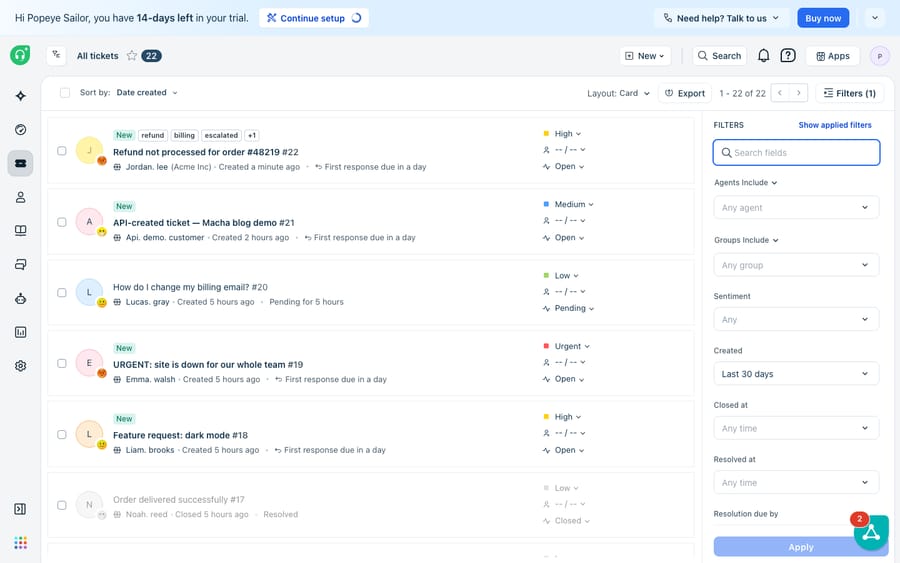
Views and filters compose neatly. Open a Default view and the Filters panel shows only the filters that view already applies, and you layer more on top from there. Once you have a cut you like, save it and it's reusable forever. That loop of filter, save, share is what keeps a multi-agent queue sane.
What are the Freshdesk ticket statuses?
A typical ticket moves through a clear lifecycle defined by its status. By default, every Freshdesk ticket has one of four statuses: Open, Pending, Resolved, Closed (Freshdesk docs):
- Open. The default status when a ticket is created. It means the request needs attention from your team. Freshdesk's docs say that any time a customer responds to a ticket, it moves back to Open so it doesn't get lost.
- Pending. The agent has replied and is waiting on the customer for more information. Freshdesk describes Pending as useful to halt your SLA timers, so you're not penalized for time spent waiting on the customer.
- Resolved. The agent is reasonably sure they've fixed the issue. Freshdesk defines it as completed according to the agent. It sits in Resolved as a "soft close" until the customer accepts, or until an Hourly Trigger closes it; Freshdesk's docs cite 72 hours as the standard practice and use 48 hours in their automation example.
- Closed. Completed according to the customer: the solution was accepted. Unlike some systems, a Closed Freshdesk ticket reopens to Open if the customer replies again, so "closed" isn't a permanent lock.
Beyond the four defaults, admins on Growth and up can add custom statuses (for example "Waiting on third party") with customer-facing labels, and mark each as an SLA OFF status or not, which decides whether the SLA clock runs. The key mental note for anyone coming from Zendesk: Freshdesk says Resolved, not "Solved," and tickets start at Open rather than a separate "New" state. For each status in depth, including the threading rule that decides whether a late reply reopens the old ticket or forks a new one, see Freshdesk ticket statuses explained.
Status is the thread running through everything else: it's a filter in the workspace, a field in the properties pane, and the spine of the lifecycle, all at once.
Which fields make up a Freshdesk ticket?
Open any ticket and you land in the ticket details view, with the conversation on the left (the full history of customer replies, agent responses, and internal notes, sortable oldest- or newest-first) and the properties panel on the right. That panel holds the fields that drive routing, automation, SLAs, and reporting, plus the live SLA timers counting down first-response and resolution deadlines.
It's worth seeing the panel for what it is: the write side of the same data the list view reads. Bump priority to Urgent and the ticket climbs your Urgent and High-Priority view; reassign the group and it drops out of your filter and into someone else's. Here's each part in plain English.
People on the ticket
- Requester / Contact. The customer the ticket is for. There's one requester per ticket, and they're who replies and CSAT surveys go to. (Contacts can belong to a Company, which lets you report and set SLAs at the account level.)
- Agent (Assignee). The person responsible for resolving it. A ticket can sit in a group with no individual agent yet, but a clear owner is what stops things stalling.
- Group. The team the ticket belongs to: Billing, Tier 1, Technical. Groups are how you route work to the right pod before (or instead of) naming a person.
The content of the request
- Subject: the one-line summary that shows in views and search. Clear subjects make queues scannable.
- Description: the requester's original message; the opening of the conversation thread.
- Reply vs. Note. This is the single most important distinction for a new agent. A Reply is sent to the customer. A Note (private note) is visible only to agents and is never sent to the customer; it's for behind-the-scenes coordination. Notes are visually distinct precisely because confusing the two is how private remarks accidentally reach customers. You can also add a public note when collaborating with the requester. When in doubt, check which tab you're in before you send.
The classification fields
These don't change the conversation; they describe and sort it, and they're what your automations and reports run on.
- Status: Open, Pending, Resolved, Closed, plus any custom statuses, covered above.
- Priority: how urgent the ticket is: Low, Medium, High, Urgent. This field is hard-coded and can't be edited because it's tied directly to SLA policies. Your SLA targets key off priority, so setting it consistently is what makes SLAs meaningful.
- Type: what kind of work it is (Question, Incident, Problem, Feature Request, Refund). Unlike Priority, the Type values are a customizable dropdown you can tailor to your business.
- Tags: free-form labels (
refund,vip,bug) added manually, by automations, or by AI. Tags are the connective tissue of automation: rules fire on them, views filter by them, reports group by them. - Custom fields & forms. Fields you add to capture data the standard ones don't — order number, plan tier, product line. A ticket form is a collection of fields with a flow, and you can run different forms for different request types. Custom field limits differ by plan (for example 80 dropdown fields on Growth, 250 on Pro and Enterprise on request). On the Pro plan and up, Dynamic Sections reveal extra fields only when a particular dropdown option is selected, keeping forms tidy.
A useful mental model: people (requester, agent, group) say who; content (subject, description, replies and notes) says what; classification (status, priority, type, tags, custom fields) says how to handle and measure it.
How do Freshdesk automations work?
Here's where Freshdesk's terminology diverges from other help desks, and where new admins get tripped up. Freshdesk has three types of automation rule, each defined by when it runs, all managed under Admin > Workflows > Automation Rules (Freshdesk automation docs). The current docs call them Ticket Creation, Ticket Updates and Hourly Triggers; many admins and older guides still use the legacy names Dispatch'r, Observer and Supervisor, so both appear below.
- Ticket Creation (Dispatch'r): runs when a ticket is created. This is your intake triage. When a new ticket arrives, these rules can set priority, assign a group or agent, add tags, and send notifications, all before a human touches it, and can delete spam and out-of-office emails before they reach the list. You choose whether the first matching rule or all matching rules run. Think "if subject contains refund, set type to Refund and route to Billing."
- Ticket Updates (Observer): runs on ticket events. These rules react to things that happen to an existing ticket: a customer replies, an agent adds a note, a field changes. For example, "when a private note is added, move the ticket to Pending," or "when priority changes to Urgent, notify the team lead." All matching rules run, top to bottom. The community's one-line summary: creation rules fire once at creation; update rules fire on any later event.
- Hourly Triggers (Supervisor): run on a time schedule. These rules scan tickets once every hour and act on time-based conditions, so any time limit must be one hour or more, and they only match tickets updated in the last 30 days: "if a ticket has been Open and untouched for 24 hours, escalate it," or "close Resolved tickets after 48 hours if the customer hasn't responded." This is your safety net for tickets going stale.
On top of those three, Scenario Automations are a different animal: a one-click bundle an agent applies manually. A scenario can run several actions at once (insert a canned response, set the priority, change the status, add tags, assign a group), so a common multi-step response becomes a single click. The three rule types are automatic; scenarios are agent-triggered. All four are covered rule by rule in Freshdesk automations explained.
There's also the SLA policy engine layered over all of this: timed targets (first response within an hour, resolution within a day) measured against fields like priority, with reminders and escalations when a target is at risk. Because SLAs key off priority and halt on Pending, clean classification and the right status directly drive whether you hit your targets.
How do agents collaborate on a Freshdesk ticket?
A ticket isn't a solo effort, and Freshdesk has built-in tools so a team can work the same queue without stepping on each other:
- Private notes keep the internal discussion attached to the ticket instead of scattered across Slack or email.
- Canned responses are saved, pre-written replies for common questions, the building blocks scenario automations reuse.
- Agent collision detection warns you when another agent is already viewing or replying to a ticket, so two people don't send duplicate answers to the same customer.
- Shared ownership and collaborators let other agents or teams contribute to a ticket without taking it over, and that side conversation stays on the ticket.
The throughline: build clean tickets (good fields, consistent tags) and every one of these tools (collision detection, canned responses, views, SLAs) works better, because they all read from the same record.
Where does Freddy AI fit on the ticket?
Everything above is the manual, human version of ticketing. Freshdesk's native AI, Freddy AI, adds two layers on top, but note the plan gate: the agent-assist features sit on the Pro and Enterprise plans, and Freddy AI Copilot is priced as a $29 per-agent-per-month add-on on those tiers on Freshworks' pricing page (checked 24 September 2026).
- Freddy AI Copilot is agent assist inside the ticket: it summarizes long threads for quick handovers, suggests replies, can adjust tone, translates, and suggests ticket fields like priority and type to cut manual triage.
- Freddy AI Agent (self-service) is a customer-facing bot that deflects common questions before they become a human-handled ticket. Each account gets 500 sessions as a one-time allowance, then $49 per 100 sessions.
A note on packaging: the full omnichannel-plus-AI experience is sold as Freshdesk Omni, which is priced separately from the core Freshdesk Support plans, so what's included depends on which product and tier you're on. For the full breakdown, see our Freshdesk pricing explained guide, and for the product overview, what is Freshdesk.
What can't the native ticketing system do?
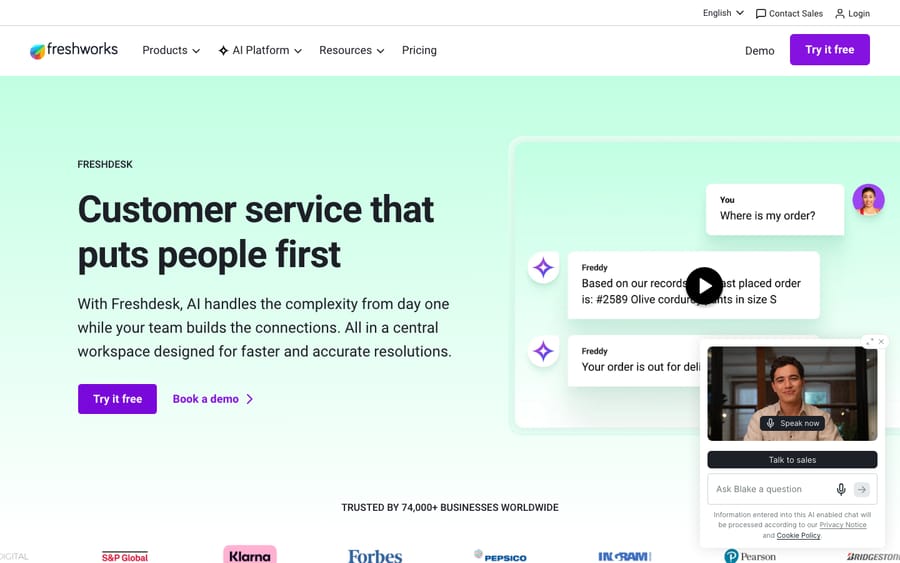
Give Freshdesk its due: as a system of record, the ticketing engine is excellent, and the views-and-filters model is a genuinely good way to keep a busy queue navigable. Nothing here needs replacing. But notice the shape of what it does. Everything above organizes and displays work — sorting, filtering, tagging, tracking state. A view surfaces your ten most urgent tickets in a second; reading them and drafting the replies that move them from Open to Resolved is still a person's job. The properties panel holds a priority, but the correct priority has to be decided from the content of the message, and if intake mislabels an outage as Low the whole system faithfully files it in the wrong view. And when a ticket boils down to "where's my order?", the answer lives in another system.
That's the seam an AI agent layer fills. Macha is one: it runs on top of the Freshdesk you already use as a native connector (it also runs on Zendesk, Freshdesk, Gorgias, Front, HubSpot or Intercom), and it is not a help desk and not a Freshdesk replacement. You connect it with your subdomain and API key, and it reads and writes the same tickets your views already list: triaging by intent so type, priority and group land correctly before an agent opens the ticket, drafting grounded replies for approval, resolving routine tickets end to end, and looking up order or account status through a custom tool that turns one of your own REST APIs into something the agent can call. Anything it can't confidently handle stays a normal ticket for a human, with the context attached. It's another integration to configure, and it's only as good as the knowledge you connect to it. Pricing is one plan based on monthly ticket volume, from $299 a month for up to 750 tickets, billed per ticket rather than per message, with setup and monitoring by the Macha team included, and $50 of free usage to try it with no credit card. The broader category, and how these tools differ, is covered in AI agents for customer service.
What mistakes do new Freshdesk teams make?
A few traps catch nearly every new Freshdesk team:
- Sending a private note as a reply, or the reverse. Always confirm whether you're in the Reply or Note tab before sending. Highest-stakes mistake on the list.
- Putting a rule in the wrong automation type. If a rule "isn't firing," it's usually in the wrong tab: Ticket Creation only runs at creation, Ticket Updates only on events, Hourly Triggers only on the hourly sweep of tickets updated in the last 30 days.
- Treating Resolved like a permanent close. A Resolved or Closed ticket moves back to Open the moment the customer replies. Don't be surprised when "done" tickets pop back into the queue.
- Leaving everything at default priority. Priority drives SLAs; flat "Low" or "Medium" across the board guts your SLA reporting. Even light, consistent triage pays off fast.
- Tag sprawl. Free-form tags get messy quickly. Agree on a small, documented tag vocabulary early.
- Working out of All Tickets. Agents who never build a personal view end up re-filtering the same queue twenty times a day. Save the cut, favourite it, move on.
- Letting the Open queue pile up. A growing unassigned-Open pile means intake isn't being triaged. A simple Ticket Creation rule to route new tickets to the right group keeps things flowing.
Frequently asked questions
What is a Freshdesk ticket? A ticket is a single record of one customer's request, with all its context attached: the requester, the full conversation, the assigned agent, and classification fields like status, priority, type, and tags. Every email, chat, form submission, call, or social message to your support team becomes a ticket so it can be tracked, routed, resolved, and measured.
What is the Freshdesk ticket system? It's the connected set of surfaces Freshdesk uses to manage those requests: the Tickets workspace that lists every ticket, the views and filters that organize that list, the properties pane where agents read and change metadata, and the Open-to-Closed lifecycle. They behave as one system because they all read and write the same underlying tickets.
What are the Freshdesk ticket statuses? By default there are four: Open (needs attention), Pending (waiting on the customer; SLA timers halt), Resolved (the agent believes it's fixed, a soft close), and Closed (done and acknowledged). Any customer reply moves a ticket back to Open. Admins on Growth and up can add custom statuses and mark each as SLA on or off.
What's the difference between a view and a filter in Freshdesk? A filter narrows the ticket list in the moment: by agent, group, priority, status, channel, date range and more. A view is a saved, named set of filters you can reuse and share, sorted into Default, Personal, Shared and Favourites folders, with up to five favourites pinned.
Which Freshdesk plan do I need for custom views? Every current paid plan. Growth is $19 per agent a month billed annually. The support documentation says custom views are available "from the Growth plan," which was written when a free tier sat below Growth; Freshworks now publishes only Growth, Pro and Enterprise, so Growth is the entry plan.
What ticket layouts does Freshdesk offer? Three: Card (the scannable default), Table (a spreadsheet-style grid with Contact and Subject fixed and the other columns customizable), and Inbox (a mailbox-style view). Once a list runs past 30 tickets you can show 30, 50, or 100 per page.
What's the difference between Dispatch'r, Observer, and Supervisor? They're the legacy names for Freshdesk's three automation rule types, which the current docs call Ticket Creation, Ticket Updates and Hourly Triggers. Ticket Creation (Dispatch'r) runs once when a ticket is created. Ticket Updates (Observer) runs on events like a reply, note, or field change. Hourly Triggers (Supervisor) scan tickets once every hour to catch time-based conditions like tickets going stale. Scenario Automations are different again: a one-click bundle an agent applies manually.
How are tickets created in Freshdesk? From email, the support portal (web form), chat and messaging, phone, social channels including Facebook, Instagram and WhatsApp, and the API. The Source field records which channel a ticket came from and is set automatically.
Does Freshdesk have AI on tickets? Yes, Freddy AI. Freddy AI Copilot is agent assist inside the ticket (thread summaries, suggested replies, tone adjustment, suggested fields), sold as a $29 per-agent-per-month add-on on the Pro and Enterprise plans. Freddy AI Agent is a customer-facing bot that deflects common questions, with 500 sessions one-time and then $49 per 100 sessions. You can also layer a third-party AI agent on top to auto-triage and resolve routine tickets.
Is the Freshdesk ticketing system the same as Zendesk's? The concepts are similar but the terminology differs. Freshdesk uses Resolved (not "Solved"), starts tickets at Open rather than a separate "New" status, and splits automation into Ticket Creation / Ticket Updates / Hourly Triggers rather than triggers and automations. See the Zendesk ticketing system explained for the side-by-side.
Does Freshdesk have a free plan? Not on the pricing page, which lists Growth, Pro and Enterprise plus a 14-day trial. Freshworks runs a separate Free program for up to 2 agents for 6 months.
What should a new Freshdesk admin set up first?
The Freshdesk ticketing system looks busy, but it rests on one object: the ticket. A request from any channel becomes a ticket, gets classified and routed, and moves through Open, Pending, Resolved, Closed, returning to Open if the customer replies. The Tickets workspace (layouts, views, filters) is how agents cut that pile into today's work; the properties panel is the write side of the same data; and three automation rule types plus SLAs and Freddy AI all read from that same record. Set the fields consistently and the whole system starts working for you. From here, go deeper on what Freshdesk is, Freshdesk pricing, and the Zendesk equivalent if you're comparing the two. If the queue is moving too slowly to clear by hand, start a trial and let an agent layer take the repetitive half of it.
Freshdesk ticketing mechanics checked against Freshworks' official documentation and pricing page, 24 September 2026. Freshworks updates its product periodically; confirm specifics in your own account before relying on them.
Sources: Understand the ticket list view, Cases in which the SLA does not run, Understand and customize ticket fields, Understand and use ticket forms, Overview of automation rules, Overview of Freddy AI for ticketing, Freshdesk pricing.
Add AI agents to your Freshdesk
Macha reads the ticket, drafts the reply and takes the action, inside the Freshdesk you already run.





