



 Intercom
 Shopify
 Stripe
 Slack
Slack Notion
 Google Workspace
 Confluence

How Do You Create Tickets and Automations in Freshdesk? (2026 Guide)


Freshdesk turns every email, portal form, chat, call, social message and API request into a ticket, then automates it with three rule types: Ticket Creation, Ticket Updates and Hourly Triggers. Those rules are on every plan, while round-robin assignment needs Pro and skill-based routing needs Enterprise.
Key takeaways
- Freshdesk automates tickets with three rule types under Admin > Workflows > Automation Rules: Ticket Creation (Dispatch'r), Ticket Updates (Observer) and Hourly Triggers (Supervisor).
- Freshdesk Hourly Triggers scan all tickets once every hour, so any time condition in those rules must be at least one hour long.
- The Freshdesk pricing page lists round-robin and load-balanced assignment on Pro and Enterprise, and skill-based ticket assignment on Enterprise only.
- Freshdesk's own example auto-close rule closes a Resolved ticket after 48 hours with no customer reply, using an Hourly Trigger.
- Freddy AI Copilot costs $29 per agent a month as an add-on on Freshdesk Pro and Enterprise, and extra Freddy AI Agent sessions cost $49 per 100.

Freshdesk creates a ticket from every inbound email, portal form, chat, call, social message or API call, and you automate those tickets under Admin > Workflows > Automation Rules with three rule types: Ticket Creation, Ticket Updates and Hourly Triggers. Veteran admins still call them Dispatch'r, Observer and Supervisor. All three rule types exist on every Freshdesk plan, including the Free program; round-robin assignment needs Pro and skill-based routing needs Enterprise (Freshdesk pricing, checked 24 September 2026).
| Rule type (classic name) | Runs when | Example | Plans |
|---|---|---|---|
| Ticket Creation (Dispatch'r) | Once, when a ticket is created | Subject contains "refund" → Group = Billing | All plans |
| Ticket Updates (Observer) | On events: reply, note, field change | Customer replies to Resolved → reopen | All plans |
| Hourly Triggers (Supervisor) | Once every hour, on time conditions | Resolved 48+ hours, no reply → Closed | All plans |
| Round-robin / load-balanced assignment | As tickets reach a group | Spread Tier 1 tickets evenly | Pro, Enterprise |
| Skill-based assignment | As tickets reach a group | Route Spanish tickets to Spanish speakers | Enterprise |
First comes how tickets get created, because automation only works on tickets that exist. Then the automation engine itself, with example rules you can copy, which plan each lives on, and the pitfalls that trip up new admins. Mechanics are checked against Freshworks' documentation (last modified 14 January 2026); Freshworks renames this area periodically, so confirm the exact labels in your own account. For the underlying mechanics, our Freshdesk ticketing system explained is the companion deep-dive.
How do tickets get created in Freshdesk?
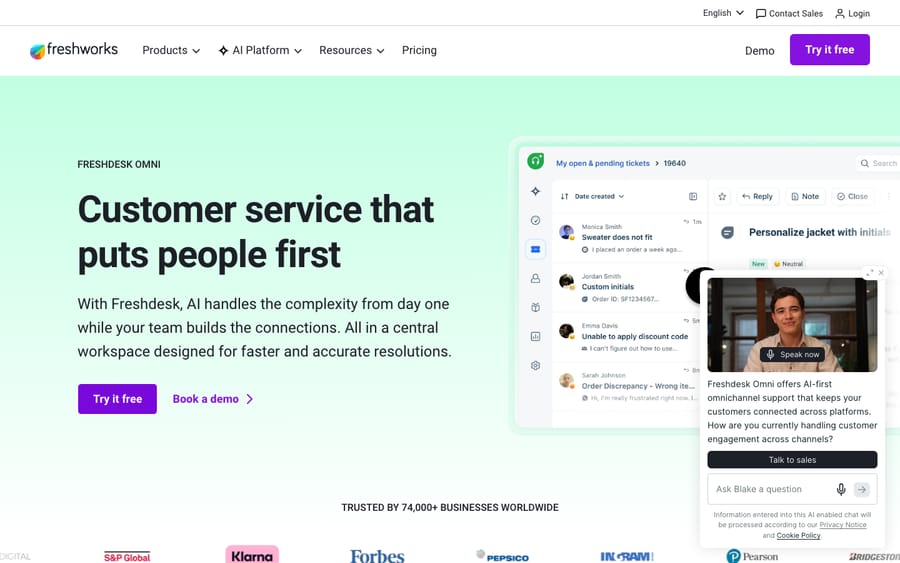
A ticket is a single record of one customer request, with the whole conversation and its properties attached. Freshdesk turns inbound contact from very different places into that same object. There are six common ways a ticket gets created:
- Email. Connect or forward your support mailbox (e.g. [email protected]) and every inbound email becomes a ticket. This is still the number-one source for most teams.
- Support portal (web form). Your customer-facing help center has a "Submit a ticket" form. Customers fill in fields you define, and it lands as a ticket, often after they've searched your knowledge base first.
- Chat / messaging widget. The embedded widget on your site or app turns live conversations into tickets in the same workspace.
- Phone. Freshdesk's telephony logs calls and voicemails as tickets.
- Social. Facebook, Instagram, and WhatsApp messages and mentions can flow in as tickets.
- API. Create tickets programmatically from your own product, an order system, or another tool, which is handy for proactive alerts ("your order failed → open a ticket").
There's also the manual route: an agent clicks New ticket in the agent workspace to log a request that came in some other way (a hallway conversation, an escalation from sales). However it's created, Freshdesk records the channel in the read-only Source field, which your rules and reports can key off. The payoff: email, chat, phone, and social all funnel into one queue your agents work side by side.
How does the Freshdesk automation engine work?
The naming has shifted, which is where most of the confusion comes from. For years Freshdesk split automation into three engines defined by when they run:
- Dispatch'r: runs once, the moment a ticket is created.
- Observer: runs on a ticket update / event (a reply, a note, a field change).
- Supervisor: runs on a time schedule, scanning all tickets once every hour.
Those classic names are still everywhere: in older docs, in community threads, and in the vocabulary of every experienced admin. In the current Admin > Workflows > Automation Rules page, each type has its own tab, plus a Templates button for common rules and a Reorder button once you have more than one rule enabled (Overview of Automation Rules):
| Classic name | Current UI tab | Runs when | Execution order |
|---|---|---|---|
| Dispatch'r | Ticket Creation | Once, at ticket creation | Your choice: first matching rule or all matching rules |
| Observer | Ticket Updates | On any event/update to a ticket | All matching rules, top to bottom |
| Supervisor | Hourly Triggers | Once every hour | All matching rules, top to bottom |
Freshdesk's overview doc applies to the Free, Growth, Pro and Enterprise plans, so all three rule types are available everywhere. The conditions and actions you can use, and adjacent features like advanced routing, vary by plan. Treat the table as the shape of the system and check the specific action you want against your tier. (Freshdesk no longer lists a free plan on its pricing page; "Free" here is the Free program, which covers up to 2 agents for 6 months.)
A note on the "Workflow Automator." If you've read about a drag-and-drop Workflow Automator or an Orchestration Center, those are primarily Freshservice (Freshworks' IT service-desk product) features, not native Freshdesk, an easy thing to mix up given the shared branding (eesel). In Freshdesk for customer support, your automation toolkit is the three rule types above, plus Scenario Automations, SLA policies, and Freddy AI. We flag it because it's a common search, and it's better to say so than to send you hunting for a builder that isn't there.
Dispatch'r: rules that run on ticket creation
This is your front door. A Ticket Creation rule checks each new ticket against conditions and acts before a human sees it. A typical setup:
- Go to Admin > Workflows > Automation Rules and open the Ticket Creation tab.
- Click New rule (or start from a template) and name it descriptively (e.g. "Route refund requests to Billing").
- Set conditions: for example, Subject or Description contains "refund" (you can combine with channel, contact, company, etc.).
- Set actions: Set Type = Refund, Set Group = Billing, Add tag
refund, optionally Set Priority = High. - Order it. Enabled rules run top to bottom, and for this tab you choose whether only the first matching rule runs or all matching rules do. If you pick first match, put your most specific rules first.
Freshdesk's own examples for this tab include deleting spam, auto-replies and out-of-office emails before they reach your ticket list, and routing by the requester's timezone. Remember that creation rules only fire at creation. If you change the rule later, it won't retroactively re-triage tickets that already exist.
Observer: rules that run on ticket updates
Ticket Updates rules react to things that happen to a ticket already in your system. They're event-driven, so this is where you encode your follow-through. Examples you can build in the same way (the Ticket Updates tab):
- When a customer replies to a Resolved ticket → set Status back to Open and notify the assigned agent. (Freshdesk does some reopening natively, but a rule lets you add notifications and tags.)
- When Priority changes to Urgent → notify the team lead and add tag
escalated. - When an agent receives a negative satisfaction rating → notify the manager (one of Freshdesk's own examples).
- When the requester replies → trigger a webhook, for instance to text the assigned agent.
These rules start with an "involves any of these events" condition (reply added, note added, status changed, etc.), which is what makes them feel like real-time triggers.
Supervisor: time-based rules that run every hour
Hourly Triggers are your safety net for tickets going quiet. They scan all tickets once every hour and act on how long something has been true. Because they run hourly, any time limit you set has to be one hour or more. This is where two of the most valuable automations live, SLA escalation and auto-close:
- Auto-close stale Resolved tickets. If a ticket has been Resolved for 48 hours with no customer reply → set Status = Closed. That's Freshdesk's own example; many teams stretch it to 3 days. Either way it keeps your queues honest without nagging customers.
- Escalate aging Open tickets. If a ticket has been Open and untouched for 24 hours → raise Priority and notify the group lead. A simple version of SLA escalation.
- Nudge pending tickets. If a ticket has been Pending for 4 days → send the customer a reminder, and if still silent after a further period, auto-resolve.
Because these rules run on an hourly sweep, not instantly, don't use them for anything that must happen the moment an event occurs. That's the Ticket Updates tab's job.
How do SLAs, scenarios and automatic assignment fit in?
Three more pieces round out Freshdesk's automation, and they interlock with the rule engine:
- SLA policies set timed targets (first response within an hour, resolution within a day) measured against fields like priority, with automatic escalations when a target is at risk. SLAs pause while a ticket is Pending. Multiple SLA policies (different targets per customer type, shift or product) are a Pro and Enterprise feature on the pricing page. Because targets key off priority, consistent triage at intake is what makes SLAs meaningful.
- Scenario Automations are different from the three rule types: they're agent-triggered, not automatic. An agent clicks one scenario and Freshdesk runs a bundle of actions at once: insert a canned response, set priority, change status, add tags, reassign. Useful for a multi-step reply you do dozens of times a day.
- Automatic ticket assignment (Omniroute). Beyond "route to a group," Freshdesk can auto-assign tickets to individual agents using round-robin (even distribution), load-balanced (caps per agent), or skill-based (matches language/product expertise). The pricing page lists round-robin and load-balanced assignment on Pro and Enterprise, and skill-based assignment on Enterprise only (Freshdesk docs; round-robin setup). To turn it on: open the Group, enable automatic ticket assignment, and pick the method. Freshdesk then distributes tickets among available agents in that group.
A clean mental model: Dispatch'r decides where a ticket starts, Omniroute picks which agent, Observer reacts to what happens next, Supervisor catches what goes stale, and SLAs keep the clock honest over all of it.
Which Freshdesk automation rules should you build first?
If you only set up a handful of rules, make them these:
- Auto-assign by keyword/group (Ticket Creation). Subject contains "invoice"/"refund"/"charge" → Group = Billing, Type = Refund, tag
billing. Repeat per team. This alone empties most of your unassigned queue. - SLA escalation (Hourly Trigger + SLA policy). Open & untouched for X hours → raise priority + notify lead. Pair with an SLA policy so at-risk tickets surface before they breach.
- Auto-close (Hourly Trigger). Resolved for 48 hours with no reply → Closed. Reclaims your reporting from a pile of "soft-closed" tickets.
- Round-robin within a group (Omniroute, Pro and up). Enable round-robin on your Tier 1 group so new tickets spread evenly instead of landing on whoever grabs them first.
What can AI automation do that rules can't?
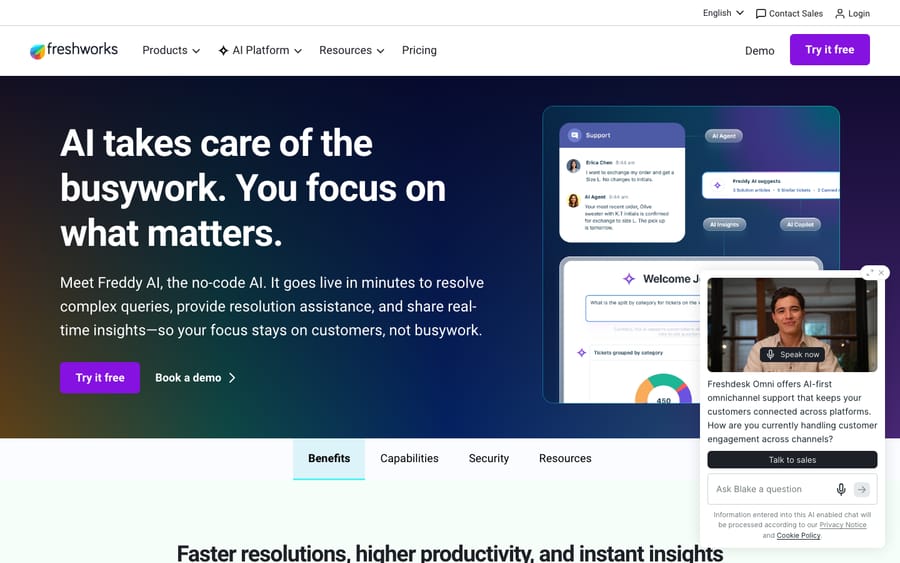
Rules are deterministic, and that's their strength and their ceiling. A Ticket Creation rule routes a ticket because the subject contains "refund"; it can't read a three-paragraph email, understand the customer actually wants to cancel and keep their data, and act on that. Freshdesk's own Freddy AI narrows the gap. Freddy AI Copilot is a $29 per agent a month add-on on the Pro and Enterprise plans; it suggests replies, summarizes threads, and recommends fields like priority and type. The Freddy AI Agent deflects common questions before they become a human-handled ticket: every plan gets 500 sessions as a one-time allowance per account, then it's $49 per 100 sessions.
Even so, there's a real line between routing and resolving. Rules and Copilot move tickets to the right place and draft text for a human to approve; they don't usually close a specific account question end to end. That's the layer an AI agent like Macha adds. Macha isn't a help desk and isn't a Freshdesk replacement: it runs on top of your existing ticketing on Zendesk, Freshdesk, Gorgias, Front, HubSpot or Intercom. Connected to your tickets and knowledge, agents can auto-triage incoming tickets (set type, priority, tags, route to a group), draft replies for approval, and resolve routine tickets autonomously inside the same ticket, while anything they can't confidently handle stays a normal ticket for a human, with full context attached.
It's another integration to configure, and it's only as good as the knowledge you connect to it. On cost, Macha bills per ticket: one conversation, charged once however much summarizing, tagging, routing, drafting or resolving it takes, never per "resolution," because a resolution is an outcome definition the vendor controls and a ticket is something you can count. Pricing is one plan by volume, from $299 a month for up to 750 tickets, with setup and monitoring by the Macha team included. If your Open queue or repetitive replies are the real bottleneck, that's the point where rules and built-in assist stop scaling. (The Zendesk version is described at Macha on Zendesk; the same model applies to Freshdesk.) The trial gives you $50 of free usage, no credit card and no time limit. For a Freshdesk-specific walkthrough, see how to automate Freshdesk with AI.
What are the best practices for Freshdesk automation rules?
- Name and document every rule. "Route refund → Billing" beats "Rule 7." Future-you (and your teammates) will thank you when something misfires.
- Triage at intake, escalate on time. A few creation-time routing rules plus a couple of hourly escalation/auto-close rules cover most of the value.
- Mind the order. Enabled rules run top to bottom; put specific rules above broad ones, and decide deliberately between "first matching rule" and "all matching rules" on the Ticket Creation tab.
- Keep a small, agreed tag vocabulary. Tags are the connective tissue rules and reports run on; free-for-all tagging breaks both.
- Test on a real ticket before trusting a rule in production: create a test ticket that should match and confirm it fires as expected.
Why isn't my Freshdesk automation rule firing?
- Wrong rule type. If a rule "isn't firing," it's usually in the wrong tab. Ticket Creation only runs at creation, Ticket Updates only on events, Hourly Triggers only on the hourly scan. A creation rule will never re-triage old tickets.
- Hunting for a "Workflow Automator." That visual builder is Freshservice's, not Freshdesk's. Use the three rule types instead.
- Expecting hourly rules to be instant, or setting them under an hour. Hourly Triggers run once an hour, so a "30 minutes" condition can't work. For instant reactions, use Ticket Updates.
- Flat priority. If everything is "Medium," SLAs and escalations are meaningless. Let creation rules set priority from real signals.
- Over-automating closes. Auto-close that's too aggressive frustrates customers who were mid-conversation. Give Pending/Resolved enough quiet time first.
- Assuming every action is on every plan. Rule types are on every plan, but round-robin (Pro), skill-based routing (Enterprise) and Freddy Copilot (Pro add-on) are gated. Check before you design around them.
Frequently asked questions
What is Freshdesk automation? Freshdesk automation is a set of rules that run when conditions are met and perform actions on tickets automatically: setting priority, assigning groups or agents, adding tags, sending notifications, escalating, or closing. It's split into rules that run on ticket creation (Dispatch'r), on ticket updates (Observer), and once an hour (Supervisor, now Hourly Triggers), plus SLA policies, agent-triggered Scenario Automations, and Freddy AI.
How do I create a ticket in Freshdesk? Tickets are created from email, the support portal web form, the chat widget, phone, social channels (Facebook, Instagram, WhatsApp), and the API, or manually by an agent clicking New ticket. The Source field records which channel each ticket came from automatically.
What is the difference between Dispatch'r, Observer, and Supervisor? They're Freshdesk's three automation rule types, defined by when they run. Dispatch'r runs once at ticket creation (intake triage). Observer runs on ticket updates: any event like a reply, note, or field change. Supervisor scans all tickets once every hour to catch time-based conditions like stale tickets. In the current UI they're the Ticket Creation, Ticket Updates, and Hourly Triggers tabs under Admin > Workflows > Automation Rules.
Does Freshdesk have a Workflow Automator? Not natively. The drag-and-drop Workflow Automator and the Orchestration Center are primarily Freshservice features (Freshworks' IT service-desk product). In Freshdesk, you build automation with the three rule types, Scenario Automations, SLA policies, and Freddy AI.
Can Freshdesk auto-assign tickets to agents? Yes, via Omniroute, at the group level. Methods include round-robin (even distribution), load-balanced (caps per agent), and skill-based (matches expertise). Round-robin and load-balanced assignment are on Pro and Enterprise; skill-based assignment is Enterprise only.
Which plan do I need for Freshdesk automations? The three rule types are on every plan, from Growth at $19 per agent a month (billed annually) up, and on the Free program. Multiple SLA policies and round-robin need Pro ($55); skill-based routing needs Enterprise ($89); Freddy AI Copilot is a $29 add-on on Pro and Enterprise. Confirm against your own account, as Freshworks adjusts plan packaging periodically.
How often do Freshdesk time-based rules run? Once every hour. Freshdesk's docs say the time limit in an Hourly Trigger should always be one hour or more, so use Ticket Updates for anything that must happen immediately.
Go deeper with the Freshdesk ticketing system explained and the full Freshdesk features overview.
Freshdesk automation mechanics checked against Freshworks' official documentation and pricing page on 24 September 2026. Freshworks renames and repackages this area periodically, so confirm specifics in your own account before relying on them.
Add AI agents to your Freshdesk
Macha reads the ticket, drafts the reply and takes the action, inside the Freshdesk you already run.





