





 Shopify
 Stripe
 Slack
Slack Notion
 Google Workspace
 Confluence

How Do Front Teammates, Roles and Permissions Work? (2026)


Front gives every teammate a paid seat, one of three default roles, and inbox access through teammate groups. Finer per-action custom roles are only on the Enterprise plan.
Key takeaways
- Front bills per seat per month, from $25 a seat on Starter to $105 on Enterprise with annual billing, and charges a prorated amount when a teammate is invited.
- Front's default roles are member, workspace admin and company admin, while custom per-action roles such as comment-but-not-send are only on the Enterprise plan.
- Front caps Starter at 10 seats and Professional at 50 seats, and SSO with SCIM starts on the Professional plan.
- A Front teammate group grants its members all public inboxes in an assigned workspace, but those inboxes do not appear in members' sidebars by default.
- Front teammate groups grant member permissions only, so admin or custom roles have to be assigned to each teammate individually.

In Front, every teammate occupies one paid seat, gets one of three default roles (member, workspace admin or company admin), and reaches inboxes through teammate groups; custom per-action roles are only on the Enterprise plan, which costs $105 a seat a month billed annually (front.com/pricing, checked 24 September 2026).
| Front plan | Price per seat (annual / monthly) | Seat cap | Roles available | SSO |
|---|---|---|---|---|
| Starter | $25 / $35 | Up to 10 seats | Member, workspace admin, company admin | No |
| Professional | $65 / $85 | Up to 50 seats | Member, workspace admin, company admin | Yes (with SCIM) |
| Enterprise | $105 / annual only | No cap listed | Defaults plus custom roles and permissions | Yes |
How does Front bill for teammates and seats?
A teammate is a user; a seat is what you pay for. Per Front's plans and pricing documentation, a seat is a paid Front license that can be granted to one unique user in your organization. You invite a teammate under Settings → Teammates → Invite, and the moment you add them Front charges a prorated amount covering the time between when they were added and your next billing statement. Plans are assigned at the organization level, and you add or remove seats within a single plan as your team grows or shrinks.
Front is priced per seat, per month. There's a one-license minimum on the Starter and Professional plans, and each has a seat cap: Starter covers up to 10 seats and Professional up to 50. Enterprise is sold on annual terms only and arranged with Front's sales team. Because billing is per seat rather than per inbox or per conversation, the cost lever is headcount: every person who logs in needs a license. Front's pricing page is the source of truth for current rates, and the figures in the table above are the ones it showed on 24 September 2026.
When you invite a new teammate you can do more than hand them a login. Front lets you add them to teammate groups, clone settings from an existing teammate to save setup, mark them as a company admin, and choose their role for each workspace: no access, admin, member, or a custom role. That per-workspace role choice is where access control really begins.
What roles does Front have: member, admin, or custom?
Front ships with a small set of default roles and layers custom ones on top. The two you'll use constantly are member and workspace admin, with company admin above them for organization-wide control. A member does the day-to-day work in the inboxes they can reach; a workspace admin manages the inboxes, rules, and settings inside a workspace; a company admin controls settings across the whole account, including who else becomes an admin.
For most teams those three roles are plenty. But the moment you want something in between, say a teammate who can read and comment in a shared inbox but is not allowed to send outbound replies to customers, you need finer control than member-or-admin. That's what custom roles provide. Per Front's custom roles and permissions guide, they let an admin define a tailored set of permissions rather than accepting the all-or-nothing defaults.
Custom roles expose a long list of per-action permissions you can switch on or off, grouped by area. On the conversation side alone you can control:
- Messages: send (shared channels only), meaning whether the person can send outbound replies at all
- Comment: send, internal-only commenting, separate from customer-facing messages
- Conversations: assign, archive, move, the routine triage actions
- Conversations: delete / mark as spam, and separately delete permanently, the destructive ones you'll want to restrict
- Team contacts: block sender
Beyond conversations, custom roles also gate who can create or manage shared inboxes, edit shared tags, templates, and signatures, build rules and macros, invite and manage teammates, access analytics and sequences, and even create, edit, or delete roles themselves.
Which Front plan do you need for custom roles?
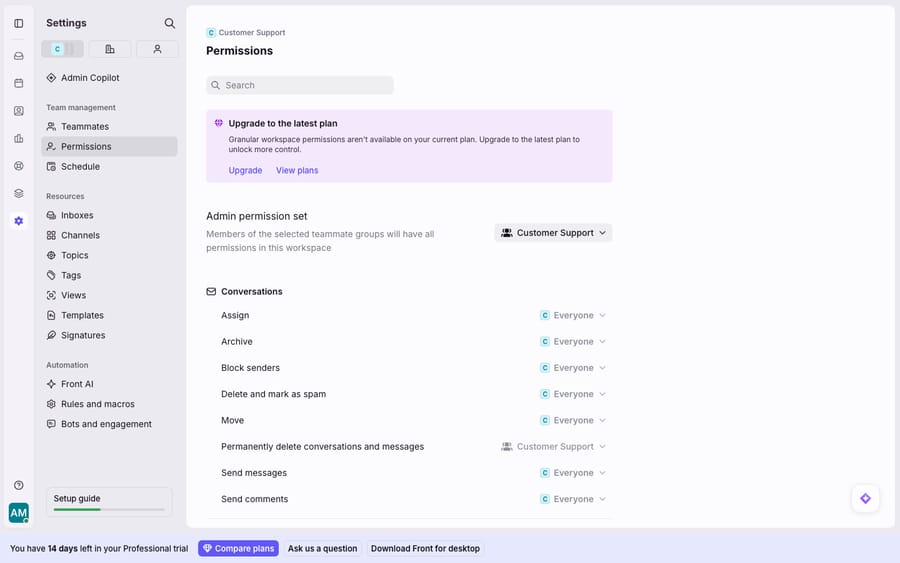
Custom roles and granular permissions are an Enterprise-plan feature. Front's guide says the feature is on the latest Enterprise plan, and that some legacy plans may also have it. On Starter and Professional you get member, workspace admin, and company admin: capable, but coarse. The screen above shows that boundary: an admin permission set with per-action mappings, alongside a banner saying granular workspace permissions aren't available on the current plan. If "commenter but not sender" or "can't permanently delete" is a hard requirement for your team, that requirement lives on Enterprise, at $105 a seat a month on annual billing.
One more thing to know before a downgrade: if you move off a plan that supports custom roles, Front reassigns teammates who held a custom role to the default member role.
How do teammate groups control inbox access?
Teammate groups are how you stop managing access one person at a time. A teammate group, documented in Front's teammate groups guide, is a centralized list of users you can reuse in three places: inside rules (route to a group instead of naming individuals), to manage inbox access, and to manage shared contacts access. Company admins create, edit, and delete groups, and that ability can be delegated to other teammates.
Inbox access through a group is the big time-saver. Per Front's guide to managing inbox access with teammate groups, you configure it at Settings → Company settings → Teammate groups → (select group) → Access and permissions, then toggle inboxes on or off. When a group is given access to a workspace, its members automatically get access to all public inboxes in that workspace, and public-inbox access can't be deselected. Private inboxes are the ones you grant deliberately.
Two behaviours here trip people up:
- Access is not the same as visibility. When you assign inbox access to a teammate group, those inboxes won't appear in members' sidebars by default. People still have full access; they have to add the inbox to their own sidebar to see it. So "I can't see the inbox" usually means a sidebar tweak, not a permissions problem.
- Groups grant access, not roles. Group members receive member permissions by default. To make everyone in a group an admin or give them a custom role, you assign that role to each person individually; group-level role assignment isn't supported. Groups scale reach, not rank.
Where does Front's permission model fall short?
Front's teammate and permission model is good, and its shared-inbox roots are its strength: because everyone works from the same inboxes, features like comments and @mentions and collision detection only work because teammates are modelled as real, distinct users sharing the work.
But it's fair to name the edges. The granular controls are plan-gated. Member-or-admin is fine until it isn't, and the day you need "can comment but can't send" or "can't permanently delete," you're on Front's Enterprise tier, because custom roles don't exist below it. SSO and SCIM start on Professional, so a Starter team that needs single sign-on has to move up a tier. And access is user-shaped: collision detection, assignment, and group access all assume a human teammate holds a seat. Front does sell its own AI agent, Autopilot, priced per conversation (as of October 2026, $0.05 for triage, $0.39 for a handoff and $0.89 for a resolution, each conversation billed once, per Front's Autopilot pricing), but the permission model itself is built around people you pay a seat for.
That gap is where an AI layer fits without touching any of your roles or seats. Macha runs on top of the Front you already use through the live Macha–Front connector. It does not replace Front, your teammates, your groups, or your permissions. What changes is that AI agents for customer service can do the reading-and-resolving work: Macha's agent reads a conversation landing in a shared inbox, understands intent, and drafts a reply or an internal comment for a teammate to review. Where you allow it, it sends a grounded answer itself, pulling a real order or account status through a custom tool that turns your REST API into something the agent can call. Front decides who is allowed to act; Macha helps do the act. Macha bills per ticket, one conversation charged once however many messages it takes, from $299 a month for 750 tickets, not per seat, so the cost tracks the volume you handle rather than the size of your team. For how this sits alongside the rest of Front, see Front team inboxes explained, the wider Front shared inbox model, and Front rules explained for how groups plug into routing.
FAQ
What's the difference between a teammate and a seat in Front? A teammate is a user account; a seat is the paid license that account occupies. Front bills per seat, per month, and charges a prorated amount when you add a teammate under Settings → Teammates → Invite. Remove the teammate and you free the seat.
What roles does Front have? By default, member, workspace admin, and company admin. Members do day-to-day work in the inboxes they can reach, workspace admins manage a workspace's settings and rules, and company admins control the whole account. Custom roles with finer per-action permissions are an Enterprise-plan feature.
How much does Front cost per seat? On 24 September 2026 Front's pricing page listed Starter at $25 a seat a month billed annually ($35 monthly, up to 10 seats), Professional at $65 ($85 monthly, up to 50 seats) and Enterprise at $105, annual only.
How do teammate groups control inbox access? A teammate group is a reusable list of users. Under Settings → Company settings → Teammate groups → Access and permissions, you toggle which inboxes the group can reach. Members automatically get all public inboxes in a workspace they're given access to (public access can't be deselected), while private inboxes are granted deliberately. Granted inboxes don't appear in sidebars by default.
Why can a teammate access an inbox but not see it? Access and sidebar visibility are separate in Front. When inbox access comes through a teammate group, the inbox isn't added to the person's sidebar automatically; they add it themselves. So a "missing" inbox is usually a visibility setting, not a permissions gap.
Can I add AI without changing my Front roles and seats? Yes. An AI layer like Macha connects to Front as a live connector and runs on top of your existing teammates, groups, and permissions. It doesn't replace them or consume a teammate seat. The agent reads incoming conversations and drafts or sends grounded replies within the workflow you already run.
Ready to add an AI agent on top of the Front access model you already trust? Start a free trial of Macha and connect it to your Front in minutes.






