Intercom
 Shopify
 Stripe
 Slack
Slack Notion
 Google Workspace
 Confluence

What Is the Difference Between Shared and Team Inboxes in Front?


Front has individual inboxes that stay private to you and shared inboxes that a whole team works from, and a team inbox is simply a shared inbox with Restricted access. Access, sidebar visibility and assignment are separate settings, which is where most "why can't I see this?" questions come from.
Key takeaways
- Front has no separate team inbox object: a team inbox is a shared inbox set to Restricted access, limited to specific teammates or teammate groups.
- Front lets each teammate connect up to 10 individual channels, and conversations in an individual inbox stay unshared unless the owner shares them.
- Front teammate groups, available on all plans, grant inbox access to every group member, but the inbox is not added to their sidebars by default.
- When a new teammate joins Front, every public inbox in the workspace is pre-selected for them, cannot be deselected, and lands on their sidebar.
- Front's collision detection shows when a teammate is replying in a shared inbox, and draft content is shared and updated in real time.

Front has two inbox containers: an individual inbox, which is private to you and takes up to 10 connected individual channels, and a shared inbox, which a whole team works from. A "team inbox" is not a third type; it is a shared inbox set to Restricted access so only chosen teammates or teammate groups can see it.
| Inbox | Who can see it | Where you create it | Typical use |
|---|---|---|---|
| Individual | Only you, unless you share or delegate | Personal settings → Inboxes | Your own email |
| Shared (public) | Every teammate in the workspace | Workspace settings → Inboxes | support@, sales@ |
| Team (shared, restricted) | Chosen teammates or teammate groups | Workspace settings → Inboxes, Access: Restricted | VIP escalations, finance, a regional desk |
What is the difference between individual, shared and team inboxes in Front?
Front has one core object — a conversation — and several containers for it. The container decides visibility.
An individual inbox is your personal space. Per Front's documentation on individual inboxes, you add one under gear icon → Personal settings → Inboxes → Create individual inbox, and by default its conversations stay unshared unless you choose to share them. It's where your own connected email lives, split into the familiar Open / Snoozed / Done conversation states rather than a permanent folder tree. A teammate can connect up to 10 individual channels to their Front account.
A shared inbox is the team container — the thing most people mean when they say "Front inbox." It's described in Front's shared inbox help article as an organizational space where you categorize or sort conversations, and it can hold channels (email like support@, plus SMS, Instagram, and more) or sit empty as a routing destination. Everyone with access sees the same conversations, the same comments, and the same real-time state. If you want the conceptual deep-dive on that model, we cover it in Front shared inbox explained; this post is about how several of those inboxes get structured and permissioned together.
A team inbox isn't a separate object type — it's simply a shared inbox scoped to a team, usually via restricted access and teammate groups (more on both below). So "team inbox" is really a permissions pattern layered on top of the shared-inbox primitive, not a fourth kind of container.
How do you control who can access a Front inbox?
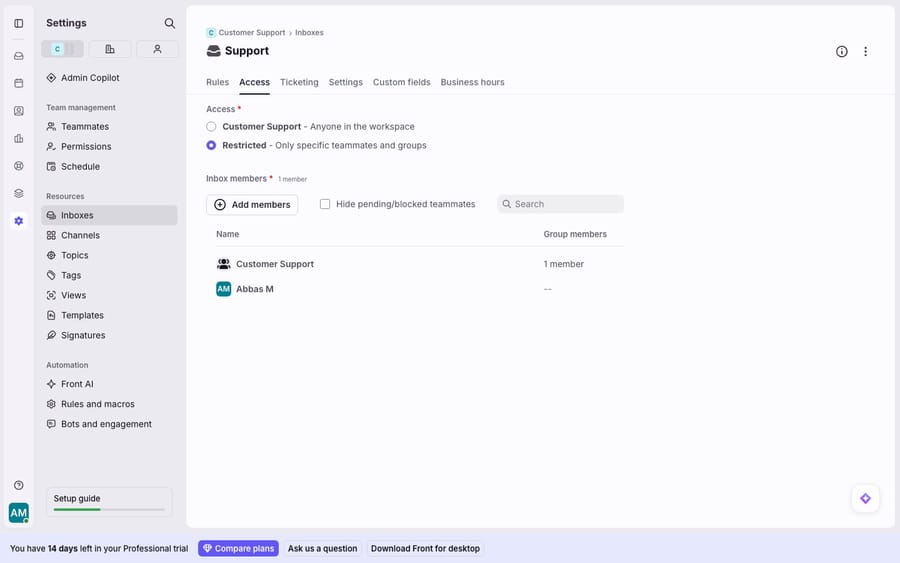
When you create a shared inbox — Settings (gear) → select your workspace → Inboxes → Create shared inbox — you name it, give it a color, and hit the Access setting. This is the decision that defines who's on the team. Front gives you two modes:
- Public (the option is labelled with your workspace's name): "Grant access to all teammates in the workspace." Every teammate in that workspace can see and work the inbox. Front's make inboxes public guidance says that when you invite a new teammate, every public inbox is pre-selected, can't be deselected, and is added to their sidebar automatically, which is what you want for a genuinely shared support@ queue.
- Restricted — "Grant access to specific teammates or teammate groups." This is how you build a true team inbox: a VIP escalations queue, a finance inbox, or a region-specific desk that only its members should see.
The creation flow also includes a sidebar visibility step ("Show this inbox in teammate sidebars", which pins it for the teammates you pick) and a Ticketing toggle that's on by default. Access and sidebar visibility are separate concepts, which trips people up — having access doesn't guarantee the inbox shows in your sidebar.
How do teammate groups manage inbox membership at scale?
Adding people one by one to every restricted inbox doesn't scale past a handful of teammates. That's what teammate groups are for. Per Front's managing inbox access with teammate groups documentation, an admin goes to Company settings → Teammate groups → select a group → Access and permissions → Access column and toggles on the inboxes that group should reach. From then on, "every member of that group will be able to view the inbox and its contents" — add a new hire to the group and their access follows automatically.
Two behaviors are worth memorizing because they cause the most "why can't I see this?" tickets:
- Access is additive. A teammate can be granted an inbox through a group and individually and through workspace access. Removing them from one path doesn't necessarily remove access if another path still grants it.
- Access doesn't mean it's on your sidebar. Front notes that even after a group is granted access, "the inboxes will not be displayed on the users' sidebars by default" — each person still chooses which of their accessible inboxes to pin. Access and visibility are decoupled on purpose.
Teammate groups are available on all Front plans, and they double as a targeting mechanism inside Front rules — the same group you use for access can be the assignee in an automated routing rule.
Where does a conversation "live" once it is assigned?
Access decides who can work an inbox; assignment decides who should work a given conversation. In Front, a conversation sits in one or more inboxes, and you assign it to a single teammate to make ownership unambiguous. Assignment doesn't move the conversation out of the shared inbox — everyone with access still sees it — it just stamps a clear owner so the rest of the team knows to leave it alone. This is the sales/ops-friendly middle ground between a free-for-all and rigid ticket queues: the conversation stays visible to the team, but responsibility is explicit.
A related pattern is the delegated inbox. Front's inbox delegation feature lets you grant a teammate the ability to view and act inside your individual inbox: archiving, snoozing, assigning, tagging and moving conversations to a shared inbox. A delegate can reply, but from their own email address, not yours. That is how an EA covers an exec's mailbox or a teammate covers PTO without the mailbox becoming fully shared.
How does Front stop two agents replying to the same message?
The whole reason shared inboxes beat forwarding email around is that Front stops two people from doing the same work twice. Its real-time collision detection shows you, inside a shared inbox, when "a teammate is working on a message" — you see indicators that they're replying, and draft content is shared and updated in real time. Combined with per-conversation assignment and internal comments / @mentions (a genuinely Front-native way to loop in a colleague without CC-ing the customer), the result is that a busy support@ inbox with ten agents rarely produces duplicate or contradictory replies. That comment-and-presence layer, not the folder structure, is what makes Front feel collaborative rather than just "email with more people."
Where does Front's inbox model fall short, and where does AI fit?
Front's inbox model is well-designed for what it is: a clear, human permission system. But it's worth being straight about its edges.
It's a visibility model, not a workload model. Access controls who can see an inbox; it doesn't reason about who should take the next conversation based on skills, current load, or language. Assignment is still a manual (or rule-based) act, and rules match on fixed conditions — they don't understand intent.
Structure can sprawl. Restricted inboxes plus overlapping teammate groups plus additive access is powerful, but it drifts. Six months in, most teams have at least one inbox where nobody's quite sure why a given person still has access. Front gives you the levers; it doesn't audit them for you.
And it doesn't write the reply. A shared inbox routes a conversation to the right team and prevents collisions — but a human still has to read the message, understand the ask, and draft the answer. When the question is "where's my order #4471?", the inbox can't fetch that; it just holds the conversation while a teammate goes and looks.
That last seam is where an AI agent layer earns its place, and it's worth weighing the build-versus-buy tradeoff before adopting one. The broader category of AI agents for customer service exists to do the reasoning-heavy work an access model can't. Macha is one such layer: it runs on top of the Front you already use via a live native connector — it does not replace Front, its inboxes, or its permissions. Once connected to Front, Macha reads and writes the same shared conversations your team already works: drafting grounded replies inside a shared inbox, triaging by intent so a conversation reaches the right teammate group, and looking up order or account status through a custom tool that turns a REST API into something an agent can call. Macha bills per ticket (one conversation, charged once however many messages it takes), never per resolution, with plans from $299 a month for 750 tickets; the pricing page has the full breakdown, and if you're budgeting Front itself, our Front pricing explained post covers the plan tiers.
The clean division of labor: keep Front's inboxes, groups, and assignment as the source of truth for who can see what and who owns what, and layer an agent on top for the part the permission model can't do — actually answering fast enough that the queue never backs up. Tagging conventions help here too; we cover those in Front tags explained.
FAQ
What's the difference between a shared inbox and a team inbox in Front? There's no separate "team inbox" object — a team inbox is just a shared inbox with Restricted access, so only specific teammates or teammate groups can see it. A plain shared inbox can be Public (everyone in the workspace) or Restricted; "team inbox" is simply the restricted pattern applied to a team.
How do I control who can access a Front inbox? When you create or edit a shared inbox (Settings → workspace → Inboxes), open the Access setting and choose Public (all teammates in the workspace) or Restricted (specific teammates or teammate groups). For scale, grant access through teammate groups under Company settings → Teammate groups → Access and permissions.
Why can a teammate access an inbox but not see it in their sidebar? Access and sidebar visibility are separate in Front. Even after a group is granted access, inboxes aren't pinned to members' sidebars by default — each person chooses which accessible inboxes to show. So a teammate can have full access while the inbox stays hidden from their sidebar until they add it.
Does Front prevent two agents replying to the same conversation? Yes. Front's real-time collision detection shows indicators inside a shared inbox when a teammate is already replying, shares draft content in real time, and per-conversation assignment plus internal comments make ownership explicit — so duplicate replies are rare even in a busy support@ queue.
Can I add AI to Front inboxes without replacing Front? Yes. An AI agent layer like Macha connects to Front through a native connector and runs on top of your existing inboxes, groups, and assignment rules — it doesn't replace them. It helps by drafting grounded replies inside shared inboxes and routing conversations by intent, while Front stays the system of record for access and ownership.
Ready to help your team move the queue instead of just organizing it? Start a free trial of Macha and connect it to your Front in minutes.
Add AI agents to your Front
Macha reads the conversation, drafts the reply and takes the action, inside the Front you already run.