Intercom
 Shopify
 Stripe
 Slack
Slack Notion
 Google Workspace
 Confluence

How Do Front Comments and @Mentions Work? Internal Notes Explained (2026)


Front comments are private notes on a customer conversation that only your teammates can see, and an @mention inside one pulls a specific colleague in. Here is how comments differ from replies, where a mention routes a conversation, and when an internal discussion fits better.
Key takeaways
- Front comments are internal notes that only teammates with access to the inbox can see, posted inline beside the customer-facing reply, and customers never receive them.
- Mentioning a teammate with an at sign inside a Front comment notifies them per their settings and adds the conversation to their Mentions and Subscribed sections.
- Front's @all mention in a shared inbox notifies only teammates with access to the inbox where that conversation lives, not the whole company.
- Pressing Cmd or Ctrl plus period expands or collapses the Front comment box, and the up arrow in an empty composer recalls your last comment for editing.
- Front says comments, @mentions and internal discussions are available on all plans, and internal discussions start from the plus icon in the sidebar with no customer message attached.

A Front comment is an internal note that only teammates with access to the inbox can see, posted in the "Add internal comment" field at the bottom of a conversation; typing @ and a teammate's name in that comment notifies them and adds the conversation to their Mentions and Subscribed sections. Comments, @mentions and internal discussions are available on all Front plans, according to Front's help center (checked 24 September 2026).
| Feature | What it does | Customer sees it? | Plans |
|---|---|---|---|
| Comment | Internal note inline on a customer conversation | No | All |
| @mention | Notifies a teammate; conversation lands in their Mentions + Subscribed | No | All |
| @all | Notifies everyone with access to that inbox | No | All |
| Internal discussion | Team-only thread with no customer message attached | No | All |
What is the difference between a comment and a reply in Front?
Every conversation in Front has two composers, and confusing them is the single most expensive mistake a new user can make. A reply is an outbound message: it leaves Front and lands in your customer's inbox. A comment is an internal note. Per Front's Understanding comments documentation, "only your team can see posted comments, so you can discuss the conversation amongst yourselves without having to forward the message around." The customer never sees it. Ever.
Mechanically, you add one by clicking the Add internal comment field at the bottom of any conversation, typing your note, and pressing Enter to post. The comment thread interleaves with the message history so the whole team sees the reply and the reasoning behind it in one place. This collision of "what we said to the customer" and "what we said to each other" in a single view is one of the things that makes Front genuinely different from a ticketing tool — the internal discussion isn't buried in a separate notes tab, it's inline. If you're new to the platform, our what is Front primer covers how this fits the wider shared-inbox model, and Front's shared inbox explained goes deeper on visibility.
In a shared inbox, comments are visible to anyone with access to that inbox. In an individual inbox they're visible only to you — until you @mention a teammate or delegate access, at which point that person can see the conversation too.
What is in the Front comment composer?
The comment bar carries its own small toolbar, and knowing what's there saves you a lot of clicking. Alongside the @ button for mentions, you get a plus (+) icon for attaching files or scheduling a Zoom meeting, an emoji picker, a GIF search button, and an expand icon that opens a larger writing area for longer internal write-ups.
Two keyboard shortcuts are worth committing to muscle memory. Cmd/Ctrl + period (.) expands or collapses the comment box, and pressing the up arrow while your cursor is in an empty comment composer pulls your last comment back up to edit it, which is handy for fixing a typo before a teammate has even read it.
Where does an @mention send a Front conversation?
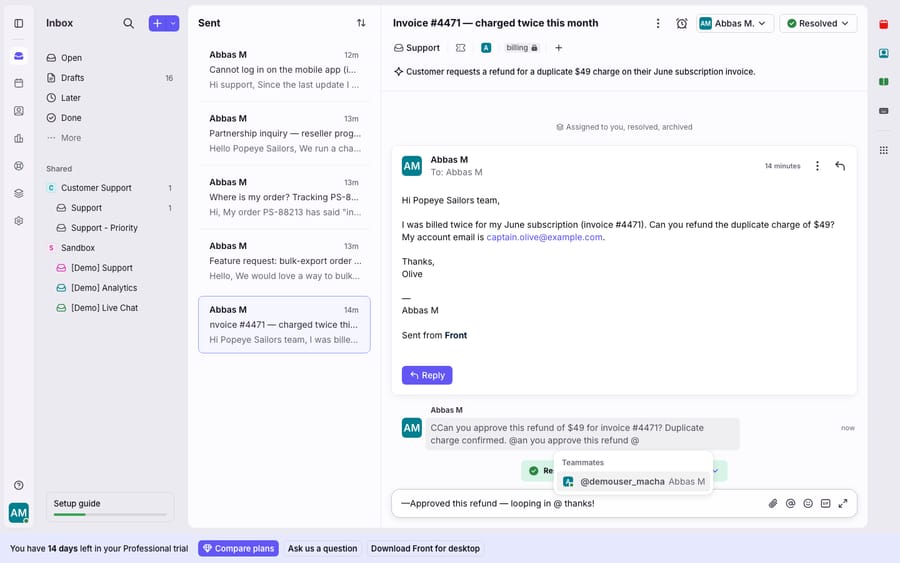
An @mention is how you turn a comment from a note into a summons. Inside the comment bar, type @ (or click the @ button) and start typing a teammate's name, and Front surfaces a picker of people you can loop in. Per Front's How to use @mentions in comments and emails documentation, the mentioned teammate is "notified according to their notification settings" and, more importantly, the conversation appears in their Mentions and Subscribed sections.
That routing is the whole point. Front's Subscribed section, described in Understanding your Subscribed section, collects the conversations, tasks, and discussions where you're a participant but not the assignee — so an @mention is effectively a way of saying "you don't own this, but you need to know about it." The mentioned person keeps seeing it in Subscribed whenever there's new activity, without ever being made the assignee.
A few behaviours worth knowing:
- @all mentions everyone, but scoped to the inbox. In a shared inbox, @all notifies every teammate with access to that inbox where the conversation lives, not your entire company.
- Custom group mentions let you set up shortcuts like @managers or @billing via rules, so one mention pings a defined group instead of naming people one at a time.
- Granting access on mention. If you @mention a teammate who doesn't have access to the workspace or inbox, Front will (after a confirmation) grant them access to that specific conversation, so a mention can pull in someone from another team without a full permissions change.
One caveat the screenshot above underlines: the @mention picker in the comment composer lists teammates, and everything stays internal. There's a separate @mention behaviour in the email composer that adds a contact as a recipient — so always check which composer you're typing in before you hit send.
When should you use an internal discussion instead of a comment?
Comments live on a customer conversation. But sometimes the thing you need to talk about has no external message at all : "who's covering the Monday queue?" or "planning for the offsite." For that, Front has a distinct object: the internal discussion.
Per How to start an internal discussion, you click the plus (+) icon in your sidebar and select Discussion, choose the teammates or a shared inbox in the To field, add a subject, and send. The discussion then shows up in the Discussions tab and Subscribed section of every participant's sidebar. Think of it as a lightweight, threaded internal channel that lives in the same tool as your customer work, with no context-switching to Slack for a quick coordination question. Both comments and internal discussions are, per Front's docs, available on all plans.
Here's the clean way to hold the three concepts apart:
| You want to… | Use | Customer sees it? | Where it lands |
|---|---|---|---|
| Send an answer to the customer | Reply | Yes | Customer's inbox |
| Discuss this customer conversation privately | Comment | No | Inline on the conversation; mentioned teammates' Mentions/Subscribed |
| Pull a specific colleague in | @mention (in a comment) | No | That teammate's Mentions + Subscribed |
| Talk about something with no customer message | Internal discussion | No | Discussions + Subscribed sections |
Where do Front comments stop, and what can an AI agent add?
Front's comments are one of the best-executed collaboration primitives in any inbox tool, and they're not the thing that breaks down. But collaboration has a cost, and it's worth naming it. A comment is only as good as the teammate who reads it: an @mention still routes a question to a human who has to stop what they're doing, read the thread, go look something up, and answer. On a busy shared inbox, "let me @mention Sam" is often a polite way of adding latency — the customer waits while an internal ping bounces around.
Comments also don't know anything. When a teammate posts "what's the status of order #4471?" as a comment, Front faithfully delivers that question to whoever's mentioned, but it can't answer it. The data lives in Shopify or your ERP, and a person has to go fetch it. And @mentions can quietly become noise: a heavily-mentioned senior teammate ends up with a Subscribed section that's impossible to keep up with, which is the collaboration equivalent of an overflowing cc line.
This is the seam where an AI agent layer fits: not by replacing comments, but by answering the questions that would otherwise become one. The broader category of AI agents for customer service exists precisely to do the reasoning-and-lookup work a comment can only ask for. Macha is one such layer: it runs on top of the Front you already use as a native connector (the Macha↔Front integration is live) and it does not replace Front, its inbox, or its comment threads. Once you connect Front to Macha, an agent can read an incoming conversation, look up that order status through a custom tool that turns your REST API into something it can call, and post the answer back as a grounded internal comment (the connector's Add Internal Comment action supports @mentions, so it can tag the teammate who asked) or a drafted reply, so the human who would have been @mentioned gets the answer instead of the question. It also pairs naturally with the automation you may already run through Front rules and tags: rules route and label, the agent reasons and answers.
The division of labour stays clean: keep Front's comments, @mentions, and discussions as the human collaboration layer , which they're excellent at, and let an agent absorb the lookup-and-draft work so a mention becomes the exception, not the reflex. (Macha bills per ticket, one conversation charged once, not per resolution: $299 a month covers up to 750 tickets; see the pricing breakdown.)
FAQ
Can the customer see Front comments? No. Comments are strictly internal. Per Front's documentation, only your team can see posted comments, and they're never sent to the customer. They sit inline on the conversation for your teammates to read, separate from the customer-facing reply.
What's the difference between a comment and a reply in Front? A reply is an outbound message that leaves Front and reaches the customer. A comment is an internal note visible only to teammates with access to the inbox. Both appear in the same conversation view, but only the reply is sent externally.
Where do @mentioned conversations show up? When you @mention a teammate in a comment, the conversation appears in that person's Mentions and Subscribed sections, and they're notified per their notification settings. The Subscribed section collects conversations where they're a participant but not the assignee.
What does @all do? @all mentions everyone, scoped to the inbox. In a shared inbox it notifies every teammate with access to the inbox where the conversation lives, not your whole company. You can also create custom group mentions (like @managers) via rules.
Is there a plan requirement for comments or discussions? No. Per Front's help center, comments, @mentions, and internal discussions are available on all plans. Confirm current behaviour against your own Front plan, as vendors update packaging over time.
Can an AI agent post Front comments? Yes, with a connector that has write access. Macha's Front connector includes Add Internal Comment with @mention support, plus Add Public Reply, Update Tags and Assign Conversation, so an agent can leave a note for a teammate instead of replying to the customer.
Want the questions your team @mentions each other about answered before anyone has to read the thread? Start a free trial of Macha and connect it to your Front. The trial includes $50 of usage with no credit card.
Add AI agents to your Front
Macha reads the conversation, drafts the reply and takes the action, inside the Front you already run.