



 Intercom
 Shopify
 Stripe
 Slack
Slack Notion
 Google Workspace
 Confluence

How Do You Build a Report in Zendesk Explore? Step by Step (2026)


Building a Zendesk Explore report is one loop: pick a dataset, add a metric, slice it with an attribute, filter by date, choose a chart, save it and pin it to a dashboard. It needs Explore Professional or Enterprise, and the data behind it refreshes hourly at best, never live.
Key takeaways
- Building a custom report in Zendesk Explore takes six steps: open the report builder, add a metric, slice it with an attribute, filter by date, choose a visualization, then save.
- Custom report building in Zendesk Explore needs Explore Professional or Enterprise plus the Admin or Editor role, since Explore Lite on Suite Team or Growth only shows prebuilt dashboards.
- Zendesk Explore data refreshes hourly on Suite Professional, Enterprise and Enterprise Plus, but only daily at midnight in the account's time zone on Suite Team or Growth.
- If nobody opens a Zendesk Explore report or dashboard for more than 30 days, its refresh interval drops to weekly, and a scheduled dashboard delivery counts as an access.
- Zendesk limits the prebuilt Explore live dashboard to users who accessed Explore before May 5, 2026, and removes live dashboards from Explore on January 25, 2027.

To build a report in Zendesk Explore, open Analytics, click Reports, then Create report, pick a dataset such as Support - Tickets, add a metric, slice it with an attribute, filter by date, choose a chart and save. You need Explore Professional (Suite Professional) or Enterprise and the Admin or Editor role in Explore, and the data behind the report refreshes hourly at best. We checked every path, plan gate and interval against Zendesk's documentation on September 20, 2026, and re-checked the live dashboard and scheduling rules on September 24.
For the conceptual tour instead of the hands-on build, Zendesk Explore explained is the companion piece.
What kinds of reporting does Zendesk Explore offer?
- Prebuilt dashboards. Ready-made and mostly read-only: ticket volume, agent activity, satisfaction. Good for a glance, and you cannot restructure them.
- Custom reports. Built in the report builder by asking a specific question and rendering the answer. This is where the value is, and it is what this guide covers.
A terminology note that still trips people: Zendesk has used "report", "query" and "report builder" more or less interchangeably over the years. In today's interface you create a report, and the workspace you build it in is the report builder. Older docs called the same object a query.
Does your plan let you build reports?
Check before you start, because Explore's edition is tied to your Suite tier.
| Explore edition | Included with | What you can do |
|---|---|---|
| Lite | Suite Team, Suite Growth, and Support Team, Professional and Enterprise | View prebuilt dashboards only |
| Professional | Suite Professional | Build custom reports and dashboards |
| Enterprise | Suite Enterprise, Suite Enterprise Plus | Custom reports, plus the live dashboard where still available |
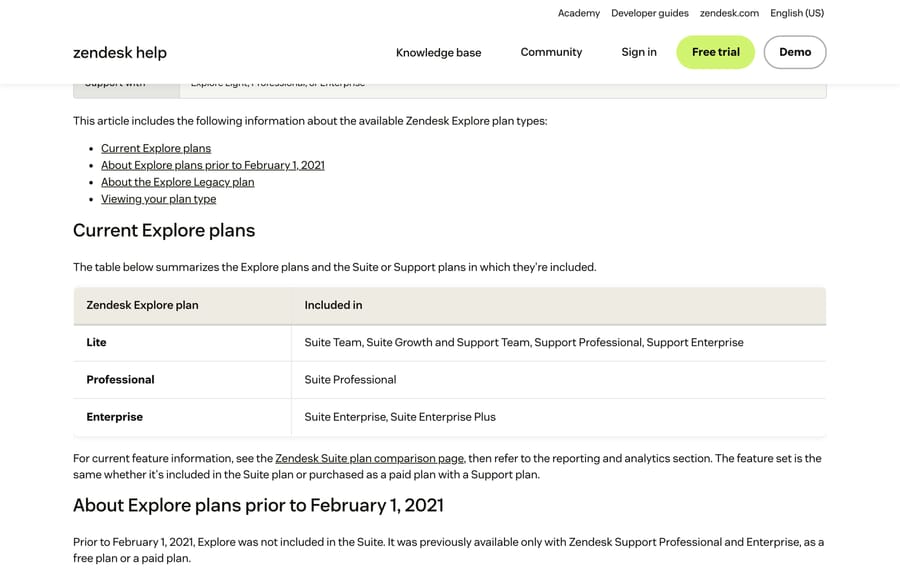
On Suite Team or Growth you can look but not build. You also need the Admin or Editor role inside Explore, because viewers can't save new reports.
How fresh is the data?
Explore isn't real-time, and assuming it is causes a lot of unnecessary panic about wrong numbers.
| Plan | Refresh interval |
|---|---|
| Suite Team, Suite Growth, Explore Lite | Daily, at midnight in the account's time zone |
| Suite Professional, Enterprise, Enterprise Plus, Explore Professional and Enterprise | Hourly |
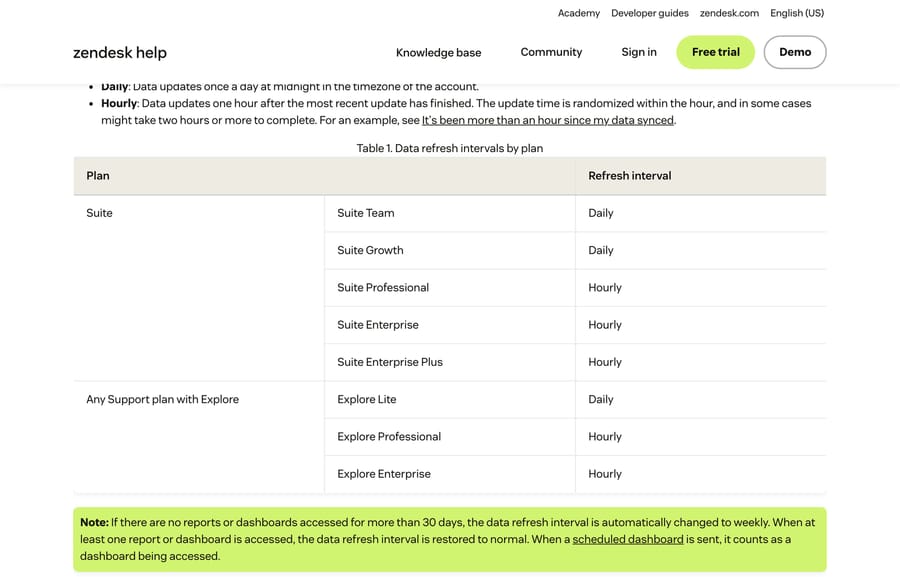
Hourly means one hour after the previous update finished, randomized within the hour, and Zendesk says it can occasionally take two hours or more. Two further rules matter more than the table:
- Thirty days without access drops you to weekly. If nobody opens a report or dashboard for more than 30 days, Zendesk changes the refresh interval to weekly until something is accessed again. A dashboard that "stopped updating" often just needs a visit.
- A scheduled dashboard send counts as an access. So a weekly scheduled delivery keeps your account on its normal interval, which is a good reason to schedule one even if nobody reads it.
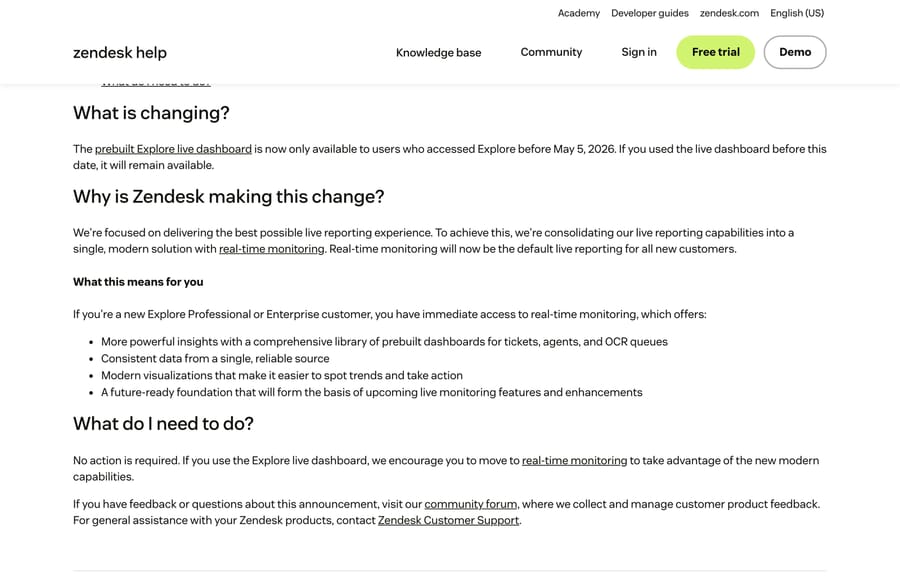
On live data, one thing changed in 2026. The prebuilt Explore live dashboard is now only available to users who accessed Explore before May 5, 2026. Everyone else gets real-time monitoring instead, which Zendesk made the default for new customers on the same date. The old live dashboard has an end date too: on January 25, 2027, Zendesk removes prebuilt live dashboards, live data components and the ability to create live dashboards from Explore. If a team still watches a live Explore dashboard, rebuild it in real-time monitoring before then.
What are datasets, metrics and attributes?
Datasets are the foundation. A dataset is a curated set of metrics and attributes from one Zendesk product, such as Support - Tickets. You pick one dataset per report, and it decides what you can measure and slice.
Metrics are the numbers: a count of tickets, comments, updates, reopens, a resolution time. Each carries an aggregator (COUNT, D_COUNT for distinct, AVG, MEDIAN) that you can change.
Attributes are the slices: ticket status, assignee name, group, channel, or a date such as Ticket created. They go into Columns, Rows, Filters or Explosions.
The sentence to hold in your head: "number of tickets (metric) by group (attribute), filtered to last month (attribute as filter)". Once that parses, the builder makes sense. For where these fields come from in the first place, the Zendesk ticketing system explained covers the anatomy of a ticket.
How do you build a report in Explore, step by step?
1. Open the report builder
Open the Zendesk products menu (the grid icon) and choose Analytics. Then click the Reports icon in the sidebar, click Create report, pick Support > Support - Tickets in the dataset picker, and click Start report. In our sandbox the button reads Create report, though Zendesk's Creating reports article still calls it New report, and there's a Quick report button beside it that builds one from a prompt.
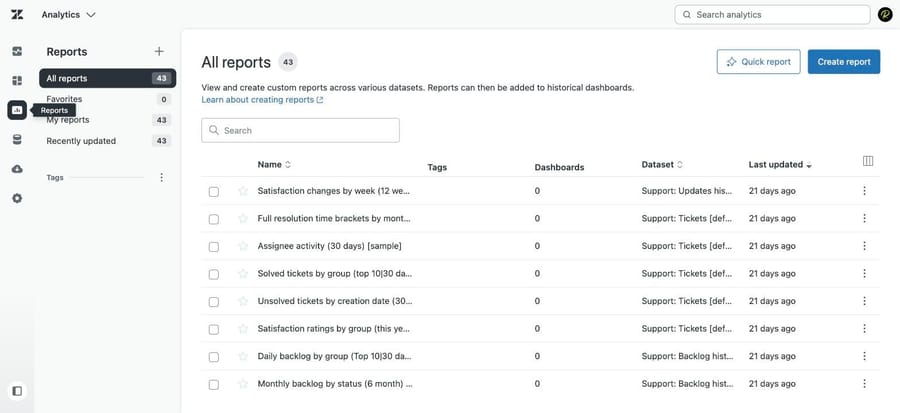
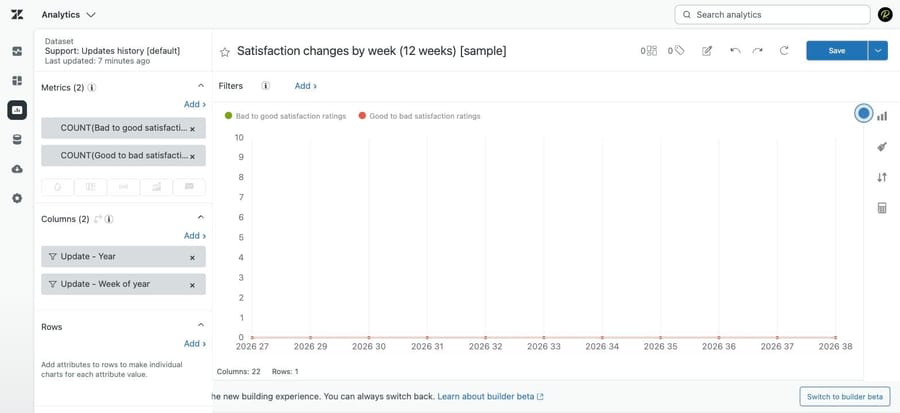
You're now looking at a chart canvas with panels around it for Metrics, Columns, Rows, Filters and Explosions. Everything else happens here.
2. Add a metric
Nothing renders until you tell Explore what to count. In the Metrics panel, click Add, choose Tickets > Tickets, and click Apply. You now have a single number: every ticket in the dataset.
3. Slice it with an attribute
In the Columns panel, click Add, choose an attribute such as Ticket group, and apply it. The single number becomes a number per group, which is the moment a report starts answering a question.
Rows and Columns both work; the difference is orientation, and which one you pick depends on the visualization. Explosions split the same chart into several smaller ones.
4. Filter by date
In the Filters panel, add a time attribute such as Ticket created - Date, then set a relative range (last 30 days) or fixed dates. Do this early, even while building, because an unfiltered query against a large account is slow and sometimes times out.
5. Choose a visualization
Open the visualization type menu and pick the shape that matches the question. Counts by category read well as a column chart, trends over time as a line, single figures as a KPI tile, and anything you will actually export as a table.
6. Name it and save
Give the report a name somebody else will understand in a year, then Save. "Tickets by group, last 30 days" beats "Report 4". Explore doesn't save reports automatically, so navigating away before you save loses the work. The Save dropdown also has Save as new for copying an existing report.
How do you put reports on a dashboard and schedule delivery?
A report on its own is a page somebody has to remember to open. A dashboard is how it reaches people.
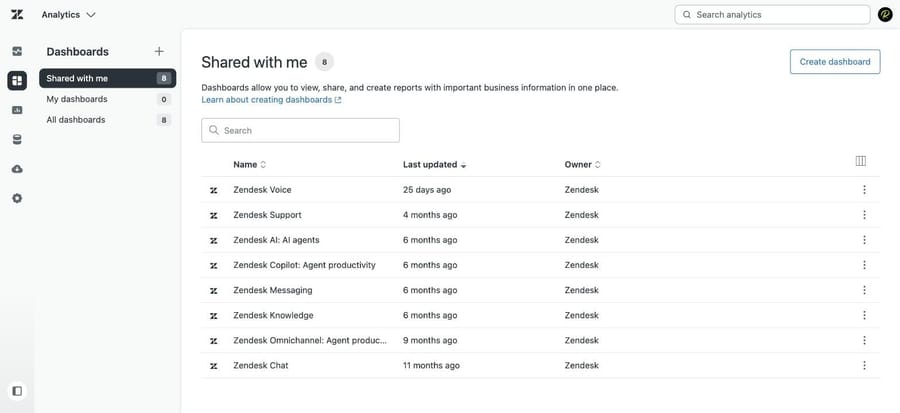
- Click the Dashboards icon, then New dashboard.
- Click Add, then Add report, select your reports and click Add reports.
- Position the widgets, and add a date filter widget so viewers can re-scope every report at once.
- Click Share, pick the Zendesk groups, and invite them.
Then schedule it. In a dashboard you have already shared, click Share, then Schedule delivery, then Schedule delivery again on the Scheduled deliveries page. Scheduling needs Explore Professional or Enterprise and permission to edit the dashboard. On Enterprise you can also email dashboards to end users, after adding the "explore" tag to each of their user profiles.
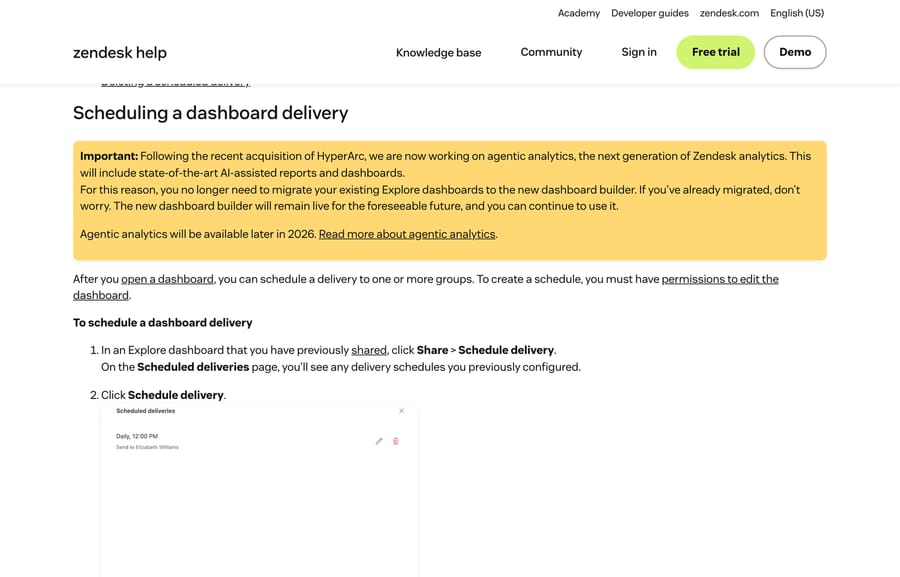
Two reasons to schedule one even if your team lives in the dashboard anyway: a send counts as an access, which keeps your refresh interval off weekly, and it forces someone to notice when a report breaks.
Is Zendesk replacing Explore with agentic analytics?
Not yet, but it's worth knowing before you invest a quarter in rebuilding dashboards. Zendesk's own documentation now carries a note that, following its acquisition of HyperArc, it is building "agentic analytics, the next generation of Zendesk analytics", including AI-assisted reports and dashboards, and that it expects this later in 2026. The immediate practical instruction is in the same box: you no longer need to migrate existing Explore dashboards to the new dashboard builder, and if you already did, the new builder stays live for the foreseeable future.
Agentic analytics was still in an Early Access Program on September 24, 2026, with no general-availability date published, with its own resources article covering projects, analyst copilot datasets and permissions. If you are planning a large reporting project, that timing is worth factoring in.
The incentive worth naming: an analytics product sold inside a help desk is rewarded for keeping your data in the help desk, not for making it easy to leave. That is why Explore's export limits are tighter than its reporting depth, and why exporting data from Zendesk is a separate discipline with its own row caps.
Can an AI agent make Explore reports more accurate?
Explore is retrospective. It reports what happened, using the fields somebody filled in at the time, which is the quiet limit on every report you build: slice by a Type or tag that agents set inconsistently and you get a confident chart built on noise.
Yes, by fixing the data upstream rather than the chart. Macha on Zendesk sits upstream of the reporting, on the ticket itself. It reads the incoming request, classifies it against your own history, writes fields back, answers what it can, and escalates the rest with the thread attached, so the fields your reports depend on are populated the same way every time. It doesn't build dashboards, and it isn't a reporting tool. Macha also runs on Zendesk, Freshdesk, Gorgias, Front, HubSpot or Intercom.
It suits teams already running Zendesk whose reporting is limited by inconsistent tagging, and it is the wrong fit if your data is clean and what you need is a better chart, in which case Explore's own recipe library is the place to go.
Billing is per ticket: one thread with one person is one charge however many replies it takes, from $299 a month for up to 750 tickets on published pricing, with setup and monitoring by our team included and $50 of free usage to start. That matters next to a per-resolution model, which pays the vendor more the more tickets you fail to prevent.
How we researched this
We checked every path, plan gate and interval against Zendesk's current documentation on September 20, 2026: the Creating reports article, the Explore plan types article (edited August 18, 2026), the data refresh intervals article (July 6, 2026), the scheduling dashboard deliveries article (July 30, 2026), the real-time monitoring announcement (May 4, 2026) and the agentic analytics EAP resources article (September 14, 2026). Four of the seven screenshots are of those pages. The other three come from our own Zendesk sandbox, d3v-macha, captured on September 20, 2026: the dashboard list, the report list and the report builder with a report open in it. Walking that path is also how we caught a stale label. The button that starts a report reads Create report, not New report. We also corrected a citation: the refresh-intervals article has been renamed from "Data refresh intervals for Explore reporting" to "Data refresh intervals for analytics".
Frequently asked questions
How do I create a report in Zendesk Explore? Open Analytics, then Reports, then Create report (New report in Zendesk's docs). Pick a dataset such as Support - Tickets and click Start report. In the Metrics panel click Add and choose a metric like Tickets, then add an attribute such as Ticket group to the Columns panel to slice it. Filter by date, choose a visualization, name it and save.
What is the difference between a metric and an attribute? A metric is the number you are measuring: a count of tickets, an average resolution time. An attribute is the non-quantifiable value you break that number down by: status, assignee, group, created date. Metrics answer "how many", attributes answer "by what".
Why is my Zendesk reporting data out of date? Explore syncs on a schedule. Lite refreshes daily at midnight in your account's time zone; Professional and Enterprise refresh hourly, starting at a randomized point within the hour, and Zendesk says it can take two hours or more. If no report or dashboard has been opened for 30 days, the interval drops to weekly until something is accessed.
Can I build custom reports on every Zendesk plan? No. Custom report building needs Explore Professional (Suite Professional) or Explore Enterprise (Suite Enterprise and Enterprise Plus). Explore Lite, which comes with Suite Team, Suite Growth and the standalone Support plans, is view-only for prebuilt dashboards. You also need the Admin or Editor role to save reports.
How do I add a report to a dashboard and share it? Click the Dashboards icon, then New dashboard, then Add, then Add report. Select your reports and click Add reports. Position the widgets, add a date filter widget, then click Share, pick the Zendesk groups and invite them.
How do I email a Zendesk dashboard on a schedule? Open a dashboard you have already shared, click Share, then Schedule delivery, then Schedule delivery again on the Scheduled deliveries page. You need Explore Professional or Enterprise and edit permission on the dashboard. On Enterprise you can also send to end users.
Is Zendesk reporting real time? Not by default. Historical reporting is daily or hourly depending on plan. The prebuilt Explore live dashboard refreshes in near real time, typically 5 to 10 seconds, but since May 5, 2026 it is only available to users who accessed Explore before that date, and Zendesk removes it on January 25, 2027. Everyone else uses real-time monitoring dashboards instead.
Is Zendesk replacing Explore? Zendesk's documentation says it is building agentic analytics following its HyperArc acquisition, with AI-assisted reports and dashboards expected later in 2026, and it was still in an Early Access Program on September 24, 2026. In the meantime Zendesk states you no longer need to migrate existing dashboards to the new dashboard builder, which stays live.
Sources: Creating reports · About the Zendesk Explore plan types · Data refresh intervals for analytics · Scheduling dashboard deliveries · Announcing real-time monitoring as the default for new Zendesk customers · Resources for agentic analytics (EAP) · Metrics and attributes for Zendesk Support · About real-time monitoring dashboards · Explore live dashboard
Add AI agents to your Zendesk
Macha reads the ticket, drafts the reply and takes the action, inside the Zendesk you already run.





