



 Intercom
 Shopify
 Stripe
 Slack
Slack Notion
 Google Workspace
 Confluence

How Do You Connect Aircall with Zendesk? Step-by-Step Setup (2026)


Aircall connects to Zendesk through the Aircall-built Aircall for Support app, which puts an Aircall dialer inside the Zendesk agent workspace and logs every call back to a ticket with its recording, notes and tags. Setup takes seven steps and needs admin rights in both tools, a Talk Partner Edition seat per agent and Google Chrome.
Key takeaways
- Aircall connects to Zendesk through the Aircall for Support app, found as Zendesk V3 in the Aircall Dashboard, and every agent using the dialer needs a Talk Partner Edition seat.
- Aircall says its CTI inside Zendesk is only compatible with Google Chrome, so agents on Firefox, Safari or Edge do not get the embedded dialer.
- Aircall's pricing page lists Essentials at $30 and Professional at $50 per license/month billed annually, both with a 3-license minimum.
- For calls, SMS and WhatsApp messages, Aircall lets admins log to a new ticket, log to a previous ticket, or log to no ticket, and set the resulting Zendesk ticket status.
- Aircall maps its users to Zendesk agents by matching email address, so an agent whose Aircall email differs from their Zendesk email will not get calls attributed correctly.
To connect Aircall with Zendesk, install the Aircall-built Aircall for Support app (from the Aircall Dashboard under Integrations → Apps, searching for Zendesk V3, or from the Zendesk Marketplace), click Authorize, select at least one Aircall number, enter your Zendesk URL and click Allow. You need admin rights in both tools, matching agent emails, a Talk Partner Edition seat in Zendesk for every agent using the dialer, and Google Chrome, because Aircall says its CTI inside Zendesk only works in Chrome.
| Requirement | Detail (checked 24 Sept 2026) |
|---|---|
| App | Aircall for Support (built by Aircall), listed as Zendesk V3 in Aircall |
| Zendesk seat | Talk Partner Edition seat per agent using the CTI |
| Aircall plan | Essentials $30 or Professional $50 per license/month billed annually; 3-license minimum |
| Browser | Google Chrome only for the CTI inside Zendesk |
| Agent mapping | Same email address in Aircall and Zendesk |
| Logging options | Log to a new ticket, a previous ticket, or no ticket |
The steps below follow Aircall's own integration docs and Zendesk's Talk Partner Edition documentation. Both vendors revise their UI periodically, so confirm labels in your own account as you go. The Zendesk-side screen below is a first-hand capture; the Aircall configuration screens are described from Aircall's documentation because they live in the Aircall dashboard.
Is Aircall the same as Zendesk Talk?
Zendesk gives you two broad paths for phone support, and it's worth being clear about which one you're choosing:
- Zendesk Talk is the native voice channel built into Zendesk. You buy numbers and minutes from Zendesk, and calls run inside Zendesk's own infrastructure. If you want voice with the fewest moving parts, Talk is the simplest route — we cover it in how to set up Zendesk Talk.
- Aircall is a third-party cloud phone system that connects through Zendesk's Talk Partner Edition (a toolbox Zendesk built specifically so external telephony platforms can plug into the agent workspace). You manage numbers, routing, IVR, and call quality in Aircall; Zendesk becomes the place where the call gets logged and worked as a ticket.
So the honest framing: Aircall is not "better Zendesk Talk"; it's a different model. You'd choose Aircall when you already use it (or want its call-center features: advanced routing, IVR, analytics, a dedicated phone app, its own integrations marketplace) and you want those calls to surface inside Zendesk. You'd stay on Talk if you want voice fully native to Zendesk with one vendor and one bill. Many teams genuinely prefer Aircall's phone-system depth; the trade-off is a second platform to administer and a second subscription.
Why teams put Aircall calls into Zendesk
The point of the integration is context. Without it, a call is just a call — the agent scribbles notes somewhere and the ticket history has a hole in it. With the integration:
- The agent's phone lives inside the ticket view, so they never alt-tab to a separate dialer.
- Every call becomes a Zendesk ticket (or appends to an existing one), so voice sits in the same queue as email and messaging.
- Recordings, call notes, tags, and after-call work sync automatically from Aircall into the ticket, so the next agent sees the full story.
- Inbound calls trigger a contextual pop-up of the caller's existing ticket or history, so the agent answers already knowing who's calling.
For how those tickets behave once they land, our Zendesk ticketing system explained primer covers statuses, assignment, and fields — all of which Aircall can set automatically.
What do you need before connecting Aircall to Zendesk?
Get these in place first; they're the usual cause of a stalled setup:
- Admin access in both platforms. You need an admin role in Aircall and in Zendesk. The install authorizes one against the other, so half-admin won't complete it.
- Matching email addresses. Aircall maps each agent to a Zendesk user by email. If an agent's Aircall login email differs from their Zendesk email, their calls won't map to the right person — line these up before you map agents in Step 6.
- Talk – Partner Edition seats in Zendesk. Every agent who will use the Aircall CTI needs a Talk Partner Edition seat in Zendesk. Aircall's setup doc lists this as a prerequisite. Zendesk offers Talk Partner Edition on Suite Team, Growth, Professional, Enterprise and Enterprise Plus, and says legacy plans require Talk Partner licenses for every agent using a third-party voice app. Confirm seats are available before rollout; running out mid-deployment is a common surprise.
- An Aircall plan with numbers. You need an active Aircall account with at least one provisioned phone number. Aircall's pricing page lists Essentials at $30 per license/month billed annually ($40 billed monthly) and Professional at $50 per license/month billed annually, both with a 3-license minimum, plus an Enterprise tier on custom pricing with a 25-license minimum (checked 24 Sept 2026).
- Google Chrome. Per Aircall, the Aircall CTI inside Zendesk is only compatible with Google Chrome. Agents on Firefox, Safari, or Edge won't get the embedded dialer — standardize the team on Chrome before launch.
How do you install the Aircall for Support app? (Step 1)
The official integration is Aircall for Support, built and maintained by Aircall and listed on the Zendesk Marketplace. You can kick off installation from either side; both land in the same place.
Option A: from the Aircall Dashboard (Aircall's recommended path):
- Log in to the Aircall Admin Dashboard as an admin.
- Go to Integrations → Apps.
- In the All apps section, use the search bar to find Zendesk V3 and click it.
- Click Install integration.
Option B: from the Zendesk Marketplace:
- Log in to Zendesk as an admin and open the Zendesk Marketplace.
- Search for Aircall and select Aircall for Support.
- Click Install and choose your Zendesk account.
Either route installs the app into Zendesk's Apps and integrations area, which is where you'll manage it afterward. The Marketplace listing is the official, Aircall-built app — avoid third-party "connectors" if you want the full CTI and supported logging.
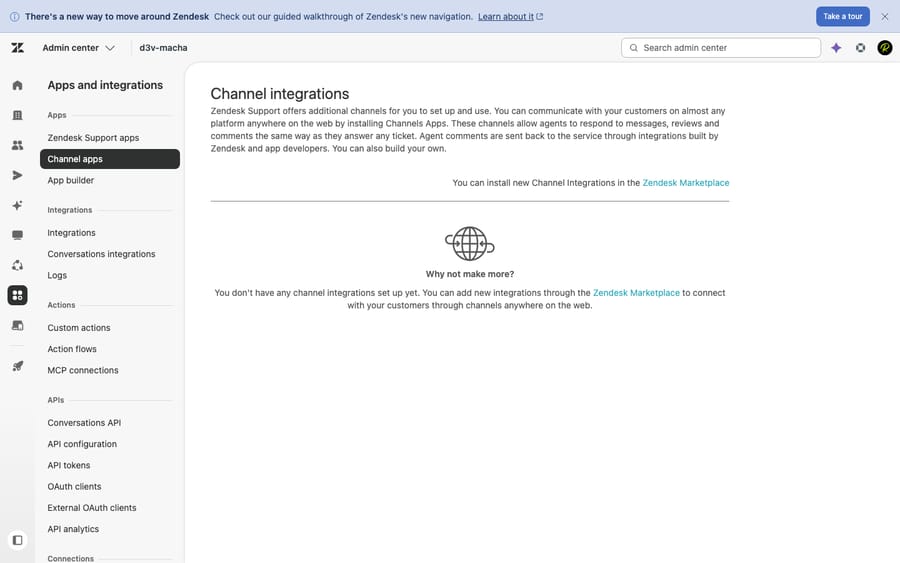
To be transparent about what you're looking at: the screenshot above is the Zendesk Admin Center → Apps and integrations page — this is where the Aircall app gets installed and where you'd uninstall or re-authorize it. The actual Aircall configuration (number selection, logging rules, CTI behavior) lives inside the app panel and in the Aircall dashboard, which is why the next steps reference Aircall's screens rather than Zendesk's.
How do you authorize the Aircall account? (Step 2)
With installation started from the Aircall side, you now link the two accounts:
- Click Authorize.
- Under Select numbers, choose the Aircall numbers you want linked to Zendesk (you can skip this and add them later, but note that at least one number must be selected for call activity to log in Zendesk).
- Enter your Zendesk account URL in the form
https://example.zendesk.com. - If prompted, log into Zendesk.
- On the Zendesk authorization screen, click Allow to grant the app access.
- Click Finish to complete the connection.
Because you're an admin in both platforms (and your emails match), the OAuth handshake completes cleanly. If authorization fails here, it's almost always a non-admin account, a typo in the Zendesk URL, or being logged into the wrong Zendesk instance in your browser.
How do you enable the CTI in the agent workspace? (Step 3)
The CTI is the embedded Aircall phone that appears inside Zendesk so agents place and receive calls without leaving a ticket. In the integration settings, configure how it surfaces:
- Set the CTI display option to control what pops when a call comes in — the relevant ticket view, the caller's contact history, or no automatic display. For most support teams, surfacing the existing ticket on inbound is the highest-value setting.
- Confirm agents are using Google Chrome (the CTI's only supported browser) and that they're signed into Aircall.
Once enabled, each agent sees the Aircall dialer docked in their Zendesk workspace. They sign in with their Aircall credentials, set themselves available, and can take inbound calls and dial out — all without leaving the ticket they're on. The contextual pop-up means an inbound call can open the caller's open ticket automatically, so the agent has context before they say hello.
How do Aircall calls turn into Zendesk tickets? (Step 4)
This is the heart of the integration: deciding how each type of communication turns into (or attaches to) a Zendesk ticket. In the app's settings, Aircall lets you set logging behavior separately for calls, SMS messages and WhatsApp messages, and logs AI Voice Agent calls as an internal note or voice comment. For each type, you pick one of three options:
- Log to a new ticket: log the interaction as a fresh Zendesk ticket.
- Log to a previous ticket: append to the caller's most recent relevant ticket instead of spawning duplicates.
- Log to no ticket: don't log that type at all.
Then tune the details:
- Ticket status. Choose the status each call type lands in: New, Open, Pending, On-Hold, Solved, or Closed. Missed calls as "Open," answered-and-resolved calls as "Solved," for example.
- Recordings, notes, and tags. Call recordings, comments, tags, and transfers sync automatically from Aircall into the Zendesk ticket. Notes and tags an agent adds during after-call wrap-up flow through too — so the ticket carries the full record of the conversation.
- Standard Aircall fields. Select which fields write to the ticket: handling agent, call duration, recording URL, transcript, and more.
- Ticket type and priority by tag. Optionally have Aircall auto-update a ticket's type or priority based on Aircall tags, so a "billing" tag on the call can set the ticket's category in Zendesk.
- Out-of-hours behavior. Decide whether to create tickets for calls outside business hours so nothing slips through overnight.
- Unknown callers. Optionally auto-create a contact in Zendesk for numbers that don't match an existing user.
- AI Insights. If you use Aircall's AI features, enable AI Insights logging to write the call transcription, plus call summary, key topics, action items and sentiment, into the ticket. (Aircall's AI Voice Agent calls log as an internal note or voice comment.)
A practical default: new ticket on inbound and missed calls, append to the existing ticket when the caller already has an open one, status "Open," and recordings plus transcript turned on. Tighten from there once you see real volume.
How do agents dial out from Zendesk? (Step 5)
To let agents dial out from within Zendesk, make sure phone numbers in your tickets and user profiles are click-to-dial enabled:
- Confirm the phone field is populated on customer profiles; Aircall's click-to-dial reads numbers from the ticket/contact.
- With the CTI active, a phone number in the agent workspace becomes clickable; clicking it places the outbound call through Aircall and the dialer takes over.
- Agents can also dial manually in the CTI keypad for numbers not stored in Zendesk.
If click-to-dial doesn't appear, it's usually because the number isn't in a recognized phone field or the CTI isn't loaded on that page — reload the workspace in Chrome.
How do you map Aircall users to Zendesk agents? (Step 6)
For calls to attribute to the right person and route correctly, each Aircall user must line up with a Zendesk agent:
- Ensure every agent exists as a user in both Aircall and Zendesk with the same email address (this is the join key; mismatched emails are the #1 mapping failure).
- Confirm each agent holds a Talk Partner Edition seat in Zendesk so they can use the CTI.
- In the integration settings, set assignment rules, for example to route missed-call tickets to a specific user or group so they don't go unowned.
When mapping is correct, an answered call's ticket is automatically assigned to the agent who handled it, and missed calls follow your assignment rule.
How do you test the integration before launch? (Step 7)
Don't announce it until you've run the full loop yourself:
- Outbound test. From a Zendesk ticket, click a customer's phone number (or dial in the CTI). Confirm the call connects through Aircall, and that when it ends a ticket is created/updated with the recording, duration, and your wrap-up notes.
- Inbound test. Call one of your linked Aircall numbers from a phone. Verify the CTI rings inside Zendesk, the contextual pop-up shows the caller's ticket or history, and answering logs the call to a ticket with the right status and assignee.
- Missed-call test. Let a call ring out. Confirm it logs per your rule (e.g. a new "Open" ticket assigned to the right group).
- Check the sync. Open the resulting ticket and confirm the recording, tags, and transcript (if enabled) all landed.
If something misfires, the usual culprits are: no number selected in Step 2 (so nothing logs), an agent on a non-Chrome browser, mismatched emails, or a missing Talk Partner Edition seat.
What are the limitations of the Aircall Zendesk integration?
Be clear-eyed about what the integration does and doesn't do:
- Chrome only. The embedded CTI doesn't work in Firefox, Safari, or Edge. A team that isn't standardized on Chrome will have a fractured experience.
- Two platforms, two bills. Aircall is a separate subscription on top of Zendesk (from $30 per license/month billed annually, 3 licenses minimum), and you administer numbers, routing, and IVR in Aircall — not Zendesk. This is the cost of Aircall's depth versus native Talk's simplicity.
- Talk Partner Edition seats are required. Every CTI agent needs a seat; on legacy Zendesk plans that means a Talk Partner license per agent.
- WhatsApp logging is text-only (and Aircall sells WhatsApp as a $10 per seat/month add-on), and some logging behaviors depend on using the Aircall CTI inside Zendesk rather than the standalone Aircall app.
- It's voice plumbing, not answers. The integration moves calls and data between systems beautifully — but it doesn't reduce how many calls come in. That's a different problem, addressed below.
Where does an AI agent fit alongside Aircall?
Here's the honest part. Connecting Aircall to Zendesk makes your phone channel excellent — but voice, by nature, needs a human on the line. The integration won't shrink your call volume; it just makes each call better-documented.
What can shrink the load on your phone team is deflecting the answerable text volume before it ever becomes a call. A huge share of "let me just call them" happens because a customer couldn't get a quick answer over email or chat. An AI agent that resolves those repetitive text questions — order status, password resets, policy questions — means fewer people pick up the phone in frustration, so your human agents can focus on the calls that genuinely need a voice.
That's the layer Macha adds. Macha isn't a phone system and it isn't a Zendesk replacement — it's an AI agent that runs on top of your existing Zendesk, resolving the text-based tickets your team would otherwise field, and escalating to a human (with full context) when it isn't confident. There's a neat loop with voice, too: the call notes and transcripts Aircall logs into Zendesk become knowledge the AI agent can learn from, so answers on text get better as your phone team handles more calls.
On cost, Macha bills per ticket — one conversation, charged once, however many steps it takes to draft, tag, route or resolve — not per resolution, so the bill never hangs on an outcome definition you don't control. If a big chunk of your inbound volume is repetitive questions a knowledge base could answer, that's the line where an AI agent earns its keep alongside your phones. Macha is one plan priced by ticket volume, from $299 a month for up to 750 tickets, with setup and monitoring by the Macha team included, and it runs on Zendesk, Freshdesk, Gorgias, Front, HubSpot or Intercom. You can try it with $50 of free usage, no credit card required.
Frequently asked questions
What is the Zendesk Aircall integration? It's the official Aircall for Support app — built by Aircall and listed on the Zendesk Marketplace — that embeds Aircall's cloud phone (a CTI) inside the Zendesk agent workspace. Agents place and receive calls without leaving Zendesk, and every call logs back as a ticket with recording, notes, and tags. It connects through Zendesk's Talk Partner Edition, the framework Zendesk built for third-party telephony.
How do I connect Aircall to Zendesk? Install from the Aircall Dashboard (Integrations → Apps → search Zendesk V3) or from the Zendesk Marketplace (search Aircall → Aircall for Support). Then Authorize, select your Aircall numbers, enter your Zendesk URL, log in, click Allow, and Finish. You need admin rights in both platforms and matching email addresses.
Is Aircall the same as Zendesk Talk? No. Zendesk Talk is Zendesk's native voice channel (one vendor, simplest setup). Aircall is a separate, third-party cloud phone system that integrates through Talk Partner Edition. Choose Aircall for its call-center depth (advanced routing, IVR, analytics, a phone app) if you already use it; choose Talk for fully native voice with one bill. See how to set up Zendesk Talk.
Do calls automatically create Zendesk tickets? Yes — and you control it. For calls, SMS and WhatsApp messages you choose log to a new ticket, log to a previous ticket, or log to no ticket, plus the ticket status. AI Voice Agent calls log as an internal note or voice comment. Recordings, comments, tags, and transcripts sync automatically into the ticket.
What are the requirements? Admin access in both Aircall and Zendesk, matching email addresses, a Talk Partner Edition seat in Zendesk for each agent, an active Aircall plan with at least one number, and Google Chrome (the CTI's only supported browser).
How much does Aircall cost for a Zendesk team? Aircall lists Essentials at $30 and Professional at $50 per license/month billed annually (Essentials is $40 billed monthly), with a 3-license minimum, so the smallest annual Essentials account is $90 a month before add-ons. Talk Partner Edition seats on the Zendesk side are a separate question for your Zendesk plan.
Why does the CTI only work in Chrome? Per Aircall's documentation, the Aircall CTI within Zendesk is only compatible with Google Chrome. Agents on other browsers won't see the embedded dialer, so standardize your team on Chrome before rollout.
What is the full Aircall to Zendesk setup in one paragraph?
Connecting Aircall to Zendesk is a clear sequence: install the official Aircall for Support app (from the Aircall dashboard or the Zendesk Marketplace), authorize and select your numbers, enable the CTI in the agent workspace, configure call-to-ticket logging (per-channel rules, status, recordings, tags, transcripts), set up click-to-dial, map agents by matching email with Talk Partner Edition seats, then test a real inbound, outbound, and missed call. Remember the trade-off: Aircall gives you a deeper phone system than native Zendesk Talk, at the cost of a second platform and Chrome-only CTI. If voice is your channel of choice, this is the supported, vendor-built way to run it through Zendesk — and if a lot of your inbound is really just answerable text, pairing it with an AI agent keeps your phone team focused on the calls that need them.
Setup steps and prices re-checked against Aircall's and Zendesk's official pages on 24 September 2026. Both vendors update their products periodically, so confirm labels and seat requirements in your own accounts before relying on them.
Add AI agents to your Zendesk
Macha reads the ticket, drafts the reply and takes the action, inside the Zendesk you already run.





