



 Intercom
 Shopify
 Stripe
 Slack
Slack Notion
 Google Workspace
 Confluence

How Do You Connect WhatsApp to Zendesk? Step-by-Step Setup (2026)


You connect WhatsApp to Zendesk from Admin Center under Channels, Messaging and social, Messaging, by adding a WhatsApp channel and completing Meta's embedded signup with a verified business and a dedicated number. Each customer message then lands as a ticket in the Agent Workspace, and Meta charges only for template messages, not for replies inside the 24-hour window.
Key takeaways
- Connecting WhatsApp to Zendesk runs through Admin Center, Channels, Messaging and social, Messaging, then Add channel and Continue with WhatsApp to launch Meta's embedded signup.
- Unverified Meta Business accounts can message only 250 unique customers in a rolling 24 hours and register up to 2 phone numbers, and verification takes roughly 1 to 2 weeks.
- A WhatsApp number connected to Zendesk cannot be a VoIP number or active on the WhatsApp or WhatsApp Business app, and it stops receiving WhatsApp calls.
- Since July 1, 2025, Meta charges per template message delivered, while replies and utility templates inside the 24-hour customer service window are free.
- Meta revised WhatsApp rates on January 1, April 1 and July 1, 2026, and the next set of country rate changes takes effect on October 1, 2026.

To connect WhatsApp to Zendesk, go to Admin Center → Channels → Messaging and social → Messaging, click Add channel → WhatsApp → Continue with WhatsApp, and finish Meta's embedded signup: pick your Meta Business Manager and WhatsApp Business Account, set up the business profile, verify a dedicated non-VoIP number, and name the channel. The Zendesk side takes about 30 minutes and provisioning up to 5 minutes; the slow part is Meta Business verification, which Zendesk puts at roughly 1 to 2 weeks (Zendesk: Adding WhatsApp channels).
| You need | Detail |
|---|---|
| Zendesk plan | Any Suite plan (Team, Growth, Professional, Enterprise, Enterprise Plus), or the Social Messaging add-on on legacy setups |
| Zendesk access | Admin, with messaging turned on |
| Meta side | A WhatsApp Business Account in a Meta Business Manager you administer, ideally verified |
| Unverified limits | 250 unique customers per rolling 24 hours; up to 2 phone numbers |
| Phone number | Can receive an SMS or call; not VoIP; not active on the WhatsApp or WhatsApp Business app |
| What Meta charges | Per template message delivered (since July 1, 2025); replies inside the 24-hour window are free |
WhatsApp isn't a one-click toggle. It's a native Zendesk messaging channel powered by Sunshine Conversations, and the Meta-side requirements have to be in place before the Admin Center flow will finish. Every step below is checked against Zendesk's and Meta's current documentation; both revise their UI and rules periodically, so confirm labels and prices in your own account.
How does the Zendesk WhatsApp integration work?
The mental model explains every requirement below.
WhatsApp in Zendesk is a social messaging channel, the same family as Facebook Messenger and Instagram DMs. It runs on the official WhatsApp Business Platform (the Cloud API), not the green WhatsApp app on your phone. When a customer messages your business number, the conversation flows through Meta into Zendesk's messaging layer and lands in the Agent Workspace as a persistent ticket. Your agent replies inside Zendesk; the customer sees the reply in their normal WhatsApp chat. If you've already turned on Zendesk messaging for your website widget, this is the same pipeline, and WhatsApp is one more source feeding it. (New to messaging? Start with how to set up Zendesk messaging, then come back here.)
Two consequences fall straight out of that model:
- Because it's the Business Platform, you need a WhatsApp Business Account and a phone number that isn't already running on the consumer or "WhatsApp Business" mobile app.
- Because Meta gates business messaging to stop spam, you need Meta Business verification and you have to play by WhatsApp's 24-hour window and template message rules once you're live.
Everything that follows is just satisfying those two facts.
What do you need before you connect WhatsApp to Zendesk?
Line these up first. A missing prerequisite is the most common reason a WhatsApp setup stalls mid-flow.
Zendesk plan and access
- Admin access to your Zendesk Admin Center.
- A messaging-capable plan. WhatsApp (and the other social channels) is available on the Zendesk Suite plans — Team, Growth, Professional, Enterprise, and Enterprise Plus. If you're on a legacy non-Suite setup (Support + Chat), social messaging is gated behind the Social Messaging add-on. Plan packaging changes over time, so confirm WhatsApp is included in your subscription before you start. (Zendesk: Adding WhatsApp channels)
- Messaging turned on and the Agent Workspace enabled (it is by default on current accounts).
A WhatsApp Business Account and Meta Business Manager
- A WhatsApp Business Account (WABA) that belongs to your business, sitting inside a Meta Business Manager.
- The person doing the setup must be an Admin of that Meta Business Manager.
- Your Meta Business must be verified. Per Zendesk's documentation, account approval can take roughly 1–2 weeks, and Meta may ask for documents (business registration, a utility bill, etc.). Until you're verified, your account is throttled — Meta caps unverified businesses at messaging 250 unique customers in a rolling 24-hour period and registering up to 2 phone numbers.
- Your display name must match your real business branding, or WhatsApp will reject it during review.
A phone number that qualifies
This trips up more setups than anything else. The number you dedicate to WhatsApp in Zendesk:
- Must be able to receive an international call or SMS for the one-time verification code.
- Cannot be a VoIP number (Meta rejects most VoIP numbers).
- Cannot already be active on the WhatsApp consumer app or the WhatsApp Business mobile app. If your number is currently on one of those, you have to migrate it first — delete the existing WhatsApp account on that number (or follow Meta's number-migration path) before connecting it here. (Zendesk: Migrating WhatsApp numbers)
- Will lose the ability to receive WhatsApp calls once it's on the Business Platform — this is a Meta limitation, not a Zendesk one. Use a number you're happy to dedicate to support.
A good practice is to provision a fresh, dedicated support number for this so you never disrupt an existing line.
How do you connect WhatsApp to Zendesk, step by step?
With the prerequisites in place, the connection itself is a guided flow. Budget about 30 minutes for the Zendesk steps, and remember the Meta verification wait can run days to a couple of weeks in parallel.
Step 1 — Make sure messaging is on
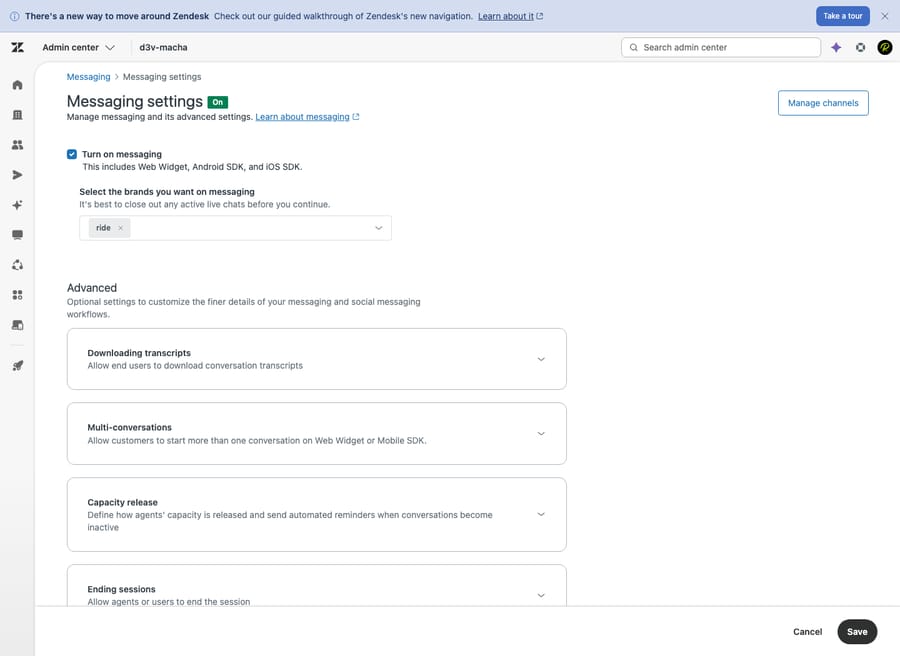
WhatsApp rides on Zendesk messaging, so messaging has to be active first. In the Admin Center, go to Channels → Messaging and social → Messaging. If you don't already have a messaging channel, turn messaging on (most current accounts have it on by default, with a Web Widget already created). The full walkthrough lives in how to set up Zendesk messaging.
Step 2 — Start adding the WhatsApp channel
Still under Admin Center → Channels → Messaging and social → Messaging, click Add channel and select WhatsApp from the drop-down. On the next screen, click Continue with WhatsApp to launch Meta's embedded signup flow. This is an official Meta/Facebook pop-up handled inside Zendesk — you're authenticating directly with Meta, not handing Zendesk your password.
Step 3 — Authenticate and pick your Meta assets
In the embedded flow:
- Authenticate with the Facebook profile that's linked to your Meta Business Manager.
- Grant the permissions WhatsApp requests so Zendesk can manage the account and number on your behalf.
- Select your Meta Business Manager (or create one if you don't have it yet).
- Select the WhatsApp Business Account to use — or create a new one inside the flow.
If your business or display name still shows as pending, that's the verification gate. You'll need to finish Meta Business verification and wait for the approval email before the number can go fully live; you can usually complete the rest of the setup and let the number activate once Meta approves.
Step 4 — Set up your business profile
WhatsApp shows a public business profile to customers, so fill it in deliberately. The flow collects:
- A channel name (internal label) and the brand it belongs to (for multi-brand accounts).
- A profile picture and description.
- Business details: address, email, industry, and website(s).
This is the card customers see when they open your chat — treat it like a mini storefront.
Step 5 — Add and verify your phone number
Enter the phone number you're dedicating to WhatsApp. Meta sends a verification code by SMS or call; enter it to confirm ownership. (This is why the number can't be VoIP and can't be live on the consumer app — Meta needs to deliver that code and claim the number.) Once verified, the number is registered to your WhatsApp Business Account.
Step 6 — Finish the channel in Zendesk
Back in Zendesk, select the activated phone number from the drop-down, assign a name to the WhatsApp channel, and click Add channel. Provisioning can take up to about five minutes to complete. When it's done, the channel appears in your list of messaging channels — WhatsApp is now connected.
Step 7 — Route WhatsApp conversations to agents
A connected channel still needs someone to answer it. WhatsApp tickets behave like any messaging ticket, so wire them into your assignment logic:
- Enable omnichannel routing so WhatsApp conversations are auto-assigned to available agents by skill and capacity, rather than sitting unclaimed.
- Set agent capacity rules so a busy agent doesn't get buried — for example, one phone call but several concurrent messaging threads.
- Optionally, use triggers and automations to tag WhatsApp tickets, set priorities, or fire a first-response auto-reply.
Because WhatsApp lands as a standard ticket, everything you already know about the Zendesk ticketing system — statuses, macros, SLAs, views — applies unchanged.
Step 8 — Test the full loop
Don't announce the number until you've run it yourself:
- From a personal phone, message your business number on WhatsApp.
- Confirm it appears as a ticket in the Agent Workspace, routed to the right agent.
- Reply as an agent in Zendesk and confirm the message lands back in WhatsApp on the customer side.
- Check that history persists — close and reopen the chat; the thread should resume, not reset.
If the message never becomes a ticket, the usual culprits are routing being off, the channel assigned to the wrong brand, or the number still pending Meta approval.
What are the 24-hour window and template rules?
This is where WhatsApp differs most from web chat or email, and skipping it leads to "why can't I message my customer back?" tickets later.
The 24-hour customer service window
When a customer messages you, it opens a 24-hour customer service window. Inside that window you can reply freely with normal (free-form) messages — answer questions, send follow-ups, resolve the issue. Every new inbound message from the customer resets the 24-hour clock. (Meta: Pricing on the WhatsApp Business Platform)
Template messages for anything outside the window
Once 24 hours pass with no customer reply, the window closes. You can no longer send a free-form message — to re-engage (an order update, an appointment reminder, a "we found an answer" follow-up), you must send a pre-approved message template. Templates are submitted to Meta for review and approved by category (utility, authentication, marketing). This rule exists to stop businesses spamming people who've gone quiet, and it's a hard constraint: proactive/outbound WhatsApp = templates only.
What does WhatsApp cost? (Meta's pricing, not Zendesk's)
Zendesk doesn't charge per WhatsApp message, but Meta does, and the model changed materially on July 1, 2025: Meta moved from charging per 24-hour conversation to charging per template message delivered. In practice (Meta pricing docs):
- Service messages — your replies within the 24-hour window — are free.
- Utility templates (order updates, receipts) sent inside an open window are also free.
- Marketing and authentication templates incur a per-message fee, charged when the message is delivered.
- All messages are free for 72 hours when the conversation starts from a free entry point, such as a click-to-WhatsApp ad.
- Rates vary by country and category, and Meta revises them roughly every quarter. In 2026, rate changes took effect on January 1 (lower utility and authentication rates in North America), April 1 and July 1 (higher marketing rates in Italy, Spain and the United Kingdom), and the next set lands on October 1, 2026. Check the current rate card for your markets.
Answering customers who message you is essentially free; reaching out first is what costs money. Meta's incentive is plain: it charges for the messages businesses want to send and waives the ones customers ask for. Budget for outbound, not inbound.
What are the limitations of WhatsApp in Zendesk?
- No group messages. The Zendesk WhatsApp channel doesn't support WhatsApp group chats.
- The number loses WhatsApp calling. Once it's on the Business Platform, that number can't receive WhatsApp calls.
- One number can't live in two places. You can't run the same number in the WhatsApp consumer app and Zendesk simultaneously — migrate it first.
- Verification is a real wait. Plan for days to ~2 weeks for Meta to approve your business and display name; you can't fully launch until then.
- Display-name rejections. If your chosen display name doesn't clearly match your brand, Meta will bounce it — pick the obvious one.
- Standard status message. The number's WhatsApp status can't be customized; Zendesk says it shows the default "Hey there! I am using WhatsApp".
Where does an AI agent fit on the WhatsApp channel?
WhatsApp setups tend to get re-evaluated a few months in because WhatsApp volume is high and mostly repetitive. "Where's my order?", "what are your hours?", "how do I return this?": the same handful of questions, all day, all landing as tickets your agents have to type answers to. And there's a clock on it: you want to resolve inside that 24-hour window while replies are free and the customer is still paying attention.
That's the gap an AI agent like Macha is built for. Macha is not a help desk and not a Zendesk replacement. It's an AI agent layer that runs on top of your existing Zendesk WhatsApp channel. When a message comes in, Macha reads the actual question, pulls from your connected knowledge base and past tickets, and answers common questions right there in the WhatsApp thread, within the window, before a human is needed. When it isn't confident, it does the ticket housekeeping (tagging, routing) and hands off to an agent with the full context attached. Honest caveats: it's one more integration to configure, and it's only as good as the knowledge you connect to it.
On cost, Macha bills per ticket (one WhatsApp conversation, charged once however many messages, drafts and lookups it takes), not per resolved conversation, so a chat that runs long isn't billed twice. Pricing starts at $299 a month for 750 tickets, about $0.40 each, with setup and monitoring by the Macha team included. If your WhatsApp queue is mostly repeat questions your help center could already answer, that's the line where doing it by hand stops scaling. See how Macha works on Zendesk, or try it free with $50 of free usage, no credit card required.
Frequently asked questions
Do I need a special Zendesk plan for the WhatsApp integration? WhatsApp messaging is available on the Zendesk Suite plans (Team, Growth, Professional, Enterprise, Enterprise Plus). On legacy non-Suite setups (Support + Chat), it requires the Social Messaging add-on. Plan packaging changes, so confirm WhatsApp is included in your subscription before you start.
Can I use my existing WhatsApp number? Only if it isn't currently active on the WhatsApp consumer app or the WhatsApp Business mobile app. If it is, you must migrate it first (remove the existing WhatsApp account on that number). It also can't be a VoIP number, and once it's on the WhatsApp Business Platform it can no longer receive WhatsApp calls — so many teams provision a fresh, dedicated support number.
How long does setup take? The Zendesk-side connection takes about 30 minutes. The real variable is Meta Business verification, which can take from a couple of days up to roughly two weeks, and your display name has to be approved before the number goes fully live.
What is the 24-hour window? When a customer messages you, a 24-hour customer service window opens in which you can reply freely; each new customer message resets it. Outside the window you can only send pre-approved message templates. (Meta pricing docs)
Does Zendesk charge per WhatsApp message? No — but Meta does. Since July 1, 2025, Meta charges per template message delivered. Your replies within the 24-hour window (service messages) and utility templates inside an open window are free; marketing and authentication templates carry a per-message fee that varies by country. Meta revised rates on January 1, April 1 and July 1, 2026, with more changes due October 1, 2026.
Where do WhatsApp conversations show up for agents? In the Agent Workspace, as persistent tickets — alongside the customer's email, chat, and phone history. Agents handle them like any other ticket, with the conversation resuming across sessions.
Can I send marketing broadcasts over WhatsApp through Zendesk? Proactive/outbound messages must use approved templates, and marketing templates incur Meta fees. WhatsApp also enforces quality and opt-in rules — it's built for support and transactional messaging, not unsolicited blasts.
What's the fastest path to a live WhatsApp channel?
Start Meta Business verification first, because it's the 1 to 2 week wait everything else sits behind. While it runs, provision a clean, dedicated, non-VoIP number that isn't on the WhatsApp app, confirm you're an Admin on the Meta Business Manager, and check that your Zendesk plan includes WhatsApp. Then run the guided flow (Admin Center → Channels → Messaging and social → Messaging → Add channel → WhatsApp → Continue with WhatsApp), set up routing, and test the loop from a personal phone. After launch, reply inside the 24-hour window (free) and use approved templates for anything outside it, where Meta's per-message fees apply.
Setup steps and rules checked against Zendesk and Meta documentation on 24 September 2026. Both update their products and pricing periodically, so confirm labels and current rates in your own account before relying on them.
Add AI agents to your Zendesk
Macha reads the ticket, drafts the reply and takes the action, inside the Zendesk you already run.





