Intercom
 Shopify
 Stripe
 Slack
Slack Notion
 Google Workspace
 Confluence

How Do You Set Up Zendesk Messaging in 2026? 8 Steps


Zendesk messaging is already on in current accounts, so setup means adding a channel, editing its responses and business hours, routing conversations to agents, and testing the handoff. It's what Zendesk now offers instead of legacy live Chat, and every conversation lands as a persistent ticket.
Key takeaways
- Zendesk messaging is automatically on in current accounts, and accounts created after 2 November 2021 already have a default Web Widget in Admin Center.
- A new Zendesk messaging channel uses a default response that greets the customer, collects details such as name or email, and connects them to a live agent.
- Zendesk capacity release frees an agent's capacity after a messaging conversation sits idle for a whole number from 3 to 15 minutes, set under Advanced settings.
- Zendesk lets end users end messaging sessions only on the Web Widget, and only after multi-conversations are turned on for that channel.
- Zendesk messaging conversations arrive in the Agent Workspace as persistent tickets, so agents reply, add notes and apply macros exactly as they do with email.

To set up Zendesk messaging, go to Admin Center → Channels → Messaging and social → Messaging, where messaging is already on by default: pick your brands, add a Web Widget, mobile SDK or social channel, set the responses and business hours, turn on omnichannel routing, tune the Advanced settings, and test the full loop. Zendesk's own getting-started guide says you don't need to turn messaging on, and accounts created after 2 November 2021 get a default Web Widget named "Zendesk". If you searched for "Zendesk live chat setup", messaging is what you want: Zendesk steers new setups to it rather than the legacy live Chat product (see Zendesk messaging vs. live chat for the difference). Steps below were checked against Zendesk's documentation in September 2026; Zendesk revises its UI, so confirm labels in your own account.
| Step | Where in Admin Center | What you decide |
|---|---|---|
| 1. Confirm messaging is on | Channels → Messaging and social → Messaging | Nothing on new accounts; it's on by default |
| 2. Select brands | Messaging page | Which brands get a widget |
| 3. Add channels | Messaging → Add channel | Web Widget, Android/iOS/Unity SDK, WhatsApp, Messenger, Instagram |
| 4. Responses and hours | Your channel → Responses | Greeting, details to collect, off-hours reply, optional AI agent |
| 5. Routing and capacity | Objects and rules → Omnichannel routing | Who gets each conversation, how many at once |
| 6. Advanced settings | Messaging → Manage settings | Multi-conversations, ending sessions, capacity release (3 to 15 minutes) |
| 7-8. Go live and test | Your website or app | Handoff lands as a routed ticket |
What do I need before I start?
A few prerequisites save you a mid-setup detour:
- Admin access. Messaging settings and channels live in Admin Center, which needs an admin role.
- Agent Workspace. All agent-side messaging activity happens in the Zendesk Agent Workspace, the unified interface where chats, email and other channels share one ticket view, and agents need messaging access before they can take conversations. New accounts get the Agent Workspace by default.
- A decision on where chat appears. Website, mobile app, social DMs, or a mix. You can add channels later, so knowing your first target is enough to make Step 3 quick.
Step 1: How do I turn on messaging?
On current accounts you don't. Zendesk's getting-started guide says: "Messaging is automatically on in your account and ready to use whenever you're ready. You don't need to turn on messaging." What you do is open the page you'll manage it from:
- In Admin Center, click Channels in the left sidebar.
- Select Messaging and social, then Messaging.
- Check the Channels list. Accounts created after 2 November 2021 already have a default Web Widget named "Zendesk" there.
The full path is Admin Center → Channels → Messaging and social → Messaging, and every later step starts here. Older accounts that still run legacy live Chat or Web Widget (Classic) have a separate path: Zendesk documents it in setting up Web Widget for messaging when using live chat.
Messaging covers the Web Widget and the Android, iOS and Unity SDK channels, plus social channels. Having them available doesn't commit you to all of them; you configure only the ones you add.
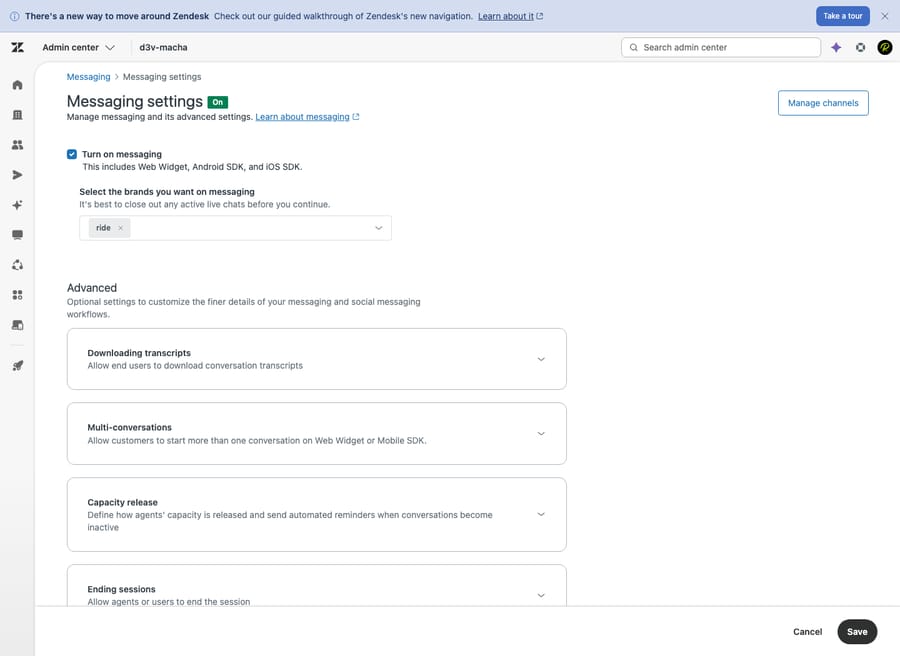
Step 2: Which brands should messaging cover?
If your account runs multiple brands (separate storefronts, products or help centers under one Zendesk), you choose which brands messaging applies to from the drop-down.
This matters because each brand gets its own messaging configuration and its own widget, so customers on different brands can see different greetings, business hours and AI agents. With a single brand there's nothing to decide. Multi-brand teams should map which brands need chat before configuring, so they don't half-configure one and forget another.
Step 3: How do I add messaging to my website, app or social channels?
On the Messaging page, click Add channel and pick the type:
- Web Widget: the chat bubble on your website or help center, and the usual starting point. Confirm the channel name, select the brand, then either copy the code snippet into your site or choose to automatically embed the widget in your help center. You can then set a primary color, title and optional logo. If you've used the Zendesk Web Widget before, this is the same widget, now running on messaging instead of legacy Chat.
- Mobile SDK (Android / iOS / Unity): chat inside your native app. Create the channel, assign it to a brand, and Zendesk gives you a Channel ID. Your developers embed the SDK and reference that ID to wire it up.
- Social channels: under the same Messaging and social section you can connect WhatsApp, Facebook Messenger and Instagram, so DMs from those platforms arrive in the same queue as your widget conversations. Each needs you to authenticate the relevant account.
The payoff: website, app, WhatsApp and Messenger all feed one conversation stream for your agents.
Step 4: What should the conversation experience say?
Out of the box, a messaging channel uses Zendesk's default messaging response. Per Zendesk's guide to configuring messaging responses and business hours, it has three parts: a basic greeting, a request for information about the customer's support need, and a message saying they're being connected to a live agent. It can also ask for details such as name or email before the transfer. It's usable as-is, but worth editing. Open your channel, then the Responses section, and configure:
- The greeting. Keep it specific ("Hi! Ask us anything about orders, returns, or your account") rather than "How can I help?". It sets expectations and prompts better first messages.
- Business hours. Apply a schedule so the channel shows a different response outside hours (for example, "We're away until 9am. Leave a message and we'll reply by email."). Zendesk offers this on all Suite plans except Team. It prevents the worst chat experience: a customer typing into the void at 2am.
- An AI agent to answer first (optional). The default response only greets, collects details and hands off. It doesn't answer questions. Zendesk's guide says you can use the channel as-is or add an AI agent to automate more. An AI agent can answer common questions and suggest help-center articles before a human is needed, then hand off what it can't resolve. For what Zendesk's AI can and can't do, see our guide to Zendesk AI.
An AI agent on the channel changes the math: it takes the "where's my order?" volume, so your humans see the conversations that need them.
Step 5: How are messaging conversations routed to agents?
Having messaging on doesn't decide who gets each conversation. That's omnichannel routing, which assigns messaging tickets to agents based on availability, skills, and how much they're already handling.
Two things to configure:
- Omnichannel routing. Enable it (Admin Center → Objects and rules → Omnichannel routing in most accounts) so conversations go to available agents automatically instead of waiting in a pile to be grabbed.
- Agent capacity rules. Set how many concurrent conversations an agent handles across channels, for example one phone call but up to three messaging chats. Capacity rules stop messaging from swamping someone already on a call, and they're what make live chat feel live.
Skip routing and conversations still arrive, but assignment is manual, which falls apart once you have more than a couple of agents.
Step 6: Which Advanced settings should I change?
Under Manage settings on the Messaging page are the controls that separate a tidy setup from a messy one. The ones worth setting deliberately:
- Download transcripts. Let end users save a copy of their conversation, useful for their records and a small trust signal.
- Multi-conversations. Let a customer run more than one conversation at a time (a billing question and a shipping question as separate threads). Per Zendesk's multi-conversations article, it's available on the Web Widget, iOS, Android and Unity SDK channels, on all Suite plans, but not on social messaging channels. The SDKs need iOS/Android 2.10.0 or later, or Unity 3.4.0 or later.
- Ending sessions. Let end users explicitly end a conversation when they're done (Advanced → Ending sessions). Two limits: multi-conversations must be turned on first, and it's only available on the Web Widget.
- Capacity release. Decide how long a conversation can sit idle (no customer reply) before Zendesk frees the agent's capacity for a new chat. In Advanced, open Capacity release, confirm auto-release is on, and set an inactivity period: a whole number from 3 to 15 minutes, per Zendesk's capacity release article. In a busy queue this matters more than it looks: without it, agents stay "full" of customers who've already wandered off.
Most teams keep the defaults at first and revisit capacity release and multi-conversations once they see real traffic.
Step 7: Where do messaging conversations show up for agents?
This is why messaging beats legacy live Chat: a messaging conversation arrives in the Agent Workspace as a persistent ticket. It isn't a chat window that disappears when the customer leaves. It's a real ticket with full message history, next to the customer's email and phone tickets.
An agent can step away, the customer can close the browser, and the conversation waits and resumes: same thread, same context, days later if need be. Agents work messaging like any other ticket (reply, add internal notes, apply macros, set status, route to another team), with no separate chat console to learn. Full comparison in messaging vs. live chat.
Step 8: How do I test messaging before going live?
Before you announce it, run the full loop yourself:
- Publish the widget. Make sure the Web Widget snippet is live on your site (or the SDK build is shipped). Load the page and confirm the chat bubble appears.
- Start a conversation as a customer. Open the widget, read the greeting, and check the response asks for the details you configured. If you added an AI agent, ask a question it should handle and confirm it answers.
- Trigger a handoff. Ask for a human and verify the conversation shows up as a ticket in the Agent Workspace, routed to the right agent.
- Reply as an agent, then check the customer side receives it. Test the off-hours response too, by checking outside business hours.
If something misfires (the widget doesn't load, conversations don't route, the AI agent stays silent), retrace the matching step. Most "it's not working" reports come down to the snippet missing from the page, omnichannel routing being off, or the channel assigned to the wrong brand.
What mistakes break a messaging setup?
A few habits separate a messaging setup that helps from one that frustrates:
- Set business hours and an away response from day one. The fastest way to sour customers on chat is letting them message into silence overnight.
- Decide who takes the first turn. The default response only greets and hands off, so every "where's my order?" hits a human unless an AI agent answers first.
- Turn on omnichannel routing and capacity rules together. Routing without capacity limits buries your fastest agents; capacity without routing leaves conversations unassigned.
- Don't forget capacity release. Without it, idle conversations keep agents marked "full" and new customers wait behind people who already left.
- Test the handoff, not just the greeting. The greeting almost always works. The escalation to a human, and whether it lands as a routed ticket, is where setups break.
- Don't expect one-to-one parity with legacy Chat. Some old Chat features behave differently or have moved; if you're migrating, audit them rather than assuming.
What can an AI agent add on top of Zendesk messaging?
Zendesk's messaging tools cover greeting, collecting details and handing off, and an added Zendesk AI agent can answer common questions from help-center content. Notice the ceiling: much of what it does is deflect with articles and hand off anything beyond a known flow. For many teams the gap is everything in between: questions that need a real answer pulled from your knowledge base, past tickets or another system, resolved in the thread.
That's the layer an AI agent like Macha adds. Macha isn't a help desk or a Zendesk replacement; it runs on top of your existing Zendesk messaging channel. Instead of only suggesting an article or escalating, it reads the customer's actual question, pulls from your connected knowledge and past conversations, and resolves the issue inside the same messaging thread, while still handling tagging, status and routing, and escalating to a human with full context whenever it isn't confident.
It's another integration to configure, and it's only as good as the knowledge you connect to it. On cost, Macha bills per ticket: a messaging thread is one ticket, charged once however many messages, drafts, tags and routes it takes, not per resolution, so a long back-and-forth costs the same as a short one. Paid plans start at $299 a month for up to 750 tickets. If your messaging volume is mostly repetitive questions your help center could answer, that's where deflection-only bots stop scaling. You can try it free with $50 of free usage, no credit card required.
Frequently asked questions
Where do I turn on Zendesk messaging? On current accounts you don't need to: Zendesk says messaging is automatically on. You manage it in Admin Center under Channels → Messaging and social → Messaging, where accounts created after 2 November 2021 already have a default Web Widget. Older accounts still on legacy live Chat follow Zendesk's separate setup path for Web Widget with live chat. From the Messaging page you add specific channels.
Is "Zendesk live chat setup" the same as setting up messaging? For new accounts, yes. Zendesk steers new setups to messaging rather than the legacy live Chat product, so people searching for "live chat setup" are almost always configuring messaging. There's no separate "live chat" toggle to enable. See messaging vs. live chat for the difference.
How do I add Zendesk chat to my website? Add a Web Widget channel (Admin Center → Channels → Messaging and social → Messaging → Add channel → Web Widget), confirm the name, pick the brand, and Zendesk generates a code snippet. Paste the snippet into your site, or choose automatic embedding for your Zendesk help center, and the chat bubble appears.
Can I add WhatsApp, Messenger, or Instagram? Yes. Under Messaging and social you can connect WhatsApp, Facebook Messenger and Instagram so those DMs arrive in the same queue as your widget conversations. Each requires authenticating the relevant account. Multi-conversations don't apply to these social channels.
Where do messaging conversations show up for agents? In the Agent Workspace, as persistent tickets. A messaging conversation isn't a disappearing chat window; it's a real ticket with full history that agents handle like any other, and it resumes across sessions.
Do I need to set up an AI agent for messaging? No. A channel works with Zendesk's default messaging response, which greets the customer, asks about their need, collects details like name or email, and connects them to a live agent. Adding an AI agent is optional and lets the channel answer common questions before a human steps in. You can layer a more capable AI agent on top later.
Setup steps checked against Zendesk's official documentation, September 2026. Zendesk updates its product periodically, so confirm labels in your own account before relying on them.
Add AI agents to your Zendesk
Macha reads the ticket, drafts the reply and takes the action, inside the Zendesk you already run.